This week we mainly dealt with building and using a box collider in our game. The box colliders are written in a way such that:
They are connected to something in the game and follow it around
What they are attached to must have the properties x and y for position
It is possible to test if they are touching each other
If two colliders are found to be touching, we tell the things that they’re attached to that they’ve been hit by something
What they are attached to must have a function hit() that we can call
Extents of the Collider
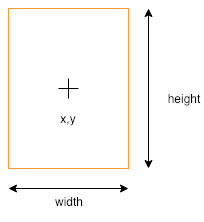
Our collider is a box, of a given width and height, centred on the x and y of the thing it’s connected to:
For checking collisions, we need to know the x values of the left and right side of the box and the y values of the top and the bottom of the box.
For convenience, we write a function which returns an object (using curly brackets) with the left, right, top, and bottom values (shortened l, r, t and b respectively) as properties:
When making an object like this, we set a property value by first writing the property name, followed by a colon (:) and then a space and the value we want it to have. Each property is separated with a comma. The don’t need to be on separate lines, but it makes it easier to read.
Touching Colliders
So how do we know that two colliders are touching? Actually there are four ways in which they definitely can’t be touching:
One is completely to the left of the other
One is completely to the right of the other
One is completely above the other
One is completely below the other
And if none of these are true, then it must be touching. So actually, we’re going to check that they’re not NOT touching (double negative, used correctly!).
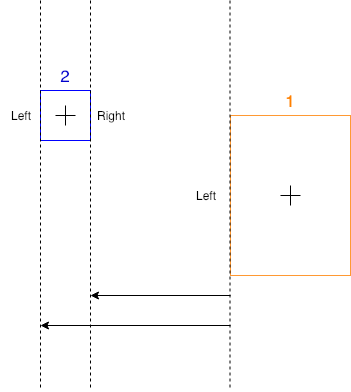
How do we know if something is completely to the left of something else? Look at this diagram:
We know that box 2 (in blue) is totally to the left of box 1 (in orange) because we can see it is, but how could get the computer to check it? Remember, left and right are just x values on the screen. Box 2 is left of box 1 because both it’s left and right values are smaller than the left value of box 1.
The checks for the other directions are very similar:
The second box is right of the first box when both of it’s x values (left and right) are greater than the first’s right side.
The second box is above of the first box when both of it’s y values (top and bottom) are less than the first’s top side.
The second box is below of the first box when both of it’s y values (top and bottom) are greater than the first’s bottom side.
Sending Messages
Each collider has a property disc that describes the thing, or type of thing, that it’s connected to.
All colliders know what they’re connected to, so when we determine two have touched, we call a function called hit() on each of the connected objects, passing it the desc of the other collider. This means, in our game, when our enemy is hit, it can know that it’s been hit by a bullet – or maybe something else – and react appropriately.
Checking Every Collider Against Every Other
In our code, we gather all the active colliders at each frame. We then need to check each one against each every other one. How can we do that?
Consider a list of four items:
To check them all against each other we first need to check 0 against the other three. Simple enough.
We we need to check 1. But we don’t need to check 1 against 0, since we already did that. Nor do we need to check it against itself. We only need to check it against 2 and 3.
If we write out the full sequence, we see that for four items we need three passes to check all combinations:
First pass: Check 0-1, 0-2, 0-3
Second pass: Check 1-2, 1-3
Third pass: Check 2-3
We can write a pair of loops to do this:
for (let i = 0; i < c.length - 1; i++){
  for (let j = i + 1; j < c.length; j++){
    c[i].touching(c[j]);
  }
}
Note two things about these loops:
The first loop goes from zero, but stops one short of the last item in the list (i < c.length – 1). It picks the first item to be checked.
The second loop doesn’t start from zero. It starts from what ever i currently is, plus one. It picks the second item to be checked.
Other Stuff
We also did a few other things this week:
We fixed a small bug that was keeping our spaceship moving when we didn’t want it.
We added a little drag to slow the spaceship down to a stop when we lift our fingers off the keys
We set bullets inactive when they hit something
Download
The files for this week can be found on our GitHub repository.
I was away this week so Dave led the group, they did a couple of Arduino projects. They revisited the traffic lights from December but this time used the Arduino to control them and then moved on to a temperature and humidity sensor called the DHT11.
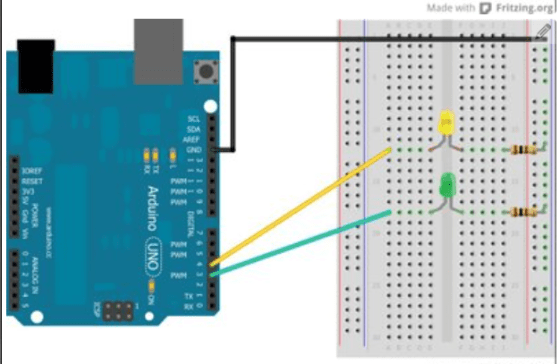
Here is the wiring diagram for the traffic lights and you can find the code here.
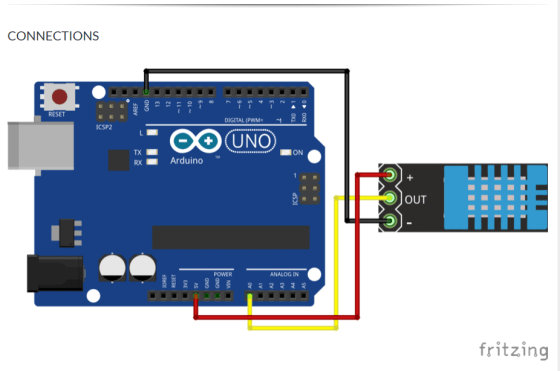
Here is the wiring diagram for the DHT11 and the code is also on Dropbox here.
We will be doing more with the Arduino particularly for some of our projects.
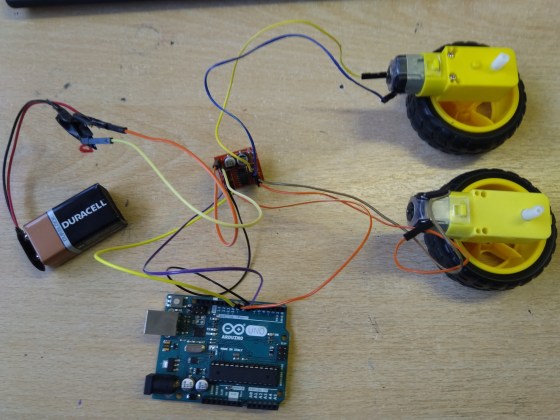
Last week, we figured out how to control a motor with a H-bridge. We expanded this to controlling a pair of wheels using the H-bridge. Above is a photo of the hardware. The wiring of the H-bridge is:
H-bridge [+] and [-] are connected to a 9V battery
H-bridge [IN1] to [IN4] is connected to Arduino Pins 6, 7, 8, 9
H-bridge [Motor A] and [Motor B] pins are connected directly to the two motors
Below is Arduino code by Hackers member Luke to control this.
// Luke Madden, CoderDojo Athenry
// Control motors using a H Bridge

// The H bridge has 4 input pins: in1-in4
#define in1 6
#define in2 7
#define in3 8
#define in4 9

int fast = 150;// range 1-255
int slow = 80;// slower speed
int hyperspeed = 255;// hits the hyperdrive

void setup() {
  pinMode(in1, OUTPUT);
  pinMode(in2, OUTPUT);
  pinMode(in3, OUTPUT);
  pinMode(in4, OUTPUT);
  Serial.begin(9600);
}

void loop() {
  drive();
}

 void drive() {
  // Test the functions
  Serial.println("move forward");
  forward();
  delay(2000);

  Serial.println("hit the hyperdrive");
  hyperdrive();
  delay(2000);

  Serial.println("go backwards");
  backwards();
  delay(2000);
}

void forward() {
  //makes motor go forwards
  analogWrite(in1, fast);
  analogWrite(in2, 0);
  analogWrite(in3, fast);
  analogWrite(in4, 0);
}

void hyperdrive() {
  //hits the hyperdrive
  analogWrite(in1, hyperspeed);
  analogWrite(in2, 0);
  analogWrite(in3, hyperspeed);
  analogWrite(in4, 0);
}

void backwards() {
  //makes motor go backwards
  analogWrite(in1, 0);
  analogWrite(in2, fast);
  analogWrite(in3, 0);
  analogWrite(in4, fast);
}

void stopping(){
  //makes it stop
  analogWrite(in1, 0);
  analogWrite(in2, 0);
  analogWrite(in3, 0);
  analogWrite(in4, 0);
}
Handling Interrupts in Arduino
In Arduino, you can set up special functions that are a called depending on the state of some digital pins – these are called Interrupt Service Routines (ISRs). These routines are called separately from the main loop() that is always running, even if the main loop() is in the middle of another operation.
For controlling our robots, our Arduino might receive a signal on a pin, and if we want the robot to react quickly, an ISR can handle it. The ISR can send a signal on a different pin or change the state of a variable.
This code is simple and correctly-working demonstration of how interrupts work. Note that you don’t need to build any circuitry to try this out. A built-in LED on the Arduino, at pin 13, turns on/off depending on whether Pin 2 is connected/disconnected from the the GROUND pin.
There are three main tasks:
Define the ISR function: this is a function declared as void with no arguments: for example, our ISR is called changed and is defined as:
void changed() { … }
In our code, it sets the value of a variable called controlState and it turns the LED on/off. Note that the value of controlState is printed out repeatedly in the main program loop, showing how the ISR can change a variable that is used elsewhere.
In the setup() function, set the pin mode of the control pin to INPUT or INPUT_PULLUP (see below for the difference). For example, we have defined the variable control to have value 2 and are setting its mode like this:
pinMode(controlPin, INPUT_PULLUP);
In setup(), attach the ISR to the pin:
attachInterrupt(digitalPinToInterrupt(controlPin), changed, CHANGE);
One extra note about the above line of code: all pins have numbers and all interrupts have numbers, and these are not (necessarily) the same numbers. The function digitalPinToInterrupt() returns the interrupt number corresponding to a given digital pin.
Some other things to note:
The Interrupt Service Routine (ISR) should be short and run fast: delay() calls are ignored and print() can cause problems.
You can’t attach two interrupts to the one pin: use CHANGE and then test pin state
If you initiate the pin with INPUT_PULLUP, it is triggered by connecting it to GROUND; otherwise, if you initiate it with INPUT, you need a circuit with 10k resistor.
On an Uno, can only attach interrupts to pins 2 and 3.
If you are changing a variable in the ISR and need to use it elsewhere, declare it as volatile.
Here is the full Arduino code:
// Michael Madden, CoderDojo Athenry
//
// Test a pin interrupt to which an interrupt service routine (ISR) is attached.
// When the control pin is connected to GROUND, the LED on the board is turned on.

// Things we have figured out:
// * The interrupt service routine (ISR) is a function declared as void with no arguments.
// * It should be short and run fast: delay() calls are ignored and print() can cause problems.
// * You can't attach two interrupts to the one pin: use CHANGE and then test pin state
// * If you initiate the pin with INPUT_PULLUP, it is triggered by connecting it to GROUND;
// * otherwise, with INPUT, you need a circuit with 10k resistor.
// * On an Uno, can only attach interrupts to pins 2 and 3.
// * If you are changing a variable in the ISR and need to use it elsewhere, declare it as volitile.

const byte controlPin = 2; // Want to react when this pin is triggered
const byte ledPin = 13; // no circuit needed: there is a built in LED on 13
volatile int controlState = 0; // will change this value in ISR

void setup() {
  pinMode(ledPin, OUTPUT);
  pinMode(controlPin, INPUT_PULLUP);
  attachInterrupt(digitalPinToInterrupt(controlPin), changed, CHANGE);

  Serial.begin(9600);
}

void loop() {
  // The main loop does not do much, it just prints out the value of the
  // control pin's state every 2 seconds.
  Serial.print("Current value of control pin = ");
  Serial.println(controlState);
  delay(2000);
}

void changed()
{
  // This is our interrupt service routine.
  // It is triggered when the control pin changes,
  // so we check its state and turn on/off the LED.
  //
  controlState = digitalRead(controlPin);
  if(controlState > 0) {
    digitalWrite(ledPin, HIGH);
  }
  else {
    digitalWrite(ledPin, LOW);
  }
}
This week we continued our Shootah project. We did two main things;
Changed the code to control the total number of bullets to those actually on screen
Added an enemy that loops backwards and forwards across the screen
Controlling the Number of Bullets
In Part 2, we made a new bullet every time the user pressed the Up key and put it in the bullets list.
This meant that after a while we could have a lot of bullets, most off the top of the screen, which was even slowing some machines down.
To limit the number of bullets we did four things:
Added a new property to the Bullet class called active and set it to be true
In the move() function for the bullet class, we added a check for the bullet going off the top of the screen (this.y < 0) and, if true, set the active property to false
In sketch.js, we moved the lines of code in the draw() function responsible for moving and drawing the bullets into a new function called manageBullets() and called it from draw().
In manageBullets() we made a new list called active and put every bullet that was still active into it. We then made this the new bullets list.
We write a little code that printed out the total number of bullets to verify this was working.
Adding an Enemy
We added a new file called enemy.js and included it in the index.html file.
This file looked a lot like player.js. The main different was the move() function. Our enemy moves constantly left-to-right. When it gets too far off the right-hand side of the screen (checked in move()) we set its x position to be off the left-hand side of the screen instead. This makes it loop around.
TODO
We still have loads to do and we made a list on the day:
No more infinite bullets!
Check edges so spaceship doesn’t disappear
Enemies
Collision detection
Enemies shoot back (bombs)
Lives/score
Levels
Background music
Moving background
Story
We’ve done two and we’ll do some of the others for sure.
Download
The files for this week can be found on our GitHub repository.
This week we continued working on our Astro Pi entries and we also looked at FreeCAD and Fritzing which are tools that will help us with building our projects.
FreeCAD, available for download from here, is used for 3D modelling and allows us design very complicated things from simple 3D shapes such as cubes and cylinders. Here are a couple of quick videos to get you started.
Then we looked at Fritzing, download from here, an application for drawing very easy to understand circuits, here’s how to draw a simple circuit using it.
Dave will be leading next Saturday’s session and I will see you again on the ninth of Feb.
This week we carried on our “Shootah” space shooting game by adding some bullets with an appropriate sound effect. This brings the game to the stage shown below:
Not very snazzy but it’s starting to show some promise!
As with last week, this will only run if served up from a web server, we had a few ninjas in that missed last week and had to install node.js and local-web-server application.
Bullets!
Our Bullets were a pretty simple object that just moves up constantly – this has the following code:
We created an array of bullets and added a new one to the array each time the up arrow is pressed. In addition, we played a “firing” sound which really adds to the feeling:
function preload(){
   playerImage = loadImage("images/spaceship.png");
   bulletSound = loadSound("sound/laser.mp3");
}

function draw() {
  // .... skipping a few lines
  for(let i=0; i< bullets.length; i++){
     bullets[i].move();
     bullets[i].show();
  }
  // .... skipping a few lines
}

function keyPressed(){
   if(keyCode==UP_ARROW){
   bullets.push(new Bullet(player.x, player.y));
   bulletSound.play();
 }
}
The sound was done very similarly to the image – we created a folder (sound) and added a sound file we found on the internet to the folder. In the preload function we loaded the sound from the file into a variable (“bulletSound”). In the keyPressed function, we check if the pressed key is UP ARROW and if so, we play the sound and add a new bullet to the list.. voila!
Problems to work on!
A great start but a lot left to be sorted with this game! Here are some of the items:
The bullets array grows forever – this really starts to slow down the game as we keep playing it. We need to add some code to remove a bullet from the array when it is gone off the screen.
The player has no edge detection – we need some way to keep it onscreen.
We need some enemies!!
We need to get the bullets to check when they are hitting the enemies!
We need to keep and display a score
We need a way to die.. perhaps the enemies can drop bombs?
Other ideas:
Maybe a background tune in a loop?
Maybe a scrolling starfield in the background?
Maybe multiple levels?
Maybe different types of enemies?
Maybe a shield?
Perhaps some different weapons or weapons you can pick up?
We have gotten this far so we might as well push forward and make this a fully working game so we’ll get some of the above sorted next week! The code is as usual up on our github. https://github.com/coderdojoathenry/creators2018
When you write to a pin on the Arduino, it outputs a voltage. However, you can’t use this directly to drive an electric motor, because they require too much current, and it would damage the Arduino. The solution is to use a 6V battery as an external power supply, and connect it to the motor via a transistor circuit. When you apply a signal with small current to the middle leg of the transistor, a much larger current can flow from the battery to the motor.
While this works, a more elaborate circuit is needed if you want to be able to control two motors, and make them go backwards and forwards. This circuit is called a Dual H-Bridge. The Wikipedia page has technical details: https://en.wikipedia.org/wiki/H_bridge
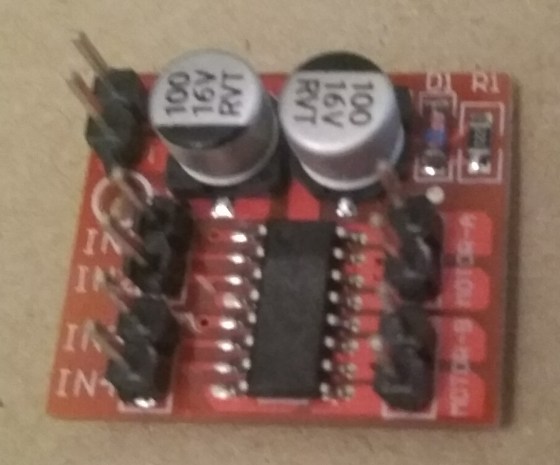
We are using a pre-built integrated circuit for our H-Bridge, as they are low-cost, small, and work well. Here is the one we are using:
It has several connectors:
[+] and [-] are where the external battery is connected
[IN1] and [IN2] control Motor A (details below)
[IN3] and [IN4] control Motor B
[Motor A] and [Motor B] each have two pins that are connected directly to motors
To control Motor A, connect [IN1] and [IN2] to two pins of the Arduino, such as 6 and 7:
[IN1] HIGH and [IN2] LOW: Motor A goes forward full speed
[IN1] LOW and [IN2] HIGH: Motor A goes backward full speed
Both LOW: Motor A does not turn (no power, it coasts)
Both HIGH: Motor A does not turn (is braked)
To control speed, use a value for the pins connected to [IN1] or [IN2] in the range 0-255 (0=LOW, 255=HIGH)
Here is Arduino code to control a motor with a H-Bridge, written by Luke, one of our Hackers:
// Luke Madden, CoderDojo Athenry
// Control motors using a H Bridge

// The H bridge has 4 input pins: in1-in4
#define in1 6
#define in2 7

int fast = 100;// range 1-255
int slow = 50;// slower speed
int hyperspeed = 255;// hits the hyperdrive

void setup() {
  pinMode(in1, OUTPUT);
  pinMode(in2, OUTPUT);
  Serial.begin(9600);
}

void loop() {
  drive();
}

 void drive() {
  // Test the functions
  Serial.println("move forward");
  forward();
  delay(2000);

  Serial.println("hit the hyperdrive");
  hyperdrive();
  delay(2000);

  Serial.println("go backwards");
  backwards();
  delay(2000);
}

void forward() {
  //makes motor go forwards
  analogWrite(in1, fast);
  analogWrite(in2, 0);
}

void hyperdrive() {
  //hits the hyperdrive
  analogWrite(in1, hyperspeed);
  analogWrite(in2, 0);
}

void backwards() {
  //makes motor go backwards
  analogWrite(in1, 0);
  analogWrite(in2, slow);
}

void stopping(){
  //makes it stop
  analogWrite(in1, 0);
  analogWrite(in2, 0);
}
This week we divided the group into two teams to work on our hide-and-seek robots: One team to build the hider robot, the other to build the seeker robot.
The two robots can use many of the same parts, but the control systems will be different. The hider robot will be operated by a person with an RC transmitter. The seeker robot will control itself.
Team Hider started resurrecting a radio-controlled robot that we built last year. The robot was involved in a battle-bots battle at the end of the year, so it is in pretty poor shape.
Teem Seeker worked on a colour tracking system. We took the code that we developed on a laptop before Christmas and tried it on two Raspberry Pis. We found that the original model Raspberry Pi wasn’t fast enough to do the job we needed. It took 6 seconds to acquire an image from a webcam. We tried a Model 3 B instead. This was fast enough for our needs. We then started work on tuning the colour detection. There’s some more experimentation to be done to find the best colour range to work with.
Hi everyone,
We completed our Mario game this week. We coded Mario so that he always floated down on to the wall. We added a fraction of a second of a wait so that it appears that he floats as he comes down. This also allows time for you to navigate left or right as needed.
We also introduced a more advanced concept, the Parallax effect, whereby objects further away appear to move slower than objects nearer. We coded mountains and a Sun to demonstrate this.








 CoderDojo Athenry