One of our ninjas was looking for a basic inventory system that he could use, so we knocked up something very quickly.
It’s all based on the standard .NET Dictionary class, documented here.
Dictionary allows us to store keys and associated values. In our specific case, our key is a string (the name of the item) and the value is an int (the count of items of that type).
This is all implemented in a script called InventoryManger.cs which is attached to an empty game object, also called InventoryManagement, for convenience. The InventoryManager class provides the following public methods:
void AddItem(string name)
This takes an item name. It looks to see if there’s an item of this name already in the inventory. If there is, it increases the count by one. If not, it adds it with a count of one. This cannot fail, so it doesn’t return anything.
bool RemoveItem(string name)
This takes an item name. It looks to see if there’s an item of this name in the inventory and that its count is greater than zero; it’s possible that it’s listed there, but the count is zero. If there is, it decreases the count by one and returns true. If not, it returns false. The true/false return value allows us to test, when calling this method, if it succeeded, if that’s important to us.
int GetCount(string name)
This takes an item name. It looks to see if there’s an item of this name in the inventory. If so, it returns its count. If not, it returns zero.
So that allows us to add, remove and track an arbitrary number of items with very little effort.
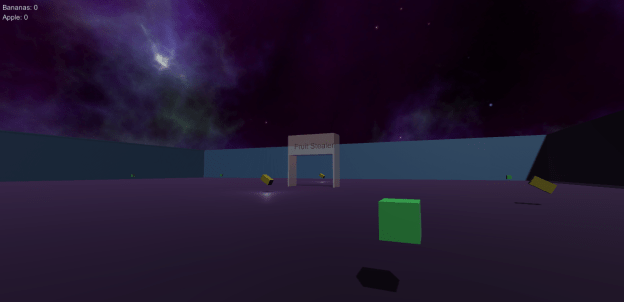
The sample project also has a few other scripts. The intention is that the player picks up objects by moving over them. Pickup objects are tagged “PickUp”. The HandlePickup.cs script is added to the FPSController to detect moving over a pickup. Pickups have a PickupDetails.cs script attached. This automatically tags them “PickUp” and contains the items name (to use in the inventory). The project also has a FruitStealer.cs which removes one banana from your inventory every time you pass through its gate. It’s just there to show the RemoveItem method in action.
Other small things of note about this project: the “bananas” and “apples” are animated, as is the UI-text containing the text “Fruit Stealer”. The material used for the Fruit Stealer is transparent.
It is belt awarding time at Athenry Coder Dojo! We are really excited to see what everyone is going to come up with this year. In previous years, we have had great projects that use many of the core principles of programming that we have been teaching since the beginning of the year. Here is a list:
MOTION – controlling the movement of a SPRITE by the keyboard, the mouse or randomly by the computer,
LOOPS – using forever or limited repeat blocks to keep something going,
VARIABLES – saving a value in computer memory where the computer can pick it up and use it or change it when necessary,
DECISION blocks – Using IF or IF/THEN blocks to decide if something should happen or not,
BROADCASTS – sending out a message to trigger a reaction in another part of the program,
ANIMATION – using costume edits and changes within loops to make it seem as though a sprite is moving.
You don’t need to use all of the above principles in your project, but we mentors need to know that you understand them in order to let you move up to the next level – Advanced Scratch. While we are helping you with your projects, we will be reinforcing the principles, so it will be fun and easy! The day of the awarding of belts, we will ask you questions on your project while you are demonstrating it.
You must be present on belt award day to show us your projects. If you don’t get the belt you want, don’t worry! There is always the next belt award session and we love having you at Coder Dojo Athenry.
Here are some of the questions we might ask at the belt awards session:
1.Which block you would use to make the sprite speak?
2.How would you change the way your sprite looks?
3.How would you make a sprite move?
4.Can you show where you have used a loop block?
5.Can you show where you have used animation or sound?
6.Can you show us where you have used an IF block?
7.What blocks would you use to check if your sprite hit something?
8.How do you share a program online?
9.Show where you have used a variable or how would you create a new variable?
10.Show where you have used a broadcast or how would you create a new broadcast?
Here are some ideas for projects:
Squash Game
Control a bat to hit a ball
Ball bounces off wall on the other side
Game over when you miss 5 times
ABC Game – letters falling from the sky!
Sprites with A/B/C fall from random start point
Press A/B/C key to stop them
Keep score of how many you stop
DodgeBall –
Have Scratch cat avoid the flying beachballs while he is trying to grab a mouse
Use the arrow keys to control scratch cat and have three or four beachballs fly around randomly
If the cat gets touched by a ball make him lose strength/fade but he gets stronger if he touches a fish.
Use a broadcast to change the backdrop wen he gets his score to ten or to zero.
Good luck and be sure to ask questions! We love to help!
With two more regular dojo sessions to go before our final party and belt awarding ceremony, the finish line’s in sight and we’ve been concentrating on helping people work on their projects.
Some projects are already looking good, and that’s fantastic. Others however aren’t showing a lot of progress.
If you are struggling, please remember – overly ambitious scopes are the things that ruin most game projects. Ask yourself: what are the basic things that will be the most fun in my game? Maybe it’s exploration. Maybe it’s shooting. Whatever it is, get that working as soon as possible. Don’t do ten weapons, do one. Other features can be layered on over time as long as the fundamentals are there. Try hard to have something working for the next session. We’re here to help.
In the next session we’ll talk about the specific belts we’re going to be awarding. We’ll explain how they’re earned and we’ll try to get an idea of how many people are going for each category.
Basic Sample Projects
I briefly showed a number of sample projects that I’d been playing around with this week. These projects are intended to demonstrate certain useful things that you might want to put in your own game.
The first sample project was a modified version of SprocketLeague. The modifications were relatively modest: each car was given its own camera which was set to render into half the screen. The original top-down camera was set to render into a small area at the top of the screen.
The second project, called BasicAI, was just an experiment with baking a NavMesh and having an AI character follow you about. For extra fun, the followers spawn every 1.5s and they’re labeled “HipsterISIS” thanks to a very funny gag one of our ninjas made when watching the game run.
This project wasn’t working fully during our session. It is now. The project contains two scenes. Both implement a door but in different ways. The two scenes can be found in the _scenes folder.
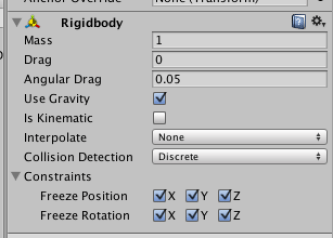
The first implementation is a physics based door. There is a box called DoorFrameRight which has a RigidBody component but is constrained so that it can neither move nor rotate:
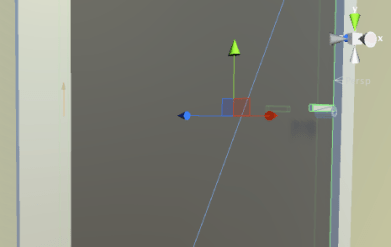
Immediately to the left of this is the Door itself. This is also a box with a RigidBody component. In addition, it has a HingeJoint component. This HingeJoint component links it to the DoorFrameRight box. The HingeHoint is just visible as a small orange arrow on the left hand side of this picture:
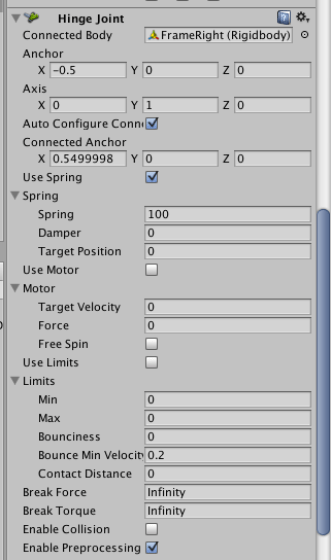
The HingeJoint component is positioned exactly where the door and door frame meet and its axis is set to be vertical, as the door is to swing around the vertical. It also has a spring which will close the door again (more or less) once the thing pushing it open moves away:
A regular FPSController can’t push this door, as it has a kinematic RigidBody (no physics), so note that we use the RigidBodyFPSController instead to represent the player in this scene.
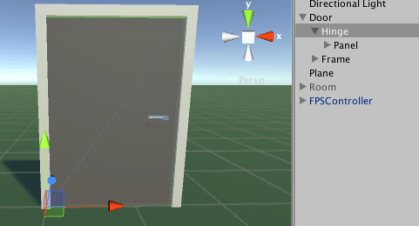
The other door works in a very different manner. The door consists of a frame and a “hinge”. The hinge is just an empty GameObject which contains all the parts of the door that will be moving. It’s origin is at the left-hand edge of the door panel; this means that when we change the hinge’s Y rotation, the door will pivot about it’s left-hand side. The hinge’s origin is shown here:
I could have made the hinge rotate in code, but instead I decided to create animations to do the same thing (change the hinge’s Y rotation). To explain how animation works in Unity is beyond the scope of this post, but I’ll give a very broad introduction to it in the next session.
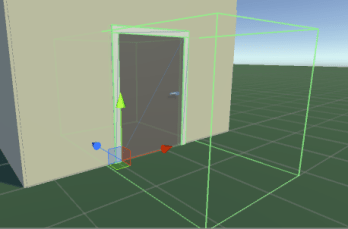
The door has a box collider around it. When it detects that the player has entered the collider, it triggers one of the opening animations (the direction depending on which side of the door it determines the player to be). Once the player leaves the collider, it closes the door again.
This project was started live in our last session on the suggestion of one of the ninjas; it generates a random maze using a very simple algorithm.
An empty GameObject called MazeGenerator is placed in the scene. In its Start method, it constructs a random maze which appears in the scene. An FPSController from Standard Assets allows us to navigate this maze and try to find our way out.
The MazeGenerator constructs a 2D array of bool values to represent the maze. All the values in this array are ‘false’ by default and we take this to mean ‘solid’. Taking a point in the centre of the array we mark it ‘true’ to indicate an empty space. We then randomly pick a direction from North, South, East or West and set a new position. We check if we’ve moved outside the bounds of the array yet, if not, we mark this as another empty space and continue until we are outside.
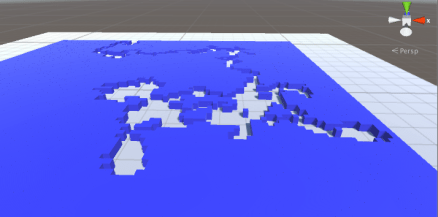
Once we have this maze generated, we know we have a path from the centre (the start) to the exit (the outside of the maze). We loop over all elements in our array and place a solid block (from a prefab) everywhere we find a ‘false’, unless we’re at the edge of the maze in which case we place a special prefab that detect the player and plays a sound. This is our ‘exit’. For a ‘true’ we do nothing. The picture below shows one such generated maze from above.
To make this more fun to play, we also added a script to the FPSController to drop “breadcrumbs” as we move. This shows where we’ve already been so that going around in circles shouldn’t be a problem.
This week we did a review of everything we’ve covered so far in Unity this year. It was a really usefully exercise as we ramp up to doing our own projects. People talked about their project ideas and I even got so see a few things running. I was impressed with the ingenuity and inventiveness. As I explained, over the coming few weeks, I won’t be presenting much in the way of new material. We will instead concentrate on getting our projects running and polishing them to the best of our ability.
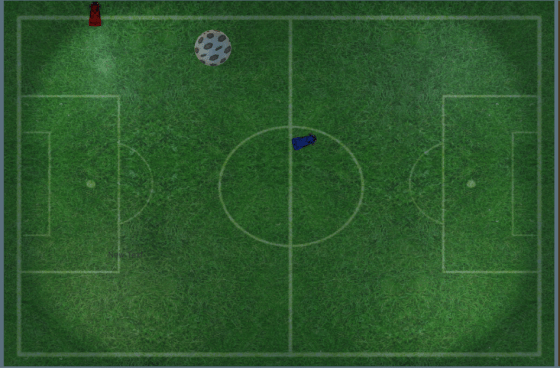
I presented a couple of small sample projects intended to inspire game project ideas. The first was a top-down, single-keyboard, two-player game where two cars complete to drive a ball into their opponent’s goal area. If this sounds familiar, then you’ve heard of Rocket League. This low-rent version I dubbed “Sprocket League”. It can be downloaded from here. It uses the car from Standard Assets, slightly modified to allow the input axes to be defined in the inspector so that each can be controller independently. The red car uses the arrow keys and the blue keys uses WSAD for movement. To make it into a full game some means of keeping score and timing the game would be needed.
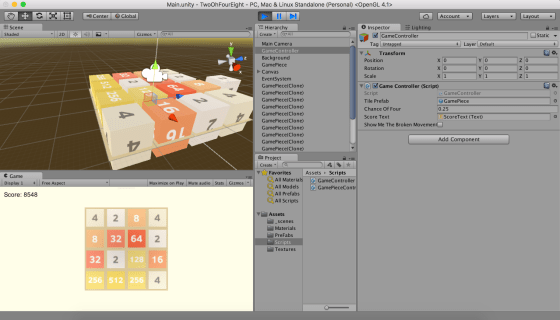
I also posted a basic sliding tiles game based on 2048. It is intended to show that we can achieve a 2D game appearance, even while using the 3D elements we have been working with. Although the basic game mechanics are there, it would ideally need a lot of work to bring it up to a reasonable standard. The real game provides a lot more visual feedback to the user than this version. Again, it can be downloaded from here. For those that recall, my broken attempt at making the tiles animate can be enabled via the “Show Me The Broken Movement” checkbox on the GameController object.
Best of luck working on your projects over the next two weeks and I’ll see you all when we return!
This week in Scratch advanced we took on the ambitious task of writing a general-purpose 3d wireframe engine. The goal here was to build an engine that we could use to view any structure in 3-dimensions as though we had x-ray vision. We didn’t really know how it might turn out but were delighted with the results! If you just want the code, skip to the bottom!
We didn’t quite know how to start this so we Googled 3D and Wireframe, and we found this article on wikipedia that really helped us understand what it was:https://en.wikipedia.org/wiki/Wire-frame_model
We are very excited to announce that Brenda and John Romero, who between them have been involved in developing exceptional games such as Doom, Quake, Tom Clancy’s Ghost Recon, and Dungeons & Dragons, will be at CoderDojo Athenry on Saturday 9 April 2016. They will be speaking to us about their extensive experience as leading game developers. They will be joined by their 11-year old son Donovan, who has also started developing games.
Brenda and John have recently moved to Galway from the West Coast USA, and are currently in the process of establishing a game studio, called Romero Games, in Galway. Their brief biographies are below.
Regular attendees at CoderDojo Athenry are welcome to bring a friend if they wish. These talks should be really fascinating for our budding coders and game designers in CoderDojo Athenry, and inspirational for boys and girls alike!
PS: Huge credit to Kieran (lead mentor of the Unity stream) for organising this!
Brenda Romero
Brenda is a game designer, artist, academic, and Fulbright Fellow. She has been in the games industry since the early 1980s. Her credits include such notable games series as Tom Clancy’s Ghost Recon, Wizardary and Dungeons & Dragons. She’s previously sat on board of the International Game Developers Association (IGDA) and chaired several Special Interest Groups (SIGs) including one representing Women in Games.
John Romero
John is best known as the founder of Id software. An exceptional programmer and game designer, he is the inventor of the “deathmatch”. His best known games include such timeless classics as Commander Keen, Wolfenstein 3D, Doom and Quake each of which broke new ground, both in technical and gameplay terms and even spawned new genres.
Additional
John and Brenda are currently in the process of establishing a game studio, called Romero Games, in Galway. Their son Donovan, also visiting us, is writing a game with the help of his Dad and friends and will hopefully be demonstrating it on the day.
It is also possible to do the same thing in Scriptcraft. Here is the code for a dirt to diamonds recipe in Scriptcraft:
Note: write the code in a file called something like “recipe1.js” and put it in the same folder as your other Scriptcraft mod (a sub-folder of scriptcraft – plugins). Note that this is the entire code – it does NOT go inside a function definition.
[code language="javascript"]
// Scriptcraft recipe for dirt to diamonds
var recipes = require('recipes');
var items = require('items');

// Here is the recipe: result from ingredients in a shape.
var dirt2diamond = {result: items.diamondBlock(10),
                    ingredients: {D: items.dirt(1)},
                    shape: [ ' D ',
                             'D D',
                             ' D ' ]};

// add the recipe to  the server
recipes.add(dirt2diamond);
[/code]
The code is reasonably easy to understand, I think. The result is a stack of 10 diamondBlock items, there is a single ingredient which is a dirt block that we indicate with a variable ‘D’, and they are arranged in a diamond shape. I have put in extra line breaks to make the shape clearer, but this is not necessary.
You can have more than one ingredient. Here is another example:
[code language="javascript"]
// A second recipe:
// diamond block made with a diagonal line of 2 dirt , 1 cobblestone, and 2 dirt
var recipe2 = {result: items.diamondBlock(1),
               ingredients: {D: items.dirt(2), C: items.cobblestone(1)},
               shape: [ 'D  ', ' C ', '  D' ]};
// add the recipe to  the server
recipes.add(recipe2);
[/code]
Sorry for the delay in posting, I’ve been very busy over the last couple of weeks.
Up until now we’ve mainly looked at what we can do with the GPIO Pins on the Raspberry Pi but over the last two weeks we looked at how we might make information from our scripts available to the world outside.
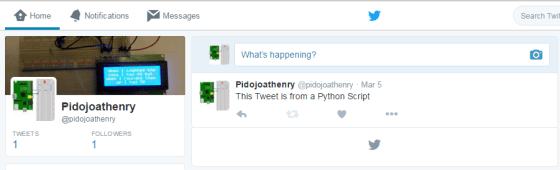
Two weeks ago (Sat 5th Mar.) we looked at how we might use the internet to share data. Although the Pi is capable of running a web server and we could build a few web pages fairly quickly there are easier ways of getting information to the public. We can use Twitter to broadcast information and we can use Email for more targeted sharing.
The tutorials in my notes Email and Twitter will show you how to set up the Email and Twitter modules for Python on the Raspberry Pi and you can see our code here.
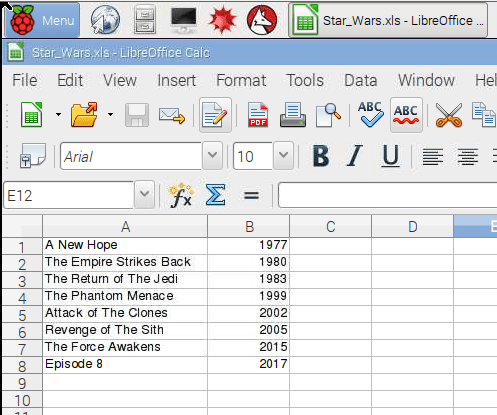
Last Week (Sat 12th Mar.) we learned how to share data using a Spreadsheet. The tutorial in my notes spreadsheets will show you how to install the XLWT(Excel Write) Library for Python and you can use our code here to create the spreadsheet shown below.
Hey folks, we had a quite complicated session this week which discussed a lot of new concepts.
We talked about the difference between perspective cameras and orthogonal cameras. With perspective cameras, as shown in the first image above, things appear smaller the further they are from the camera. With an orthogonal camera, as shown above in the second image, they appear the same size, regardless of how far they are from the camera.
The screen, and by extension, the camera which draws into that screen has an aspect ratio. This is defined as the width divided by the height. For example, a standard 1080p HD screen of has 1920 x 1024 pixels. This is an aspect ratio of 1.875. Our aspect ratio depends on how we’ve sized our game panel.
The camera in the tanks game is an orthogonal camera and the amount it can see is determined by it’s size. Whatever the camera’s size is, twice that distance in world units will be shown vertically by the camera. Our camera’s size is 5 so that means we can see 10 world distance units vertically and (10 x aspect ratio) distance units horizontally.
The code we showed the last day tries to position the camera at the average position between the tanks and size it so that both tanks fit in at the same time.
One unusual thing that it does is to ensure smooth movement of the camera by not jumping it instantly to the place we want it to be, or the size we want it to be, but rather using the Vector3.SmoothDamp() method. This method allows us to specify two vectors, one representing the current value and the second representing value we’d like to get to, and returns a vectors that is someway from the first to the second such that it gives a smooth, as opposed to sudden or jerky, movement:
I’ve completed the health bar, as promised, and we won’t be doing that at Dojo. Just download the up-to-date project file from here, and we will start with it next week.
Remember to be working on your own projects! See you next week.
Tanks, and all tracked vehicles, have a very particular way of moving. By turning their tracks on both sides in the same direction, they can move forwards or backwards. By turning their tracks in opposite directions, they can turn around. In our game, we don’t model the tracks explicitly, but we do want our tank to behave in this same way.
Input Manager
In our previous two projects, we didn’t concern ourselves too much with how the keys we pressed caused actions to occur in the game. It mostly “just worked”.
In Roll-A-Ball we used the method Input.GetAxis() with axes called “Horizontal” and “Vertical” and these allowed us to control our player object.
The Input Manager allows control axes to be defined. It can be found under the Edit|Project Settings|Input menu. We can add as many control schemes as we need for our game here.
In the case of Tanks, we need controls for two players so we have Horizontal1, Vertical1 and Fire1 and also then Horizontal2, Vertical2, and Fire2.
When we retrieve the axis values in our code, it will have a value between -1 (full negative) and 1 (full positive). A value of zero indicates no input on this axis. When we’re dealing with keys, the only possible values are (-1, 0, 1) but if we had an alternative controller such as a gamepad, we would have values in-between too.
Calculating How Much to Move
The tank’s vertical axis controls how much to move forwards and backwards. To calculate how much the tank should move in one physics frame and in what direction we use the following code:
Vector3 movement = transform.forward * m_MovementInputValue * m_Speed * Time.deltaTime;
It’s a vector, so it it has direction as well as magnitude. The direction comes from transform.forward – this vector always points in the tank’s forward direction, regardless of how the tank has been turned, and is always 1 unit long. It’s worth noting that there are companion vectors called right and up.
The m_MovementInputValue part is how much the user is currently pressing the keys in the vertical axis. As already discussed, it will be either -1 (full speed backwards), 0 (no movement) or 1 (full speed forwards).
The m_Speed property is a value we’ve set which sets the tanks maximum forwards/backwards speed. We have it set to 12 (distance units per second).
If we multiply all of these three things above together, we get a vector that points from the tank’s current position to the location the tank will be at in one second, if nothing else changes.
This is good, but it isn’t taking into account how often we’re doing our physics calculations (i.e several times a second). Time.deltaTime is the time since the last physics calculation. It will be some fraction of a second. Multiplying by this, we get a vector that points from the tank’s current position to the location the tank will be at after one physics calculation. That is what we want.
Calculating How Much to Turn
Calculating how much to turn is easier. This is the code:
We just tell the Rigidbody to move to a new position. That new position is simply the old position with the movement vector we calculated added on.
Applying the Turn
The turn was easy to calculate, but applying it is a little more complex. It’s not important to understand why it work the way it does, just know that if you’re applying an additional rotation to something that you can’t just “add it on” as we did with the positioning. Here is the code:
To turn the rotation into something we can use, we need to construct a Quaternion. A Quaternion is a special way of storing a rotation. The Quaternion.Euler() method allows us to create a Quaternion from X,Y,Z axis rotations. Here our turn was about the Y axis and the values for the X and Z rotations are simply zero.
Once we have our Quaternion, you might imagine that we add it to the Rigidbody’s existing rotation, but that wouldn’t work. We actually have to multiply it to get the correct new rotation for our Rigidbody.
Changing the Engine Sound
Another thing we spent a good bit of time on was checking to see if the tank was moving and changing the engine sound between an idle and driving sound.
We used the Mathf.Abs() function to get the absolute value of m_MovementInputValue and m_TurnInputValue. The absolute value of something is the value with the negative sign ignored. We compared these to a very small value to determine if the tank was currently stationary, or not.
Once we determined if the tank was stationary or not, we checked the engine sound that was playing. If it wasn’t the one it should be, we swapped in the correct one, taking time to randomly alter the pitch a little so that the two tanks won’t sound identical.
Project Download
The up-to-date files for the project are here. Please download these and we will all start from this point next week!







 CoderDojo Athenry