Hey folks, we had a quite complicated session this week which discussed a lot of new concepts.
We talked about the difference between perspective cameras and orthogonal cameras. With perspective cameras, as shown in the first image above, things appear smaller the further they are from the camera. With an orthogonal camera, as shown above in the second image, they appear the same size, regardless of how far they are from the camera.
The screen, and by extension, the camera which draws into that screen has an aspect ratio. This is defined as the width divided by the height. For example, a standard 1080p HD screen of has 1920 x 1024 pixels. This is an aspect ratio of 1.875. Our aspect ratio depends on how we’ve sized our game panel.
The camera in the tanks game is an orthogonal camera and the amount it can see is determined by it’s size. Whatever the camera’s size is, twice that distance in world units will be shown vertically by the camera. Our camera’s size is 5 so that means we can see 10 world distance units vertically and (10 x aspect ratio) distance units horizontally.
The code we showed the last day tries to position the camera at the average position between the tanks and size it so that both tanks fit in at the same time.
One unusual thing that it does is to ensure smooth movement of the camera by not jumping it instantly to the place we want it to be, or the size we want it to be, but rather using the Vector3.SmoothDamp() method. This method allows us to specify two vectors, one representing the current value and the second representing value we’d like to get to, and returns a vectors that is someway from the first to the second such that it gives a smooth, as opposed to sudden or jerky, movement:
I’ve completed the health bar, as promised, and we won’t be doing that at Dojo. Just download the up-to-date project file from here, and we will start with it next week.
Remember to be working on your own projects! See you next week.
Tanks, and all tracked vehicles, have a very particular way of moving. By turning their tracks on both sides in the same direction, they can move forwards or backwards. By turning their tracks in opposite directions, they can turn around. In our game, we don’t model the tracks explicitly, but we do want our tank to behave in this same way.
Input Manager
In our previous two projects, we didn’t concern ourselves too much with how the keys we pressed caused actions to occur in the game. It mostly “just worked”.
In Roll-A-Ball we used the method Input.GetAxis() with axes called “Horizontal” and “Vertical” and these allowed us to control our player object.
The Input Manager allows control axes to be defined. It can be found under the Edit|Project Settings|Input menu. We can add as many control schemes as we need for our game here.
In the case of Tanks, we need controls for two players so we have Horizontal1, Vertical1 and Fire1 and also then Horizontal2, Vertical2, and Fire2.
When we retrieve the axis values in our code, it will have a value between -1 (full negative) and 1 (full positive). A value of zero indicates no input on this axis. When we’re dealing with keys, the only possible values are (-1, 0, 1) but if we had an alternative controller such as a gamepad, we would have values in-between too.
Calculating How Much to Move
The tank’s vertical axis controls how much to move forwards and backwards. To calculate how much the tank should move in one physics frame and in what direction we use the following code:
Vector3 movement = transform.forward * m_MovementInputValue * m_Speed * Time.deltaTime;
It’s a vector, so it it has direction as well as magnitude. The direction comes from transform.forward – this vector always points in the tank’s forward direction, regardless of how the tank has been turned, and is always 1 unit long. It’s worth noting that there are companion vectors called right and up.
The m_MovementInputValue part is how much the user is currently pressing the keys in the vertical axis. As already discussed, it will be either -1 (full speed backwards), 0 (no movement) or 1 (full speed forwards).
The m_Speed property is a value we’ve set which sets the tanks maximum forwards/backwards speed. We have it set to 12 (distance units per second).
If we multiply all of these three things above together, we get a vector that points from the tank’s current position to the location the tank will be at in one second, if nothing else changes.
This is good, but it isn’t taking into account how often we’re doing our physics calculations (i.e several times a second). Time.deltaTime is the time since the last physics calculation. It will be some fraction of a second. Multiplying by this, we get a vector that points from the tank’s current position to the location the tank will be at after one physics calculation. That is what we want.
Calculating How Much to Turn
Calculating how much to turn is easier. This is the code:
We just tell the Rigidbody to move to a new position. That new position is simply the old position with the movement vector we calculated added on.
Applying the Turn
The turn was easy to calculate, but applying it is a little more complex. It’s not important to understand why it work the way it does, just know that if you’re applying an additional rotation to something that you can’t just “add it on” as we did with the positioning. Here is the code:
To turn the rotation into something we can use, we need to construct a Quaternion. A Quaternion is a special way of storing a rotation. The Quaternion.Euler() method allows us to create a Quaternion from X,Y,Z axis rotations. Here our turn was about the Y axis and the values for the X and Z rotations are simply zero.
Once we have our Quaternion, you might imagine that we add it to the Rigidbody’s existing rotation, but that wouldn’t work. We actually have to multiply it to get the correct new rotation for our Rigidbody.
Changing the Engine Sound
Another thing we spent a good bit of time on was checking to see if the tank was moving and changing the engine sound between an idle and driving sound.
We used the Mathf.Abs() function to get the absolute value of m_MovementInputValue and m_TurnInputValue. The absolute value of something is the value with the negative sign ignored. We compared these to a very small value to determine if the tank was currently stationary, or not.
Once we determined if the tank was stationary or not, we checked the engine sound that was playing. If it wasn’t the one it should be, we swapped in the correct one, taking time to randomly alter the pitch a little so that the two tanks won’t sound identical.
Project Download
The up-to-date files for the project are here. Please download these and we will all start from this point next week!
On Saturday, following on from the general information session about Coolest Projects, we started planning a large collaborative mod in the JavaScript/Scriptcraft ModderDojo stream.
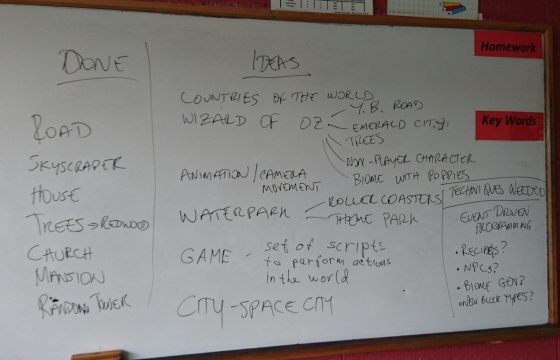
We used my favourite planning and design tool – a big whiteboard and a couple of markers.
As the image above shows, we first identified what kinds of things we are already able to make, and we used these as a startpoint for brainstorming some ideas that could build on our capabilities. Finally, we reviewed some of our brainstormed ideas to identify some common threads and in particular some kinds of capabilities we don’t have – things that we will have to learn how to do in future weeks.
For example, we now know that we need to learn about event-driven programming, creating recipes, creating NPCs, creating new block types, and maybe generating biomes. Alex and I will help you to figure out some of these ideas in future weeks.
Since attendance was low, we did not finish the planning and make a final decision about what the theme of our mod is, since we would like more people’s input. But we have made a great start!
Reminder: on Saturday 5 March, there will be no ModderDojo stream as both Alex and I happen to be travelling.
Update: This post has been updated with a link to download the project. See the bottom of the post.
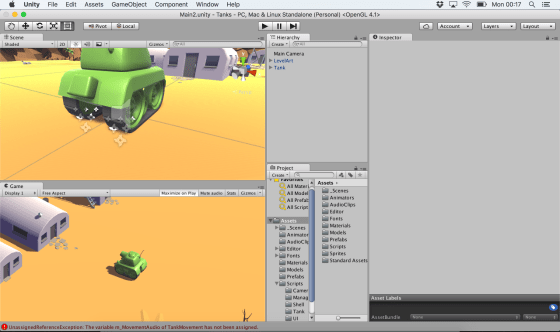
This week we started work on the Unity Tanks tutorial. This is a single-keyboard, two-player, tank game where users can complete in a number rounds against each other.
We began with downloading the tutorial assets from the Unity Assets Store. This tutorial comes with many lovely assets including 3d models and audio clips.
The assets, as downloaded, contained a “Completed” folder. We deleted this first, as it has a second copy of many of the scripts and assets in the project and had the potential to create confusion.
We created a new scene and deleted the default directional light as we wouldn’t be needing it. Then we added the provide “LevelArt” prefab. This prefab contains the entire playing area and also contains a directional light. We discussed the different types of lighting that we can have in a game: ambient, directional, point, and spotlight. The image below shows the same scene lit in each of these four ways, respectively.
We then set our camera to be orthographic. We described the difference between orthographic and perspective cameras. With perspective cameras, the space the camera sees in front of it is shaped like a pyramid and things that are further away look smaller (as in real life). With an orthographic camera, the space the camera sees in front of it is box-shaped and things do not get smaller the further away they get. For some game types, the less realistic orthographic camera is a good stylistic choice. We also removed the standard skybox and just changed the background to a solid colour, again a good stylistic choice for this game.
We then started to build our tank. The 3d model was pre-supplied, so we added it to the hierarchy. We then added a rigidbody, a box collider and two audio sources for the playback of sounds. We were able to add constraints on the rigidbody to prevent the tank from ever moving vertically, or from rolling or pitching. Applying these constraints both prevents unwanted movements and makes the physics engine’s job much easier.
Finally, we added two dust trail particle effects to the tracks of the tank. These were also pre-supplied as assets for the project.
We had just started to look at tank movement and that’s where we’ll pick it up again next week. The project can be downloaded here.
Remember that you should now be starting to plan and work on your own projects for the end of the year. Best of luck and we’re here to help in any way we can!
This week we decided to give everyone a little breather after the marathon that was last week!! The Guessing Game covers a lot of the same ideas as the Maths Game and reinforces the use of decisions and variables.
For this game we need: 1 sprite (to tell the player what to do and if their guess is correct or not), 2 backdrops and2 variables (THE NUMBER and GUESS). The SPRITE holds most of our scripting.
FIRST: Scripting in the SPRITE, pick a random number and store it in the variable: THE NUMBER. Tell the player (use SAY block) that you are thinking of a number between 1 and 30….
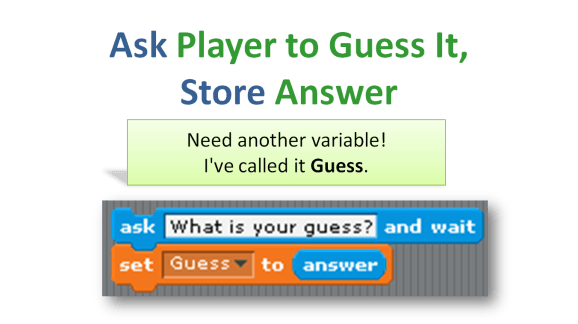
SECOND: ASK (yes, use the ASK block!) what the player’s GUESS is and store their guess in the Variable GUESS. !!!!NOTE: when you use the ASK command, the user input (their guess) is always stored in the variable ANSWER, until you reassign it to your own variable GUESS with the SET command in DATA)!!!
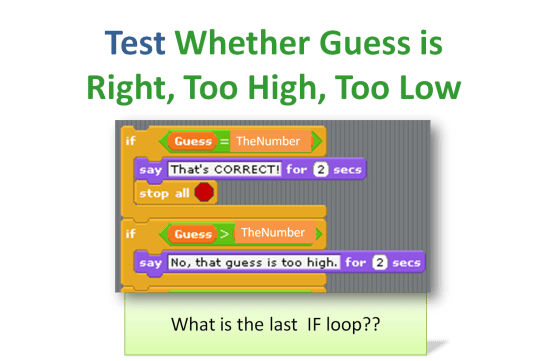
THIRD: TEST whether the GUESS is TOO HIGH, TOO LOW or CORRECT using the IF decision block and OPERATORS: >(greater than), <(less than) or =(equal to).Also, TELL the player (use the SAY command) if they are TOO HIGH, TOO LOW or CORRECT.
FOURTH: LOOP IT!! Use a REPEAT 5 times to give your player 5 chances to get the guess right. Check your work!! Go through each of the possibilities one time to be sure you get the correct response. What if they get it WRONG 5 times?? Tell them what the number was!
Use your own imagination to add new sprites that react to a broadcast you could send out after they guess the right answer or wrong answer. Get your backdrop to change after they guess correctly. (Hint: BROADCAST correct before STOP ALL and have the backdrop SWITCH costume when it RECEIVES the BROADCAST)
5 Feb 2016: I have compiled the latest version of Spigot (Version 1.8.8, 22 Jan 2016), which is a high-performancse server based on CraftBukkit, and added in the latest version of Scriptcraft (Version 3.1.12, 30 Dec 2015).
This week we worked on decorating our map with textures, trees and grass. We also worked on establishing a spawn point for our player and a trigger which would detect when our player had fallen in the water.
Some people have been having technical problems or have been lagging behind for one reason or another. We decided it would be a good idea if everyone had a copy of my project so that we could all move forward from the same point.
The first thing you will need to do is to:
Upgrade to Unity 5.3!
This is very important or you will have problems opening my project. When you start Unity it should prompt you if an upgrade is available. Failing that, you can use the “Check for Updates” option in the programs Help menu.
Once you have upgraded you can download my project from here:
Be warned, this file is quite large at almost 400MB. Please leave yourself enough time to download it, depending on your internet speed.
Extract the contents of this ZIP file into a directory on your machine. It won’t appear on the splash-screen list of recently opened projects when you open Unity – you’ll have to use the little Open button there to select the folder in question. Do also make sure you’re opened it at least once, as opening for the first time causes the assets to be reimported and this takes some time.
Please try to have Unity updated and the project copied to your machine before Saturday! Thanks and see you then.
Hi folks. This week we continued work on our Amazing Racer project. We explained what heightmaps are and we imported a standard heightmap into a terrain object. We also added water and trees to our game map.
Apart from that, I also showed two little fun experimental projects that I worked on over the Christmas break to test a couple of game ideas. I thought I’d upload them here so you can play with them yourselves; maybe even use them as the basis for a game idea?
The first project, called “Physics Test”, is just a Jenga-like tower of bricks, a ramp and a dropped sphere. The sphere and the bricks have custom physics materials to define their friction and bounciness. It can be downloaded from here.
The second is called “Wheel Collider Test”. It uses Unity’s Wheel Collider on a simple vehicle made of a box and four cylinders. The whole thing is on a simple map made from a basic terrain with a flat interior and a raised edge (to keep the car in!). The awesome (cough) textures are from random Windows backgrounds. The Unity documentation for the WheelCollider can be found here. I note reading it that our project sets up the visual elements to represent the wheels differently to the method recommended in the documentation, but it seems to work OK. The project itself can be downloaded from here.
CoderDojo Athenry will resume on Saturday 16 January 2016 at our usual time and place, 12:00 in Clarin College Athenry (formerly called Gairmscoil Mhuire / The Tech). See you there!
We are very grateful all of our members in CoderDojo Athenry for your involvement and enthusiasm during 2015. And of course we are hugely grateful to our mentors who are so generous with their time and expertise every week, and to the school for accommodating us.
We are looking forward to another year of fun coding and excitement learning about new technologies in 2016, and we hope you are looking forward to it too!