I put this together as a simple example of how we can modify the Exploding Chickens mod that was written in Java by CodeName_B for CoderDojo Athenry and then re-written in JavaScript by Kieran Coughlan:
My version does not check that the player has damaged a chicken, but instead checks the entity’s name. If the entity is called “Donald” and you hit it, it will explode in 5 seconds! It does not matter whether Donald is a Villager, a pig, or whatever, and you can have multiple NPCs called Donald and it will work on all of them. (In case you didn’t know, an NPC is a non-player character.)
// Require events
require("events");

// Create a var to represent the bukkit type that represents a player
var bkPlayer = org.bukkit.entity.Player;


// The function which we will run when we load this module
var _loadMod = function()
{
 // Announce ourselves to the console
 console.log("Exploding Villager ScriptCraft Mod loading");

 // Tie our code into the event that fires every time one entity damages another
 events.entityDamageByEntity(_entityDamageByEntity);
}

// The code that we want to run each time one entity damages another
var _entityDamageByEntity = function(event)
{
 // Find out, from the event, who's getting damaged and who did the damage
 var damagedEntity = event.getEntity();
 var damagingEntity = event.getDamager();

 // If it's a NPC getting damaged by a player, game on...
 if (damagedEntity.getCustomName() === "Donald" && damagingEntity instanceof bkPlayer)
 {
 // Announce in the console that we've detected a player damaging an NPC called Donald
 console.log("Exploding Villager - a player damaged an NPC called Donald");

 // Schedule a task to run in five seconds (20 * 5 because the Minecraft clock ticks 20 times a second.
 server.scheduler.scheduleSyncDelayedTask(__plugin, function()
 {
 // The original Exploding Chckens mod only triggered if its health went to 0 (killed),
 // but let's comment that out so the first hit causes an explosion
 //if (damagedEntity.getHealth() - event.getDamage() <= 0)
 //{
 // Get the NPC's location
 var loc = damagedEntity.location;

 // Create an explosion at the chicken's location.
 // A big one...
 loc.world.createExplosion(loc, 10.0);
 //}
 }, 20 * 5); // end of the command to schedule the task
 }
}

// Run this script as soon as the file's loaded

_loadMod();
One of our ninjas was looking for a basic inventory system that he could use, so we knocked up something very quickly.
It’s all based on the standard .NET Dictionary class, documented here.
Dictionary allows us to store keys and associated values. In our specific case, our key is a string (the name of the item) and the value is an int (the count of items of that type).
This is all implemented in a script called InventoryManger.cs which is attached to an empty game object, also called InventoryManagement, for convenience. The InventoryManager class provides the following public methods:
void AddItem(string name)
This takes an item name. It looks to see if there’s an item of this name already in the inventory. If there is, it increases the count by one. If not, it adds it with a count of one. This cannot fail, so it doesn’t return anything.
bool RemoveItem(string name)
This takes an item name. It looks to see if there’s an item of this name in the inventory and that its count is greater than zero; it’s possible that it’s listed there, but the count is zero. If there is, it decreases the count by one and returns true. If not, it returns false. The true/false return value allows us to test, when calling this method, if it succeeded, if that’s important to us.
int GetCount(string name)
This takes an item name. It looks to see if there’s an item of this name in the inventory. If so, it returns its count. If not, it returns zero.
So that allows us to add, remove and track an arbitrary number of items with very little effort.
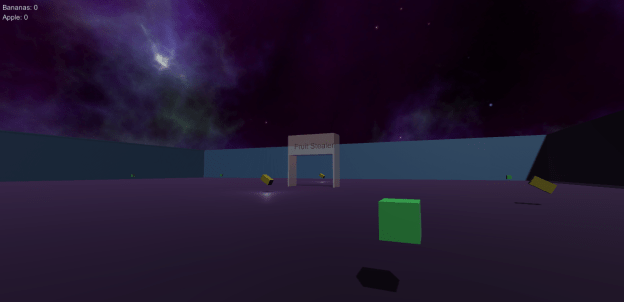
The sample project also has a few other scripts. The intention is that the player picks up objects by moving over them. Pickup objects are tagged “PickUp”. The HandlePickup.cs script is added to the FPSController to detect moving over a pickup. Pickups have a PickupDetails.cs script attached. This automatically tags them “PickUp” and contains the items name (to use in the inventory). The project also has a FruitStealer.cs which removes one banana from your inventory every time you pass through its gate. It’s just there to show the RemoveItem method in action.
Other small things of note about this project: the “bananas” and “apples” are animated, as is the UI-text containing the text “Fruit Stealer”. The material used for the Fruit Stealer is transparent.
It is belt awarding time at Athenry Coder Dojo! We are really excited to see what everyone is going to come up with this year. In previous years, we have had great projects that use many of the core principles of programming that we have been teaching since the beginning of the year. Here is a list:
MOTION – controlling the movement of a SPRITE by the keyboard, the mouse or randomly by the computer,
LOOPS – using forever or limited repeat blocks to keep something going,
VARIABLES – saving a value in computer memory where the computer can pick it up and use it or change it when necessary,
DECISION blocks – Using IF or IF/THEN blocks to decide if something should happen or not,
BROADCASTS – sending out a message to trigger a reaction in another part of the program,
ANIMATION – using costume edits and changes within loops to make it seem as though a sprite is moving.
You don’t need to use all of the above principles in your project, but we mentors need to know that you understand them in order to let you move up to the next level – Advanced Scratch. While we are helping you with your projects, we will be reinforcing the principles, so it will be fun and easy! The day of the awarding of belts, we will ask you questions on your project while you are demonstrating it.
You must be present on belt award day to show us your projects. If you don’t get the belt you want, don’t worry! There is always the next belt award session and we love having you at Coder Dojo Athenry.
Here are some of the questions we might ask at the belt awards session:
1.Which block you would use to make the sprite speak?
2.How would you change the way your sprite looks?
3.How would you make a sprite move?
4.Can you show where you have used a loop block?
5.Can you show where you have used animation or sound?
6.Can you show us where you have used an IF block?
7.What blocks would you use to check if your sprite hit something?
8.How do you share a program online?
9.Show where you have used a variable or how would you create a new variable?
10.Show where you have used a broadcast or how would you create a new broadcast?
Here are some ideas for projects:
Squash Game
Control a bat to hit a ball
Ball bounces off wall on the other side
Game over when you miss 5 times
ABC Game – letters falling from the sky!
Sprites with A/B/C fall from random start point
Press A/B/C key to stop them
Keep score of how many you stop
DodgeBall –
Have Scratch cat avoid the flying beachballs while he is trying to grab a mouse
Use the arrow keys to control scratch cat and have three or four beachballs fly around randomly
If the cat gets touched by a ball make him lose strength/fade but he gets stronger if he touches a fish.
Use a broadcast to change the backdrop wen he gets his score to ten or to zero.
Good luck and be sure to ask questions! We love to help!
With two more regular dojo sessions to go before our final party and belt awarding ceremony, the finish line’s in sight and we’ve been concentrating on helping people work on their projects.
Some projects are already looking good, and that’s fantastic. Others however aren’t showing a lot of progress.
If you are struggling, please remember – overly ambitious scopes are the things that ruin most game projects. Ask yourself: what are the basic things that will be the most fun in my game? Maybe it’s exploration. Maybe it’s shooting. Whatever it is, get that working as soon as possible. Don’t do ten weapons, do one. Other features can be layered on over time as long as the fundamentals are there. Try hard to have something working for the next session. We’re here to help.
In the next session we’ll talk about the specific belts we’re going to be awarding. We’ll explain how they’re earned and we’ll try to get an idea of how many people are going for each category.
Basic Sample Projects
I briefly showed a number of sample projects that I’d been playing around with this week. These projects are intended to demonstrate certain useful things that you might want to put in your own game.
The first sample project was a modified version of SprocketLeague. The modifications were relatively modest: each car was given its own camera which was set to render into half the screen. The original top-down camera was set to render into a small area at the top of the screen.
The second project, called BasicAI, was just an experiment with baking a NavMesh and having an AI character follow you about. For extra fun, the followers spawn every 1.5s and they’re labeled “HipsterISIS” thanks to a very funny gag one of our ninjas made when watching the game run.
This project wasn’t working fully during our session. It is now. The project contains two scenes. Both implement a door but in different ways. The two scenes can be found in the _scenes folder.
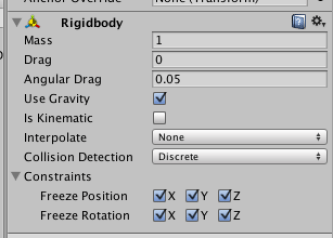
The first implementation is a physics based door. There is a box called DoorFrameRight which has a RigidBody component but is constrained so that it can neither move nor rotate:
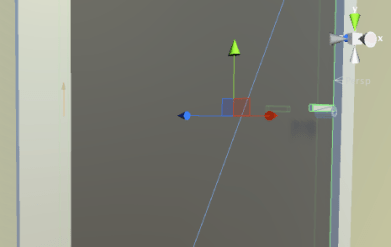
Immediately to the left of this is the Door itself. This is also a box with a RigidBody component. In addition, it has a HingeJoint component. This HingeJoint component links it to the DoorFrameRight box. The HingeHoint is just visible as a small orange arrow on the left hand side of this picture:
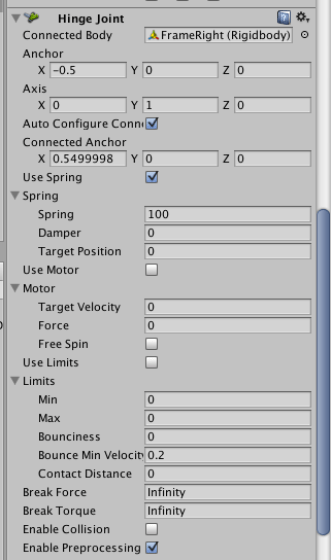
The HingeJoint component is positioned exactly where the door and door frame meet and its axis is set to be vertical, as the door is to swing around the vertical. It also has a spring which will close the door again (more or less) once the thing pushing it open moves away:
A regular FPSController can’t push this door, as it has a kinematic RigidBody (no physics), so note that we use the RigidBodyFPSController instead to represent the player in this scene.
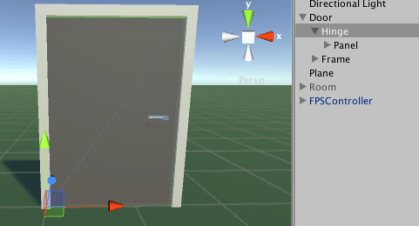
The other door works in a very different manner. The door consists of a frame and a “hinge”. The hinge is just an empty GameObject which contains all the parts of the door that will be moving. It’s origin is at the left-hand edge of the door panel; this means that when we change the hinge’s Y rotation, the door will pivot about it’s left-hand side. The hinge’s origin is shown here:
I could have made the hinge rotate in code, but instead I decided to create animations to do the same thing (change the hinge’s Y rotation). To explain how animation works in Unity is beyond the scope of this post, but I’ll give a very broad introduction to it in the next session.
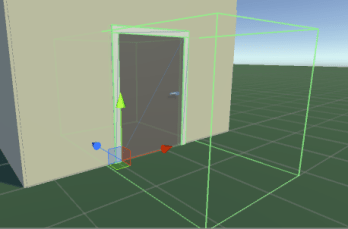
The door has a box collider around it. When it detects that the player has entered the collider, it triggers one of the opening animations (the direction depending on which side of the door it determines the player to be). Once the player leaves the collider, it closes the door again.
This project was started live in our last session on the suggestion of one of the ninjas; it generates a random maze using a very simple algorithm.
An empty GameObject called MazeGenerator is placed in the scene. In its Start method, it constructs a random maze which appears in the scene. An FPSController from Standard Assets allows us to navigate this maze and try to find our way out.
The MazeGenerator constructs a 2D array of bool values to represent the maze. All the values in this array are ‘false’ by default and we take this to mean ‘solid’. Taking a point in the centre of the array we mark it ‘true’ to indicate an empty space. We then randomly pick a direction from North, South, East or West and set a new position. We check if we’ve moved outside the bounds of the array yet, if not, we mark this as another empty space and continue until we are outside.
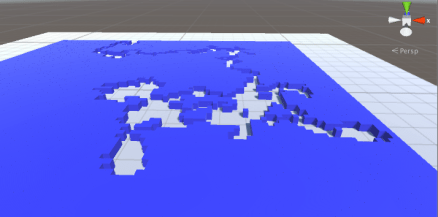
Once we have this maze generated, we know we have a path from the centre (the start) to the exit (the outside of the maze). We loop over all elements in our array and place a solid block (from a prefab) everywhere we find a ‘false’, unless we’re at the edge of the maze in which case we place a special prefab that detect the player and plays a sound. This is our ‘exit’. For a ‘true’ we do nothing. The picture below shows one such generated maze from above.
To make this more fun to play, we also added a script to the FPSController to drop “breadcrumbs” as we move. This shows where we’ve already been so that going around in circles shouldn’t be a problem.
Sorry for not posting for a while, we haven’t covered much new material in the last few weeks.
Today we finally nailed down what our projects are going look like and I think we have some very impressive ideas to work on for the next couple of weeks. By the last session we will be displaying devices like a flood gauge, a food and recipe management system, a retro arcade console, a scalextric racing game timer, a survey/voting machine and a device to help the visually impaired recognise the contents of food cans.
Projects are important for two reasons, they encourage Ninjas to work on their own and they will be the basis for awarding belts.
This year for belts in the Raspberry Pi and Electronics group Ninjas will be examined on more than just code, they will also have to speak about the reason they chose to do the project they did, they will have to explain the various hardware components they used and they will have to create a poster for their project.
I’m looking forward to a busy few weeks in the PiDojo group.
This week we did a review of everything we’ve covered so far in Unity this year. It was a really usefully exercise as we ramp up to doing our own projects. People talked about their project ideas and I even got so see a few things running. I was impressed with the ingenuity and inventiveness. As I explained, over the coming few weeks, I won’t be presenting much in the way of new material. We will instead concentrate on getting our projects running and polishing them to the best of our ability.
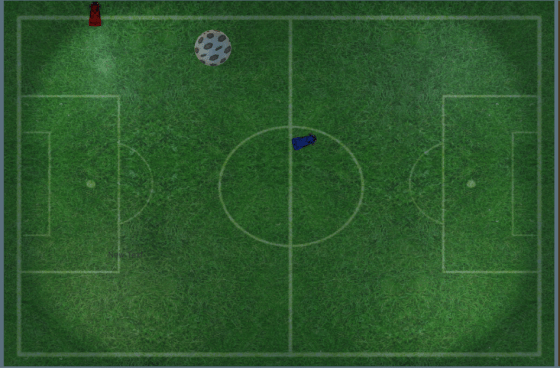
I presented a couple of small sample projects intended to inspire game project ideas. The first was a top-down, single-keyboard, two-player game where two cars complete to drive a ball into their opponent’s goal area. If this sounds familiar, then you’ve heard of Rocket League. This low-rent version I dubbed “Sprocket League”. It can be downloaded from here. It uses the car from Standard Assets, slightly modified to allow the input axes to be defined in the inspector so that each can be controller independently. The red car uses the arrow keys and the blue keys uses WSAD for movement. To make it into a full game some means of keeping score and timing the game would be needed.
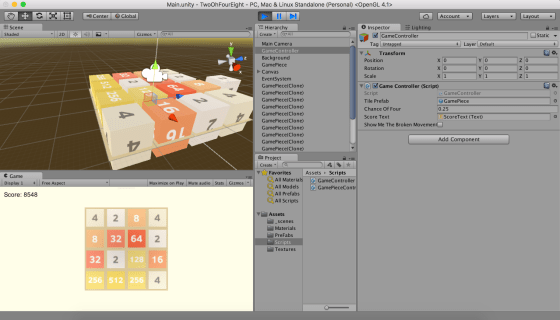
I also posted a basic sliding tiles game based on 2048. It is intended to show that we can achieve a 2D game appearance, even while using the 3D elements we have been working with. Although the basic game mechanics are there, it would ideally need a lot of work to bring it up to a reasonable standard. The real game provides a lot more visual feedback to the user than this version. Again, it can be downloaded from here. For those that recall, my broken attempt at making the tiles animate can be enabled via the “Show Me The Broken Movement” checkbox on the GameController object.
Best of luck working on your projects over the next two weeks and I’ll see you all when we return!
This week and part of last week we created a piano! The initial keyboard looked like this:
Each white and black key is a separate SPRITE. We began by drawing the white Middle C SPRITE which has two costumes. The first costume is white and the 2nd is a different colour (you choose) that flashes up when the SPRITE is CLICKED. This helps us to see which sprite is responding to the click.
This week in Scratch advanced we took on the ambitious task of writing a general-purpose 3d wireframe engine. The goal here was to build an engine that we could use to view any structure in 3-dimensions as though we had x-ray vision. We didn’t really know how it might turn out but were delighted with the results! If you just want the code, skip to the bottom!
We didn’t quite know how to start this so we Googled 3D and Wireframe, and we found this article on wikipedia that really helped us understand what it was:https://en.wikipedia.org/wiki/Wire-frame_model
It was a thrill to have such significant games industry figures come to visit us on Saturday. The mentors, dads and dad-mentors were probably the most excited; Wolfenstein 3D, Doom and Quake were probably the most exhilarating games of our generation.
I was unsatisfied with how much benefit people were getting from continuing with the Tanks tutorial and I decided that we’d looked at it enough. Partially because I know some people want to implement shooting for their own projects and partially because one of our guests had invented the entire first-person-shooter genre, I decided to do a project to demonstrate different ways of implementing shooting in a game.
Please excuse the tinny sound; I was using the computers built in microphone.
There are two main ways to handle shooting: ray-casting and physics-based projectiles. We’re going to do both so lets discuss them in turn.
Ray-casting
Ray-casting uses mathematics to determine if a target is in our cross-hairs and, if it is, registers a hit instantly. It’s a good technique to use where the bullet is very fast moving and distances are relatively short. Regardless of action movie tropes, nobody is dodging a fast-moving bullet in real-life!
In Unity the Physics class contains several Raycast methods (documentation here). They all look along a line from a point and return ‘true’ if that line crosses through a Collider. The specific version we’re using can fill in a RaycastHit object with information about what it hit, if it hit anything.
To determine if we hit anything we must:
Find the position and forward direction of the FPS Camera. This represents where we are and where we’re looking towards.
Call Physics.Raycast with this information. If it didn’t cross any colliders, then we are finished.
If it did hit something, then we check to see if that object is a target. We have tagged all target objects in the scene as “Target” so we can easily check this.
If it is a target, we perform the effect we want. In this case, we push the target away from us with force applied to its RigidBody . In another case, we might want to actually destroy the GameObject instead.
Physics-based projectiles
A physics-based projectile is actually an object in the scene. It has a Collider so that it can detect collisions and a RigidBody so that it is affected by physics.
In many cases of physics-based projectiles, the Collider is simply a trigger and once an collision is detected, an effect, such as reducing the target’s health, is applied to the target.
Our specific physics-based projectile weapon is a cannonball. In this specific case, we actually allow the cannonball to hit the target and the physics engine takes care of the effect (knocking the target away).
The general steps that we need for physics-based projectiles are:
Find the position and forward direction of the FPS Camera. This represents where we are and where we’re looking towards.
Instantiate an instance of our projectile prefab. Position it so that it’s slightly in front of us and not intersecting with the FPS Controller’s own Collider.
Give the projectile some forward velocity.
Either:
Have the projectile detect collisions and perform an appropriate effect on the target, or
Simply allow the physics engine to take care of the impact.
The cannonball prefab has a small script attached to it. It detects collisions. Once the first collision is detected, a coroutine is launched. This coroutine waits for two seconds and then destroys the GameObject. This means that cannonballs have a limited life-span and don’t end up littered all over our level.
Area-effect weapon
We have also implemented an area-effect weapon, namely a grenade. In many ways it is similar to the cannonball but we project it with a more modest velocity.
Once created, however, it’s behaviour is very different. A coroutine is launched as soon as it is created. This coroutine waits for a few seconds to mimic a grenade fuse. It then “explodes”.
To explode, the grenade does the following:
Plays an explosion sound on it’s own AudioSource.
Instansiates a particle-effect prefab at the grenade’s location to display an visual explosion effect.
Disables the grenade’s MeshRender component so that he body of the grenade can’t be seen any more.
Uses Physics.OverlapSphere (documentation here) to find all Colliders within a given radius of the grenade
Loops over these Colliders. If the collider is not attached to an active GameObject or if that GameObject is not tagged as a target, we ignore it.
If it is an active target, we use RigidBody.AddExplosionForce (documentation here) to apply an explosion force, emanating from the grenade’s position, to the target.
Two seconds after the “explosion” the grenade GameObject, now invisible, destroys itself to remove itself from the scene. This short delay gives time for scripts to complete and sounds to finish playing.
Please note that although the grenade wasn’t working correctly on Saturday during our session, it’s fully functional now.
Gun selection
Gun selection is handled using the “[” and “]” keys. In the past we have tended to use Input.GetAxis to detect user input. This is good for where we wish to perform an action continuously as long as a key is held down. It’s not so good where we wish to perform a since action in response to a single keystroke. For that, using Input.GetKeyDown (documentation here) is better and that’s what we do.
The selected weapon is stored using an enum. An enum is a special variable type which can only take one of a number of pre-defined values. Since we have a limited list of weapons, three to be exact, this works well for us.
Putting it all together
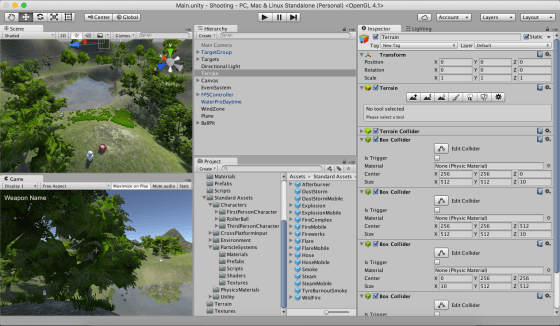
Our level is a simple terrain. It’s been textured and had trees, grass and a wind zone added to it. There is a simple lake. A few target spheres have been positioned around the map and a box containing a number of small targets has been created as a good place to test the grenade in particular.
A standard first person controller prefab has been added to the scene. Our own GunController script has been attached to it as a component. GunController handles all the aiming and firing of the weapons.
Sound effects for the project are all from www.freesound.org with thanks to the original creators. All other third party assets are from the Unity Standard Assets pack.
Downloading the project
The project can be downloaded from DropBox here. Please ensure you have updated to Unity 5.3.4 before opening this project. Be aware, it’s relatively large at 160MB+.
Hi everyone,
We completed our Mario game this week. We coded Mario so that he always floated down on to the wall. We added a fraction of a second of a wait so that it appears that he floats as he comes down. This also allows time for you to navigate left or right as needed.
We also introduced a more advanced concept, the Parallax effect, whereby objects further away appear to move slower than objects nearer. We coded mountains and a Sun to demonstrate this.







 CoderDojo Athenry
