
Hi folks, this is just a link for the sounds we’re going to use in our session today:

On 15 Oct, we spent the session figuring out the basics of programming and electronics with an Arduino micro-controller. We had a couple of Arduino Unos (pictured above) and a Genuino 101.
We downloaded the Arduino IDE (integrated development environment) software here: https://www.arduino.cc/en/Main/Software
We then built a simple circuit to turn on an LED, using a breadboard:
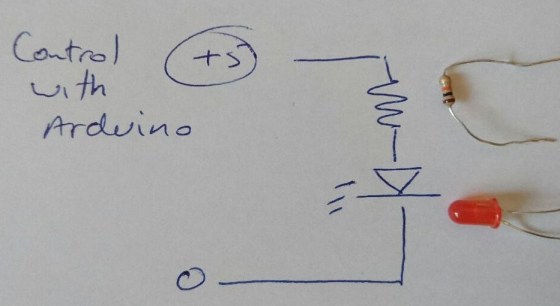
After connecting the 5V side of the circuit to Digital pin 2 on the Arduino, we started experimenting with writing code to control it, using the C-based language of the Arduino IDE:
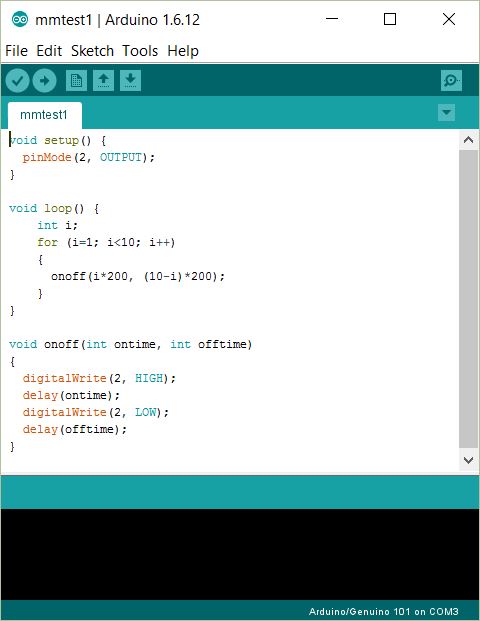
After that, group members started experimenting with more complex programs and hardware, such as pressure and temperature sensors, which they had working by the end of the 2-hour session. I was very impressed with the speed with which they made progress!
This week we worked on getting input from the user and making the game react to it.
InputManager
Unity has a build in system for handling user input. The InputManager can be found under the Edit|Project Settings|Input menu:
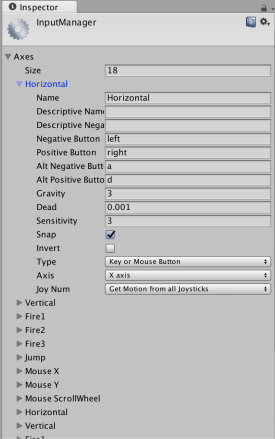
The Unity input system is based on the concept of “axes”. The game request if there is input on a specific axis, giving the axis name. What that means in terms of button presses, mouse or controller input depends on the settings in the InputManager. Axes have a value that ranges from -1.0f (full negative, if negative values are allowed) through 0.0f (no input) to 1.0f (full positive).
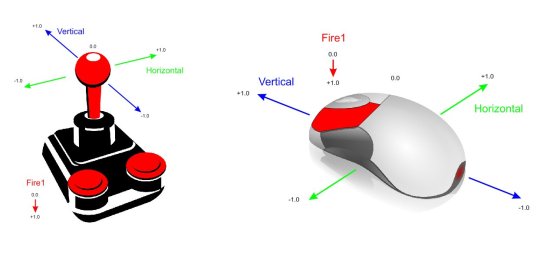
Pre-defined Input Axes
While the game programmer can define as many input axes themselves as they like, Unity come with many common ones built-in. The first two shown above, called “Horizontal” and “Vertical” are commonly used for movement. The third “Fire1” is usually used for shooting.
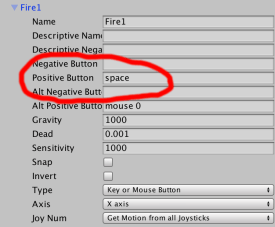
We redefined “Fire1” from it’s default key (Left Ctrl) to bind it to the space key instead.
Updating the Code to Detect “Fire1”
We originally had a force applied to our ball in the “PushSphere” script as soon as the game started. We modified the code so that in the Start() method all we did was to retrieve and store the Rigidbody component. In the Update() method (called every time the game draws) we ask if there’s been any input on “Fire1” and only if there has, do we apply a force to the ball:
 using UnityEngine;
 using System.Collections;

 public class PushSphere : MonoBehaviour
 {
   public float PushStrength = 1.0f;
   private Rigidbody rb;

   // Use this for initialization
   void Start ()
   {
     rb = GetComponent<Rigidbody> ();
   }

   // Update is called once per frame
   void Update ()
   {
     float fire = Input.GetAxis ("Fire1");

     if (fire > 0.0f)
     {
       rb.AddForce (Vector3.back * PushStrength);
     }
   }
 }
Before proceeding, we ran our game and tested to ensure it was working correctly.
Moving Our Aimer
The aimer was rotated using input from the horizontal axis. We added a script called AimerController to our Aimer game object. A public property called RotateSpeed gives us a way to tune the speed our our aimer. We don’t need anything in the Start() method, and it’s been removed here for clarity. The Update() method looks for input on the “Horizontal” axis (which maps to the left and right keys) and applies a rotation to the Aimer’s transform using the following logic:
amount to rotate = speed of rotation * user input * time
User input here will either be -1.0f, 0.0f or 0.0f. This equates to rotate in a negative direction (anti-clockwise), don’t rotate or rotate in a positive direction (clockwise).
 using UnityEngine;
 using System.Collections;

 public class AimerController : MonoBehaviour {

   public float RotateSpeed = 1.0f;

   // Update is called once per frame
   void Update () {
     float horiz = Input.GetAxis("Horizontal");

     transform.RotateAround (transform.position, Vector3.up,
                             RotateSpeed * horiz * Time.deltaTime);
   }
 }
Note that we’re rotating about the vertical axis and the rotation is centred around the aimer’s position.
Linking the Aimer and the Sphere’s Direction of Fire
To link the aimer’s with the sphere’s direction of fire, we needed to provide the sphere with a new public property which could store a reference to the Aimer’s game object:
public GameObject Aimer;
We then simply had to update the AddForce call, in the Update() method, to take the aimer’s direction into account:
rb.AddForce (Aimer.transform.forward * -1.0f * PushStrength);
Note that we had to also multiply by -1.0f as the ball was initially going opposite to the direction we wanted.
Prefabs
Prefabs are objects, or collections of objects that we want to re-use multiple times. To create a prefab, all we need to do is to drag an object from the Hierarchy to a project folder. We made a prefab of our pin by doing this. Note that prefabs show up blue in the hierarchy to mark them out. When the prefab is changed, all copies of it in the hierarchy are updated as well.
Automatic Creation of Game Objects at Run-Time
Once we created our pin prefab, we worked on adding pins automatically into the game a run-time.
We added a new empty game object and named it PinManager, we then added a component to it of the same name. This script was given a public property, of type GameObject, to store a reference to the prefab. In the Start() method, we use two loops to place nine pins automatically into the scene, using the Instantiate() method:
 using UnityEngine;
 using System.Collections;

 public class PinManager : MonoBehaviour
 {
   public GameObject PinPrefab;

   // Use this for initialization
   void Start ()
   {
     for (int x = -1; x <= 1; x++)
     {
       for (int z = -2; z <= 0; z++)
       {
         Vector3 pos = new Vector3(x * 2, 0.5f, z * 2);

         Instantiate (PinPrefab, pos, Quaternion.identity);
       }
     }
   }
 }
Note that there are several versions of the Instantiate() method. The version we’re using allows us to specify the position and rotation of the newly created object. A Quaternion is variable type that can store a rotation. Quaternion.identity simply means “no rotation”.
Testing
Project File
The latest project files can be downloaded from here.
 Hi Everyone
This week we created our own folders on our Raspberry Pi3s, this will allow us to each find our own code and keep working on it.
We finished off the code for our own robot functions which we will use to navigate an obstacle course next week. The finished code is available on Dropbox here. These are my slides from Saturday finished-functions.
After we are finished with the obstacle course we will look at controlling our robot from our keyboard. I will use Pygame to do this and as Pygame is used for Graphical applications such as games and GUIs we will have to use VNC to connect to our Pi3s. Pygame will also allow us to use a webcam to capture video so if you have an old USB webcam please bring it in.
CoderDojo and Liberty Global are due to launch the Future Maker Awards this week FAQ here and more information here scroll down to see how one of our Bodgers uses his super power. I’ll have more information next Saturday after the launch.
See you then.
Hi again everyone,
This week we improved on our Ghostcatcher game from last week.
We introduced a new concepts which we haven’t used before, animation and next week we will start another new concept which is broadcasting.
Using a simple technique of changing between costumes and having a waiting time we can animate our Sprites. In our case, we animated the Ghosts so they were blinking or sticking out their tongue. You could of course use this technique to have a sprite look like they are walking etc.

Hope you all enjoyed the session and we will be using animation and broadcasting over the next couple of months.
Here are this weeks notes in PDF cda-s6-week_05-betterghostcatcher.pdf
Hope to see you all again next week
Martha
 This week at Advancers, we took some time out from programming to review image editing, and play around using the highest quality free image editor in the world, the GNU Image Manipulation Program, also known as “The Gimp“.
Mastering Gimp, or a tool like it, is essential to be able to produce the images you will need for high quality games. It’s also very useful for touching up photographs, chopping people’s heads off and sticking them on others, etc!
After taking some time to get it installed on most people’s laptops, we reviewed the most important parts of this incredibly powerful program:
Installing Gimp
On windows or Mac, GIMP can be installed by browsing to https://www.gimp.org/ and selecting “Download”. On linux it can be installed from the app store/package manager on your distribution. Note: some people last week had Chromebooks and I mistakenly told them that gimp wasn’t available on those devices – I since checked and it is available, though as it’s a web-app it is not as good as a locally installed version – check out this video for instructions on installation: https://www.youtube.com/watch?v=NtdcukXILJg . It is also not quite free too since you need to pay to save your files. Click read more for more details!
This week we started our first game in earnest. Let’s talk about the design and the steps we took to begin implementing it.

Game Design
The game involves a simple play area with pins. The players tries to knock down the pins by controlling the direction and force at which the ball is projected. The number of pins knocked constitutes the score. The game shares element of classic games such as pinball, bowling and skittles, to name a few.
Setting up the play area
To establish the play area, we used a plane (for the ground) and four cubes stretched to size to provide the walls:
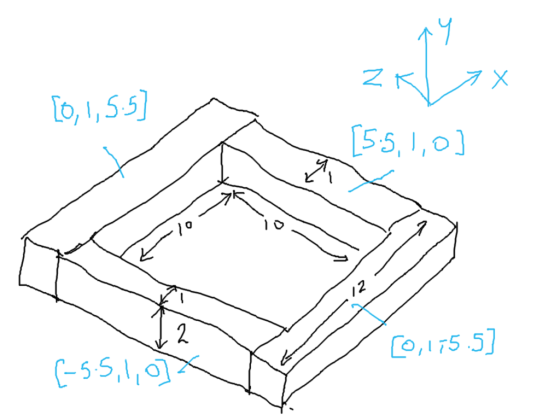
Because we don’t want gaps in our walls, we’ve been careful to be precise with the positions of everything.
Applying a Force to our Sphere
We added a sphere to our scene and made sure that it had a RigidBody body component. The RigidBody component makes it so that the physic engine takes care of the movement of the sphere.
To test adding a force to the sphere we added a temporary script to the sphere and had it add a force to the RigidBody as soon as the game starts.
Immediately it was clear that the force was too weak, so we added a property to the script which allowed us to scale the force. In testing 1000 proved to be a good value. Here is the script:
 using UnityEngine;
 using System.Collections;

 public class PushSphere : MonoBehaviour
 {
   public float PushStrength = 1.0f;

   // Use this for initialization
   void Start ()
   {
     Rigidbody rb;
     rb = GetComponent<Rigidbody> ();
     rb.AddForce (Vector3.back * PushStrength);
   }

   // Update is called once per frame
   void Update ()
   {
   }
 }
We also experimented with creating a physic material and assigning it to the sphere. Different levels of friction and bounciness give different behaviours.
Testing With a Single Pin
To test the sphere colliding with a pin we added a single cylinder to the scene. Like the sphere, we made sure it had a RigidBody component attached to it. When the game started the ball shot forward and knocked the pin, as we’d hoped.
Aimer
To aim our sphere and control the strength of our shot, we created an aimer. The aimer is composed of an empty object containing two cylinders, one pointing forwards and one pointing crossways.
We didn’t want the aimer cylinders interacting with anything so we made sure to remove the colliders from the cylinders.
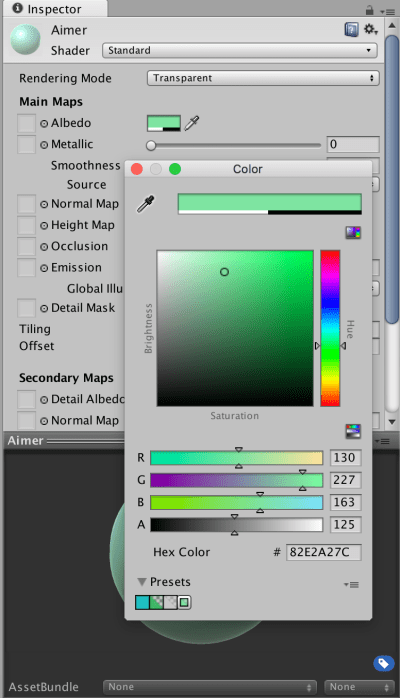
We also wanted the aimer to be partially transparent so we created a new material, setting the Rendering Mode to “Transparent”, choosing a colour from the Albedo colour picker and setting the Alpha value to a value less than 255.
Project
Updated project files for this week’s project can be found here. This requires Unity Version 5.4.1f1 or later.

Hi Everybody
Our WiFi set up worked much better this week with an issue with only one of our routers which decided to give up half way through the session.
We started to write our own functions today, functions are very important in programming as they allow us to run the same code multiple times without rewriting the code several times. Instead, you can put that code inside a function and call the function several times. This has the added benefit that if the function’s code has a mistake, you only have one place in the program to fix it.
If we use names that relate to our function’s operation it will make our code much easier to understand.
Functions make designing and testing bigger programs much easier as we can break the project down to manageable chunks and we can write and test these functions individually.
As we saw last week the GPIO Zero library contains robot functions which turn our robot’s wheels forwards or backwards or in opposite directions to go left or right until we call the robot.stop() function. We are going to take these functions and the sleep() function and put them in functions that will make our robot go forward or backwards by a specified amount of Centimetres or will turn it left or right by an amount of degrees. This week we wrote a function that makes our robot go forward. See code here. Here are this weeks slides writing-functions . Next week we will write the rest of our functions.
Some Bodgers and their parents have been asking about buying Raspberry Pis but I would advise holding off until we decide on our projects as some people may end up using Arduinos or Raspberry Pi Zeros depending on their project.
However if you want to get one to experiment at home with I would recommend the following sites. https://shop.pimoroni.com/ and https://thepihut.com/ for Raspberry Pi and accessories. If you are buying a case for your Pi I would recommend Pibow Coupé from Pimoroni as the GPIO pins are numbered and easy to get at. For electronic components such as sensors etc. http://www.bitsbox.co.uk/ are very good, they also do cheap Arduino clones. Avoid starter kits as you should be able to get your hands on stuff like keyboards if you ask friends and relations for them, do get SD cards as you can have different set ups on different cards e.g. Retropi, Kodi.
See you all next week.
Hello Everyone
Great to see so many of you there on Saturday, 77 Ninjas!. Hope you had a good time. And a special welcome to our new Ninjas.
This week we created a Ghostcatcher game. We used the paint editor in Scratch for the first time. As I said on Saturday, It makes things easier if you think in shapes.

Using the code we have learned so far, we moved the Ghostcatcher with the mouse and the Ghosts randomly. We also added some sound.

We are going to continue on next week and improve this game, adding some Variables and some levels.
Here are this weeks notes in PDF. cda-s6-week_04-ghostcatcher.pdf

We’ve been busy the last two weeks covering the basics of Unity. Among the topics we’ve touched on are:
Additionally Mike kindly filled in and talked about the basics of object oriented programming, classes and class diagrams. There is a post from last year that covers this well for those who’d like to read it.
Additionally, the basics of the C# language that we discussed are covered in both that post which we have already linked to above and another which can be found here. The topics we touched on were:
The up-to-date project file can be found here. Please note it will require Unity 4.5.1 or later.


 CoderDojo Athenry