Hackers – Temperature Control, Part 2

Today we continued towards building a temperature controller.

Last week, we used an LM35 temperature sensor to read the temperature in the room and report it on the Arduino serial console.
We were able to get a reading for the temperature of the air in the room, and the temperature of a cup of coffee touching the sensor.  We couldn’t be sure, however, that the readings were correct.  So, we decided to test with a potentiometer and a voltmeter.

We supplied 5 V to the potentiometer and fed the output to the Arduino.  We used a voltmeter to measure the output from the pot and compared it to the reading from
the Arduino.  Once we got the code working, we got good agreement on voltage readings between the meter and the Arduino.

The sensor presents a voltage on its output pin that represents the temperature its measuring.  In its basic mode, the sensor reads temperatures between 0.2 and 150 degrees Celsius.  Every degree is 10 mV, so the output voltage ranges from 2 mV to 1500 mV.  Converting our voltage reading to a temperature is simple then:  divide the voltage reading in millivolts by 10.

We can use one of the analog I/O pins on the Arduino to read the voltage.  The analogRead() function returns a value between 0 and 1023 for voltages between 0 and 5 V.

We digressed into how to use a multimeter correctly.  The first thing to do is make sure that our meter is set up correctly.
We tried measuring a 9 V DC battery with the DC voltage setting and got 9.2 V.  We then tried measuring the same battery with the AC voltage setting.  This time we got 19.6 V.
There’s a lot of potential (sorry) to get confused, then.  Worse again, if we try measuring 220 VAC with the meter set to DC, we get a reading close to zero.  In other words, a live AC supply looks safe if we set our meter wrong.

Next, we start with the highest reading range and step down.  For a 1.5 V battery, we start with the 200 V reading, then step down to 20 V.  This is to protect the meter:  if the voltage is higher than we expected, we might damage the meter.

Voltage readings are taken in parallel with the circuit, and while it is live.

Resistance and continuity readings, on the other hand, are taken with the component disconnected from the circuit.
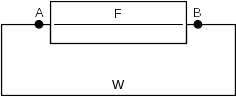
We worked out why with a simple circuit:

circuit1

F is a fuse.  W is a wire between the two ends.  We’re not sure if the fuse is blown.  We try testing for continuity across the fuse by putting our meter leads on A and B.
Even if the fuse is blown, we will get continuity because W provides a circuit.  We need to cut the wire to get a true reading.

Our first attempt at Arduino code for the voltage reading gave us a surprise.  Our meter displayed 2.5 V.  The Arduino displayed 2 V.  We used this formula to calculate the voltage:
v = 5 * analogRead_reading / 1023.
V was declared as float variable.  analogRead_reading was declared as an int.  The Arduino code multiplied two ints and divided the result by another int, truncated the result and stored the int as a float.  When we made the 5 and 1023 floating point numbers (5.0 and 1023.0), we got the right answer.

Once we were happy with the Arduino code, we replaced the potentiometer with an LM35.  Unfortunately, we didn’t notice the “bottom view” label on the datasheet drawing.  We connected the 5 V supply to the wrong side of the sensor.  It’s amazing how hot a temperature sensor can get!  It was too hot to touch.  And we couldn’t measure the temperature because…
After we disconnected the LM35, we made another discovery:  we continued to get random voltage readings displayed on the Arduino even though there was no voltage to read.  The analogRead() function happily outputs values from random noise.

Next week, we’ll use an LM35 connected the right way around, and try controlling a relay to switch power on and off to an external device.  We’ll build a temperature controlled soldering station carefully – we want to solder with the tip of the iron, not the temperature sensor.

Bodgers – Making With Trinket.io

Hello again everyone.

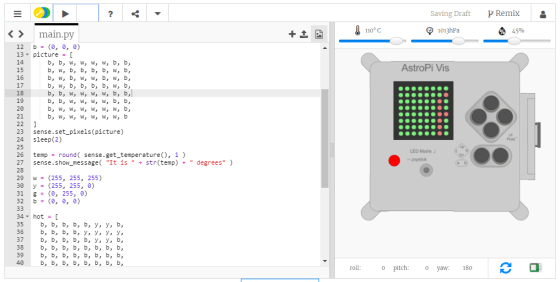
In the Bodgers group,  we’ve been working on code for the International Space Station. To do this we are using on online Sense Hat emulator, the Sense Hat is a special piece of hardware designed to be deployed with a Raspberry Pi on the ISS.

Capture15

The online emulator is available at https://trinket.io/sense-hat and there’s a good tutorial on the Raspberr Pi website here https://projects.raspberrypi.org/en/projects/astro-pi-mission-zero.

Here is our Trinket https://trinket.io/python/04b90b70cf.

You can play around with these and we will probably finish up with the Mission Zero Challenge for while after Saturday. My slides from last Saturday are here day 3.

See you all on Saturday.

Declan, Dave and Alaidh

Creators: Creative Coding with p5.js

What is P5?

This week we looked at p5.js – a library to make creative coding in javascript MUCH easier!  We first downloaded and copied p5.js onto our computers, and copied it into a new project folder.  We included p5.js in a html file, just like we included our own javascript file last week.

In fact, we looked at the file and realised that p5 is just another javascript file, just like the one we wrote – the code is long and looked a bit complicated, but it was basically the same kind of thing.


But really, what is P5?

p5 is a set of functions that make it easy to write programs for the most interesting parts of javascript!  Mainly, for drawing and animating things on a webpage, but also for sound, and other stuff.  If has lots of functions for:

Continue reading

Explorers – Week 4 – 2018, Improving Our Game!

Hi everyone,

Thank you do everyone you came along on such a lovely day on Saturday, hope you all got to go outside when you went home and enjoyed the weather.

This week, we improved on our game from last week.

Most games reward us for achievements (Gaining:Scores/Money/Health) and penalise us for making mistakes (Losing:Lives, Health, Money)

To this we had to create a Variable. Remember my box with the blocks. A variable holds information for you that you can use again. Remember to always give it a name that is meaningful….

Everything we have learned so far we will be using in ,most of our games we will make in future sessions. Don’t worry if you didn’t understand everything, we will be going over it again and again.

Have fun with the code you have done. Maybe try making another game!

Here are the notes from last week in PDF CDA-S7-Week_04-FirstGame-Part2.pdf

See you all next week

Martha & Julie, Ruaidhrí and Eoin

Hackers – Temperature Control, Part 1

IMG_20180929_131406

In Hackers, we started work on a short project for a temperature-controlled soldering station. As shown on the whiteboard above, the basic idea is:

  • A temperature sensor is connected to an Arduino (analog input)
  • A soldering iron, with its tip located near the sensor, is wired to the mains via a relay switch
  • The Arduino can control the relay switch to turn the soldering iron on/off
  • This is the basis for a simple bang-bang controller: we have a target temperature (e.g. 200 degrees) and a tolerance (e.g. ±10 degrees), then you turn it on if the temperature is below 190 degrees and turn it off if above 210 degrees.

We noted that since there will be space between the soldering iron tip and the temperature sensor, the temperature it will read will be lower than the tip temperature.

As the whiteboard shows, this project also involved discussion of: wiring for the thermocouple; how breadboards are wired; normally-open vs normally-closed relay switches.

One group used a LM35 temperature sensor – here are its specs, and the group found it interesting to see how detailed and useful these data sheets are: http://www.ti.com/product/LM35

The other group used a potentiometer to simulate temperature, so they could test it working over its full range, as shown here:

IMG_20180929_135713

Below is the code for reading and displaying the temperature. Next steps will be to integrate it with the relay.


// Michael Madden, CoderDojo Athenry
// Reading a temperature sensor.

// The temperature sensor is an LM35 - here are its specs: http://www.ti.com/product/LM35 
// THe temperature range is -55 to 150 degrees celcius.
// Its output voltage pin is connected to an analog input on the Arduino (A1),
// from which we read a value in the range 0-1023, so we convert them.

void setup() {
  // Just needed for print statements to work
  Serial.begin(9600);
}

void loop() {
  // Read the temperature sensor: get a value in range 0-1023
  int val = analogRead(A1);

  // From the analog input, we get a value in the range 0-1023
  // and we need to convert it to a temperature in the range -55 to 150 degrees.
  // The two lines below achieve this in differnet ways and give the same result.
  int temp1 = (val/1023.0)*205 - 55;
  int temp2 = map(val, 0, 1023, -55, 150);

  // Print out the raw value and converted temperature
  Serial.print("Sensor value = ");
  Serial.print(val);
  Serial.print("\tTemperature 1 = "); 
  Serial.print(temp1);
  Serial.print("\tTemperature 2 = ");
  Serial.println(temp2);

  // Wait 100 milliseconds before reading the sensor again
  delay(1000);
}


Bodgers – Making For The International Space Station

Hello again everybody.
This week in the Bodgers group we started working on our code for the Mission Zero Challenge.

mission-zero-logo

We began by writing a simple text message on the 8×8 full-colour LED display, then we changed the text and background colours. We then coded a picture by assigning a colour to each of the 64 LEDs on the display. We finished the session by taking a quick look at using the temperature sensor to read the temperature. Here are my slides from this week day 2.
Next week we will recap what we covered this week and we will start to personalise our code for the challenge.

In the meantime, here’s a couple of fun videos on how the Astro Pi computers got to the ISS.

See you all next Saturday

Declan, Dave and Alaidh

Explorers – Week 3 – 2018, Your First Game!

Hi everyone!

Wow! what a fantastic turnout on Saturday again, 79 ninjas in the room! plus a few adults!

I hope you had a good time, I know that I really enjoyed it. There was a really great atmosphere and energy in the room.

A special thank you to Mentor Julia for getting 14 loaner laptops working for us this week, so that everyone that wanted to participate, could. Another thank you to the other Mentors in the room, Eoin and Ruaidhrí, it makes my job easy when they can get around the room and help out when needed. You are doing a great job.

One of the first things we must do before we start anything is make a plan.


We quickly learn when we begin our coding that it is very important to test our code as we go along. Making mistakes is good, but we must learn from them by spotting them (testing) and fixing them.

I am attaching my notes in PDF for you. CDA-S7 Week_03-FeedingtheFish.pdf

We will continue to add to the game next week but don’t worry if you weren’t here this week, I will have a copy of the game so that you can join in.

See you all nest week!

Martha and the Explorers Mentors, Julia, Eoin and Ruaidhrí

Creators – Basic Scripting

Screenshot 2018-09-30 at 11.22.16


This week we were joined by some additional ninjas, welcome! We had to do a little revision of the first week’s content and probably didn’t manage to get quite a much done as I’d hoped.

Let’s review what we did manage to get done.

Embed a simple script in a web-page

The first thing we did was to create our folders for this week and then create a brand new HTML file called index.html. We then embedded a simple script in our html file using the tag, like this:

window.alarm("I'm alarmed");

When we opened our page in Chrome, our message popped up as an alert.

Seperate that script into its own file

We then created a new file in our folder called script.js. We cut out everything from in between our and tags and pasted it into this new file:

window.alarm("I'm alarmed");

and in our HTML file we gave the tag the name of this file instead, using the src= attribute (short for “source”) :


Our script continued to work as before, as we’d hoped.

The advantage of moving scripts into their own files is that as we get more scripts and these scripts get more complex, keeping them all within the HTML file gets messy and difficult to work with.

Developer Tools

The developer tools build into Chrome, and some other browsers, help us see what is happening with our pages and scripts and helps us to fix them when they’re not working correctly.

To open the developer tools, open the menu in Chrome (the three dots in the upper-right of the program) and select More Tools | Developer Tools.

The console, part of the developer tools, is a place for us, as programmers, to write out things that will help us check if our script is doing what we want it to do. Ordinary users never see what developers write to the console.

To write to the console, we changed our script.js to read:

console.log("I'm alarmed");

The message box stopped appearing and this message could only be seen by looking at the console.

Basic Script Concepts

The most important basic concept in programming is that of a variable. A variable is just a place to store something and a name to refer to it by. We can make a new variable, in this case called a, like this:

let a;

The first word, let, is known as a keyword and tells JavaScript “we’re going to make a new variable”. The name of the variable, in this case a, comes next and finally a semi-colon (;) to show that this line is finished. The semi-colon is how we mark the end of a command in JavaScript and it’s an easy thing to forget.

We quickly made this example more complex:

let a = 4;
let b = 5;
let c = a + b;

console.log("c");
console.log(c);

In this extended example we defined three variables called a, b, and c respectively. Not only do we define them, we also assign them a value (using the operator =) at the same time. The first two are just given a simple value, but c has a value calculated from adding a and together.

The two console.log() line are to show the difference between actually writing the letter c to the console (as in the first line) and writing the value of the variable called c to the console (as in the second line).

Strings

Strings are how we hold a piece of text in a program. Strings are surrounded by quotations marks:

"This is a string"

I didn’t mention the last day, although I mean to, that JavaScript also allows strings with single quotes, which many other programming languages do not:

'This is also a string'

We experimented with changing our script so that instead of numbers we set our variable to strings:

let a = "4";
let b = "5";
let c = a + b;

console.log("c");
console.log(c);

and in the console saw the perhaps surprising result:

c
45

We determined that when we have two number variables the operator + does normal addition but when one or both are strings it makes a new string with the two stuck together (this is often called “concatenation”).

We introduced the following four mathematical operators:

  • + : Plus does addition
  • – : Minus does subtraction
  • * : Asterix does multiplication
  • / : Forward-slash does division  (don’t confuse with back-slash \)

Conditions

We looked at a simple condition. This allows us to choose between two options based on whether a check was true or not:

if (c < 1){
  console.log("c is less than one")
}
else {
  console.log("c is greater than one")
}

The keyword if  starts this check. The thing we’re testing is then inside roundy brackets (). Here we’re checking “is c less than one?”. After this we get a block of code (contained in the curly brackets {}) to do if it is true. Here we’ve also added (which is optional, you don’t have to have this if you don’t need it) the keyword else and another block of code to do if it is not true.

Basic Functions

Functions perform an action. They contain a bunch of commands to run together.

They’re great where we’re doing the same thing repeatedly but from different places and they help to logically break-up and organise our scripts.

Here’s a basic function that just writes to the console:

function SayHi(){
  console.log("Hi");
}

The keyword function indicates that we’re going to define a function. Next comes the function name, SayHi in this case, followed by roundy brackets (), followed by a block of code surrounded by curly brackets {}. Inside the curly brackets are the commands that make up this function.

To make this function actually run we need this in our script:

SayHi();

Without this the function would never run. Functions only run when we “call” them.

Function Arguments

Sometimes it’s nice to be able to give a function more information about what we want to do. A function can take several values as input, these are called arguments.

Let’s imagine we don’t want our function to log the same thing to the console every time. We want to tell it what to write. Let’s see what that looks like:

function MyFunction(what){
  console.log(what);
}

MyFunction("Testing the function");

Here our function is defined as before, but we have a name, what, inside the roundy brackets. Firstly, this means that when you call the function, you’re expected to provide a value. Secontly, inside MyFunction(), we have a new variable, here called what, containing the supplied value and usable like any normal variable.

Finally here’s a more complex example with two arguments:

function Divide(m, n){
  return m / n;
}

There’s a new keyword here, return. This means “send back this value to the place that called me”. Let’s see how we might use it:

let a = 4;
let b = 5;
let c = Divide(a, b);

The third line here both calls the Divide() function and stores the value sent back.

P5.js

We had the briefest of introductions to P5.js and a flying visit to the new P5.js web editor. We’ll follow up properly on these next week.

Download

Files from this week can be found on our GitHub page.