This week we looked at GPS which stands for Global Positioning System. The idea behind GPS is based on time and the position of a network of satellites. The satellites have very accurate clocks and the satellite locations are known with great precision.
Each GPS satellite continuously transmits a radio signal containing the current time and data about its position. The time delay between when the satellite transmits a signal and the receiver receives it is proportional to the distance from the satellite to the receiver. A GPS receiver monitors multiple satellites and uses their locations and the time it takes for the signals to reach it to determine its location . At a minimum, four satellites must be in view of the receiver for it to get a location fix.
We used the Adafruit Ultimate GPS Breakout connected to an Arduino as our GPS receiver. It’s very easy to set up, all we did was install the Adafruit GPS library on our Arduino and this gave us a load of programmes to chose from. We used the parsing sketch which gave us Longitude, Latitude and our location in degrees which we used with google maps to show our location.
This week in the Bodgers group we looked at the Pi Camera Module which is a high quality image sensor add-on board for the Raspberry Pi. You can capture images from the command line with:
raspistill -o cam.jpg
This will take a jpeg picture called cam which will be saved in your home folder.
You can take a picture from your Python script with:
from time import sleep
from picamera import PiCamera
camera = PiCamera()
camera.resolution = (1024, 768)
camera.start_preview()
# Camera warm-up time
sleep(2)
camera.capture('foo.jpg')
This will save a picture called foo in the folder you ran your script from.
OpenCV (Open source computer vision) is a library of programming functions mainly aimed at real-time computer vision. We tried a couple of scripts out, one from the Hackers group, thanks Kevin, that detects colours and another one that detects shapes, we will be looking at this much more in the next few sessions but next Saturday we will look at using an Arduino and a Raspberry Pi together.
A special welcome to all our new members that came to us this week, I hope you enjoyed yourself and hope to see you back again soon.
Thank you all for coming again this week. This week we looked at pen commands, we have not done this before in the Explorers group so it was new for everyone.
We also created some variables which we set as sliders which again is something we had not done before with this group.
This week we extended our colliders so that we could used them to prevent the player going off the edges of the screen. We used it to show how software design needs to evolve.
Colliders
Our colliders were designed to be connected to an object with three things:
A property x containing the x-coordinate of its location
A property y containing the y-coordinate of its location
A function hit() which was called if the attached collider touched another collider
Something to Connect To
We had colliders already attached to our:
Enemy
Bullets
but we didn’t have anything to attach to that could represent the side of the screen.
We created a new class called Static() with nothing more than the x, y and hit() that we needed so that we could connect a collider to it (stored in one more property – collider).
Screen Edges
We created a pair of these colliders positioned at the right and left-hand side of the screen. We made sure to add them to our list in check_colliders(). Nothing much happened. Why? Well, first, the Player didn’t have a collider, so we added one, liberally copying code from Enemy, which a minor change to the description argument.
Now we could see the contact occurring between the edge and the player, though nothing was stopping it moving yet.
Unintended Consequences
As often happens with code, this change had unexpected consequences; bullets were not firing properly any more. Why? Because the player now had a collider and the bullets were becoming inactive immediately because they were hitting that. The fix was to modify the Bullet’s hit() function to ignore hitting a collider with the description “player”.
Stopping the Player Moving
We now knew our player was hitting an edge, but another problem became apparent: we didn’t know which edge!
To properly stop the player and stop it moving too far, we really needed to know which side of the player the collider we’d hit was, but that information wasn’t available to us with the current design.
A couple of quick changes were necessary:
In Collider.touching(), instead of just passing the descriptors to the objects hit() functions, we changed it to pass the Collider itself.
In all the hit() functions, we had to made a small adjustment to account for the fact that we were now getting a Collider and not just a string.
With the extra information from the collider, were were able to determine how far the player should be allowed to move to and prevent it going further by setting the x value appropriately.
Download
The files for this week can be found on our GitHub repository.
We have a robot with two wheels attached to motors, one on the left and one on the right
We have code to control the motors for the two wheels (which we call MotorM1 and MotorM2) with a value in the range -1 to 1, where 1 is full speed ahead, 0 is no movement, and -1 is full speed reverse
We have a camera mounted on the robot, facing directly ahead
We have code to get an image from the camera and can detect an object of interest, and find its centre (or centroid) within the image
The objective is:
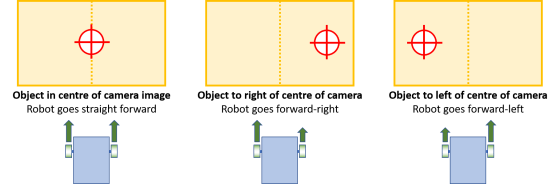
If the object is in the middle of the image, robot should go straight ahead (M1=1, M2=1)
If the object is to the right, move forward-right (e.g. M1=1, M2=0.7)
Likewise, if the object is to the left of centre, move forward-left (e.g. M1=0.7, M2=1)
If the object is not found, we turn the robot around in a circle to search for it (M1=1, M2=-1)
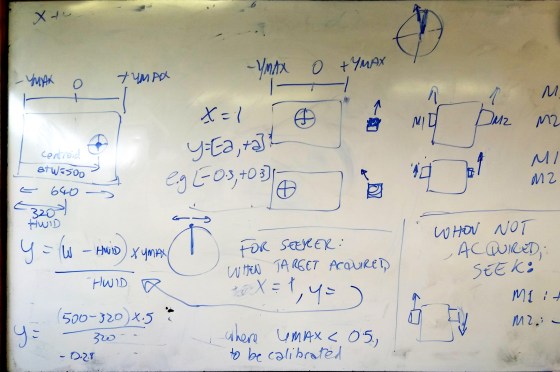
The first three of these are illustrated below:
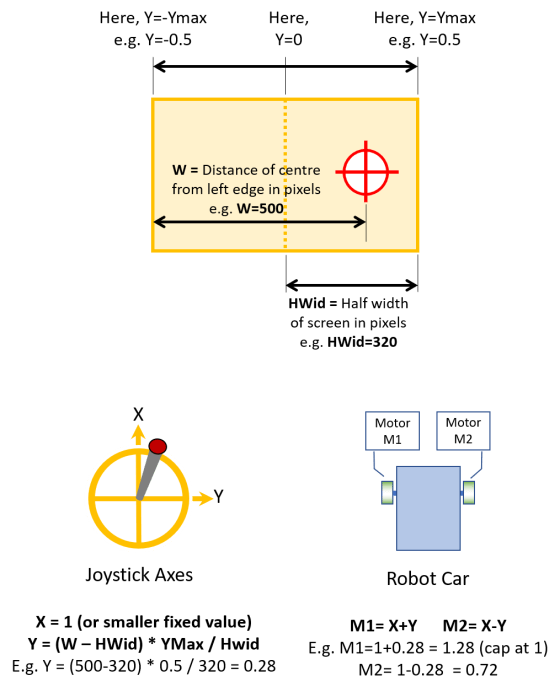
Our solution is to treat this as a variant of what we previously worked out before, where we had a joystick input, where the X direction of the joystick controls forward movement and its Y direction controls whether to move left or right. In this case, we are steering left/right while always moving forward. Therefore, X has a fixed value (X=1) and Y is a value that depends on the direction of the object of interest.
The equations we came up with are:
X = 1 (a fixed value)
Y = (W – HWid) * YMax / HWid
Then use X and Y to calculate the motor control values as before:
M1 = X + Y, constrained to being between -1 and +1
M2 = X – Y, constrained to being between -1 and +1
Here:
X is a fixed positive value: X=1 for full speed, or make it smaller to move forward more slowly
Y is calculated from the equation above
W is the distance of object’s centre from left edge of the image, in pixels
HWid is half the width of the image, in pixels (for example, for a basic VGA image, 640×480, HWid is 640/2 = 320)
YMax is a value approximately 0.5, but needs to be calibrated – it depends on how sharply you want your robot to steer towards the object
M1 is the control signal for Motor M1, in the range -1 (full reverse) to +1 (full forward)
M2 is the same for Motor M2
Constrained means: if the calculated value is less than -1, set it to -1; if it is greater than +1, set it to +1.
At our most recent session in the Hackers group in CoderDojo Athenry, we spent out time on practical mathematics, figuring out how, if we want to make a robot that is controlled by a person with a joystick, how exactly do we translate movements of the joystick to signals sent to the motors.
Our assumptions are:
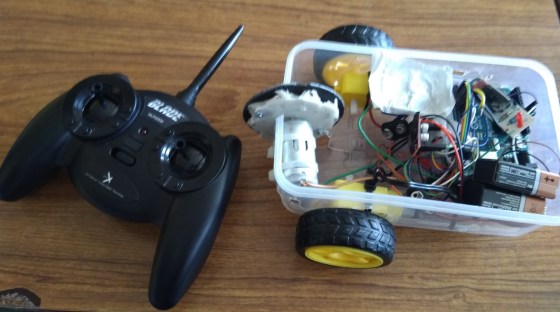
We are controlling robot with 2 drive wheels, one on the left and one on the right, like the one shown in the photo above (which we made last year)
We assume that we have code to control the motors for the two wheels (which we call MotorM1 and MotorM2) with a value in the range -1 to 1, where 1 is full speed ahead, 0 is no movement, and -1 is full speed reverse
To make the robot turn, drive the motors M1 and M2 at different speeds
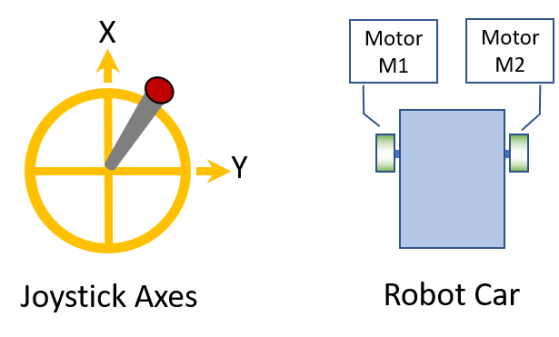
We assume that we have code to receive signals from the joystick, and get X and Y values in the range -1 to 1, as shown in the diagram below
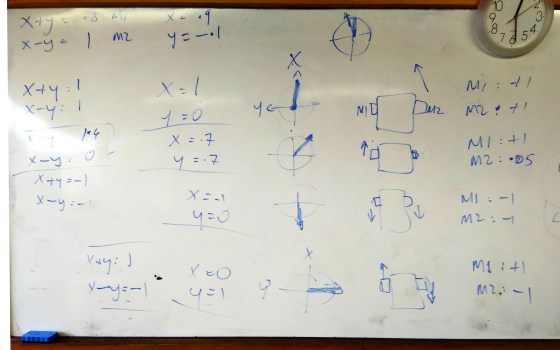
Our approach was to think about what joystick positions (X and Y) should result in what robot movements (M1 and M2), and then see if we could come up a way of expressing M1 and M2 in terms of X and Y. We filled a whiteboard with satisfying diagrams and calculations; see the bottom of this post. I have re-dawn them for clarity below.
The resulting equations are quite simple:
M1 = X + Y, constrained to being between -1 and +1
M2 = X – Y, constrained to being between -1 and +1
Here:
M1 is the control signal for Motor M1, in the range -1 (full reverse) to +1 (full forward)
M2 is the same for Motor M2
X is the forward position of the joystick from -1 (full back) to +1 (full forward)
Y is the left/right position of the joystick from -1 (full left) to +1 (full right)
Constrained means: if the calculated value is less than -1, set it to -1; if it is greater than +1, set it to +1.
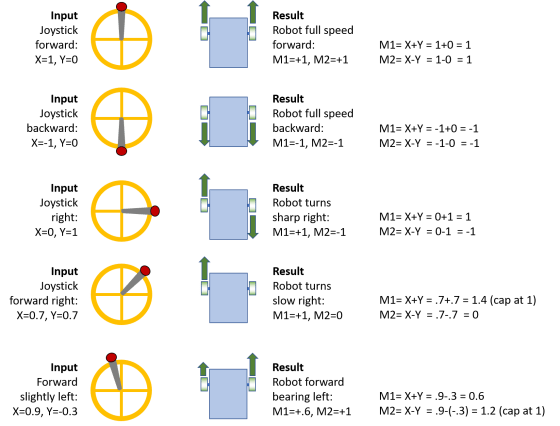
Here is the full set of joystick positions and motor movements that we considered, showing how the equations work:
Each motor needs two control signals in the range 0-255, one for forward and one for reverse, so we will need more code to convert our M1 and M2 to what is needed for the H-bridge, but that is a fairly easy job for a different day.
This week we mainly dealt with building and using a box collider in our game. The box colliders are written in a way such that:
They are connected to something in the game and follow it around
What they are attached to must have the properties x and y for position
It is possible to test if they are touching each other
If two colliders are found to be touching, we tell the things that they’re attached to that they’ve been hit by something
What they are attached to must have a function hit() that we can call
Extents of the Collider
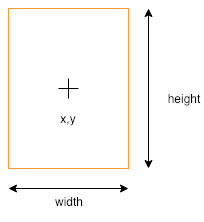
Our collider is a box, of a given width and height, centred on the x and y of the thing it’s connected to:
For checking collisions, we need to know the x values of the left and right side of the box and the y values of the top and the bottom of the box.
For convenience, we write a function which returns an object (using curly brackets) with the left, right, top, and bottom values (shortened l, r, t and b respectively) as properties:
When making an object like this, we set a property value by first writing the property name, followed by a colon (:) and then a space and the value we want it to have. Each property is separated with a comma. The don’t need to be on separate lines, but it makes it easier to read.
Touching Colliders
So how do we know that two colliders are touching? Actually there are four ways in which they definitely can’t be touching:
One is completely to the left of the other
One is completely to the right of the other
One is completely above the other
One is completely below the other
And if none of these are true, then it must be touching. So actually, we’re going to check that they’re not NOT touching (double negative, used correctly!).
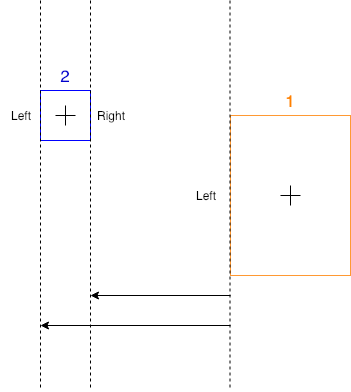
How do we know if something is completely to the left of something else? Look at this diagram:
We know that box 2 (in blue) is totally to the left of box 1 (in orange) because we can see it is, but how could get the computer to check it? Remember, left and right are just x values on the screen. Box 2 is left of box 1 because both it’s left and right values are smaller than the left value of box 1.
The checks for the other directions are very similar:
The second box is right of the first box when both of it’s x values (left and right) are greater than the first’s right side.
The second box is above of the first box when both of it’s y values (top and bottom) are less than the first’s top side.
The second box is below of the first box when both of it’s y values (top and bottom) are greater than the first’s bottom side.
Sending Messages
Each collider has a property disc that describes the thing, or type of thing, that it’s connected to.
All colliders know what they’re connected to, so when we determine two have touched, we call a function called hit() on each of the connected objects, passing it the desc of the other collider. This means, in our game, when our enemy is hit, it can know that it’s been hit by a bullet – or maybe something else – and react appropriately.
Checking Every Collider Against Every Other
In our code, we gather all the active colliders at each frame. We then need to check each one against each every other one. How can we do that?
Consider a list of four items:
To check them all against each other we first need to check 0 against the other three. Simple enough.
We we need to check 1. But we don’t need to check 1 against 0, since we already did that. Nor do we need to check it against itself. We only need to check it against 2 and 3.
If we write out the full sequence, we see that for four items we need three passes to check all combinations:
First pass: Check 0-1, 0-2, 0-3
Second pass: Check 1-2, 1-3
Third pass: Check 2-3
We can write a pair of loops to do this:
for (let i = 0; i < c.length - 1; i++){
for (let j = i + 1; j < c.length; j++){
c[i].touching(c[j]);
}
}
Note two things about these loops:
The first loop goes from zero, but stops one short of the last item in the list (i < c.length – 1). It picks the first item to be checked.
The second loop doesn’t start from zero. It starts from what ever i currently is, plus one. It picks the second item to be checked.
Other Stuff
We also did a few other things this week:
We fixed a small bug that was keeping our spaceship moving when we didn’t want it.
We added a little drag to slow the spaceship down to a stop when we lift our fingers off the keys
We set bullets inactive when they hit something
Download
The files for this week can be found on our GitHub repository.
I was away this week so Dave led the group, they did a couple of Arduino projects. They revisited the traffic lights from December but this time used the Arduino to control them and then moved on to a temperature and humidity sensor called the DHT11.
Here is the wiring diagram for the traffic lights and you can find the code here.
Here is the wiring diagram for the DHT11 and the code is also on Dropbox here.
We will be doing more with the Arduino particularly for some of our projects.
Last week, we figured out how to control a motor with a H-bridge. We expanded this to controlling a pair of wheels using the H-bridge. Above is a photo of the hardware. The wiring of the H-bridge is:
H-bridge [+] and [-] are connected to a 9V battery
H-bridge [IN1] to [IN4] is connected to Arduino Pins 6, 7, 8, 9
H-bridge [Motor A] and [Motor B] pins are connected directly to the two motors
Below is Arduino code by Hackers member Luke to control this.
// Luke Madden, CoderDojo Athenry
// Control motors using a H Bridge
// The H bridge has 4 input pins: in1-in4
#define in1 6
#define in2 7
#define in3 8
#define in4 9
int fast = 150;// range 1-255
int slow = 80;// slower speed
int hyperspeed = 255;// hits the hyperdrive
void setup() {
pinMode(in1, OUTPUT);
pinMode(in2, OUTPUT);
pinMode(in3, OUTPUT);
pinMode(in4, OUTPUT);
Serial.begin(9600);
}
void loop() {
drive();
}
void drive() {
// Test the functions
Serial.println("move forward");
forward();
delay(2000);
Serial.println("hit the hyperdrive");
hyperdrive();
delay(2000);
Serial.println("go backwards");
backwards();
delay(2000);
}
void forward() {
//makes motor go forwards
analogWrite(in1, fast);
analogWrite(in2, 0);
analogWrite(in3, fast);
analogWrite(in4, 0);
}
void hyperdrive() {
//hits the hyperdrive
analogWrite(in1, hyperspeed);
analogWrite(in2, 0);
analogWrite(in3, hyperspeed);
analogWrite(in4, 0);
}
void backwards() {
//makes motor go backwards
analogWrite(in1, 0);
analogWrite(in2, fast);
analogWrite(in3, 0);
analogWrite(in4, fast);
}
void stopping(){
//makes it stop
analogWrite(in1, 0);
analogWrite(in2, 0);
analogWrite(in3, 0);
analogWrite(in4, 0);
}
Handling Interrupts in Arduino
In Arduino, you can set up special functions that are a called depending on the state of some digital pins – these are called Interrupt Service Routines (ISRs). These routines are called separately from the main loop() that is always running, even if the main loop() is in the middle of another operation.
For controlling our robots, our Arduino might receive a signal on a pin, and if we want the robot to react quickly, an ISR can handle it. The ISR can send a signal on a different pin or change the state of a variable.
This code is simple and correctly-working demonstration of how interrupts work. Note that you don’t need to build any circuitry to try this out. A built-in LED on the Arduino, at pin 13, turns on/off depending on whether Pin 2 is connected/disconnected from the the GROUND pin.
There are three main tasks:
Define the ISR function: this is a function declared as void with no arguments: for example, our ISR is called changed and is defined as:
void changed() { … }
In our code, it sets the value of a variable called controlState and it turns the LED on/off. Note that the value of controlState is printed out repeatedly in the main program loop, showing how the ISR can change a variable that is used elsewhere.
In the setup() function, set the pin mode of the control pin to INPUT or INPUT_PULLUP (see below for the difference). For example, we have defined the variable control to have value 2 and are setting its mode like this:
pinMode(controlPin, INPUT_PULLUP);
In setup(), attach the ISR to the pin:
attachInterrupt(digitalPinToInterrupt(controlPin), changed, CHANGE);
One extra note about the above line of code: all pins have numbers and all interrupts have numbers, and these are not (necessarily) the same numbers. The function digitalPinToInterrupt() returns the interrupt number corresponding to a given digital pin.
Some other things to note:
The Interrupt Service Routine (ISR) should be short and run fast: delay() calls are ignored and print() can cause problems.
You can’t attach two interrupts to the one pin: use CHANGE and then test pin state
If you initiate the pin with INPUT_PULLUP, it is triggered by connecting it to GROUND; otherwise, if you initiate it with INPUT, you need a circuit with 10k resistor.
On an Uno, can only attach interrupts to pins 2 and 3.
If you are changing a variable in the ISR and need to use it elsewhere, declare it as volatile.
Here is the full Arduino code:
// Michael Madden, CoderDojo Athenry
//
// Test a pin interrupt to which an interrupt service routine (ISR) is attached.
// When the control pin is connected to GROUND, the LED on the board is turned on.
// Things we have figured out:
// * The interrupt service routine (ISR) is a function declared as void with no arguments.
// * It should be short and run fast: delay() calls are ignored and print() can cause problems.
// * You can't attach two interrupts to the one pin: use CHANGE and then test pin state
// * If you initiate the pin with INPUT_PULLUP, it is triggered by connecting it to GROUND;
// * otherwise, with INPUT, you need a circuit with 10k resistor.
// * On an Uno, can only attach interrupts to pins 2 and 3.
// * If you are changing a variable in the ISR and need to use it elsewhere, declare it as volitile.
const byte controlPin = 2; // Want to react when this pin is triggered
const byte ledPin = 13; // no circuit needed: there is a built in LED on 13
volatile int controlState = 0; // will change this value in ISR
void setup() {
pinMode(ledPin, OUTPUT);
pinMode(controlPin, INPUT_PULLUP);
attachInterrupt(digitalPinToInterrupt(controlPin), changed, CHANGE);
Serial.begin(9600);
}
void loop() {
// The main loop does not do much, it just prints out the value of the
// control pin's state every 2 seconds.
Serial.print("Current value of control pin = ");
Serial.println(controlState);
delay(2000);
}
void changed()
{
// This is our interrupt service routine.
// It is triggered when the control pin changes,
// so we check its state and turn on/off the LED.
//
controlState = digitalRead(controlPin);
if(controlState > 0) {
digitalWrite(ledPin, HIGH);
}
else {
digitalWrite(ledPin, LOW);
}
}
Hi everyone,
We completed our Mario game this week. We coded Mario so that he always floated down on to the wall. We added a fraction of a second of a wait so that it appears that he floats as he comes down. This also allows time for you to navigate left or right as needed.
We also introduced a more advanced concept, the Parallax effect, whereby objects further away appear to move slower than objects nearer. We coded mountains and a Sun to demonstrate this.