Topic 4: Planning and Building a Complex Structure Mod in Minecraft

PyrimidInside This week we have one main goal: build a substantial mod in ScriptCraft that, when you run it, will create an impressive-looking structure! This will include:

You might find it helpful to work in pairs on designing and coding your mods. During the session, I will ask people to load their mods onto my computer, demo them to the group, and explain how their code works. To get things started, at the top and bottom of this post are pictures of mods created by Ruaidhri and Luke. We will take a look at how they work.

Tunnel1

Practical notes:

  • During development and testing, you can end up with lots of incomplete structures that slow down your CraftBukkit server. A simple fix is to delete your world:
    • Stop your CraftBukkit server
    • Open the CraftBukkit folder on your computer: in it you will see folders called world and possibly world_nether and world_the_end delete them all
    • While you are at it, edit server.properties in the CraftBukkit folder to make your new world superflat, write level-type=flat and you could also change other properties such as spawn-monsters=false
    • Restart your CraftBukkit folder to create a new, empty world
    • Re-run your scripts to recreate structures that you want
  • Read the ScriptCraftJS API reference to see what commands you can use for your structures: https://github.com/walterhiggins/ScriptCraft/blob/master/docs/api.md

Week 2 – Scratch Beginners – Building on our first game

Hi everyone,

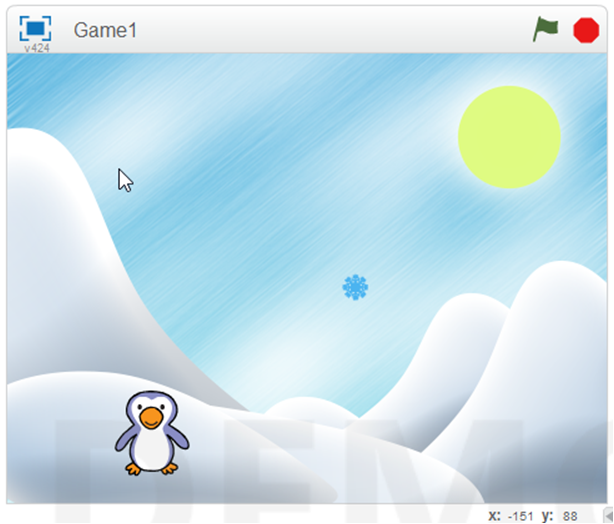
Great to see you all there on Saturday. This weeks starting point was our game from last week. We wanted to add extra functionality. We added code to the Snowflake so that something happened when the Penguin touched it. Most people added some sound.

sensing

We also made our first variable. We did this so that we could keep track of our score. Using this score we also could add code to make something happen when you reached a certain score and win the game. Again here we added a sound and switched backgrounds.

variable

We learned and used a lot of new code this week and we will see over the coming weeks how we can incorporate it into many different types of games.

Why don’t you try using all the code you have learnt so far to create your own game. We will take time at the beginning of next weeks session to look at any games that people want to show us.

yourgame

See you all next week!

Here are the notes from todays session in PDF CDA-S4-Week_02-FirstGame-Part2.pdf

Python Games – Week 2 : Preparing for our Adventure Game

We made fantastic progress again in the Python Games stream.

We covered Escape Characters, Functions and Boolean Logic (with a quick look at logic gates). Then we looked at the Dragon’s Realm game code available here.

We had a brainstorming session with some great ideas from the ninjas for our own adventure game which we are going to start coding next week.

DSC_0479

My slides from today are available here.python session_2

Topic 3: Creating our First ScriptCraft Mods

2014-10-17_20.54.57

(Notes updated September 2015.)

Previous Topic: Connecting to Each Other’s Servers.

Our First Mod: sayhi.js

I’ll show you how to write a very simple one, sayhi.js, and then a more complex one, scraper.js. After that, it’s up to you to figure out what you can do!

In the Canarymod folder, find the folder scriptcraft / plugins, then make a new folder with your name (or any unique folder name).

Using Notepad++, type in the code shown below and save it in a file called sayhi.js. Here are explanations of what everything means:

sayhi-scriptcraft

Try it out in Minecraft and see if it works!

NOTE: Every time you create a new ScriptCraft program or edit one, you have to type /js refresh() in Minecraft to update your changes. If no commands run, make sure you are opped. (In the Canarymod window, type op <your_mincraft_name>).

To run it, type /js sayhi() in Minecraft.

A More Complex Mod: scraper.js

This makes the skyscraper shown above. We will figure out together how it works!

scraper-scriptcraft

Topic 2: Connecting to Each Other’s Servers

bukkit

(Notes updated September 2015.)

Note: This continues what we started in Topic 1: Getting Started with ScriptCraft and JavaScript.

Next step: Creating our first Scriptcraft mods. https://cdathenry.wordpress.com/2014/10/17/topic-2-connecting-to-servers-and-creating-our-first-mod/

Previously, we installed a Canarymod server and inside it we installed ScriptCraft, a mod that will allow us to build structures in MineCraft by writing JavaScript code.

Canarymod is a Minecraft Server. Therefore, the instructions we followed to connect to it were:

  • Start MineCraft, making sure it’s the same version (1.8 in our case)
  • Choose Multiplayer, then Direct Connect and enter localhost as the server address
  • If this works, in your CraftBukkit window you’ll see a message that you connected.

Here, localhost is actually means “the address of this local computer”.

But you can also connect to a friend’s computer, if you are all on the same network and you can find out their address. (If you are on different networks, things get a bit more complex: you will have to search online about how to set up port forwarding on your router, and you will probably also need a free Dynamic DNS service.)

On a local network, to find your IP address, open a command window. (In Windows, run or search for cmd.) In the command window, enter the command ipconfig and read through to find an entry like this:

Wireless LAN adapter Wi-Fi:
    Connection-specific DNS Suffix . :
    Link-local IPv6 Address . . . . . : fe21:9ba2:9db6:13e9%4
    IPv4 Address. . . . . . . . . . . : 192.168.1.17
    Subnet Mask . . . . . . . . . . . : 255.255.128.0
    Default Gateway . . . . . . . . . : 10.101.0.1

The IPv4 address is what you need. Get a friend to start Minecraft on their computer, then Direct Connect and enter your IP address. They will then be connected to the server on your computer!

This can be handy if you want to work on projects together.

Next step: Creating our first ScriptCraft mods.

Week 1 – Scratch Beginners- First Game

It was great to see so many of you there yesterday! Welcome back to anyone who was here last year and a big welcome to all our new Ninjas.

We were able to get down to work very quickly yesterday and that was all down to our mentors who got everyone up and running. Thank you, Neil, Julia, Ciara F, Dermot and welcome to our newest member Ciara D and thank you for giving your time.

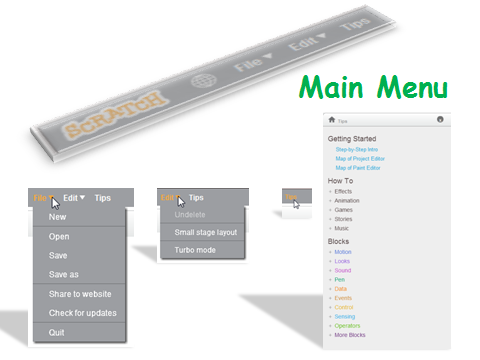
One of the first things we did yesterday was to go through the Scratch interface and familiarise ourselves with the Menu

sprites

menus

Our first game had two sprites, one which moved by using the arrow keys and one which moved randomly. Now we could have taken the easy option here with this code but instead we looked at the idea of using the X and Y axis and degrees and rotation.

firstgame

As I said yesterday, these are hard concepts for the younger Ninjas to understand at first, but we will be using them week in and week out and they will soon grasp it.

Here are the notes from yesterdays session in PDF CDA-S4-Challenge01-FirstGame.pdf

Next week we will be building on this game and then the Ninjas will build their own game using the code we have learnt so far.

Looking forward to seeing you all back next week!

Python Games – Week 1: Our First Game

We covered a lot of ground today in the Python Games stream . We looked at variables including strings, math operators, inputs and outputs, while loops and if statements. The code from our number guessing game along with some of the code snippets from today are available here.
Ninjas can read the first few chapters of Invent Your Own Computer Games with Python as they deal with the same concepts.
Next week we will run through what we have covered so far, do more work on improving our number guessing game and if we have time, start working on a text based adventure game. Here are my slides fron today’s session python2014_session1.

ModderDojo Topic 1: Getting Started with ScriptCraft and JavaScript

Slide1Welcome to ModderDojo Athenry!

(Notes updated September 2015. Previously used the CraftBukkit server, now using Canarymod.)

This stream is aimed at older & more experienced ninjas, mainly in secondary school, who:

  • Know how to program in some language (e.g. a blue belt in Scratch)
  • Already use the PC edition of Minecraft
  • Know how to edit file and know your way around your computer’s filesystem
  • Ideally have already installed a mod yourself

Plan for today:

  1. Install a Canarymod server (a Minecraft server that is designed to be better to extend than a standard Minecraft server)
  2. Install ScrptCraft, a Mod for Minecraft (built with Canarymod) that allows you to write programs to build objects in Minecraft
  3. Try out some ScriptCraft commands
  4. Write our first mod or two in ScriptCraft

In future weeks, we’ll figure out more about the JavaScript language, which is a popular programming language that is often used in web programming.

Step 0: Prepare

Before you start, you’ll need a programmer’s editor and a zip program. I recommend:

You’ll also need to run Minecraft and the server on your own laptop or pair up with somebody.

Steps 1 and 2: Install Canarymod Server and ScriptCraft

Instructions here: https://github.com/walterhiggins/ScriptCraft/blob/master/README.md

I’ll have files pre-downloaded on a USB flash drive to save time.

We’ll edit the properties file to specify a flat world, creative mode, and give the world a name.

Either follow the instructions linked above to install everything from scratch, or these instructions ot use my pre-=built server:

  1. Download the Canarymod/ScriptCraft server (a single zip file) here:
    https://www.dropbox.com/s/d1af5njm7t732n0/ScriptCraft-Sep2015.zip?dl=0
  2. Create a folder, e.g. C:\ScriptCraft
  3. Move the downloaded zip file into the folder and unzip it
  4. Run canarymod.jar to start it
  5. If Java is not installed, you will need to download it from http://www.java.com

You should then be ready to try out ScriptCraft.

Step 3: Try out ScriptCraft

Run Canarymod (with ScriptCraft already installed).

Then start Minecraft. Important: you will have to run the Minecraft version that matches your version of Bukkit (e.g. 1.8.8)

Choose to directly connect to a server and enter localhost – if you’re connecting to a friend’s machine, you’ll need to connect to their IP address.

To run ScriptCraft commands, you have to be an op. In Canarymod window, type op <username> to op yourself.

In Minecraft, type /js echo(“hello world”) and check that it displays the message: if so, you have it installed correctly.

Next Steps …

Information about the 2014-15 Season at CoderDojo Athenry

2014-overview

From Saturday 11 Oct 2014, we are starting a new season of CoderDojo Athenry, at our usual time and place. (The Saturday before, on 4 Oct, we will be having an introduction session for new mentors and other volunteers.)

Here is a the overview presentation (PDF): 1-CoderDojoAthenry-InfoSession-2014-Sept

This season, we will have the following streams:

We look forward to seeing you there!

–  Michael and the CoderDojo Athenry mentors.

CoderDojo Athenry: Information & Registration on 27 September 2014

restart


If you would like to find out more about CoderDojo Athenry, please come along to Gairmscoil Mhuire VEC School in Athenry at 12:00 on Saturday 27 September 2014.

We will provide information for new members and will have registration forms that you can fill out. Existing members don’t need to re-register and don’t need to attend the information session, though they are always welcome.

The following week, 4 October, we will have an information and training session for new mentors and volunteers.

Normal CoderDojo sessions will start up on 11 October, same time and place, for new and existing members. We will post notes on this website and circulate links to the members.