App Inventor – Week 3 The Countdown App

This week we will build an app that will count down the number of days, hours minutes and seconds to Christmas.

Countdown app

The app is modelled on the web site http://www.yourchristmascountdown.com/ .

Getting Started

To create this app you need to drag and drop a two label components on to the screen. The first label is called lblTitle; this component fills the width of the screen. This label will be the Title displayed. The second label lblTimer also fills the width of the screen and is the countdown text in the app.

You also need to drag and drop a Clock component onto the screen. This component is not visible and will appear under the screen, all the default settings for this component are ok


Initializing Global variables

Click on the Blocks button to open the script editor. In the script editor a number of global variables must be created and initialized. The first variable is MillisecondsToChristmas, the initial value for this variable is zero. The other Global Variables are listed below and they are all set to zero.

  • DaysLeft
  • HoursLeft
  • MinutesLeft
  • SecondsLeft
  • MillisecondsForNow


When app starts calculate number of milliseconds to Christmas

When the app starts we use the Clock component to calculate the number of milliseconds to Christmas, this is stored in the Global variable MillisecondsToChristmas. Please note that the number of milliseconds calculated is not from the current time to Christmas but rather from Jan 01 1970. We will calculate the number of milliseconds for the current time later. Once we have this value we will subtract it from the number of milliseconds to Christmas.


Using the Clock Timer event to count down

The Clock component has a “Timer” event that fires every second. In this event we will calculate the number of milliseconds for the current time. This is stored in the Global variable MillisecondsForNow. The number of milliseconds for the current time is subtracted from the number of milliseconds to Christmas to give the number of milliseconds between now and Christmas. This is converted to seconds and stored in a local variable NumberOfSeconds. A number of local variables are needed

  • SecondsInMinute = 60
  • SecondsInHour = 3600
  • SecondsInDay = 86400
  • MinutesInHour = 60
  • HoursInDay = 24


Using the Clock Timer event to count down

In order to calculate the number of days, hours, minutes and seconds left to Christmas we use a couple of Math scripts

  • Modulo  – returns  the remainder of a division
  • Floor  – returns the greatest integer that’s less than or equal to the given number.

The script to calculate the Days, Hours, Minutes and Seconds is displayed below.

App Inventor - Final script

Full steps are included in the following link

Week 3 – Countdown App

Python/Pygame- Awarding Belts

belts


Sorry for not posting for a while but as the group have been working on their own games for the past few weeks we haven’t looked at any new concepts.

This weekend we discussed awarding Belts. There are three belts available white, yellow and blue.

White belts are for ninjas who have attended at least five sessions and know how to get started with Idle.

Yellow belts are for ninjas who can demonstrate a basic understanding of coding with Python.

Blue belts will be awarded to ninjas who are more skilled coders.

Anybody who has attended more than five python sessions is entitled to apply for a belt so don’t worry if you haven’t attended for a while you can still get a belt.

Here are my slides from this week Belts.


App Inventor – Week 2 The Kitty App

This week we will create a Kitty App

When you swipe your finger over the picure of the Kitty the phone will play a meow sound and vibrate.


We begin by

  1. Creating a new project
  2. Uploading the picture of the Kitty to the App Inventor project
  3. Uploading the meow sound to the App Inventor project
  4. Drag and dropping a canvas to the app and changing the Background image
  5. Adding a script to play the meow soundand vibrate the phone when you swipe a finger over the picture of the Kitty


Week 2 – Kitty App

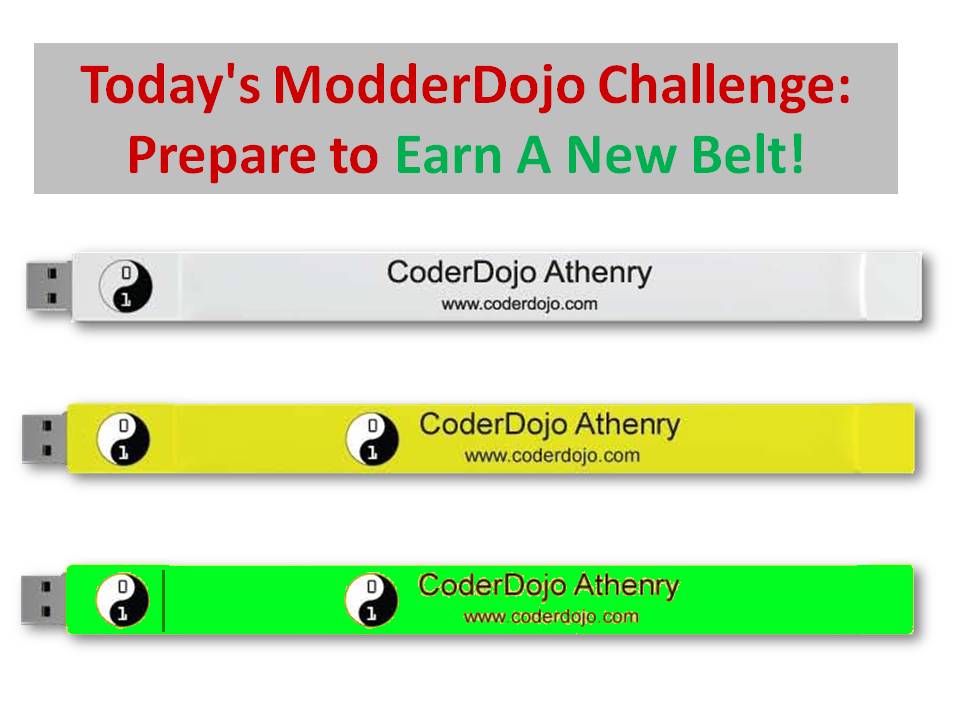
ModderDojo: Preparing to Earn Belts

Modding-PrepareForBeltsAs discussed at this week’s session, we will be awarding belts on Saturday 12 April. In advance of that, Modders should work on developing as good a mod as possible, in either Java or JavaScript. I can help you publish your mod to the CoderDojo Athenry website, so  get in touch with me (Michael) by email if you have questions.

Here are the notes in PDF format about how to earn a belt: Modding-PrepareForBelts.


ModderDojo Java Modding 13: All Our Mod Code So Far

firstmod

Overview

Here is all of the code for our mods to define our first item, first block, and first recipe. In addition to 3 Java files, there is 1 language resource file (en_US.lang) and also 2 PNG files that are not included below: one for the block texture and one for the item texture.

Refer to the image below and to earlier posts in this series to see how these files should be arranged in a package.

MyFirstItem.java

// Michael Madden Feb 2014.
// Ref: http://www.minecraftforge.net/wiki/Basic_Items 
// And: https://cdathenry.wordpress.com/2014/02/15/modderdojo-java-modding-8-a-simple-item-mod/ 

package modderdojo.firstitem;

import net.minecraft.creativetab.CreativeTabs;
import net.minecraft.item.Item;

public class MyFirstItem extends Item 
{
 public MyFirstItem() 
 {
 // This is the constructor for our new item. Set basic properties in it.
 setMaxStackSize(64);
 setCreativeTab(CreativeTabs.tabTransport);
 setUnlocalizedName("MichaelFirstItem"); 
 }
}


MyFirstBlock.java

// Michael Madden March 2014.

// Ref: http://www.minecraftforge.net/wiki/Basic_Items
// And: https://cdathenry.wordpress.com/2014/03/29/modderdojo-java-modding-12-creating-our-first-block/

// Thanks to Ailish and Eli in CoderDojo Athenry who figured this out originally. 

package modderdojo.firstitem;

import net.minecraft.block.Block;
import net.minecraft.block.material.Material;
import net.minecraft.creativetab.CreativeTabs;

public class MyFirstBlock extends Block 
{
 public MyFirstBlock() 
 {
 // This is the constructor for our new item. Set basic properties in it.
 super(Material.iron); // Copy the properties of iron
 
 setCreativeTab(CreativeTabs.tabBlock);
 setBlockName("MichaelFirstBlock"); // This is the internal name, not display name
 }
}


MyFirstMod.java

// Michael Madden, March 2014.
// Registers an Item mod and a Block mod and creates a recipe.
// Ref: https://cdathenry.wordpress.com/2014/01/19/modderdojo-java-modding-6-creating-our-first-mod-adding-a-crafting-recipe/
// And: https://cdathenry.wordpress.com/category/modderdojo/

package modderdojo.firstitem;

import net.minecraft.init.Blocks;
import net.minecraft.init.Items;
import net.minecraft.item.Item;

import net.minecraft.item.ItemStack;
import cpw.mods.fml.common.Mod;
import cpw.mods.fml.common.Mod.EventHandler;
import cpw.mods.fml.common.event.FMLPreInitializationEvent;
import cpw.mods.fml.common.registry.GameRegistry;

@Mod(modid = "firstitem", name = "First Mod from ModderDojo by Michael", version = "1.0")
public class MyFirstMod
{
 @EventHandler
 public void preInit(FMLPreInitializationEvent event) 
 {
 // Register my item and set its texture
 MyFirstItem first = new MyFirstItem();
 first.setTextureName("modderdojo:md2");
 GameRegistry.registerItem(first, "MichaelFirstItem"); // This name doesn't have to be same as unlocalised name, but no harm in them being the same
 
 // Register my block and set its texture
 MyFirstBlock b = new MyFirstBlock();
 b.setBlockTextureName("modderdojo:mmblock"); // requires .png file with this name
 GameRegistry.registerBlock(b, "MichaelFirstBlock");
 
 // Add recipe to turn 2 of my items into diamond
 ItemStack myStack = new ItemStack(first);
 ItemStack diamond = new ItemStack(Items.diamond, 1);
 
 GameRegistry.addRecipe(diamond, 
 "x ", // 2x2 recipe
 " x", 
 'x', first);
 }
}


en_US.lang

item.MichaelFirstItem.name=Nice Name For Michael's First Item
tile.MichaelFirstBlock.name=Michael's First Block Display Name


Week 8 – 2014 Scratch Beginners

Hi everyone,

Good to see so many of you there again on Saturday.

At the start of the session, I talked about what will be happening on April the 12th when we will be awarding belts. If you have any questions or are unsure about anything, please ask me in the next session.

belts

This week we again tried to use all the coding fundementals we have learned so far, such as loops, decisions, animation etc., and put them into a new game. Unlike last week though where the game was an action game this weeks was more of a brain teaser/maths game.

mathsgame

Next week, you are going to work on the game that you will show to us the following week. We will be on hand to help you along if you have any questions.

Looking forward to seeing all your great ideas!

The full notes from this weeks sessions are here in PDF form CDA-S3-MathsGame

Welcome to App Inventor

Today we are going to use App Inventor to create Android apps. App Inventor is created by MIT (Massachusetts Institute of Technology) who are the same people who created Scratch.

App Inventor is browser based and the projects are stored entirely in a cloud at MIT.

Currently the supported browsers are:

  • Mozilla Firefox 3.6 or higher
  • Note: If you are using Firefox with the NoScript extension, you’ll need to turn the extension off. See the note on the troubleshooting page.
  • Apple Safari 5.0 or higher
  • Google Chrome 4.0 or higher
  • Microsoft Internet Explorer is not supported.


App Inventor works on the following Operating Systems

  • Windows XP, Windows Vista, Windows 7
  • Mac OS X 10.5 or higher
  • GNU/Linux: Ubuntu 8 or higher, Debian 5 or higher


The following slides cover the steps to install Firefox and the App Inventor software.

Week 1 – How to install App Inventor

The following slides cover the steps to update the App Inventor software.

Week 1 – How to update App Inventor


Once the software has been installed we will create our 1st app using App Inventor.

Week 1 – Speaking App

ModderDojo Java Modding 12: Creating our First Block

2014-03-29_09.42.51

Getting Started

IMPORTANT: For this block mod code to work, you need at least release 1024 of Forge 1.7.2. It will not work with releases 999 that we downloaded before. (Explanation: Forge works by decompiling the Minecraft code, which gives fields and methods automatic names like func_149739_a(). The Forge people have to translate these into meaningful names, like getUnlocalizedName(). They had not done this for the Material fields in earlier releases.)

You can download the source here: http://files.minecraftforge.net/maven/net/minecraftforge/forge/1.7.2-10.12.0.1024/forge-1.7.2-10.12.0.1024-src.zip

You will need to unzip it and run the two gradlew commands – see Post 2.

Thanks to Eli and Ailish who between them were the first to get this working.

Files Needed

Very similarly to creating an Item mod (see Post 8) you need at least 4 things to create a new Block mod:

  1. A new block class that extends the standard Block class
  2. A mod class where you add it to the game registry (you can just add some lines to one you have already)
  3. A language file where you specify its name
  4. A texture file to control its appearance

I am keeping this code in the same package I already used for our item mod, modderdojo.firstitem.

NeededForBlockMod

The Block Class

Create a Java file in this package called MyFirstBlock with this code:

// Michael Madden March 2014.
// Ref: http://www.minecraftforge.net/wiki/Basic_Items
// Thanks to Ailish and Eli in CoderDojo Athenry who figured this out originally. 

package modderdojo.firstitem;

import net.minecraft.block.Block;
import net.minecraft.block.material.Material;
import net.minecraft.creativetab.CreativeTabs;

public class MyFirstBlock extends Block
{
 public MyFirstBlock()
 {
 // This is the constructor for our new item. Set basic properties in it.
 super(Material.iron); // Copy the properties of iron

 setCreativeTab(CreativeTabs.tabBlock);
 setBlockName("MichaelFirstBlock"); // This is the internal name, not display name
 }
}


Adding It to the Registry

Add this code to the preInit method in your main mod class (in my case called MyFirstMod):

 // Register my block and set its texture
 MyFirstBlock b = new MyFirstBlock();
 b.setBlockTextureName("modderdojo:mmblock"); // requires .png file with this name
 GameRegistry.registerBlock(b, "MichaelFirstBlock");

Appearance

For this step, you need to create a texture that will be used on all sides of the block.

Using a graphics package such as Paint.NET, create an image of size 32 x 32 (other sizes that are powers of 2 are also OK). Save it in PNG format.

In the src/main/resources folder, create a new package called assets.modderdojo.textures.blocks (just like the one you did for your first item, but with blocks instead of items in its name). Put the PNG file in it. In my case, the file is called mmblock.png.

In your main mod class preInit method, add/update this line:

b.setBlockTextureName("modderdojo:mmblock");

The name you set is based on where you put it “assets.modderdojo.textures.blocks” followed by a colon “:” followed by the name of the PNG file put without “.png”: mmblock.png.

Name

If you run your code now (and it’s a good idea to keep running after every step, to test what you have done), you will see that your block has the name tile.MichaelFirstBlock.name. To give it a better name, add a line to the language file, en_US.lang:

tile.MichaelFirstBlock.name=Michael's First Block Display Name


ModderDojo Java Modding 11: Packaging our First Mod

DarthWithMod

This post is based on these instructions:
http://www.wuppy29.com/minecraft/modding-tutorials/wuppys-minecraft-forge-modding-tutorials-for-1-7-releasing-your-mod-standard-setup/
The main steps are:

  1. Edit build.gradle and change the group and archiveBaseName entries
  2. Run gradlew build
  3. In the folder build – lib, you will find your Jar file: you can post this on a website for other people to use.

To install Forge if you don’t already have it installed:

  1. Download it here: http://www.minecraftforge.net/forum/index.php?action=files
  2. Look for 1.7.2-Recommended and then click on Installer-Win
  3. Select “Client install”
    1. You will end up with a new Minecraft profile called Forge
    2. Select this to run Minecraft with Forge

To install your new mod (or any Forge mod):

  1. Open Windows Explorer and enter %appdata% as the location
  2. Open the .minecraft folder and then the lib folder
  3. Copy your new mod Jar file into lib

Next time you run Minecraft with the Forge profile, you will see your mod.


Previous post: ModderDojo Java Modding 10: A Recipe for Our New Item.

Week 7 2014 – Scratch Beginners

Hi Everyone,

Thank you all for coming again this week and thank you to Oliver for taking the session for the two weeks I was away.

I briefly spoke about Belts last week and we will go into that further in this coming session.

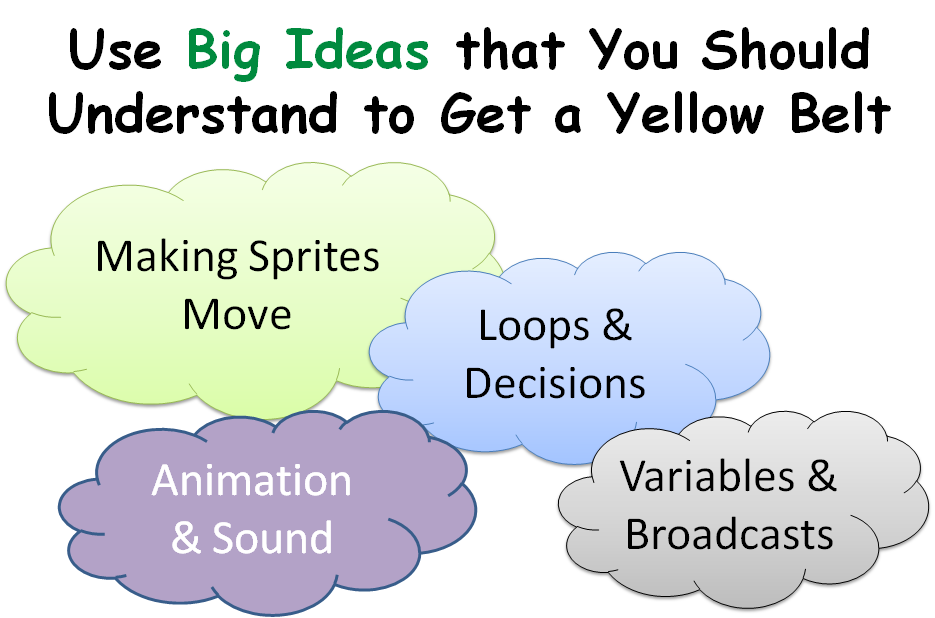
bigideas

I tried to do a game this week that was jammed packed with everything you have learned so far, Loops, decisions, variables, broadcasting and animation.

ballcode

It was quite a lot to fit in but I think we managed it. If any of you are having problems with your code, we can take a look at it before our next session, or have a look through this weeks notes and see can you figure it out yourself.

Here are this weeks notes in PDF: CDA-S3-Wipeout