Week 5 – Scratch Beginners – Paddle & Ball

Hello everyone

We had a great crowd again on Saturday and had some new registrations as well. Hope you enjoyed your first week at CoderDojo Athenry.

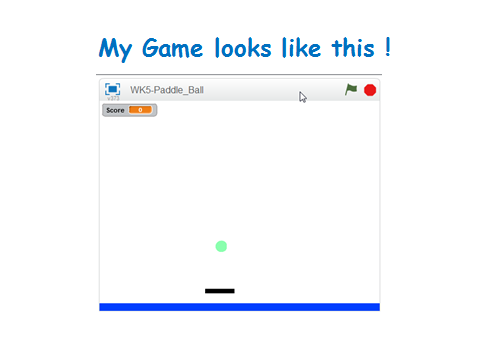
This week I wanted you to design how your game looked. I kept my game very simple, just a paddle and a ball but you all had great ideas.

paddle

yourgame

I always mention that there is no right way or wrong way to do things. This week we used Broadcasting to send a message when something happened rather than using some of our senseing code to figure out when it happens.

BROADCAST

Here are last weeks notes in PDF CDA-S4-Week_05_Paddle_Ball.pdf

See you next week

Massive Open Dojo Session MODS

Hi there,

A huge thank you to all who turned up in NUI, Galway today. There was a great turn out and it was a very successful event. CoderDojo Athenry was very well represented and we especially want to thank parents for their commitment, we know its hard to keep everything going. A special thank you to our Core mentors who turned up today and really helped with the smooth running of the event.

Here are the “Cheat Sheets” from the Scratch session today in case any one would like them. Scratch_CheatSheet.pdf

Week 4 – Scratch Beginners – Improved Ghostcatcher

Hi again everyone,

This week we improved on our Ghostcatcher game from last week.

We introduced two new concepts which we haven’t used before, animation and broadcasting.

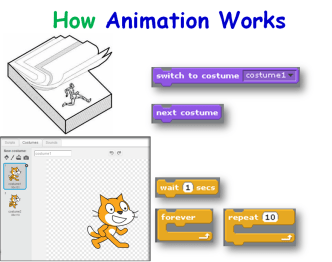
Using a simple technique of changing between costumes and having a waiting time we can animate our Sprites. In our case, we animated the Ghosts so they were blinking or sticking out their tongue. You could of course use this technique to have a sprite look like they are walking etc.
animation

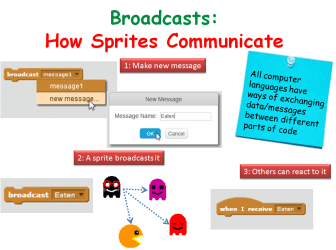
We also then had our first introduction to Broadcasting, which is a way of exchanging data/messages between our sprites.

We used Broadcasting to send a message from the Ghosts (that they have been eaten) to be received by the Pacman, who then will change costumes i.e. Open and close its mouth.
BROADCAST

Hope you all enjoyed the session and we will be using animation and broadcasting over the next couple of months.

Here are this weeks notes in PDF CDA-S4-Week_04-BetterGhostCatcher.pdf

Hope I see a lot of you next week in NUI, Galway, it should be a great day!!

Python Games – Week 4: Lists and For Loops

We learned about some new concepts today in the Python Games group – multi-line strings, lists, for loops, methods, elif statements and the dictionary data type.

We had a quick look at the Hangman Game from Invent Your Own Computer Games with Python (http://inventwithpython.com/chapter9.html). We covered Lists which are a way of storing a number of values in one variable and had some fun writing code snippets mainly based around X-Factor. We looked at some new ways of working with strings called multi-line strings.  We also learned about new types of functions called methods and a new type of loop called a for loop. At the end of the session we started to get to grips with Pygame. Our code snippets are available here and my slides from today are here python session_4

Forge Modding Tutorial #1 – Setting up your Development Environment

To prepare for MineVention, a handful of you will be making Java mods. This is the first of the posts showing you what to do.

You need to download the following:

The steps to install the Forge Java modding environment are below.

To install Eclipse:

  • Eclipse does not have an installer: you just unzip and run it.
  • Create a folder C:\Eclipse, copy your Eclipse zip file into it, and extract it
  • In the sub-folder, find Eclipse.exe: make a shortcut to it on your desktop
  • Start it up and make sure it works
  • We can write a first “Hello World” program: see below.

To install Forge: http://www.minecraftforge.net/wiki/Installation/Source

  • Extract the Forge .zip file to a new folder -> C:\Forge
  • Open a Command Prompt/CMD window

In that CMD window, navigate to C:\Forge. Use cd .. a few times to go up a level to C:, and cd Forge to go to the Forge folder.
Now run this command (followed by the second gradlew command, see below):
gradlew.bat setupDecompWorkspace –refresh-dependencies

Let the installer download all necessary files. This takes 20-30 minutes. Watch out for errors!

  • It will download MCP (Minecraft Coders Pack) automatically, as well as libraries
  • It will then download assets. These are non-code elements of Minecraft, e.g. language files, music files, record audio, sounds and more. These are now stored in a folder called “assets” under the “.minecraft” folder.
  • Finally, it will begin decompiling the Minecraft source code. When finished, you will have a new folder inside your “forge” folder called “mcp”.
  • Finally, create an Eclipse workspace for Forge with this command:
    gradlew.bat eclipse

Start up Eclipse and select the workspace that Forge created, in the Eclipse folder under Forge:

forgeworkspace

Note: if the workspace is empty, make sure that you ran the command gradlew eclipse and that you selected the correct folder.

Press the green Run icon: you should see messages in the Eclipse console window and Minecraft will launch and will initially have 3 mods.

ModderDojo Athenry Topic 6: JavaScript Operators and ScriptCraftJS Drone Functions

Our mods:

Download them here: https://cdathenry.wordpress.com/2013/11/10/modderdojo-athenry-our-scriptcraftjs-minecraft-mods/

Operators:

Operators in any programming language are used when you want to calculate something new: they operate on values. variables, or expressions to produce a new value.

Since ScriptCraftJS is built on the JavaScript langauge, it uses standard JavaScript operators. As it happens, many other programming languages (including C, C++ and Java) use the same operators or very similar ones.

JavaScript Operators

Drone Functions:

As we have seen before, in ScriptCraft you use a drone to do your building for you. The drone has functions that are part of it.

Here are some of the main drone functions that are useful when building your mods:

ScriptCraft Drone Functions

You can find lots more about these and other functions in the ScriptCraft API Reference:
https://github.com/walterhiggins/ScriptCraft/blob/master/docs/API-Reference.md

ModderDojo Topic 5: Moving from Scratch to JavaScript

GeneralFeaturesOfProgrammingLanguages

Reminder: JavaScript is a well-established programming language, mainly used in web development. ScriptCraft is a Minecraft mod that allows you to write JavaScript code for building structures in Minecraft and writing new Minecraft mods. (So it’s a mod for creating other mods.)

Steps 1 and 2: Try out ScriptCraft commands and write simple mods

Please look back to last week’s notes for now to do this: https://cdathenry.wordpress.com/2013/10/05/modderdojo-week-1-getting-started-with-scriptcraft-and-javascript/

Step 3: Comparing JavaScript to Scratch

Some people criticise Scratch as being “childish”, but I don’t agree. While it is designed so that even 8 year olds can use it, it is still has all of the key features of ‘adult’ programming languages, as listed in the image at the top of this post.

(Technically, any programming language with variables, decision and loops is Turing Complete.)

This means that, if you already know how to write a Scratch programs that use these features, you will be able to apply that knowledge to any other language, such as JavaScript. The syntax of JavaScript is different, but it uses the same computational thinking.

Variables-Operators

Loops

Decisions

Notes:

  • Even though they have basic ideas in common, every programming language has its own specific commands that relate to its purpose: Scratch is focused on 2D games and animations, while ScriptCraft is focused on operating inside Minecraft, and JavaScript generally is used for interactive websites.
  • the echo command that features in these slides is not a standard JavaScript command, it is just used in ScriptCraft to display things on your screen in Minecraft.  Everything else is standard JavaScript.

Week 3 – Scratch Beginners – Ghostcatcher

Hello Everyone

Hope you are enjoying the Halloween break.

Great to see so many of you there on Saturday, especially since it was a bank holiday weekend.

This week we created a Ghostcatcher game. We used the paint editor in Scratch for the first time. As I said on Saturday, It makes things easier if you think in shapes.

PACMAN

Using the code we have learnt so far, we moved the Ghostcatcher with the mouse and the Ghosts randomly. We also added sounded and score.

PACMAN2

For those of you who would like to add more complexity, I have a couple of ideas at the end of the notes. Give it a go and if you need any help, just ask myself or one of the mentors at the beginning of the next session.

P.S. No session next week, hope you have fun over the Halloween and we will see you back on the 8th.


Here are this weeks notes in PDF. CDA-S4-Week_03-Ghostcatcher.pdf

Scratch Advanced – Custom Blocks and Coordinate Geometry

This week in Scratch Advanced we looked at two areas of scratch that are really useful to get the hang of if you want to build cool games.

Custom Blocks

Scratch comes with many blocks built in, but custom blocks let you actually create your own blocks that you can re-use over and over.  Using custom blocks can make your scripts much tidier and shorter and easier to write.  They are similar to broadcasts, but better because you can pass values to them to make them behave differently.

To create a custom block you go to the “more blocks” menu and add a block.

custom_block1


Give the block a name that describes what it is doing – in the example here I call it “jump”

custom_block3


You can see this is really handy and lets us add jump to our sprite easily without having to copy lots of code around.  You can make it even better by adding “inputs” to the block.

custom_block4

To add an input expand the “options” on the block and click the input for the data type you want – in the case of jump, height might make sense as shown below.


custom_block5


Now we have a jump block that will let us use the block for a normal jump and a super jump – maybe after a powerup or whatever.  You can see how handy this could be for anything you want to do over and over!  If you find yourself writing similar code in more than one place for a sprite, it might be a good time to think about writing a custom block.  One thing we didn’t mention on Saturday which is worth a look is the option for “run without screen refresh”.  When this is pressed, a block will run very quickly and only update the screen when it’s done.  This can be a way to speed up things like drawing programs.  Try it out on the jump example above to see what it does.  When it’s clicked, it will look like the sprite doesn’t do anything.. this is because he jumped up and right down again only updating when the block was finished – and he was right back where he started!.

Writing a Square Block

On Saturday, we used custom blocks to write a function to draw a square using a pen.   Then we showed how easy it was to create nice patterns by just calling the block different ways.

The code we came up with for the block was:

custom_block6


We spent a fair bit of time thinking about X and Y coordinates in Scratch and how to figure out where to move your sprite to get the shapes you want.  One example of how to use our new block is below.  Lots of the clever scratchers came up with much cooler ones than this though!!

custom_block7


custom_block8