Advancers P5 Week 3: Our first game

Click “Run Pen” followed by “Edit on Codepen” to view the game and play with the code.  At this stage, codepen has been working well for us so I think it’s a really good idea for you all to register for an account on codepen.  This will allow you to “copy” my sketches so you can save your versions of them online.  As we get more advanced (or if the network is down), we will start working locally with Atom again but this is good for us.

Today we started writing our first javascript game.  We thought for a bit about which game might be good to start and decided on a version of the hit game Flappy Bird.  We got quite far before people started to tire!

It will take another session to finish the game – we might do this next week, or take a break from javascript and come back to it in the new year.

Writing the Game

The first step was to plan how we would do the game.  Like all projects, we build it up in steps.  These steps would work to build a basic flappy bird:

Step 1: Draw the sky

Step 2: Draw the ground

Step 3: Draw the bird

Step 4: Make the bird fall

Step 5: Make the bird stop falling when it hits the ground

Step 6: Make the bird jump/flap when the mouse pressed / screen touched

Step 7: Add pipes as obstacles with a random gap

Step 8: Move the pipes towards the bird

Step 9: When the pipes go offscreen on the left, make them appear on the right again

Step 10: Check if the pipe is hitting the bird and restart of it does

Step 11: Add a distance label (how many pipes have we passed)

Step 12: Add sound, improve the graphics and keep a “high” score

We got as far as Step 6.  The next 6 steps would need another week to cover.  I’ve added comments to the code so you can see which parts of the code relate to which steps.  If you have your own codepen account, it might be a good idea to attempt to do the rest of the game – you might get stuck but that’s part of the fun!

New Concepts we covered today:

  • Variables.  Variables in javascript are just like variables in scratch.  The key things about variable are:
    • You create a new variable by writing the word “var” followed by the variable name.  E.g. we wrote the variables:
      • var birdHeight;
      • var gravity = 0.5;
      • Creating a variable by writing the word “var” is called “declaring” a variable.
    • You can change the value of a variable by using “=”
      • birdHeight = 10;
    • You can also use a variable name in assignment, so e.g. we could make the birdHeight 1 bigger by writing:
      • birdHeight = birdHeight + 1;
    • We learned that if you want to be able to see a variable everywhere, we need to declare it
  • Math operators:
    • We learned that some of these are written a bit differently in computer programs:
      • / is how we write “divided by” – e.g. width/2 is the same as writing “width divided by two”.  This is because on a keyboard for some reason there isn’t the ÷ symbol.
      • * is how we write “multiplied by” e.g. 2 * 2 is the same as writing “two multiplied by two”.  This is because x is very easy to confuse with lowercase x.  So if you had a variable called x things would get confusing!

Hackers – Disassembling Stuff!

A great way to figure out how things work is to take them apart. In the Hackers group, we unscrewed, hammered, de-soldered and detached the parts from the insides of an old living-room DVD player, a computer CD player, and a speaker from a stereo, to see what we could find.

Group members de-soldered components such as switches and capacitors that we will use in new projects, extracted and examined motors from the CD/DVD players, and got a working speaker from its housing. They powered up the motors with DC batteries to see how they work, and hooked up the speaker to a phone headphone jack (whch worked but would need amplification).

CDs and DVDs are great because they include different high-quality motors for spinning the disc, moving the laser read head forward/backward, and ejecting the tray.

Week 7 – 2016 – Explorers

Hello everyone.

Good to see everyone there on Saturday. We made a game t similar to on old game called Breakout.

wipeout

We used a number of important coding concepts again this week, loops and decisions, Variables, broadcasting, etc.

concepts

During class, we didn’t have time to add the Lives and the Scores but we will continue with the game on Saturday.

Here is a link to the notes: cda-s6-week_07-breakout.pdf


Martha

Creators – Blender

blender-socket

This week we did some basic modelling in Blender. Blender is a very powerful 3D graphics package that is free and open-source. It is supported across all major desktop platforms.

Blender is so large and fully featured that it can be quite intimidating to learn. Knowledge of a few shortcut keys for common operations can really improve the experience of working with the program. We were indebted to Giuliano D’Angelo’s wonderful Blender shortcut infographic for providing us with some quick reference in this regard:

http://www.giudansky.com/design/51-blender-map

Moving About and Zooming

The first thing we covered in Blender was moving about. Practically speaking, Blender requires a three button mouse to operate. In Blender the middle mouse button (MMB) is used to control the view. Used on its own, it tilts the camera. When used with the SHIFT key, it pans the camera instead. CTRL and the MMB are use to zoom, but this is also more often achieved by scrolling the mouse wheel.

Object Mode and Edit Mode

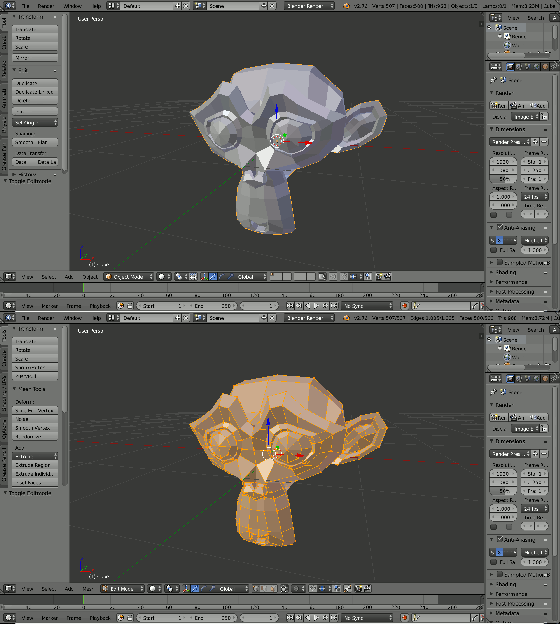
We used Blender in two modes: Object Mode and Edit Mode. The TAB key can be used to switch between these. In Object Mode we can create, select and reposition objects but we cannot do any detailed editing on them. In Edit Mode, we can do any detailed editing we require on the currently selected object. Note that selecting items in Blender is done with the right mouse button (RMB).

blendereditobjectanim

Continue reading →

Bodgers – Remote Controlled Robot With Webcam

Hi everybody, this week we changed from preprogrammed automated robots to remote-controlled robots. We converted our simple Pygame script from last week which controlled a small rectangle on our screens so it could control our robots.

As Pygame needs a screen to operate we had to get VNC going before we could start, I think we had it working for most people by the time the session ended. VNC will be a hugh advantage to us as we start to write more code as we can use a mouse and copy and paste with a GUI text editor instead of Nano on Putty.

We also added a webcam to our robots which worked well, we would probably need to work on mounting them properly if we wanted to use them for real life applications.

Here is a video of them in action.

I will go over the code again next week, if you want to take a look at the code check out pygame_robot.py and robot_cam.py here.

We will leave robots for a while and go back to basic electronics for the next few weeks.


Advancers: P5 js continued – Robot Draw!!

Today we continued our look at P5 and javascript.  We mostly practiced what we learned last week.

This time we did our work online using the awesome website “codepen” rather than a local text editor.  This website is a place for web developers to play with web code and share it with others.  Using it allowed us to work without getting bogged down with install problems on people’s PCs.  It is great for smaller sketches, but if you want to develop something really big like a complex game it will be much easier to use a local text editor like we did last week.  If you get a chance and have an email address (or your parent has one), sign up for a codepen account.  This will allow you to create and share your own sketches – I’ll link any and all of them on the coderdojo athenry website!

Today we basically just fooled around with it and tried to draw our own picture just with code.  We mostly drew robots as they are fairly easy to draw with rectangles and ellipses!

What we covered:

  1. We watched the neat introduction video from the authors of p5: http://hello.p5js.org/ 
  2. We looked at the P5 reference page which has great instructions and examples for all P5 functions: https://p5js.org/reference/.  Every good library you ever use will have a similar reference page – this is a great example of one.
    1. Similar to how scratch has blocks in different categories (sound, movement, control, etc), p5 groups all its functions into different categories – color, maths, shape, sound, etc.
  3. The canvas, resizing and changing the color using the createCanvas function
  4. Using colours in P5 – We used the following functions to set colours:
    1. background: to set the background color
    2. fill: to set the fill color
    3. stroke: to set the line color
    4. In all cases, colors can be either:
      1. one number in which case it’s a shade of grey from 0 (black) to 255 (white) e.g. background (0) sets the background to black.
      2. three numbers separated by commas, in which case each colour is a shade of RED, GREEN and BLUE – e.g. background(255, 0,0) sets the background to red, background(255, 255, 0) mixes red and green to make yellow.  You can make every colour by mixing red, green and blue!
      3. four numbers separated by commas, in which case it is RED, GREEN, BLUE, TRANSPARENCY. e.g. fill(0,0,255, 100) will make any shape you draw see-through shade of blue.  This is like the ghost effect in scratch.
  5. Some drawing functions in P5:
    1. strokeWeight to set how thick the lines are – e.g. strokeWeight(10) gives thick lines
    2. point to draw a point e.g. point(100, 100) draws a point at 100, 100.
    3. line to draw a line e.g. line(0,0,200, 150) draws a line from 0, 0 to 200, 150.
    4. rect to draw a rectangle – e.g. rect(0,0, 100, 100) will draw a square 100 wide, 100 high at point 0,0.
    5. ellipse to draw an ellipse – e.g. ellipse(0,0, 100, 100) will draw an ellipse 100 wide, 100 high (i.e. a circle) at point 0,0.
    6. triangle to draw a triangle – e.g. triangle(0,0, 100, 100, 200, 200) will draw a triangle between (0,0), (100, 100) and (200, 200).
    7. One other function we used was random.  This can be used in a few ways, but the way we used was to give it one number, in which case it picked a random number between 0 and that number.  E.g. random(255) picks a random number from 0 to 255.  So fill(random(255)) will set the fill to a random shade of grey.

We played about with the all the above to draw a (pretty poor) robot with flashing eyes that fires lasers – the sketch we did is below.  Play around with this and build on it to do something cooler!!

Bodgers – Robots and Pygame

Sorry for the delay in posting, I’ve been very busy this week. Last Saturday we started the session by testing our robots on an obstacle course. Here is a video of them in action.

Then we had a quick look at Pygame which we will use to control our robots this week. If you missed last week don’t worry as I will do a recap tomorrow. Meanwhile here is a very good Pygame tutorial. Here are my slides from last week pygame-101.

Creators – Random Pin Placement

This week we worked on random pin placement for our game. We updated the existing PinManager component to randomly (as opposed to regularly) place a number of pins into the scene.

Arrays

An array is a way for a variable to hold more than one value. It’s a a very useful concept in programming; complex programs would be practically impossible without them. In C# arrays are declared as follows:

     int[] nums = new int[4];
     bool[,] grid = new bool[rows, cols];

The first line creates a one-dimensional array called nums which has four entries: nums[0], nums[1], nums[2] and nums[3].

The second line creates a two-dimensional array called grid. Note the size in this case depends on the values of the variables rows and cols. The first entry is grid[0,0] and the last is grid[rows – 1, cols – 1]. The total number of locations in this array is rows * cols.

Continue reading →

Explorers – Guessing Game

Hi everyone,

Good to see you back after the Halloween break.

Last Saturday we did a slightly different game to usual., There was no movement, no sensing when something happened. It was a Maths Game, a guessing game where the computer picks a random number and we had to guess the number.

GuessNumbers

We had to first make sure that a random number was picked using an Operator. Previously we have used a Variable to store a Score or Lives, but this time it was storing the random number and our guesses. Leaving them on screen as we were testing allowed us to understand more about the variable and what it does…it also made the testing a little easier.

Depending how any guesses we were given we repeated our code that number of times. As well as having to make decisions, i.e If_then, we also had to do a comparison before making the decision, to determine whether the guess was correct, too low or too high.

5guesess

Some of you tried to add a timer and below is the code you will need if you didn’t get it to work. Take a look and add it to your own game/games.

timer


Here is a link to last weeks notes. cda-s6-week_06-guessnumbers.pdf


See you next week!

Martha


Advancers – Text based coding with p5.js

This week we tried something different with some text based coding.  We learned that for text basoslcyofed coding, we need a good text editor.  The text editor we picked was called “Atom” as it’s a free, powerful text editor that works on Mac, Linux and Windows.

Unfortunately.. with some network and pc problems.. it took longer than I hoped to get things installed on people’s PCs, but even then we managed to make a great start on some code and actually built some quite cool stuff.

For anyone that missed last week.. it would be great if you could run through the steps below and we will be ready for the next stage!

Continue reading →