Hi everyone, hope you are all well. As you have probably heard by now, CoderDojo Athenry is starting up again with online sessions. We will have an information session on 07-Nov-20, but in the meantime, here are answers to some … Continue reading
Hi everyone, hope you are all well. As you have probably heard by now, CoderDojo Athenry is starting up again with online sessions. We will have an information session on 07-Nov-20, but in the meantime, here are answers to some … Continue reading
Hi everyone
Hope you are keeping safe and healthy. Its lovely weather at the moment so I guess you are outside as much as you can. So when the rain appears again ,maybe you can take a look at this video.
Sorry it took me so long to get another one done, but its up now. Video
Martha
Hi All
As you all know Clarin College is closed until at least 29-Mar-2020, as a result we will not be able to run CoderDojo Athenry until the school reopens.
The CoderDojo Foundation have also announced that the Coolest Projects Showcase that was scheduled to take place on 06-Jun-2020 in the RDS has been cancelled.
We will keep you updated by email, on Facebook, Twitter and here if the situation changes.
Enjoy St.Patrick’s weekend.
Declan
Luckily Scratch comes with a Piano Sprite, which we used and expanded it to fill the width of the screen.
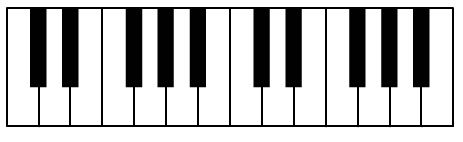
Next step was to create the list of all the notes, there are 14 keys on the Piano so we need at least 14 notes in our list.
We found out what notes are possible by using one of the Sound blocks and looking at what was possible
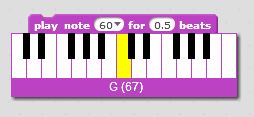
This gave us our list of possible notes:
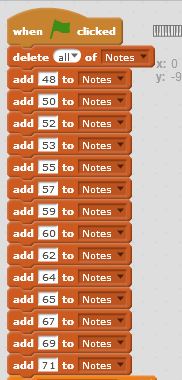
Now on to the code…
We needed to work out what key on the Piano had been clicked, and convert it to a number between 1 and 14 so we could play the correct note from the list.
This required some tricky calculations, to convert the Mouses “X” position to a positive integer between 1 and 14.
This ended up with the following code and a couple of Variables to store the “Extra” number to make X positive and the size of a note:
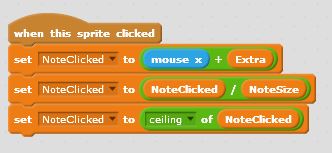
Once we had the positive integer we could use it to select the correct note to play from the list:
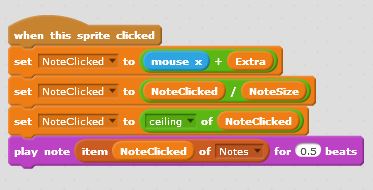
We did start some of the Buttons, and we will complete them next week. Notes for the buttons will be included then.
In order to make the Piano a bit more usable we added 3 Buttons:
All three Buttons had two costumes, we used the second costume to change the colour of the Button, this made it easy to see if you had clicked the button or not.
The Record button, simply set a Data Flag to indicate to the Piano code that it should “record” the notes being played in a List variable.
It also flashed while recording was “on”, this is the code for the Record Button:
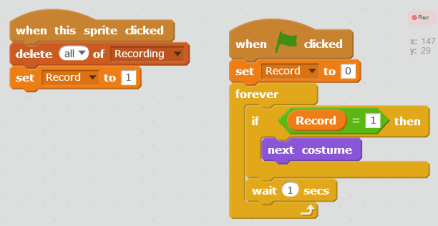
We also had to add some additional code to the Piano to make sure the notes were recorded:
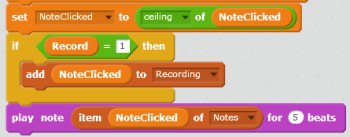
The Stop button was quite simple, we just set the Data Flag back to 0, and changed the costume for a short while to make it clear that the button had been pressed.
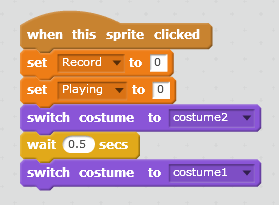
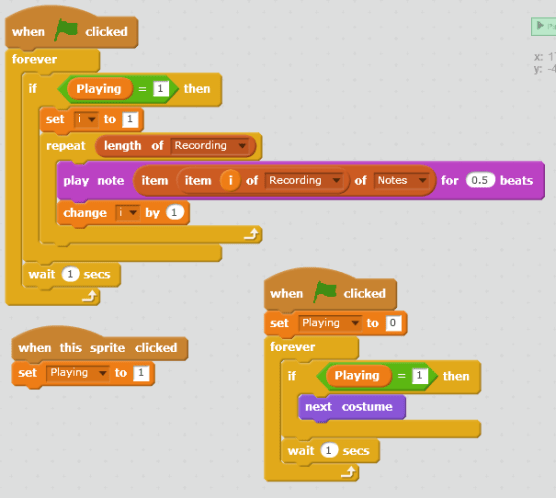
The Play button was a little more complex as it need to read all the items in the List and play the correct notes. It also flashed while playing. This is the code from the Play button:
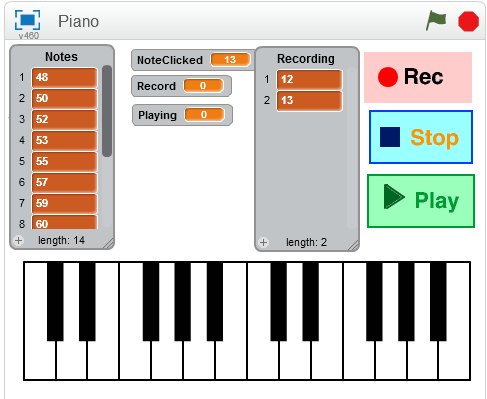
The Final project looked something like this, you can get a copy from the Scratch Web Site, see the Notes below.
Note: My version of the project has been uploaded to https://scratch.mit.edu you can Sign in using the following details:

At CoderDojo Athenry, the Hackers spent some time examining the components of a desktop PC and a Raspberry Pi 3+ and a Raspberry Pi Zero.
Even though the Pis are much smaller than a desktop PC, they are functionally equivalent – as we saw, you can plug the Pi into the keyboard, mouse and screen of the desktop PC and use it like one.
We identified the major components of a desktop PC, and saw where each of them appear on the Raspberry Pi also:
We noted that the Pi has a single chip that has its CPU, a basic GPU and up to 1GB of RAM all stacked in layers on top of each other. While its CPU is lower power than a standard PC CPU, it benefits from having a really short distance that data has to travel from RAM to CPU. CPUs run so fast that having electrons travel a few centimetres is a significant delay!
PCs and the Pi also have connections for peripherals, which is anything that can be connected to it, using USB, Bluetooth, HDMI, or other connection types:
The Raspberry Pi Zero has micro-USB and micro-HDMI connectors to keep everything as small as possible, and it has wifi only, no ethernet port (though it is possible to get a micro-USB to ethernet adapter).
A couple of members of the group have built their own desktop PCs, which is an impressive feat!

In the past two weeks in the Hackers group at CoderDojo Athenry, we have started Python programming on the Raspberry Pi.
The Pi is about the same size as the Arduino that we used earlier, and the Pi Zero is about the size of the Arduino Nano, and both Pi and Arduino have input/output pins for physical computing. However, they have significant differences.
Unlike the Arduino which is a microcontroller (which means it is designed to run a single program that was uploaded onto it), the Raspberry Pi has a full computer operating system, so it is more like a PC to use. It can be programmed in many languages, but Python is a popular choice as it is clear to read and there are lots of libraries to make tasks easier. Because it’s a full computer, you can write and run your programs all on the Pi, without connecting it to a laptop.
The first step in programming is to figure out how to do loops, variables and decisions, as these are fundamental. Here is our first Python program to try out these:
# Python comments start with #

age = 14 # a variable holding an int
name = "Michael" # variable holding a string

# Output
print ("My name is", name, "and my age is ", age)

# Loop
for x in range (1, 5):
    print ("This is line ", x)

# Decision
if (age  17):
    print("Adult")
else:
    print("Teenager")
Next we moved on to using the GPIOZero libraries for controlling lights and buttons. We will continue to explore this in the coming weeks.
The documentation is here: https://gpiozero.readthedocs.io/en/stable/
This week in the Hackers group at CoderDojo Athenry, we built on last week’s work on blinky lights, in which we made a simple circuit involving LEDs and resistors connected to an Arduino, and wrote code to get the LEDs to blink.
An LED is an example of an output from our microcontroller. We would also like to have inputs. Examples of circuit inputs are:
We focused on dials, specifically a variable resistor or rheostat. This is the kind of knob or dial you find on dimmer switches, volume controls on old radios, electric guitars, and many others.
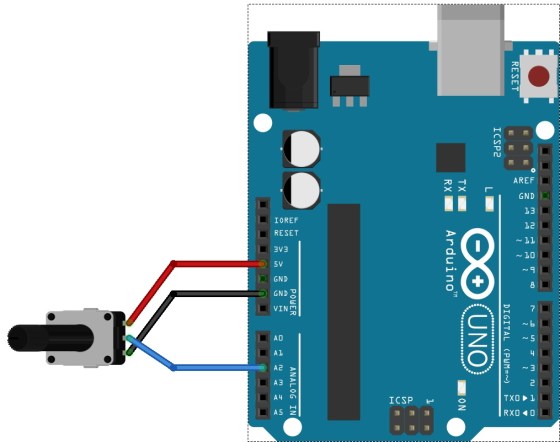
A variable resistor has 3 connectors: the two outer ones connect across a voltage source (e.g. 5V and ground pins on the Ardiuno) and the voltage at the middle pin can be adjusted from 0 to 5V by turning the knob.
We connected the middle pin of the variable resistor to Analog input 2 of the Arduino. The connections are shown above.
Then, the code to read its value is:
potValue = analogRead(potPin);
where potValue and potPin are ints that were defined already.
The value that you get is in the range 0-1024, and changes as you turn the dial.
Here is a full Arduino program to read a value and display it on the Serial Monitor window if you have a computer connected to your Arduino:
int potPin = 2;    // select the input pin for the potentiometer
int potValue = 0;  // value to read from potentiometer

void setup() {
  Serial.begin(9600);  // need for print commands later
}

void loop() {
  potValue = analogRead(potPin);    // read the value from the sensor
  Serial.println(potValue);
}
In the group, we used this as the basis to improve last week’s program. This time, the speed at which the LED blinks is controlled by turning the potentiometer dial.
The previous code to control how long the LED blinks for was:
delay(one_second);
We changed this to:
delay(potValue);
Of course, we also had to add the code to read the potentiometer value at the top of the loop() function.
Great to see you all on Saturday.
Last week I showed you how to control and move a Sprite, this week we didn’t use any Sprites, everything happened on the Background, but we were still able to create movement.

We created a Timer, this is a piece of code that can be added to any game and is a great one to know.
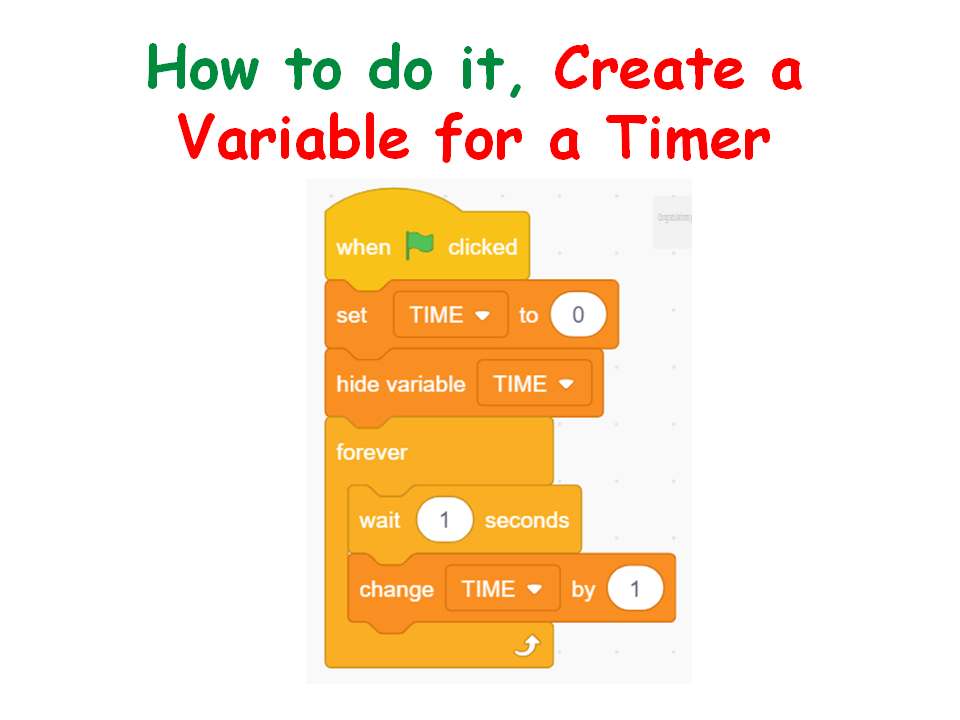
Every time a the correct key was pressed, the next Background would appear.

For the first time this year we did a Broadcast. This is useful when you want one part of the code to communicate with another part of the code. We used this so that when the last letter was typed, a message was broadcast to stop the timer and display it.
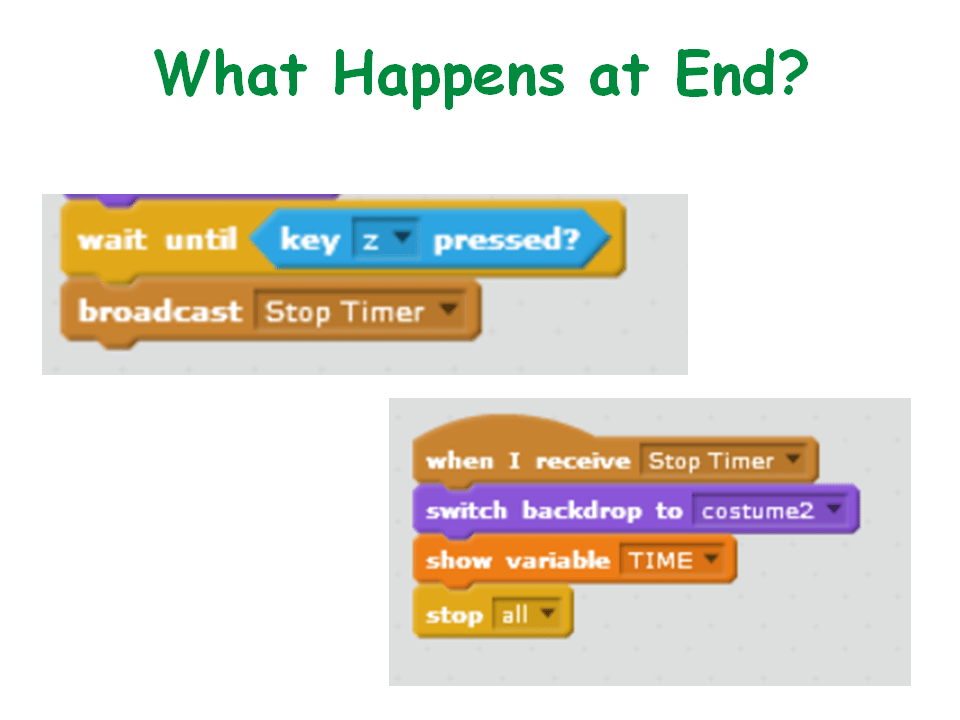
This coming week is the last one before our midterm break. I am going to show you a couple of techniques for showing movement. We will use costumes for the Sprites and it will be Halloween based.
Then everyone is going to work on their own game, based on the Boo Challenge. You do not have to enter the competition if you do not want, but you will use it as your idea for you game.

Here are the notes from last week in PDF CDA-S8-Week 5-How fast can you Type.pdf
Martha
Julie, Iseult, Ruaidhrí and Eoin
Hello everyone,
Thank you again to you all for coming on Saturday and I hope you all had fun, which is what Coderdojo Athenry is all about!
We had some great new code to learn and to use all our coding concepts we have learned so far.

For the first time we wrote code to control our sprite, rather than it moving randomly as it did last week. For this we took a look at X,Y, axis and used this rather than the steps.
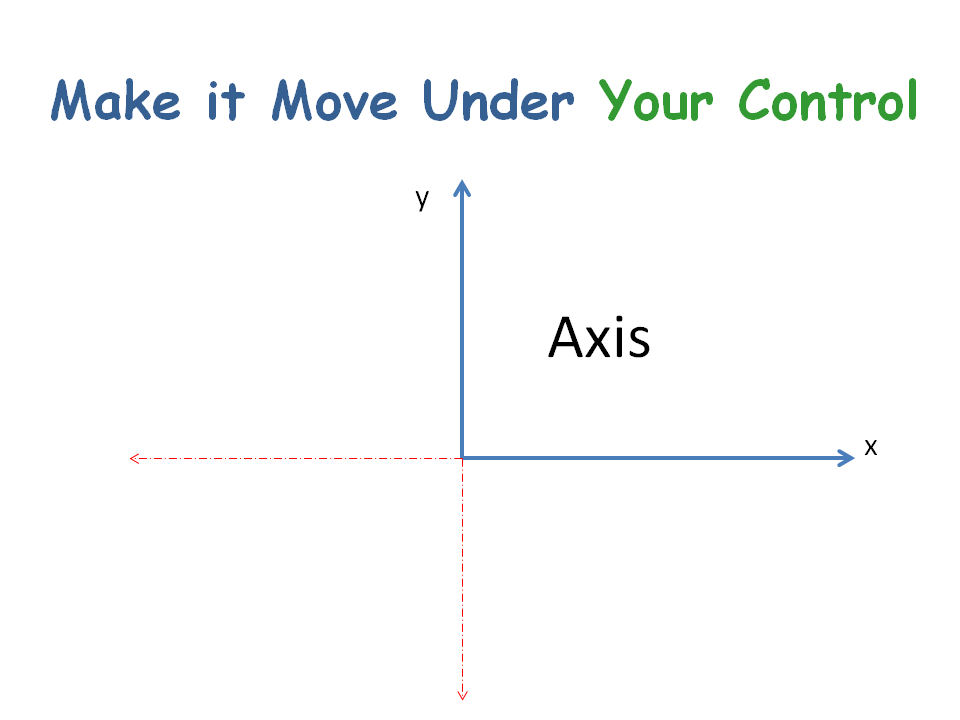


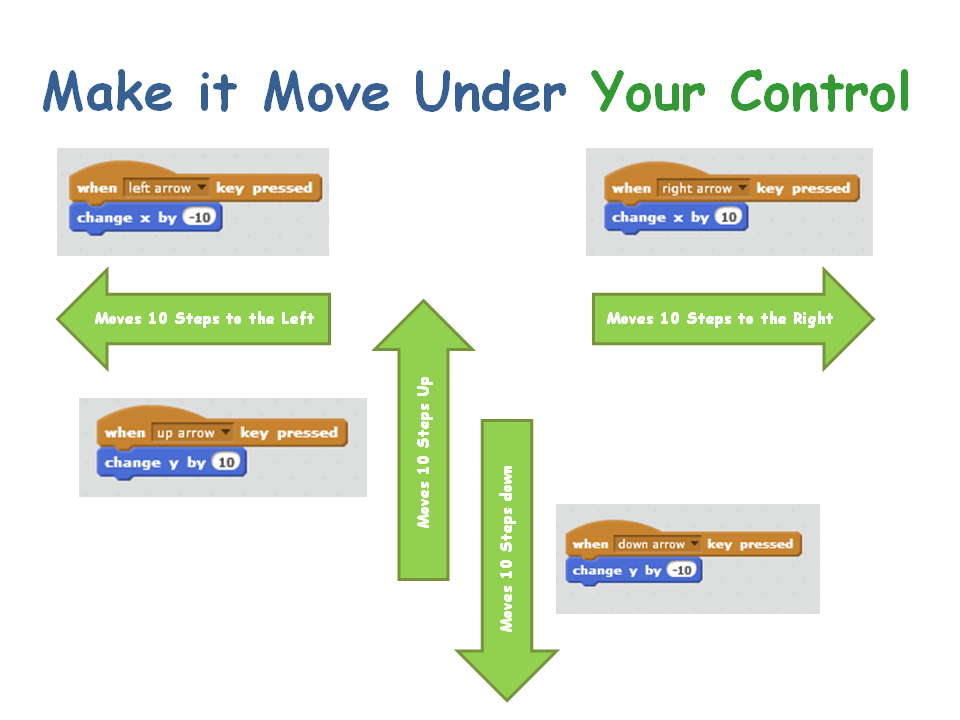
We also used our sensing blocks for the first time as we wanted something to happen when our character went off the path.
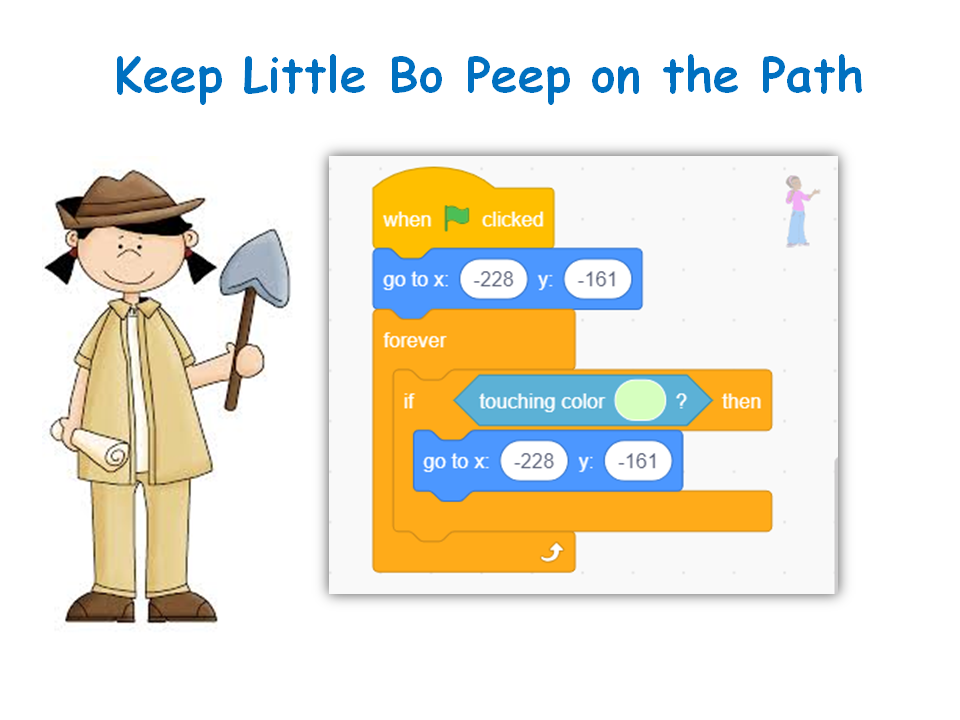 Here are the notes from this weeks session in PDF CDA-S8-Week_04-DinoHunter.PDF
See you next week.
Martha
Julie, Iseult, Eoin and Ruaidhrí
Today we built our first circuits on a breadboard.
A breadboard is used to try out electronic circuits and figure out what works. Once we are happy with a circuit we can make a permanent version on something like strip-board.
Breadboards have blue and red lines across the top and bottom. A wire strip runs across the board under each line. If we connect a power source to any point on the lines, all of the points (holes) on the line receive the power.
The middle area of the board has wire strips running vertically. A wire strip runs down the board under each line of holes. If we connect a power source to any point on the lines, all of the points (holes) above or below receive power.
The first circuit was one to power a single LED:

We used the Arduino here as a simple 5V battery. Current flows from the 5V pin on the Arduino, through the resistor, then the LED, and on to the GND pin on the Arduino. We should always used a resistor with an LED to protect it. It doesn’t take much current to damage an LED.
This has the LED on permanently – not very exciting, but good to get started with. It’s a good idea to start with a minimal circuit and build up to the more complicated circuit we actually want. That way, we can test and verify as we go, so that we don’t have too much testing and backtracking to do if something goes wrong.
It took a while to get everyone’s circuit working. Some of the LEDs had legs that were the same length, and there was no obvious way to see which one was the anode or cathode, so we had to guess and test.
Some of the resistors we took at random from the box were too high: 200 kΩ, for example, so the LEDs wouldn’t light up. We found some 220 Ω (red-red-brown) and 330Ω (orange-orange-brown) resistors to get us going.
Some of the LEDs were very dim. 180 Ω resistors (brown-grey-brown) helped there.
We did a quick calculation to see what value of resistor we really needed:
According to the spec sheet, our LEDs had a forward voltage of 2.2 V and a forward current of 20 mA. In other words, the voltage drop across the LED is 2.2 V, and they can draw up to 0.02 A without burning out.
If our supply is 5 V, then the voltage across the resistor is 5 – 2.2 = 2.8 V. This is Kirchoff’s Voltage Law.
Applying Ohm’s Law (V = RI), 2.8 = R*0.02, so R = 2.8/0.02 = 140 Ω.
A 140 Ω resistor will make our LED as bright as possible. Less than that will burn out the LED. More than that will produce a dimmer light. So, 180, 220, and 330 Ω are all fine.
Different LEDs have different forward voltages and currents, so it’s important to keep and consult the specification sheets before using them.
The next step in our circuit building was to connect the Arduino’s ground pin to the ground rail on the breadboard. Then we connected the negative (cathode) pin of the LED to the ground rail. This is an important step in circuit building: using a common ground for all our circuits on one board. It allows us to only have one wire running back to the Arduino ground, instead of one for each circuit. We would run out of space on the Arduino very quickly otherwise.
Next we did the same on the positive side. This isn’t necessarily as useful as the common ground as we’ll see later.
Once we were happy that we all had a working circuit, we moved on to use the Arduino to control the LED.
We did this by taking the wire that went to the 5V pin on the Arduino and plugging it into digital pin 12 instead. We went back to our Arduino sketches and defined a new integer variable, ledPin, and gave it a value of 12 to match where we plugged it in.
Then we changed every occurrence of LED_BUILTIN in our sketches from last week to ledPin instead. The Find (Replace with) function on the Edit menu of the IDE was helpful here.
Once we compiled the sketch and uploaded it to the Arduino, we had the LED on
the breadboard blinking our messages, just like the internal LED was last week.
Next, we added a second LED and resistor to the board, and wired it up the same as the first. The positive side of the resistor was connected to the positive power rail, and from there on to the Arduino. Now both LEDs blinked together.
To get them to blink separately, we took the wire from our second LED going to the positive rail and plugged it into digital pin 8 on the Arduino.

Then we created a new variable in our sketch, led2Pin, with a value of 8.
We added setup code for pin 8. Finally, we added two more lines to the loop, to have the output to LED 2 go low after LED 1 was set high, and vice versa.
The outcome was LED 2 was on when LED 1 was off and LED 2 was off when LED 1 was on.
Some demonstration code is shown below.
// Blink 2 LEDs: one on, one off
// Demonstration for CoderDojo Athenry

int led1Pin = 12;
int led2Pin = 8;

int one_second = 1000;  // delay() function expects milliseconds

void setup() {
  pinMode(led1Pin, OUTPUT);
  pinMode(led1Pin, OUTPUT);
}

void loop() {
  digitalWrite(led1Pin, HIGH);  // on
  digitalWrite(led2Pin, LOW);
  delay(one_second);
  digitalWrite(led1Pin, LOW);  // off
  digitalWrite(led2Pin, HIGH);
  delay(one_second);
}

