Scratch Advanced – Week 10 – Christmas Game – Final Episode

What are we going to learn this week.

1. Global Variables – A  Variable that all Sprites can see.

2. More requirements

3. Ninja Belts

And that is about it for new things. We are primarily going to be concerned with getting the Present working in the Christmas Game and the final display of what you have caught.

Now, we will start in reverse and look at the “more requirements” part first. Remember we had a requirement for the game that a present should fall and if we catch it, it should be put under the tree. Well we can write that out a little better as another set of Requirements, so here goes:

More Requirements:

The present should:

1. There should be Ten presents.

2. The presents should fall in the two minutes at random times.

3. Each present should fall from the Sleigh to the ground.

4. If the present touches the fire, then it is caught, and should be moved under the tree, anywhere under the tree, but not all on top of each other.

5. Each present should be a different size and colour.

6. If a present is caught we need to keep track of how many we have caught.

So, what we can do is create one present that meets all of the above requirements and then copy it.

For number 6, it looks like we need a Global Variable so all the Present Sprites can update it. So lets make that..

And while we are on the subject of Global Variables, if the Present Sprite needs to drop from the Sleigh, it needs to know where it is, so the Sleigh needs to update a Global Variable with it’s X value all the time.

If you select the Stage, when you create a variable it is automatically a Global Variable. You don’t get the option to create it “for this Sprite only”

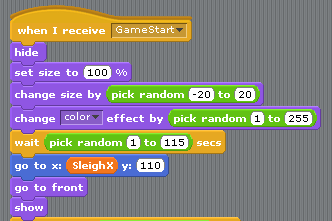
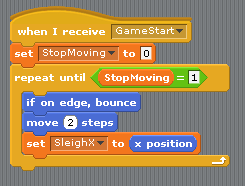
We need one for the X Position of the Sleigh and one to record the number of Presents.  Don’t forget to update the Sleigh Sprite so that it updates the X Position variable. Something like this:

SleighCode

Notice that I don’t have the Green Flag to Start the Game, I have used a GameStart broadcast, this is Broadcast from the Stage where I have all my initialisation code as well.

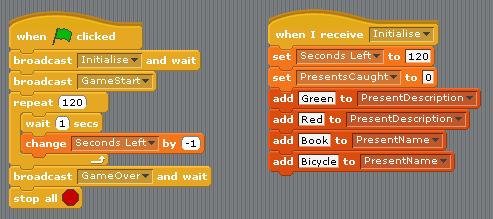
While we are creating the Global Variables, we can also create the two lists that we need to store the names and descriptions, so two lists as well.

This is what I have to set the lists at the begining of the Game:

StageCode

Now back to the Present and the requirements.

This is the code that I have that meets the requirements… Random Colour, Random time delay, after the delay, go the X Position of the Sleigh…

Present01

Now we have to sort out how to recognise if the present has been caught by the fireplace. I picked one of the colours in the fire, and used the if touching code to find out if it has been caught. If it is caught, then we move it to the Tree.

We don’t just move the Present to the same point though otherwise they would all land on top of each other. I pick a random point under the Tree. Like this:


Scratch Advanced – Week 9 – Christmas Game Part 2

What are we going to learn about this week.

1. Code reuse
2. Testing and Debugging
3. Exams!

1. Code Reuse – how to plan ahead and only write something once, remember the button we did that we exported and used again in other projects? Well, you can do the same kind of thing
within Scratch if you need several Sprites to do exactly the same thing.

First you create one Sprite and add all the code that you need for that one Sprite.

When you are happy with the way that Sprite works then just right click on the Sprite and select duplicate. The key to getting the best out this of this functionality is to ensure that the first Sprite that you have done has everythin working correctly.

2. Testing and Debugging – This is normally done using the original requirements, you basically go through the list of things that the Game should do and tick them off if it works. It helps if you have the list written down and then you know what you are testing.

And, it also helps if you get someone else to test your Game, as they will test it differently to you.

So here is the list of requirements from last week:

1.It needs to look like my living room with a nice window and lovely fire place.
2.At Christmas, when you look out the window it is normally snowing.
3.We normally have our tree in the corner, with a nice set of lights on it.
4.Santa normally flies across the top of the house and drops the presents down the chimney, lately he has not had a good aim, so we will need to be able to move the fireplace left and right.
5.If we catch the presents, we can move them to under the tree.
6.I don’t want the game to last more than two minutes.
7.And when it ends I want to know what all the Presents are.

It’s best to use Presentation Mode to do your testing.

And go through each item on it’s own. At the moment we haven’t completed all the code for everything, so you can only test the parts that are complete.

If it passes, perfect, if not, it’s time to start debugging.

Debugging, the first thing to do is run your test again, to confirm that it’s not working. There are two very important things to know here:

1. What SHOULD happen – this is what is described in the list of requirements.
2. What is happening – this is the result of your test.

When you have those two bits worked out, you can start looking at the code to see what is wrong.

In Scratch, it is possible to see which piece of code is actually running, this is done using the Edit – Start Single Stepping.

Try it out, but DON’T use the Green Flag to start everything, just click on one of the Control Blocks to start that one piece of code.

3 Exams – ok, don’t panic, but it is that time of year again.

We are all going for the Blue Belt this time, and your knowledge will be tested on what we have learnt in the last 8 weeks. Here is a refresher of the things that we have covered:

Week 1. Movies.
Week 2. Sliders and Buttons
Week 3. Random Numbers, Stamping, Saving Images.
Week 4. Exporting Sprites
Week 5. Code Reuse – Parallel and Sequential Programming.
Week 6. Lists, for saving data and reading it out.
Week 7. Code Modules, using LIsts as a Database.
Week 8. Coding to Requirements.

Advanced Scratch – Week 8 – Planning for Christmas

Dear Santa,

I would like a nice new game for Christmas.

I would like it to be a Christmas game where you have to catch the presents in the fireplace

Just to make it easier, here are some more things that I would like it to do.

  1. It needs to look like my living room with a nice window and lovely fire place.
  2. At Christmas, when you look out the window it is normally snowing.
  3. We normally have our tree in the corner, with a nice set of lights on it.
  4. Santa normally flies across the top of the house and drops the presents down the chimney, lately he has not had a good aim, so we will need to be able to move the fireplace left and right.
  5. If we catch the presents, we can move them to under the tree.
  6. I don’t want the game to last more than two minutes.
  7. And when it ends I want to know what all the Presents are.

So you might need to think about the following:

  1. What to put on the Stage and what to use Sprites for.
  2. Whether one Sprite should be in front of another Sprite. This is something that we have not done before.
  3. How many costumes each Sprite needs
  4. Do you want to use one Sprite for all the Presents and just change the size and colour.
  5. Stamping could be used to get the Presents under the Tree.
  6. How to do the Snow and the Flashing Lights on the Tree.

Advanced Scratch – Week 7 – A fancy Piano

What are we going to learn this week:

Modularistion – How to make your code simpler and easier to look after.

Sequential Processing – review

Databases – storing static data to use later in the day.

Remember the Piano last week, where we ended up with the same code repeated again and again, all that copying, yeaagh!!!

Well this week we are going to have a look at doing the same thing but a little smarter.

This is the code that we ended up with last week, where everything was the same apart from the Mouses X position that we were checking.

Well we are going to look at making this a lot smarter.

Let’s imagine if we could get the notes on the Keyboard to got from 1 to 15 instead of 48 to 72, that should then make things a lot simpler. In order to do this we need to do a little number crunching, don’t worry if you don’t understand all of what follows.

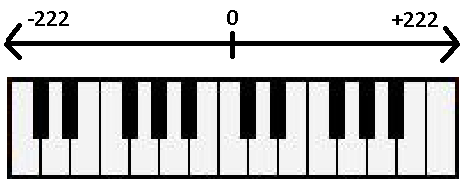
My Piano Keyboard goes from X = -222 to x = +222 it would be easier if it went from 0 – to 444?

We can sort this out easily enough, we just make our own variable to store the Mouse X value, and add 222 to it, like this:

So our Keyboard is now 444 units wide and there are 15 keys on it, that means that each key takes up (444 / 15 ) 29.6 units.

If we divide the MouseX value by 29.6, we get the number of the Key that has been pressed (ranging from 0 to 14). For example if the User clicks on the third note, this would have an X value of around -150, we add 222 to that, which gives us 72, we then divide 72 by 29.6 which gives us 2.43, if we just take the number before the decimal point, this gives us 2, which is the third key 0,1,2. And to make it three we just add one.

Now to get just the number to the left of the decimal point is not as simple as rounding, as we always want to round DOWN. So the simplest way to do it in Scratch is to just treat as some text and find out where the “.” is. If it is in the third character then we take tw characters, otherwise we just take one. Fortunately we know that there will only be a maximum of two numbers on the left. And finally we add the one at the end so we end up with this…

Now this has got us a number from 1 to 15, how do we translate that into the correct Note to play?

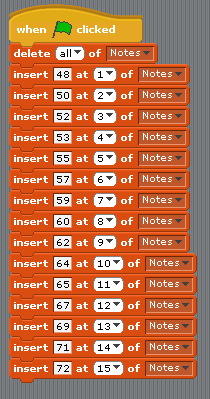
We need a Database of all the possible Notes that can be played. We will store this information in a List, and fill it full of data when you click on the Green Flag.

The Notes go from 48 through to 72, with a few missing inbetween. What we want to do is have the Notes numbered from 1 to 15. This will make it easier to figure out what note to play when the user clicks on the keyboard.

We fill the list as like this…

So how does this all help us get rid of the big long repeated code block that we had before?

Well, instead of looking to see where the mouse is ourselves we just ask the code that does all the Maths to figure it out for use. We can use a Broadcast and Wait for this, so we have one “if mouse down” which asks the other code what Note should be played.

If you take out the Record and Playback code, this is everything you need…


Advanced Scratch – Week 6 – Lets Build a Piano


What are we going to learn this week, well it might take two weeks to get this completed.

Lists – How to put stuff in.

Lists – How to get stuff out.

Record – How to record things that happen, we might use a list for this 🙂

Playback – How to replay things that have happened, we might use a list for this 🙂

Mouse – where is it on the Screen, we use this to determine which Piano key has been pressed.

Lists

So what is a List, well they are like variables, you get to them from the same screen, but there are just a lot of them joined together. You would normally use them for similar types of things, like a Shopping list for example, where you put different items of food:

Chocolate, Crisps, Biscuits, Tea, Coffee.

We are going to use a list to store all the different Piano Keys that have been clicked. We can then use the same list to Play the Notes back again.

We also get to use the Button Building Block to add some buttons, one for Record and one for Play etc.

So what do we need for out Piano, well, we need a keyboard for a Start, we only need 16 notes (2 octaves) and we can either draw it ourselves or borrow one from somewhere.

Something like this would be good

Then we need to play the right note depending upon where the user has clicked.

There is one piece of easy code that just needs to be repeated over and over again with slightly different numbers. Here is a sample of what is needed and then you just need to repeat it with the different numbers for the location (mouse X / Y position) of the different keys.


Playback Time – so how do we play back what we recorded, well I just imported my Go Button Sprite to start the Playback and added the following code to run when I recieve the Broadcast from the Go Button… Remember how we did this before.

I needed to create another variable as well to keep track of which Note in the List we should be playing.

And finally, there is some initialisation code that keeps things nice and tidy when you click the Green Flag. But you could import another Button and use that to reset the Notes List, which would be much nicer. And don’t forget we already have the Button as a Sprite, so this should be easy to add in.

The go to x,y code I found to be quite useful as when you Click on the Piano Keys it can move the Keyboard around a little. But again, remember this will only happen in “Design” mode, when you switch to Presentation Mode, you won’t see this problem.


Advanced Scratch – Week 5 – Code Recycling and parallel processing

What are we going to learn this week.

  • Buzzer Game – Using old code and a little new code we can build a game.
  • Code recycling – How to re-use code that you have already written.
  • Parrallel vs Sequential Processing – sounds worse than it is 🙂

Buzzer Game

Navigate through the Maze to earn More Money, the more you get the Harder the game becomes.

Most of the code for this game you have already written, cool… But there is some  new code that you will need.

So, lets do the New code first…

We need a coin, or something that you can move with the mouse and that will BUZZ and Shake when it touches a particular colour.

This is my Coin here…

I have one costume for normal and one costume fo buzzing!

We now need to set up some code so that you can move it with the mouse, this is similar code to the button code we did, and I found a better way of doing it!

What you want to happen is if the mouse is on the Coin you can Click to grab it and it will move wherever the mouse moves until you let go of the mouse.

We also want it to Buzz! when it touches a particluar colour, to test this I just drew some lines on the Stage and used the Dropper tool to select the right colour.

SEQUENTIAL PROCESSING – This is my Buzz code, I just move it around a little and make a noise. Notice on the Broadcast that it is a Broadcast and Wait, this allows the Buzz code to work correctly.


And the code that allows you to click and drag the coin around the Screen goes something like this…

Advanced Tip 1. To test this piece of code, you will need to run your program in full screen mode, otherwise Scratch is in “design” mode and moves the Sprite anyway.

The Maze.

CODE RECYCLING PART 1. Remember last week whne you did the Truchet Patterns, they were pretty maze like, weren’t they. Well all we need to do is import the Truchet Sprite, maybe play around with it a little bit and you will have your maze.

What I changed in my Truchet Pattern, was the size of the initial square, I made it bigger, and also I didn’t stamp along the top line or the bottom line so the coin has somewhere to aim for.

The other thing that you might have to change is if you have used curved lines, you might want to change them for straight lines, otherwise the gaps between them can be very close. Alternatively you can make your coin very small.

So once I had adjusted my pattern, I ended up getting something like this.

CODE RECYCLING PART 2. Remember the Button we did, well let’s bring that into the Game as well so we can use it to Start everything off

Now you need to connect everything together. This is where the fun Starts…. 🙂


Advanced Scratch – Week 4 – Truchet Tiling.

We were supposed to do this last week, but we had so much fun with the Spirals that we didn’t have enough time.

What we are going to learn this week.

  • Recap on Saving Images created in Scratch to Picture files on your Computer.
  • Drawing an accurate image – this is important for Truchet Tiling.
  • Recap on Exporting Sprites.
  • Truchet Tiling – these are cool…:)

Recap on Saving Images.

First you need to run you Scratch Project in Full Screen mode.Then you press the Print Screen button, this should be on the top right of your keyboard somewhere 🙂 Nothing appears to happen when you press that button, but in the background the screen has been saved to your clipboard (same as copy and past).
Then, from the Start menu, go to Accesories and Paint, when Paint is open you cna just Paste in your picture. You will have to edit it a little as you will have the full screen in there!

Sorry, that was for the Windows Users, I’m not sure what it is on a Mac 😦

Truchet Tiling.

These are designs based on work done by Sébastien Truchet

From Wikipeadia:

One particular pattern that he studied involved square tiles split by a diagonal line into two triangles, decorated in contrasting colors. By placing these tiles in different orientations with respect to each other, as part of a square tiling, Truchet observed that many different patterns could be formed.”
We can do them quite easily in Scratch, there are just a coule of key things that need to be done correctly.

Drawing an accurate image.

Start a new Scratch Project, delete the poor Cat as he is fed up being in every project and draw your own Sprite.

The key here is that your Sprite must obey the following rules:

  1. It must be perfectly Square.
  2. Any Lines that you draw must touch the edge of the Square at the exact Centre.

I did this in a few stages.

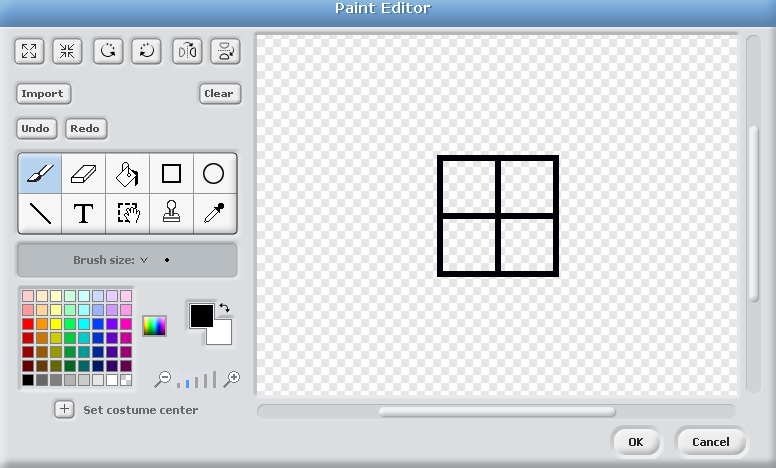
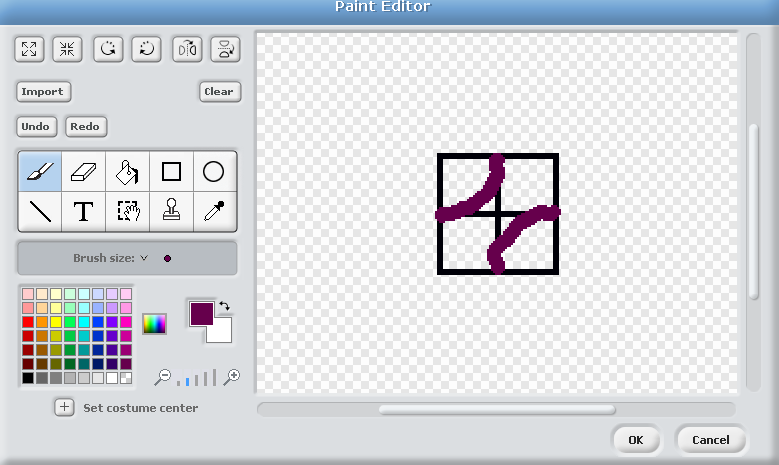
First draw a Square, in black, with a Vertical Line and a Horizontal Line, it should look something like this, don’t make it too big please.
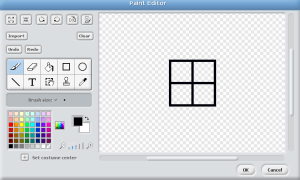
Advanced Tip 1 -If you hold down the shift key when drawing the square in the Paint Editor, Scratch will force it to be a Square, you wont have to guess. This also applies to circles, if you hold the shift key down they will be perfectly round.

Advanced Tip 2 – If you draw a small square using tip 1, you an then use the stamp tool to make it into four perfect squares.

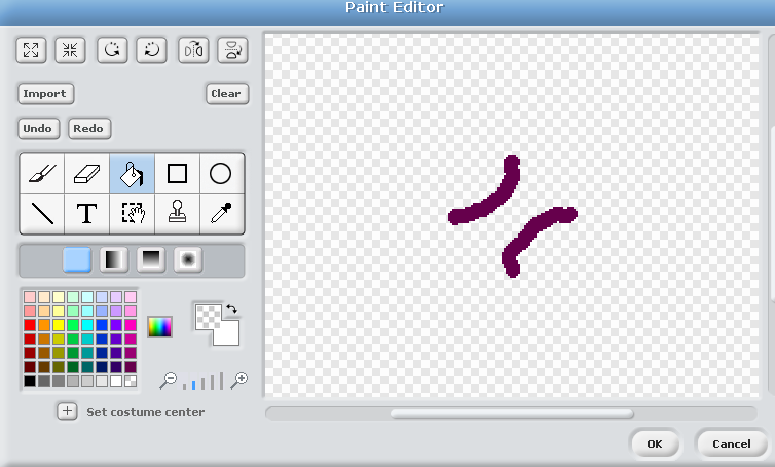
Now you can draw your own lines from the centre of each side, these don’t need to be accurate as long as they go to the centre of each side, in fact the more wibbly they are the better, then rub out the black lines, either use the rubber or the fill tool. So you will go through this…
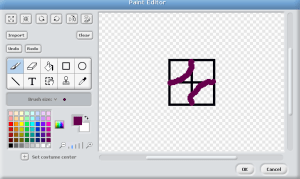
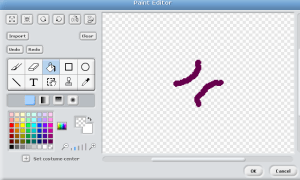
To the final image which should look like this…
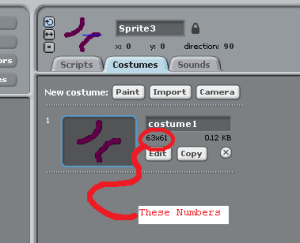
Now when you are back in your Scratch Project you will need to make a note of how big your Sprite is as you will need this information later…
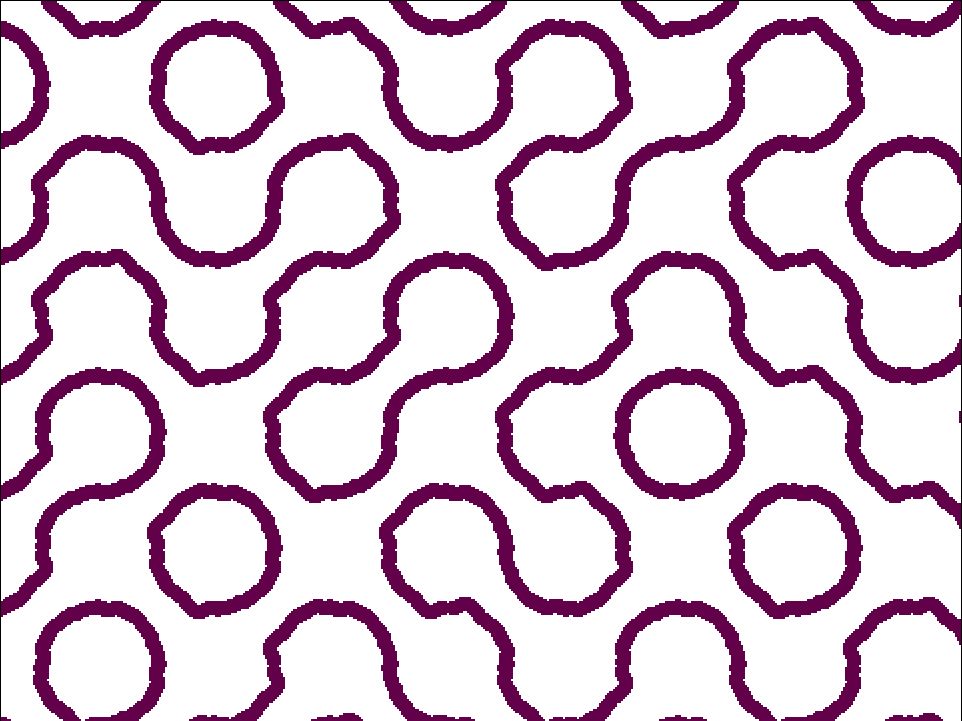
And finally we can get to some coding. Basically you are going to go to the Top Left of the Screen STAMP your sprite, move it along the the right, so it is next to the first STAMPING, turn it round by 90,180 or 270 degrees and STAMP it again.You keep repeating this until you get to the far right of the screen, you then start another line and repeat until the Screen is full.

This means that your one little Sprite that looks pretty boring…
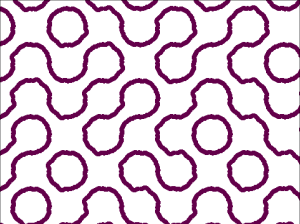
Can make a random picture which is quite interesting and could be used as a Maze in a game for example.

The Code you will need.

Remember, the screen is 480 wide by 360 tall, and you should have the dimensions of your Sprite from earlier as well.

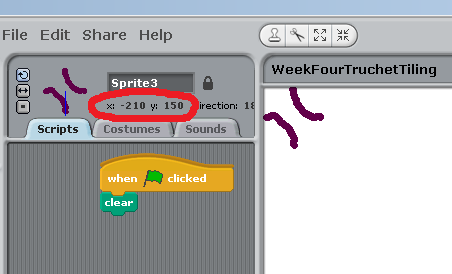
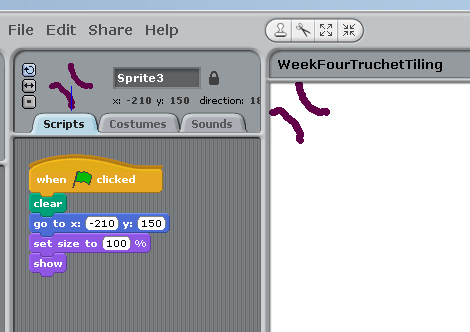
If you drag your Sprite to the Top Left of the Screen you can see what your Starting X and Y coordinates should be…
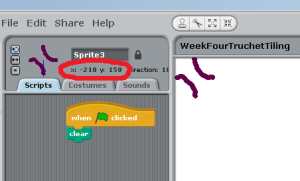
You can then put these numbers into your code, which should give you somethign like this…
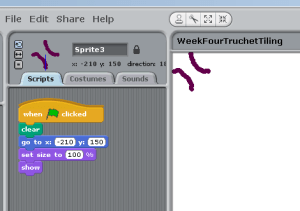
Next, you need to work out how many times you can STAMP this Sprite across the screen and down the screen.

480 / Size of your Sprite – This will give you the number of times you can go across – we can call this number – columns

360 / Size of your Sprite – This will give you the number of Rows you will be able to make across the screen – we can call this number – rows

Advanced Tip 3 – These numbers are not critical you may want to round up, or even add one to whatever you get to make sure the screen is completely filled.

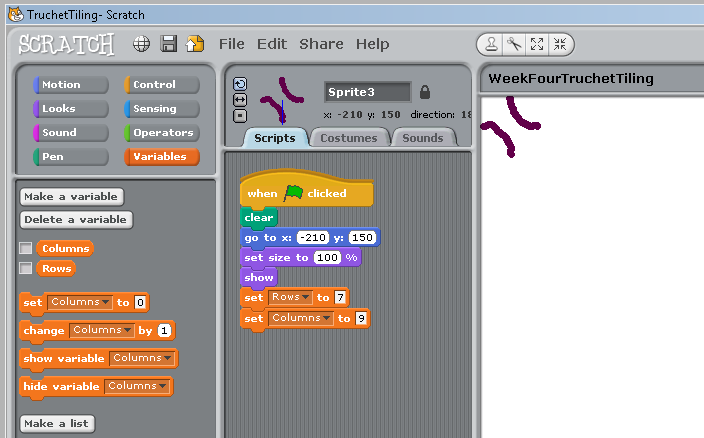
So make a couple of variables, rows and columns and put them into your script as well, somethign like this…
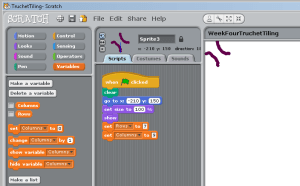
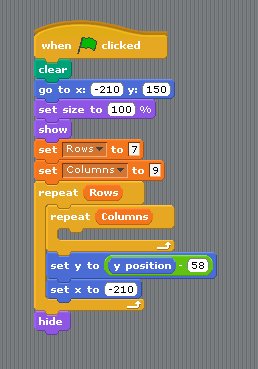
We now need a two loops (repeat blocks) one inside the other, I did the columns inside the rows, if you do this it will make it easier. For each column we need to STAMP the Sprite and for each Row we need to go back to the left of the screen and down one row.

We know where the left is, in my case it is -210, and we know that the Sprite is roughly 60 high, so we need to drop down 60 or so as well. I found that to make sure teh edges joined up nicely that it was better to overlap by a couple of Pixels, that is why I used 58 as the number of Pixels to drop down.

Like this…
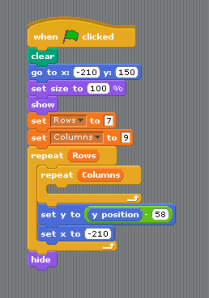
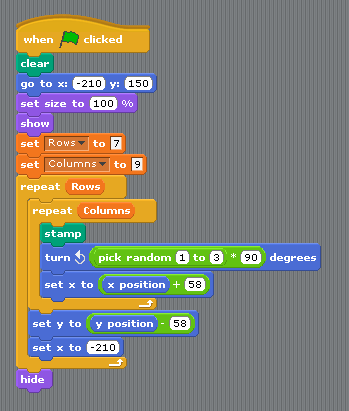
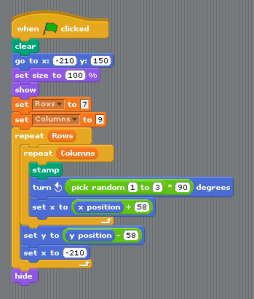
Finally you need to STAMP your Sprite and turn it round ready for the next STAMP. You will need to use a random number here, so it will turn 90, 180 or 270 degrees. So a random number between 1 and 3  multiplied by 90. Once you have the Sprite turned you will also need to move it along so it will STAMP next to the last STAMP. Again this is where you use the size of your Sprite that you noted down earlier, and once again, you might need to reduce it by a little bit in order to get the lines joining up nicely.
Once you have this working, you can change your Sprite to somehting different, as long as you stick with the two golden rules above you should still get interesting patterns, here are some ot the other ones that I have done.

This Sprite…

Makes this Maze…
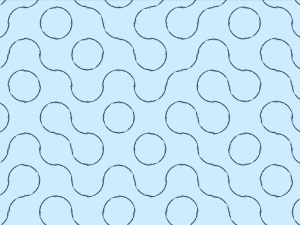
Remeber, the trick with this is to get your little Sprite nice and accurate, everything else will then just fall into place.

Try colouring in either the centre or the two corners, see what patterns that can make. Something like these:
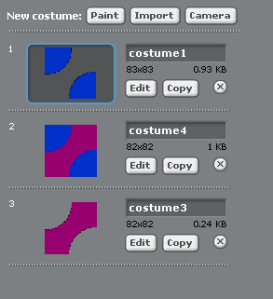
Advanced Tip 4 – Don’t forget to Export this Sprite and keep it with your Button Sprite you Exported last week. We are going to use these building blocks later on to build a Game.
Advanced Scratch – Week 3 – More Crazy Images.

We are going to be in a seperate room this Satruday, next to the main room. This will give us a chance to complete what we started last week and go on to some more Art, using the Stamp Tool.

What we are going to learn this week…

  • Stamping!
  • Random Numbers
  • Truchet Tiling – these are cool…:)
  • Saving Images created in Scratch to Picture files on your Computer.

I have updated the Week 2 page with all Code from my Project to create the Spirals.

Stamping.

This is when you get really angry… Or in Scratch it’s when you copy the Sprite to the Background.

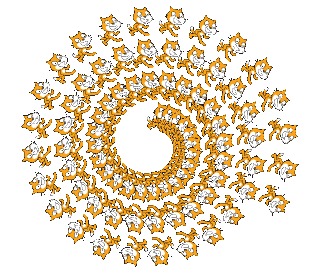
Here is a simple example, using the cat and some spiraling code…

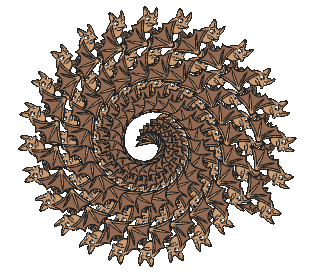
And the same code with a Bat…

And here is the code that makes the pictures above. Can you spot anything that might be better as a variable or a Slider?

Random Numbers.

We are going to use a random number in the Truchet pattern that we are going to draw, this will make the pattern generated different every time.

Truchet Tiling.

From Wikipeadia:

One particular pattern that he studied involved square tiles split by a diagonal line into two triangles, decorated in contrasting colors. By placing these tiles in different orientations with respect to each other, as part of a square tiling, Truchet observed that many different patterns could be formed.”

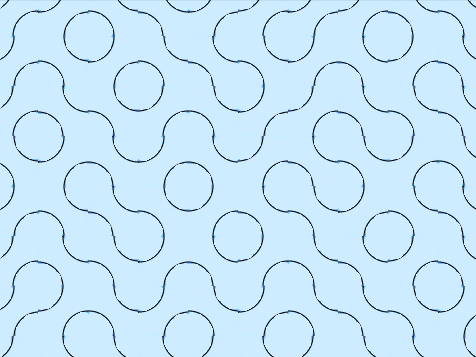
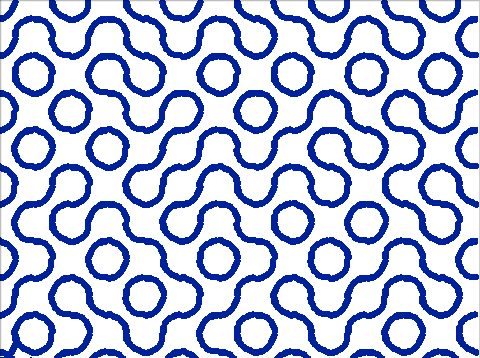
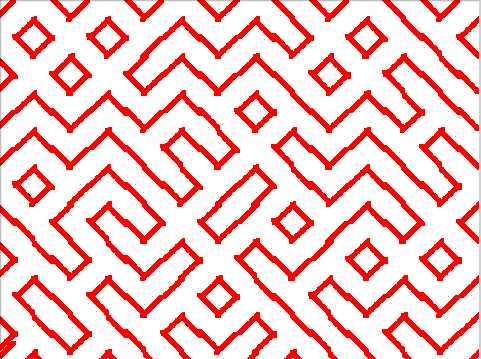
And here are a couple of samples of what they end up looking like…

Saving Images created in Scratch to Picture files on your Computer.

Advanced Scratch – Week 2 – Buttons and Crazy Images.

What are we going to learn this week…

  • How to imitate a Button
  • How to use the Pen controls
  • How to use sliders

Buttons.

 Wouldn’t it be great if you could have buttons in Scratch, that you can click and make things happen?

Well you can, there might not be a code block to do it, but we can make one.

 You will need a Sprite with Two Costumes

  • One for the Up position
  • One for the Down Position


See how I have given the Sprite a meaningful name and also each costume has a name. The only difference between the sprites is the bottom one has no shadow and is slightly lower and left (covering the shadow).
Cool Tip: You can export the Button Sprite which will save it with all the code as well. This means it is easy to add Buttons to any other Scratch Projects. 

Crazy Images.

We are going to use the Pen Tool to draw some fancy Spirograph like images.

First we need a Sprite that will do the drawing, I just created an invisible Sprite, so you only see the Line being drawn.

Spirographs work using circles, but we are going to use triangles, squares, pentagons, hexagons and heptagons (7 sided).

If you walk 10 steps turn 90 degrees and walk another 10 steps and again and again, you have wlaked in a square, but if you change either how many steps or the angle you turn by a very SMALL amount and just keep[ going you can generate some very interesting patterns.

Sliders.

We will also be using sliders to control the nember of sides to the shape and the change in angles.

Sliders are variables that are displayed on the screen with a slider control to change the value as the program is running. To get the variable to show as a Slider just dbl click on it, once, changes it to a Slider, dbl clicking again, removes the name.
If you right click on the SLider you can set Min and Max values.

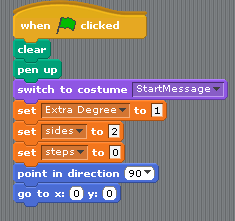
The code to create the Spirals is split into two parts. One runs when youclick the Green Flag, this just sets everything up ready.


The next piece of code is what does all the work, notice where the Slider variables are used and how the code makes more sense when you give variables descriptive names.

Advanced Scratch – Week 1 – The Movies

Movies are lots of single pictures shown very quickly one after the other.

Most movies run at 24 pictures a second!!

We can do the same in Scratch.


Question: If there are 24 pictures in one second, how long is each picture shown for?

Answer: in 100th of a second please…

You should have come up with something like this…

1 / 24 = 0.042

And we can code this in scratch like this:


And to keep things nice and neat, we can use a Broadcast to tell the Sprite to move

Now you don’t need to change this code anymore…

So what kind of Sprite  are we going to have and how will it move?

Well for this demonstration we are going to use a Wheel, it can be of any style, but one with spokes works best to demonstrate the Wagon Wheel effect.

Wheels, are circular 🙂 and circles have 360 degrees, if a wheel turns a full 360 degrees between each frame, then it will appear to stand still.

Some more Maths! Depending upon the number of Spokes in your wheel you can get different effects.

Lets start with one Spoke!

And to make things interesting we will create avariable so we can turn it by different degrees quite easily.

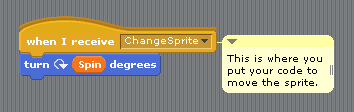
So we set it up to recieve the broadcast from the Movie Machine and turn round by a certain amount each time.

In the example above I have used the variable, but you don’t have to you can just put in a number.

Try the following numbers and see what effect you get:

90 – what do you see?

180 – what do you see?

360 – what do you see?

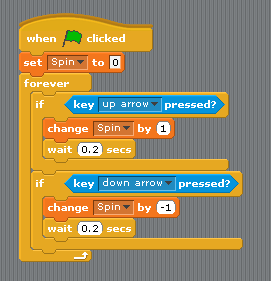
And if you want to get real fancy and use a variable, you can add the variable, and the following code to adjust whilst the program is running.

What next?

Try numbers very close to the ones above…

Try a wheel with different numbers of spokes and different numbers…

Remember the games we did last year? You could add a spinning ball…