Creators – Being Random

Screen Shot 2017-10-17 at 00.56.49

This week we mainly looked at three things:

  • How data is organised on your computer
  • Creating functions
  • Using randomness to make things interesting

Data Organisation

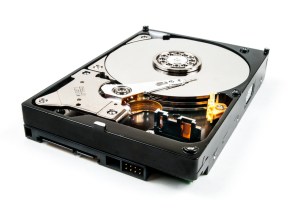
Most of us had heard of a hard-disk before. This is a stack of metal disks inside your computer. Each metal disk has a special coating made of millions of tiny magnets (like you might find stuck to the fridge) that can be turned on and off.11644419853_9499fa0faa_b
We saw that able to turn something on and off, like a switch, was enough to count from zero to one, but the more switches we added, the higher we could count. Two switches can count from zero to three:

Switch 1          | Switch 2          | Total (Add)
[Off = 0, On = 1] | [Off = 0, On = 2] |
------------------+-------------------+-----------
Off = 0           | Off = 0           | 0
On  = 1           | Off = 0           | 1
Off = 0           | On  = 2           | 2
On  = 1           | On  = 2           | 3

With enough of these tiny switches, we can store anything we need. Each of these tiny switches is also known as a ‘bit’ and a 1 terabyte hard disk has a billion of them!

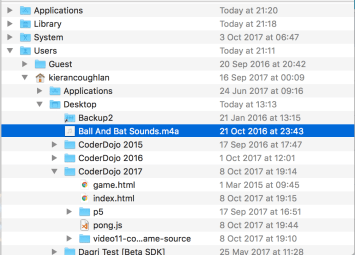
We also saw that the files on your disk are arranged with folders (also known as directories). Folders can contain both files and more folders. This allow us to keep our hard disk organised; without them all our files would be in the same place which would be difficult once we had more than a few. The location of a file is called its “path”. Looking at the highlighted file on the desktop of my Mac we can see the full path would be:
Screen Shot 2017-10-16 at 22.19.59

/Users/kierancoughlan/Desktop/Ball and Bat Sounds.m4a


This means that, reading backwards, the file called ‘Bat and Ball Sounds.m4a’ is in a folder called ‘Desktop’ which is itself inside a folder called ‘kierancoughlan’ which is, at the highest level, inside a folder called ‘Users’.

Functions

A function is a collection of commands that do a job together. We’ve already encountered them, even if you hadn’t especially noticed:

  • Our P5 template already contains two functions called start() and draw()
  • All of the P5 commands we have used, such as createCanvas() and rect() are functions themselves

We could add all our code to start() and draw(), in fact, that’s what we’ve done before this week. That’s fine starting out, but it does mean, once there are a lot of commands in those functions, that our code is gets harder to read and understand. Breaking out a few commands into a new function and giving it a name that describes what it is doing, really helps.

Once we’ve written a function, it can be called as many times, and from as many places, we as need.

Functions can do one other thing too: they can give back a value to the place where they were called from. For this we use the special word return. For example, let’s see what a function to pick the largest of two numbers, we’ll call it Max(), might look like:

function start(){
    let a = 4;
    let b = 10;
    let c = Max(a, b);
}

function Max(n1, n2){
    if (n1 > n2)
        return n1;
    else
        return n2;
}

We give Max() the two numbers we are comparing. If the first one is bigger than the second, it gives back the first. Otherwise, if gives back the second. Note too that the names of the variables in Max() are different to those in start(), and that’s not a problem.

Random

Finally, we looked at the P5 function random(). We used it two different ways:

random(); // gives a number between 0...1
random(n); // gives a number between 0...n (where n is a number!)

In the first form, we used it to pick a random colour. In the second, we used it to pick a random position for our squares.

Files

As usual, all the code is on the creators github repository. Head there and download it!! The files for this week contain both the script we wrote (sketch.js) and a longer version that I wrote (sketch2.js). Feel free to take a look at both!
Hackers – 3D Modelling with SketchUp

roompic

At this week’s session, Kevin introduced everybody to SketchUp, a free 3D modelling program. Models built with SketchUp can be exported to a format suitable for input into Repetier Host, to prepare them for 3D printing.

Incidentally, other options for 3D modelling include Blender (which some may have used previously for modelling) and TinkerCAD (which is web-based so does not require installation).

Here are some notes on getting started with SketchUp – they are taken from an NUI Galway summer camp I was involved in organising a couple of years ago: sketchupnotes

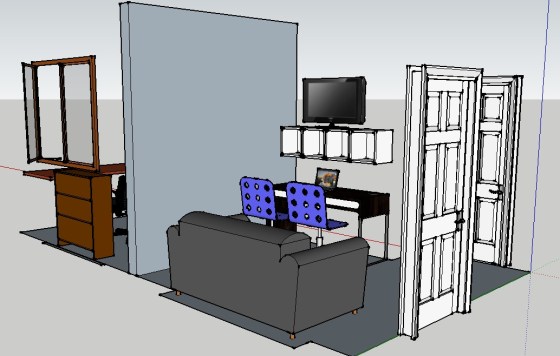
By the way, the picture above is a SketchUp model I built previously of a room.

Important: to export SketchUp models to Repetier, you first need to install the SketchUp STL Extension. Instructions:

  • n the SketchUp main menu, select Window – Extension Warehouse.
  • Search for SketchUp STL (see below), then go through the steps of downloading and installing.
  • Note that you may need to create a Trimble account (Trimble is the company that develops SketchUp).
  • You may see a warning that it is not marked as compatible with your version of SketchUp, but just press OK.
  • After installing the SketchUp STL extension, you will have a new menu item: File – Export STL.

sketchupstlextension

Explorers Week 3 – Improving last Weeks Game!

Hi everyone,

Can you believe the crowds we had again last week, another record 251 Ninjas and Parents attended Coderdojo Athenry last week.

We were adding to and improving our game from last week. We added a sprite that would catch the fish and decided what could or would happen when this occurred.

We discussed how to make a game more fun we have to add some complexity to it….we need to make it harder to play!! so to this end we used some code from our operator palette to add some randomness.

I also introduced Variables and how we can use them to keep track of things like Score or Lives.

I am attaching the notes from last week as PDF CDA-S6-Week_03-FirstGame_Part2

See you all this Saturday again. We will be starting a new game and Ill need your help.

Martha

Hackers – Getting started with 3D printers

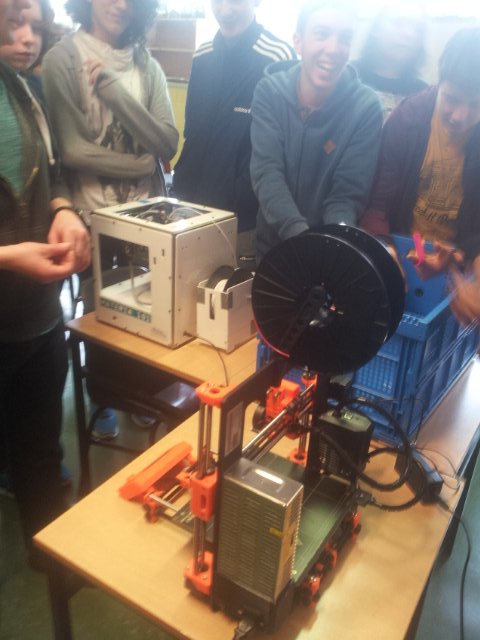
hackers-with-printers

At the Hackers group, we started learning how to use 3D printers this week. 3D printers are a fantastic technology for turning 3D computer models into physical objects. They are also impressively inexpensive. For example, one of the printers we are using, the Arduino-based Materia 101 printer, costs about €600.

Thanks to Kevin’s employer, Boston Scientific, who have loaned two 3D printers to us and are also covering the cost of the plastic “ink” used in them.

Here are Kevin’s notes on how to set up a 3D printer: 3d-printer-setup (PDF)

Here are the configuration files needed for the Materia 101: https://www.dropbox.com/s/6otj5ok7i00ikds/Slic3r-Materia101-Settings.zip?dl=0

We have another model of 3D printer, the Prusa i3 MK2 in the group as well. We will post notes about using it at a later date.

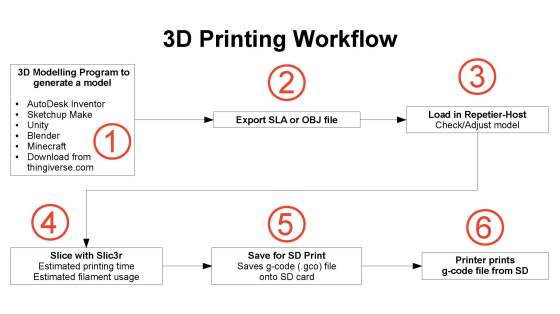
And here also is a diagram Kevin prepared, showing the 3D printing workflow:

3d-printing-workflow

At our next session, we will look at how to do some 3D modelling to create objects we can print. Should be fun!

Explorers Week 2 – Our First Game!

code

Hi everyone!

Wow! what a fantastic turnout on Saturday for our first week back this year. We had our highest recorded numbers in the Dojo this week. 245 Ninjas and Parents, incredible.

Our little old room had 130 alone, so probably over 80 of you Ninjas came to start coding and make your first game. I hope you had a good time, I know that I really enjoyed it. There was a really great atmosphere and energy in the room.

I am attaching my notes in PDF for you. CDA-S6-Week_02-FirstGame

Please take a look at them as they contain details on each of the palettes that we didn’t go into fully on Saturday. It also contains all the code for each sprite in case you missed any part.

We will continue to add to the game next week but don’t worry if you weren’t here this week, I will have a copy of the game so that you can join in.shark

Don’t forget, anyone can join at any stage, let your friends know how much fun your are having.

See you all next!

Martha