Scratch Beginners – Week 1- Writing Commands to move sprites

Hello everyone,

We had a great crowd for our first session today in Scratch beginners. A big welcome to all our new Ninja’s and of course a special welcome back to our younger Ninja’s from last year, who are still with us.I forgot to take some pictures of the big crowd but we had up on 100 Ninja’s signed in to our Scratch Beginners session alone today.

Thank you all for coming and for your patience while we got everyone sorted out with downloading Scratch 2.

We started today with our first game, as well as learning how to write commands to move our sprites, we took a brief look at the interface for Scratch 2.

sprites

We also took a first look at some fundamental concepts that we will be using throughout the year. Today we looked at the X and Y axis as well as the number of degrees in a circle.

axixdegrees


Here are the presentation slides from the day, in PDF format: CDA-S5-Week_01-FirstGame.pdf

I hope you all enjoyed today and hope to see you all again over the next couple of weeks!


Martha

Topic 3: Creating our First ScriptCraft Mods

2014-10-17_20.54.57

(Notes updated September 2015.)

Previous Topic: Connecting to Each Other’s Servers.

Our First Mod: sayhi.js

I’ll show you how to write a very simple one, sayhi.js, and then a more complex one, scraper.js. After that, it’s up to you to figure out what you can do!

In the Canarymod folder, find the folder scriptcraft / plugins, then make a new folder with your name (or any unique folder name).

Using Notepad++, type in the code shown below and save it in a file called sayhi.js. Here are explanations of what everything means:

sayhi-scriptcraft

Try it out in Minecraft and see if it works!

NOTE: Every time you create a new ScriptCraft program or edit one, you have to type /js refresh() in Minecraft to update your changes. If no commands run, make sure you are opped. (In the Canarymod window, type op <your_mincraft_name>).

To run it, type /js sayhi() in Minecraft.

A More Complex Mod: scraper.js

This makes the skyscraper shown above. We will figure out together how it works!

scraper-scriptcraft

Topic 2: Connecting to Each Other’s Servers

bukkit

(Notes updated September 2015.)

Note: This continues what we started in Topic 1: Getting Started with ScriptCraft and JavaScript.

Next step: Creating our first Scriptcraft mods. https://cdathenry.wordpress.com/2014/10/17/topic-2-connecting-to-servers-and-creating-our-first-mod/

Previously, we installed a Canarymod server and inside it we installed ScriptCraft, a mod that will allow us to build structures in MineCraft by writing JavaScript code.

Canarymod is a Minecraft Server. Therefore, the instructions we followed to connect to it were:

  • Start MineCraft, making sure it’s the same version (1.8 in our case)
  • Choose Multiplayer, then Direct Connect and enter localhost as the server address
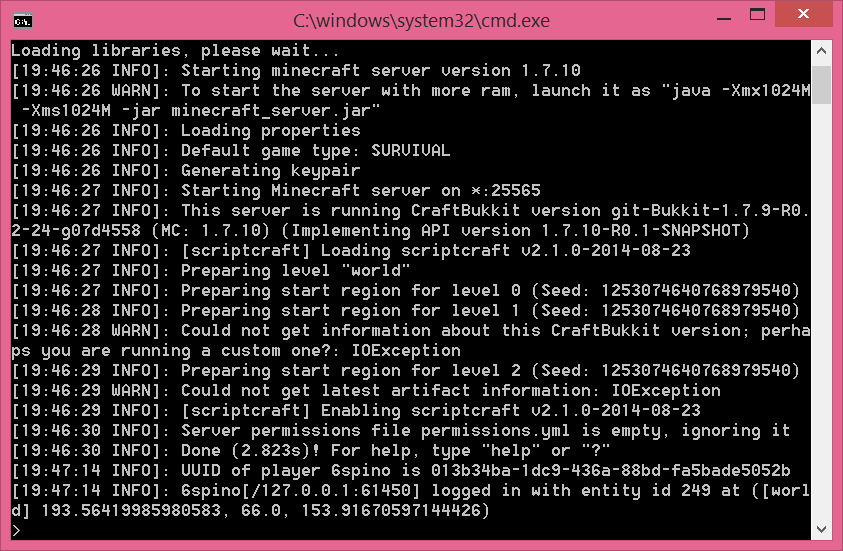
  • If this works, in your CraftBukkit window you’ll see a message that you connected.

Here, localhost is actually means “the address of this local computer”.

But you can also connect to a friend’s computer, if you are all on the same network and you can find out their address. (If you are on different networks, things get a bit more complex: you will have to search online about how to set up port forwarding on your router, and you will probably also need a free Dynamic DNS service.)

On a local network, to find your IP address, open a command window. (In Windows, run or search for cmd.) In the command window, enter the command ipconfig and read through to find an entry like this:

Wireless LAN adapter Wi-Fi:
    Connection-specific DNS Suffix . :
    Link-local IPv6 Address . . . . . : fe21:9ba2:9db6:13e9%4
    IPv4 Address. . . . . . . . . . . : 192.168.1.17
    Subnet Mask . . . . . . . . . . . : 255.255.128.0
    Default Gateway . . . . . . . . . : 10.101.0.1

The IPv4 address is what you need. Get a friend to start Minecraft on their computer, then Direct Connect and enter your IP address. They will then be connected to the server on your computer!

This can be handy if you want to work on projects together.

Next step: Creating our first ScriptCraft mods.

ModderDojo Topic 1: Getting Started with ScriptCraft and JavaScript

Slide1Welcome to ModderDojo Athenry!

(Notes updated September 2015. Previously used the CraftBukkit server, now using Canarymod.)

This stream is aimed at older & more experienced ninjas, mainly in secondary school, who:

  • Know how to program in some language (e.g. a blue belt in Scratch)
  • Already use the PC edition of Minecraft
  • Know how to edit file and know your way around your computer’s filesystem
  • Ideally have already installed a mod yourself

Plan for today:

  1. Install a Canarymod server (a Minecraft server that is designed to be better to extend than a standard Minecraft server)
  2. Install ScrptCraft, a Mod for Minecraft (built with Canarymod) that allows you to write programs to build objects in Minecraft
  3. Try out some ScriptCraft commands
  4. Write our first mod or two in ScriptCraft

In future weeks, we’ll figure out more about the JavaScript language, which is a popular programming language that is often used in web programming.

Step 0: Prepare

Before you start, you’ll need a programmer’s editor and a zip program. I recommend:

You’ll also need to run Minecraft and the server on your own laptop or pair up with somebody.

Steps 1 and 2: Install Canarymod Server and ScriptCraft

Instructions here: https://github.com/walterhiggins/ScriptCraft/blob/master/README.md

I’ll have files pre-downloaded on a USB flash drive to save time.

We’ll edit the properties file to specify a flat world, creative mode, and give the world a name.

Either follow the instructions linked above to install everything from scratch, or these instructions ot use my pre-=built server:

  1. Download the Canarymod/ScriptCraft server (a single zip file) here:
    https://www.dropbox.com/s/d1af5njm7t732n0/ScriptCraft-Sep2015.zip?dl=0
  2. Create a folder, e.g. C:\ScriptCraft
  3. Move the downloaded zip file into the folder and unzip it
  4. Run canarymod.jar to start it
  5. If Java is not installed, you will need to download it from http://www.java.com

You should then be ready to try out ScriptCraft.

Step 3: Try out ScriptCraft

Run Canarymod (with ScriptCraft already installed).

Then start Minecraft. Important: you will have to run the Minecraft version that matches your version of Bukkit (e.g. 1.8.8)

Choose to directly connect to a server and enter localhost – if you’re connecting to a friend’s machine, you’ll need to connect to their IP address.

To run ScriptCraft commands, you have to be an op. In Canarymod window, type op <username> to op yourself.

In Minecraft, type /js echo(“hello world”) and check that it displays the message: if so, you have it installed correctly.

Next Steps …