Unity – Amazing Racer

Screen Shot 2016-01-28 at 9.03.52 p.m..png

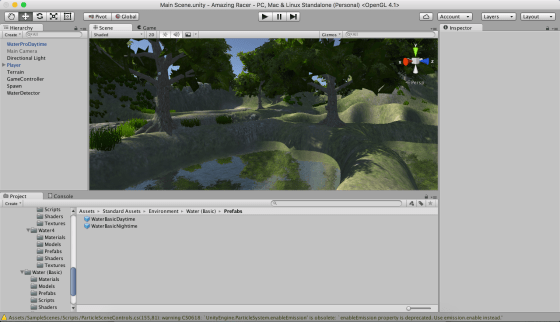
This week we worked on decorating our map with textures, trees and grass. We also worked on establishing a spawn point for our player and a trigger which would detect when our player had fallen in the water.

Some people have been having technical problems or have been lagging behind for one reason or another. We decided it would be a good idea if everyone had a copy of my project so that we could all move forward from the same point.

The first thing you will need to do is to:

Upgrade to Unity 5.3!

This is very important or you will have problems opening my project. When you start Unity it should prompt you if an upgrade is available. Failing that, you can use the “Check for Updates” option in the programs Help menu.

Once you have upgraded you can download my project from here:

Kieran’s Amazing Racer Project

Be warned, this file is quite large at almost 400MB. Please leave yourself enough time to download it, depending on your internet speed.

Extract the contents of this ZIP file into a directory on your machine. It won’t appear on the splash-screen list of recently opened projects when you open Unity – you’ll have to use the little Open button there to select the folder in question. Do also make sure you’re opened it at least once, as opening for the first time causes the assets to be reimported and this takes some time.

Please try to have Unity updated and the project copied to your machine before Saturday! Thanks and see you then.


Playing With Unity Physics and Wheel Colliders

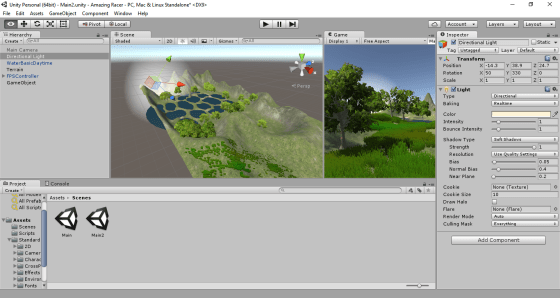
Hi folks. This week we continued work on our Amazing Racer project. We explained what heightmaps are and we imported a standard heightmap into a terrain object. We also added water and trees to our game map.

Apart from that, I also showed two little fun experimental projects that I worked on over the Christmas break to test a couple of game ideas. I thought I’d upload them here so you can play with them yourselves; maybe even use them as the basis for a game idea?

PhysicsTest

The first project, called “Physics Test”, is just a Jenga-like tower of bricks, a ramp and a dropped sphere. The sphere and the bricks have custom physics materials to define their friction and bounciness. It can be downloaded from here.

WheelColliderTest

The second is called “Wheel Collider Test”. It uses Unity’s Wheel Collider on a simple vehicle made of a box and four cylinders. The whole thing is on a simple map made from a basic terrain with a flat interior and a raised edge (to keep the car in!). The awesome (cough) textures are from random Windows backgrounds. The Unity documentation for the WheelCollider can be found here. I note reading it that our project sets up the visual elements to represent the wheels differently to the method recommended in the documentation, but it seems to work OK. The project itself can be downloaded from here.

See you all next week!

Unity – Week 7

unityssample

This week we started with a very short demonstration of some additional C# concepts, building on what we’d done last week.

After that, we continued with Roll-A-Ball.

We quickly finished off our walls and moved on to the Pick Up objects.

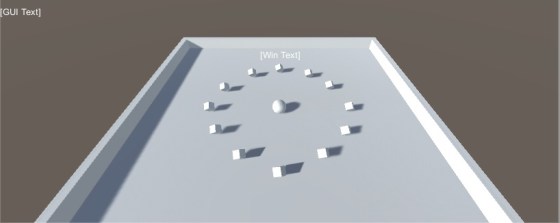
Pick Up objects are small cubes that float over the paying surface and that rotate to catch the user’s attention.

We added one Pick Up object and made it rotate. After that, we made it a “prefab”. Setting a property on one prefab object will automatically replicate that setting to all other prefabs of the same type. We didn’t take advantage of that this week, but we will next week.

We duplicated our Pick Up object and arranged twelve of them around our playing surface.

Next Week

Next week we’ll hopefully have enough momentum to finish off Roll-A-Ball completely.

After that we will start on some terrain modelling basics.

To be ready for terrain modelling basics, please be sure to have imported the standard assets package into a new empty project in Unity. To do this, follow these steps:

  1. Open Unity and create an empty 3D project, call it “Amazing Racer”
  2. Under the Windows menu in Unity, open the “Assets Store”
  3. In the “Assets Store” look for the “Unity Essentials” category
  4. Under “Unity Essentials”, find “Standard Assets” and import them

This process takes quite a bit of bandwidth and time, so you will need to have this done before coming to Dojo next week.

See you all then!

Unity – Week 6

C#

This week we had a short session because of the fantastic demonstration that Colmac Robotics were kind enough to give us.

Following feedback from a few ninjas and ninja parents, I decided to do an impromptu session on the C# language. I had hoped that we’d perhaps just try to pick this up as we went along, learning through practical examples, but it was clear that the transition from visual languages to code-based languages was tough for some.

We used MonoDevelop to create a simple test application. Originally I had intended to use Visual Studio, but some people have had installation problems with it. I encourage everyone to re-install Unity at home when they have time, so that we can all standardise on Visual Studio in the near future.

Concept of Classes and Basic Structure of A C# File

I ran over these topics quickly again, but they were covered in last week’s post. Please do review it if you didn’t get a chance to read it before. It can be found here.

Simple Test Application

In our test application, apart from reinforcing the basic concepts mentioned above, we also touched on number of other concepts:

  • We looked how the class definitions in our files are blueprints for how the class is structured and operates. We never actually have a copy, more commonly known as an instance, of that class until we actually create one ourselves with the new keyword.
  • We discussed class constructors, the special method, with the same name as the class itself, that is called when we make an instance of that class.
  • We saw how Console.WriteLine() can output text to the Windows console.
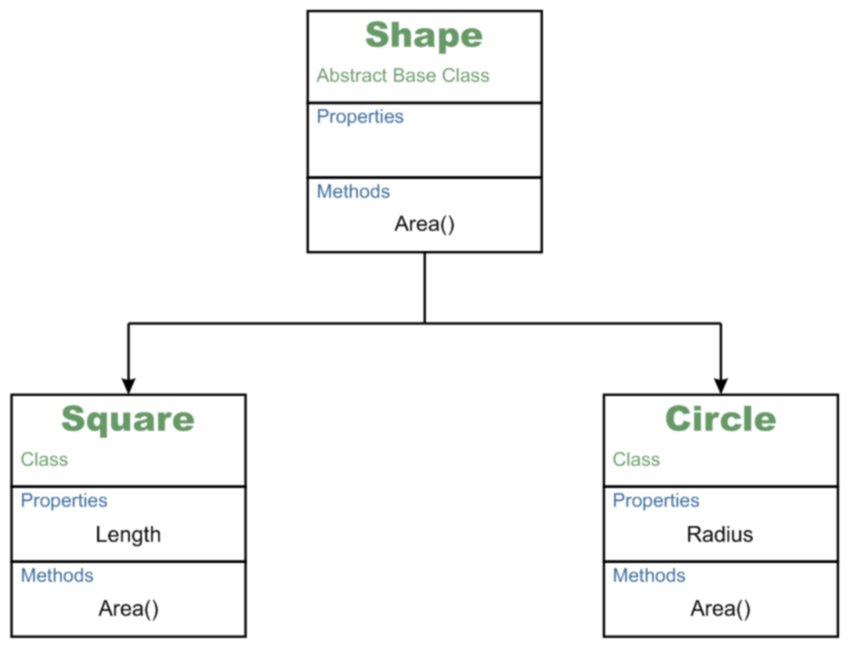
  • We created a class called Shape. We said it was abstract; which meant that we would never be making an instance of the Shape class itself. We would purely be using it as a base for other classes.
    • We said that Shape had a public method called Area(). We made its return type double, but we also marked it as abstract and provided no body for the method. This meant that we were saying all classes based on Shape would have to provide their own version of Area(), but that Shape itself had no definition for it.
  • We defined a class called Circle. We made it so that it was derived from Shape.
    • We gave it a property called Radius of type double and marked it public.
    • We used the override keyword to make our own Circle specific version of Area(); “override” meaning that we were over-riding or replacing the method definition from the base class (Shape).
    • We provided a means to set the Radius property through an optional argument to the constructor method Circle().
  • We defined a class called Square. We made it so that it was derived from Shape.
    • We gave it a property called Length of type double and marked it public.
    • We used the override keyword to make our own Square specific version of Area(); “override” meaning that we were over-riding or replacing the method definition from the base class (Shape).
    • We provided a means to set the Length property through an optional argument to the constructor method Length().
  • When writing our Circle.Area() and Square.Area() methods, we saw how the built-in Math object has lots of useful mathematical properties and methods. We used the property Math.PI and the method Math.Pow() (to raise a number to a given power) to perform our area calculations.

Inheritence

In the end we had a small sample program that could defined instances of circles and squares, calculate their areas and output the results to the console window (command prompt window).

On-line Resources for Learning C#

If you want to brush up on your C# skills, outside of our CoderDojo sessions, there are a number of useful on-line resources:

  • LearnCS.org: An on-line tutorial for C# which lets you build and test code right in a browser window
  • tutorialspoint.com: Another on-line tutorial for C# which also lets you build and test code right in a browser window
  • msdn.microsoft.com: Microsoft’s vast library of C# related resources including tutorials

Next Week

Next week, we’ll be taking a few minutes to close off this sample application, so that we can quickly illustrate a few outstanding points, and then return to roll-a-ball to, hopefully, close it out. See you next week!

Week 5 – Unity

UnityLogo

This week we returned to the Roll-A-Ball game that we had shown in the introductory session. Because people were at different levels of completion with this, we started from the beginning again, but we put some detail around things that we’d glossed over the first time around.

Concept of Classes

A class is a programming concept that allows you to define objects which contain both Properties and Methods. Properties are what they sound like; a value associated with object that we can get or set. Methods are actions, in the form of a function, that we can ask the object to perform.

SampleObject

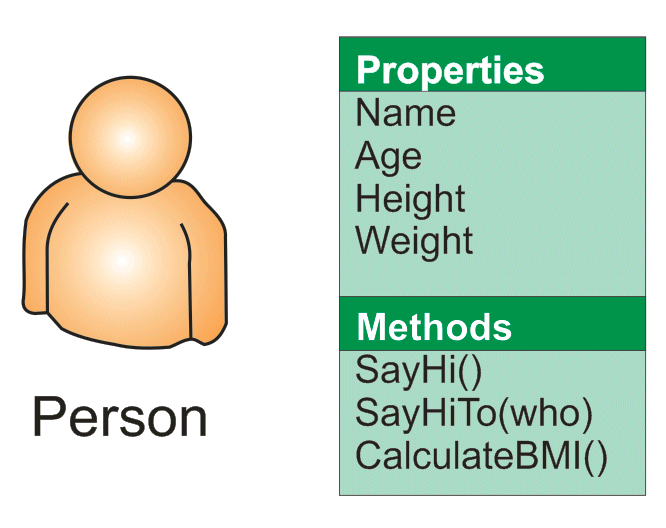
If you think of yourself as a Person object then you could imagine some of the Properties and Methods you might have.

For Properties you might have things like NameAge, HeightWeight, etc. An example of a Method you might have could be SayHi() [notice the round brackets after the name marking this as a method]. That would make you say “Hi!”. A method might have arguments, so it could be SayHiTo(“Dave”) which would make you say “Hi Dave!”.

A method could equally calculate a value. An example might be CalculateBMI() which would calculate your Body Mass Index (BMI) value based on your Height and Weight properties.

Another nice thing about classes are that we can create specialised versions of them. They get all the Properties and Methods of the base class, plus all the new Properties and Methods that we defined for the derived ones. In this example, we might want to declare SchoolChild and Worker as new classes, both based on Person. SchoolChild might have additional properties such as School and Class while Worker would have WorkPlace and JobTitle. They would still share Name/Age/Height/Weight, etc.

Classes in Unity

Unity has a base class called MonoBehaviour and when we define behaviour for a game object, we do this by deriving a specialised class of our own design based on MonoBehaviour.

There are four Methods that MonoBehaviour has that we have looked at so far:

  • Start()
  • Update()
  • FixedUpdate()
  • LateUpdate()

We have provided custom versions of these in our own classes to define the behaviour that we want. This behaviour is also known as “overriding” as we are overriding the base behaviour of these Methods (which is to do nothing).

  • Start() is called when our game object is created. We can so things here that we need to do once when the game object is created.
  • Update() is called every time the scene is drawn. It’s a good place to do any updates that impact how the scene looks. However, it’s not called at a constant rate and that makes it unsuitable for some jobs.
  • FixedUpdate() is called every time the internal game timer for physics calculations fires. This is guaranteed to be at a regular interval. Any physics based calculations where time is a component should therefore should be done within FixedUpdate() rather than Update().
  • LateUpdate() is called after all game objects have had their Update() functions called. Use this when we need to be sure that another object has definitely been updated before we do something based on that object’s Properties.

Vectors & Physics

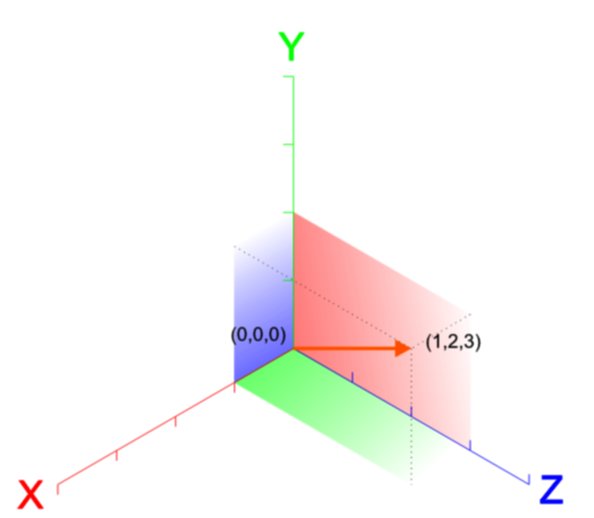
If I tell you that someone is moving at 5kph and ask you were they’ll be in 10mins, you won’t be able to answer that question. If I tell you that they’re moving 5kph due North, then you will. That combination of a quantity and a direction is called a vector.

vectors_basicA vector in 3D space is usually represented as three numbers, written as (X, Y, Z). Let’s see what the vector (1, 2, 3) looks like.

We’re familiar enough with using vectors like this to indicate a position, but what about representing a velocity or a force? The direction is apparent, but what about the quantity? Well the quantity is simply the length of the vector. This is calculated using Pythagoras’ theorem:

distanceeq3

So we can calculate the quantity or magnitude of the vector (1, 2, 3) as approximately 3.74.

Note too that if our vector (1, 2, 3) represents a force then a vector (2, 4, 6) also representing a force, would be a force in the same direction but twice as strong. You can see that each part of the vector has simply been multiplied by two.

Basic Structure of a C# File

When we derive custom behaviours for our game objects, Unity is kind enough to provide us with a basic file containing a class definition containing empty methods for Start() and Update()monobehaviour

It’s tricky making the transition from a visual language like Scratch to a language like C# where you have to type code. A few simple rules may help:

  • Lines starting in two forward slashes (//) are comment lines. They have no effect on the program; they’re there for you to read. You can delete or change them as you need.
  • Semicolons (a dot over a comma) mark the end of statements. They’re easy to forget at first so you need to be careful.
  • You need spaces and newlines to separate things, but this does not have to be precise. Two spaces are equivalent to one. Because a statement doesn’t end until a semicolon, you can split if across several lines and it will still be fine. Hard to read though.
  • Braces (or curly brackets) enclose things and they must always be in pairs (open/close). In the sample code the braces are such that the methods Start() and Update() are inside of (and belong to) the class NewBehaviourScript because they are inside its braces. Similarly any lines we add inside Start() will belong to that method because they are inside its braces.
  • Neat formatting really helps keep your code readable and helps you quickly find mistakes. Try to mimic how code is formatted in the examples, especially the practice of “indenting” lines; placing spaces at the start of the line to make it clear what it is inside of.

Next Week

Next week we will continue to develop Roll-A-Ball and hopefully get it finished up.

Week 4 – Unity Taster Session

unityssample

Thanks everyone for a fun session today. Although we were some way from the finished product, I hope that it gave everyone a taste for what you can achieve in Unity.

No doubt there are a few of you ninjas who’d like to complete the game under your own steam, For you, the complete notes on how to finish this game off can now be downloaded from here.

Best of luck if you do choose to finish it off and we’ll probably return to this material after the break and discuss in more detail some of the things we glossed over today for the sake keeping things simple for the taster session.

Taster Session Week 4 – Unity 3D

UnityLogo

For our fourth taster session, on next Saturday 17th October, we’ll be giving an introduction to Unity. Unity is a cross-platform game engine which has been used to create many successful games.

In preparation for next week please:

  1. Go to the unity website: www.unity3D.com
  2. Click the “Get Unity 5” button
  3. Download and install the free “Personal Edition”
  4. Run Unity once and register an account – you will need your email address

We will be trying to build as much as possible of the “Roll-a-ball” demo that I showed in our introductory session. Ongoing participation in the Unity group will require a good understanding of advanced programming concepts, but for the taster session, we will try to keep that stuff to a minimum so everyone can follow along and have fun.

unityssample

ScriptCraft – An Exploding Chickens Mod

A few weeks ago we were lucky enough to have a visit from YouTuber and professional Minecraft modder (for the HyPixel server) codename_B (a.k.a. VladToBeHere, a.k.a. Ben).

Ben (left) addresses CoderDojo Athenry. ,Also pictured: Auburn, Ben's girlfriend, and our own Michael Madden

Ben (left) addresses CoderDojo Athenry. Also pictured: Auburn, Ben’s girlfriend, and our own Michael Madden

Ben is an extraordinary programmer who just breathes code. On his YouTube channel he regularly creates a complete MineCraft plugin in only sixty seconds!

After addressing the entire Dojo, Ben showed our modder group and a few other more advanced coders how to make a quick plugin which causes chickens to explode when a player kills them.

Ben’s mod was written in Java and used the Bukkit API to interface with MineCraft.

Porting the Plugin to ScriptCraft

ScriptCraft is built on top of Bukkit. Because of this, almost all the Bukkit API is available for use in ScriptCraft. I believe there are a few Java-only bits in Bukkit, but I haven’t encountered them.

I realized that, in theory at least, it should be possible to port Ben’s plugin to ScriptCraft. In practice, it proved to be more straightforward than I could have hoped. If you don’t already know Java, ScriptCraft is a great place to start if you want to create MineCraft mods.

ScriptCraft and Bukkit References

When writing something new, you’ll need to be able to look-up things that you are not familiar with. Two references I used for this script, apart from Ben’s original code, were:

  1. ScriptCraft API
  2. Bukkit API (from Spigot)

Browsing these resources is also a good way to see what can be done and to thereby generate new ideas.

Anatomy of the Plugin

The plugin is composed of four parts:

  1. Two variables to represent the Bukkit types which represent chickens and players respectively
  2. A loading function which we will run when the plugin loads
  3. An event handling function which will be called whenever one entity damages another
  4. A call to the loading function, at the bottom of the file, to make it run as soon as ScriptCraft reads it

Let’s talk about each of these parts in turn.

Variables to Represent Bukkit Types

After a require(‘events’) line (to make sure we can reference the events object), there are two lines as follows:

var bkPlayer = org.bukkit.entity.Player;
var bkChicken = org.bukkit.entity.Chicken;

These are ‘types’ which represent an entity of type Player and an entity of type Chicken respectively. We’ll use them in a bit to determine, when we’re told one entity has damaged another, that it was a Player entity causing damage to a Chicken entity.

The Loading Function

The next part of the script is the loading function. It’s short and really only does two things:

  1. Announces that the plugin has loaded by printing a message to the console
  2. Tells Bukkit that we’d like a function of our own to be run each time that a particular event occurs. In this case it’s the event that fires every time one entity damages another.

Here’s the code:

// The function which will run when we load this module
var _loadMod = function()
{
  // Announce ourselves to the console
  console.log("Exploding Chickens: [Loading ScriptCraft Mod]");

  // Tie our code into the event that fires every time one entity damages another
  events.entityDamageByEntity(_entityDamageByEntity);
}

We’re passing events.entityDamageByEntity() the name of our function we’d like to have run. That function (_entityDamageByEntity) and this function (_loadMod) both have underscores at the start of their names. It’s a JavaScript convention which indicates that we’re never be calling these functions by name from outside this file. They’re private or internal functions.

The Event Handling Function

This is the most complex part of the module, but not terribly so. Here’s the code:

// The code that we want to run each time one entity damages another
var _entityDamageByEntity = function(event)
{
  // Find out, from the event, who's getting damaged and who did the damage
  var damagedEntity = event.getEntity();
  var damagingEntity = event.getDamager();
  
  // If it's a chicken getting damaged by a player, game on...
  if (damagedEntity instanceof bkChicken && damagingEntity instanceof bkPlayer)
  {
    // Announce in the console that we've detected a player damaging a chicken
    console.log("Exploding Chickens: [A player damaged a chicken]");
    
    // Schedule a task to run in five seconds.
    server.scheduler.scheduleSyncDelayedTask(__plugin, function() 
    {
      // Check to see if the damage brings the chicken's health
      // down to, or below, zero. If so, it's dead...
      if (damagedEntity.getHealth() - event.getDamage() <= 0)
      {
        // Get the chicken's location
        var loc = damagedEntity.location;

        // Create an explosion at the chicken's location. 
        // A big one...
        loc.world.createExplosion(loc, 10.0);
      }
    }, 20 * 5);
  }
}

What does it do?

  1. Gets the entity that caused the damage and the entity that was damaged and check to see if they’re a player and a chicken respectively
  2. If they are a player and a chicken, Schedule a task to run in aprox. five seconds. This task can result in an explosion, so it’s nice to have a little “getting away” time.
  3. When our task runs, see if the amount of damage inflicted was enough to bring the chicken’s health down to zero (or below) and if it was, make a massive explosion where the chicken was.

The Bukkit function scheduler.scheduleSyncDelayedTask() needs a reference to the plugin which is asking for the task to be scheduled. In this case it’s ScriptCraft and there is a special automatic variable, __plugin, which ScriptCraft can use to refer to itself when it needs to.

And that’s pretty much it!

Getting it All Going

The last line in the file is just a call to our _loadMod() function. This will get run immediately by ScriptCraft when it read it, setting the mod into action:

// Run this script as soon as the file's loaded
_loadMod();

Finally

Here’s the mod in action:

Sorry chickens*.

The script file can be downloaded from here. I hope this inspires you to create your own server mods using ScriptCraft.


* The author is a vegetarian and general soft touch who even tends to feel bad about exploding virtual animals…


Automatically Generated ScriptCraft to Draw An Image

image_process

Having done tagger.js, I thought “wouldn’t it be nice not to have to specify the design by hand?”

I started thinking about how cool it would be to have a way to take an image file and use that to define the design that tagger.js was going to spray.

The first thing that I determined was that, as far as I can see, there isn’t any built-in support for the various image formats (GIF, JPEG, PNG, etc.) in ScriptCraft. OK, so what then? Well, web browsers are great at handling images in all kinds of different formats. The HTML5 canvas element is good for playing around with bitmaps and on top of all that, JavaScript is supported for the coding part!

So, with very little previous experience and plenty of Googling, I decided to make a web page which would allow the user to enter a file’s name, press a few buttons and a ScriptCraft script would appear, as if by magic. Development was pretty smooth, baring one significant road-bump which I’ll describe. I’m not going to go into details about how the HTML file was made, but it should be clear enough if you want to read it. I will however describe the process of colour mapping.

HTML5 and a Tale of Tainted Canvases

Say what? An odd problem I quickly hit was that I couldn’t just specify an image file from just anywhere (using HTTP:). In fact, even worse, when I directly loaded my HTML page in my browser (using FILE:), I couldn’t even load up an image file which was in the same directory as the HTML page.

More Googling followed. Turns out that the browser was trying to protect me from “cross-origin data”, which is a security risk. Luckily there was an easy solution. I downloaded a small web server application and used that to serve my HTML page, which eliminated the issue. The web-server I chose was Mongoose, because it’s a single application, light and fast, but you can use another web-server if you prefer.

Testing in Chrome

I used Google Chrome as my browser for developing and testing this webpage. Chrome has a JavaScript console, which greatly simplifies debugging scripts. It can be found from the menu to the right of the address bar, at More Tools > JavaScript Console. Among other features, It allows you to set breakpoints and watch the value of variables as the script executes. It will also show you errors in your code, where it finds them.

Colour Mapping

The most important part of this script is mapping the colour of each pixel in the original image to an equivalent block in MineCraft. For this example, I have restricted myself to the 16 wool colours. So, for every pixel in the original image, I have to choose the MineCraft wool block that’s the closest in colour.

MineCraft Wool Palette

MineCraft Wool Palette

The colours we are going to match against are above. If you’re curious, here’s how I generated this MineCraft palette, I laid all 16 MineCraft wool blocks in order, from white to black, and then took a screenshot. This screenshot was, of course, influenced by the lighting in MineCraft at the time I took the screenshot and each block had the wool texture applied to (i.e. they weren’t just one flat colour). I did some further image manipulation to improve the palette. I applied a strong blur effect to downplay the effect of the texture and then I used my image editors Histogram Stretch functionality to make sure that the whitest and blackest colours were pushed towards true white and true black. Finally I sampled one point on each block and that became my representative colour.

These colours, in RGB format, became an array in the JavaScript inside my webpage:

var paletteRGB = [[255, 255, 255], 
                  [222, 146, 79],
                  [177, 98, 186],
                  [115, 152, 197],
                  [178, 185, 60],
                  [76, 179, 67],
                  [213, 151, 159],
                  [51, 51, 51],
                  [164, 180, 170],
                  [44, 109, 122],
                  [116, 68, 167],
                  [30, 50, 113],
                  [59, 43, 14],
                  [35, 62, 15],
                  [132, 53, 40],
                  [0, 0, 0]];

RGB (Red/Green/Blue) is a common way to represent colour. Its three numerical values, each of which can range between 0 and 255, represent the relative strengths of the Red, Green and Blue channels. We can think of this as a co-ordinate system, with the R, G and B values as axes.

RGB Colour Space Imagined as a Cube

Description: RGB Colour Space Imagined as a Cube. Author: SharkD. Source: http://commons.wikimedia.org/wiki/File:RGB_color_solid_cube.png

The image above shows what this looks like. Pure white is on the corner nearest to us. The opposite corner, which we can’t see, is pure black. Colours aren’t just on the surface of this cube either, If we were to cut through it at any plane, we would see all the colours on the inside as well.

Therefore, the difference between two colours can be thought of as the distance between two points in RGB space. It’s Pythagoras’ Theorem again, as we saw in the rainbowk.js project, but in 3D. All we have to do is take the colour of each pixel in the input image, calculate how far is is from each MineCraft wool colour and pick the wool colour which is the closest in distance; that will be the most similar.

Easy right? Well, almost. Turns out, our eyes don’t quite work that way. We’re not as sensitive to changes in some colours as we are in others. We’re most sensitive to changes in shades of blue, and least sensitive to changes in shades of green. If asked to pick by eye, we might make a different choice for the “closest” colour than then one given by mathematics alone. Luckily, scientists have worked out factors which account for this. If you look in the final script you’ll see that there are factors which are used to weight (make more important) the difference in some colours than others. You don’t need to understand how these numbers were arrived at, just understand why they are there.

// It's Pythagoras' theorem again, but weighted.
function weightedDistanceSquaredRgb(r0, g0, b0, r1, g1, b1)
{
  // These weights are used to convert RGB -> YUV and are useful here
  // to enhance the perceived closeness of two colours
  var weightR = 0.299;
  var weightG = 0.587;
  var weightB = 0.114;
  
  // Distance between two points in space: sqrt(x^2 + y^2 + z^2)
  return distanceSquared(r0 * weightR, g0 * weightG, b0 * weightB,
                         r1 * weightR, g1 * weightG, b1 * weightB);
}

By the way, notice that we’re returning the distance squared here. It’s a common programming shortcut if we’re just checking for the nearest thing. If something has the closest distance, it will also have the smallest distance squared. Doing the square root calculation isn’t worth it – so we don’t.

Downloading and Running

The ZIP file containing this HTML file (image_process.html) and a few sample images can be downloaded from here. Remember, you’ll have to use a web-server to view this webpage and have it be able to process the images. Feel free to try your own images, just copy them into the same directory as the HTML file first, and remember to keep them small as every pixel becomes a MineCraft block. My sample images are all around 40px wide.

What’s Next?

Next week we’ll extend this little application to add optional transparency to the output and merge it with tagger.js so our image is sprayed onto the environment.