Beginner’s Scratch Challenge 12 – Scrolling backgrounds

This week we are exploring a new concept of moving across a landscape like some of the treasure hunting type games such as Super Mario Brothers(SMB). Mario moves through a landscape of dangers and treasures looking for Princess Peach. He must avoid turtles and capture coins in order to keep going and not lose lives and start all over! Here are the notes in PDF:CDA-S5-Challenge_12-Scrolling backgrounds.cda-s5-challenge-12-scrolling-intro

To understand the concept, you must understand that the STAGE is only 480 pixels wide (x goes from -240 to +240). No one SPRITE can be larger than the STAGE and we won’t be able to see a SPRITE that isn’t on the STAGE (ie. it’s x position is less than -240 or greater than +240). So we have to set up a series of SPRITES that extend past the stage and move them across the stage from left to right and under Mario’s feet to make it look like he is moving over the ground from right to left! Get it? It’s tough, but by the end of next week we will have a cool game!cda-s5-challenge-12-scrolling-stage_size


1. We started by downloading an SMB cartoon character from the internet and saving it as an image file (either .png or .jpg) on our desktop or in our personal folder. We used this file to import a new sprite from FILE from the NEW SPRITE area. We then had to make any white background transparent and shrink Mario down to a reasonable size.

2. Next, we drew our own Ground SPRITE using the PAINT NEW SPRITE button. Important!! The sprite must be the full length of the stage!! See the 1st picture above for an example of what the ground sprite could look like. Mine looked like a brick wall, but yours can look like a stone wall or concrete one or some kind of footpath or road.

3. Now we must code our Ground SPRITE! We need to set it’s inital x position to zero and continuously move it in a direction for as long as we are pushing the right or left arrow buttons. To do this we need a new VARIABLE called XPOS. Go to DATA and create this new VARIABLE. See the image below on the bottom the instructions for setting up the initial position of the first ground SPRITE. After you create and code the first one, we can duplicate Ground SPRITE 1 and create Ground SPRITE 2. Be sure that Ground SPRITE 2 has an xpos set to 480 pixels more than Ground SPRITE 1.  cda-s5-challenge-12-scrolling-ground_sprites_1
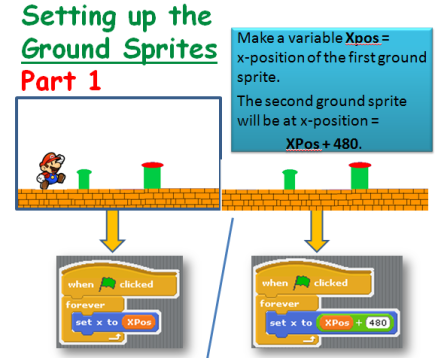
4. Lastly, for this week, we need to get the Ground SPRITES to move!!

!!IMPORTANT! !Click the little i button on your Ground  SPRITE and see all the information about the SPRITE. Change the rotational direction of the Ground SPRITE to non-rotational. It is a button that looks like a dot.

We will code the Ground SPRITES to move to the left when we press the left arrow key and to the right when we press the right arrow key on our keyboards.  See below: Be careful to program the left arrow key to Point In Direction 90 and the right arrow key to Point In Direction -90. Notice both the Change xpos By commands have different numbers! (-5 and +5) Get these wrong and the SPRITE will not move in the correct direction. Once you have the 1st ground SPRITE working the way you like, duplicate it and all it’s coding. All you have to change in Ground SPRITE 2 is the xpos. It must be set to XPOS +480. If you duplicate that sprite, you must set it’s xpos to XPOS + 960 and so on and so on…cda-s5-challenge-12-scrolling-ground_sprites_2

My original project is on the Scratch.MIT.edu website. You can log on with your own login name or use our one – CDATHENRY1516 and our password is CDATHENRY and play the game or download it to your computer for next week’s class. Next week will will be coding Mario to jump and to always return to the ground and giving our program a bit of perspective with a mountain in the background. I’ll try adding a coin or two for Mario to jump up and grab! See ye all next week!

Julie

Beginners Scratch – Guessing Game

This week we decided to give everyone a little breather after the marathon that was last week!! The Guessing Game covers a lot of the same ideas as the Maths Game and reinforces the use of decisions and variables.

For this game we need: 1 sprite (to tell the player what to do and if their guess is correct or not), 2 backdrops and 2 variables (THE NUMBER and GUESS). The SPRITE holds most of our scripting.

FIRST: Scripting in the SPRITE, pick a random number and store it in the variable: THE NUMBER. Tell the player (use SAY block) that you are thinking of a number between 1 and 30….

CDA-S5-Challenge_11-Guessing Game-set random number

SECOND: ASK (yes, use the ASK block!) what the player’s GUESS is and store their guess in the Variable GUESS. !!!!NOTE: when you use the ASK command, the user input (their guess) is always stored in the variable ANSWER, until you reassign it to your own variable GUESS with the SET command in DATA)!!!

CDA-S5-Challenge_11-Guessing Game-ask for guess

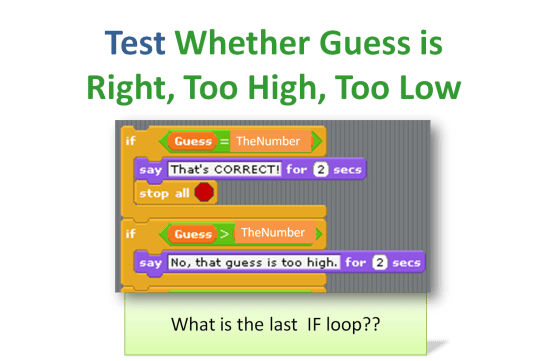
THIRD: TEST whether the GUESS is TOO HIGH, TOO LOW or CORRECT using the IF decision block and OPERATORS: >(greater than), <(less than) or =(equal to).Also, TELL the player (use the SAY command) if they are TOO HIGH, TOO LOW or CORRECT.

CDA-S5-Challenge_11-Guessing Game-test guess

FOURTH: LOOP IT!! Use a REPEAT 5 times to give your player 5 chances to get the guess right. Check your work!! Go through each of the possibilities one time to be sure you get the correct response. What if they get it WRONG 5 times?? Tell them what the number was!

CDA-S5-Challenge_11-final script with loop

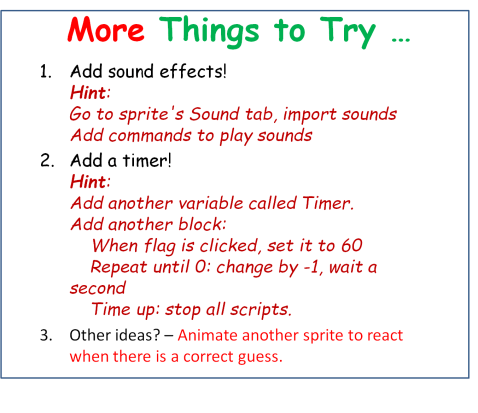
Use your own imagination to add new sprites that react to a broadcast you could send out after they guess the right answer or wrong answer. Get your backdrop to change after they guess correctly. (Hint: BROADCAST correct before STOP ALL and have the backdrop SWITCH costume when it RECEIVES the BROADCAST)CDA-S5-Challenge_11-Guessing Game-more to do

My copy of this game is up on http://scratch.mit.edu. Search for the cdathenry1516 coder name and check it out! Here is a copy of the notes: CDA-S5-Challenge_11-GuessNumbers.

We are taking a break for the next few weeks for mid-winter break! We will be back on February 27th! Happy Coding!

Julie


ModderDojo – Updated Scriptcraft Server

5 Feb 2016: I have compiled the latest version of Spigot (Version 1.8.8, 22 Jan 2016), which is a high-performancse server based on CraftBukkit, and added in the latest version of Scriptcraft (Version 3.1.12, 30 Dec 2015).

You can download it here: https://www.dropbox.com/s/9eg5e5j8j1ubr6w/2016-02-Spigot.zip?dl=0

The version of CanaryMod+Scriptcraft that we were running for the past couple of months was very unreliable, so hopefully this will be better!

Scratch Beginners – Challenge 10 – Maths Game

Wow! We had an exceptional day at Coder Dojo on Saturday! We did a huge amount of work developing a maths game in Beginner’s Scratch. My finished project is on the SCRATCH.MIT.EDU website under the user: CDATHENRY1516. Check it out and upload your final version!CDA-S5-Challenge_10-Maths game-how to

  1. the player picks a level of difficulty and the computer chooses 2 random numbers to add (subtract or multiply- whichever you choose!) together and show the numbers to the player. Fr this we needed 2 SPRITES and 4 VARIABLES called SCORE, LEVEL, NUMBER1 and NUMBER2 as well as 2 BACKDROPS. CDA-S5-Challenge_10-Maths game-ask questions1CDA-S5-Challenge_10-Maths game-ask questions
  2. The player then has to enter an answer to the equation and the computer tells them whether they are wrong or right. CDA-S5-Challenge_10-Maths game-decisions alternative end
  3. We repeated the ask/answer questions 5 or 10 times. Can you figure out where the REPEAT loop fits?
  4. We also had a second sprite who reacted positively to correct answers BROADCAST and negatively to wrong answers BROADCAST. You can use whatever sprites you like and change their look whatever way you like. One coder added a puppy as their second and had him bark whenever an answer was correct. CDA-S5-Challenge_10-Maths game-sprite 2
  5. After all the questions were asked we had the 1st Sprite SAY – Game Over! and BROADCAST Game over so that the backdrop changed and music played. There are two ways to change the backdrop- see below!CDA-S5-Challenge_10-Maths game-alt backdrop CDA-S5-Challenge_10-Maths game-backdropCan you improve our game??! Can you figure out how to subtract or multiply instead of add? Can you get the computer to add three numbers together or give the user 3 level options like: easy, medium or hard? The notes for the Maths Game are here: CDA-S5-Challenge_10-MathsGame-simple addition. Happy Coding! Julie

Beginner’s Scratch Challenge 9 – Storytelling

We had a great day in Scratch Beginners on Saturday! We created a project in which the Sprites all communicated through the use of broadcasts. Each broadcast caused a reaction in the other parts of the program such as the other sprites and even the stage. To begin, we all added two sprites from the library and two backdrops from the backdrop library to the stage. My sprites came with several costumes already supplied, but you can use whatever costumes you like. CDA-S5-Challenge_09-Storytelling-how to

Next, each coder had to decide on a story, conversation or a joke to have one sprite tell the other. After that we placed each character apart on the screen by using the GO TO: command and then had then move together using the GLIDE command. Each part of the conversation is shown on screen with the SAY FOR 2 SECONDS command after which the same words are broadcast to the whole program using the BROADCAST command. The second sprite responds to the first Sprite’s broadcast by SAYing his part of the joke and then broadcasting the same words. This goes back and forth until the story is finished. Keep trying out your scripting by pressing the GREEN FLAG and seeing how it is working. CDA-S5-Challenge_09-Storytelling-1st sprites script

CDA-S5-Challenge_09-Storytelling-2nd sprite script

At the very end, I have the 2nd Sprite send out a final broadcast which causes the backdrop to change and music to play while both Sprites simultaneously do a dance! I just threw that in for fun and to show that BROADCASTS can cause any part of the program to switch on or off. Here is the slide show if it helps a bit more: CDA-S5-Challenge_09-Storytelling. Also, I put my program up on the SCRATCH.MIT.EDU website for you to play with. Search for projects made by cdathenry1516. This project is called –JulieKnockKnockJoke23-01.

Hope to see you all next week when we work on a guessing a number game which requires input from the user to guess the number the computer has picked!

Julie

“Tick” Technique in Scratch – Illusions and 3D printing!

Today in scratch advanced, Mark covered a very useful method to organize your programs better if there are lots of moving sprites – which he calls the “tick” technique.tick_loop The idea is that a single master loop ticks time and the Sprites react to this tick in their own way.

We showed two examples of using this tick – an optical illusion that shows that things can move in circles while just doing straight lines and a technique for building 3D models by layering sprites the same way that a 3D printer layers resin.

illusion_path


The FULL Instructions for today’s projects are here – Enjoy!!

It would be great if you tried out some of your own Tick projects, and demonstrated them next week at Scratch Advanced!

Beginners Scratch – How to make an animated Christmas Scene

Because our last lesson on animation was cancelled, I thought I’d post a lesson online that the kids could access over the Christmas holidays. This Scratch project(Julie’s Christmas Scene) is on the Scratch.MIT.edu website user:cdathenry1516, pw:cdathenry if you want to download it to your computer.

Screenshot (3) I searched the internet for Christmas Cartoon Images and saved a few to my computer:Screenshot (14)

Once I had all the images I wanted for Sprites, I opened SCRATCH and imported the Sprites From File but I noticed that each Sprite had a white background that blocked my nice backdrop. I decided to delete the background from each sprite.christmas scene delete image background

I did this for all my sprites. Next I decided to make the dog wag is tail by

  1. Duplicating the doggie’s costume,
  2. using the select tool to select just his tail and then rotating the tail with the little button at the very top of the selection rectangle.christmas scene make tail wag edit costume

I did the same with Santa’s arm and his shoes. I just rotated them a bit in each costume, back and forth. christmas scene make santa dance edit costume christmas scene make santa wave edit costume

For the lights on one of the christmas trees, I just

  1. duplicated the tree costume 3 times,
  2. poured different colours into the round decorations in each costume.

Lastly, I scripted each of the Sprites like this:christmas scene snow flake script Christmas scene santa script Christmas scene doggie script

That last script is for the doggie! You can script your Sprites in any way you would like. Can you put in a snowman and make him dance about? or bounce around. Can you have presents dropping from the sky like my snowflakes??

Christmas Pizza Party next week!!! Don’t forget to wear a santa hat and decorations! Bring your favourite scratch project and we’ll show the rest of the Dojo!

Julie

Scratch Beginners – Week 8- Stop Motion Videos


Last Saturday, we had a fantastic time creating very simple stop motion videos in scratch by taking pictures of small figurines in sequence and then uploading the pictures from cameras and phones to the computer. We then started Scratch and added the very first picture as a SPRITE from a file. All the subsequent pictures were then added as new costumes to this sprite!

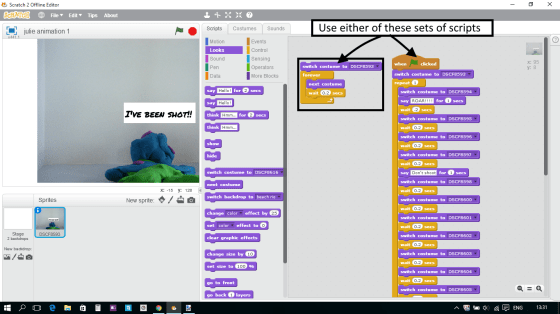
We did have to do a very simple code for the sprite – when the GREEN FLAG is pressed the sprite FOREVER uses the NEXT COSTUME command and WAITS .1 seconds. The computer then moves from the first costume down to the last, very quickly, but not so quickly that we can’t see it happen! The result looks like we have taken a video. Check out the scratch.mit.edu website for the demo that I used – Julie Animation. Search the site for cdathenry1516 games.animation code 2

Next week, we will take a look at Paint.net,which is a drawing program. I will quickly go through the menus but the best way to learn a program like this is to use it and experiment with it. We will use it to try to delete the backdrop from some of our pictures that were taken last week to see if we can make it transparent. When we do, we will be able to see our own backdrops in behind our characters.

Please download the Paint.net program from www.getpaint.net/download.html. Please be careful of ADS. Only download from the recommended site. I will bring a copy on a belt.

PAINTNET


Next week, the Moms and Dads should bring along a camera or phone along with the lead to download the pictures to your laptop.

Julie


Beginners Scratch – Week 7 – Breakout

***Next week we will be doing Animation! Please bring any miniature figures that you might want to use to create a short story through stop motion photography. We will also need some way to take photos and download the images to the computer – so parents need to remember a camera and download cables. I will bring a big load of modelling clay.***

Breakout is a variation of our previous game, Paddleball. We create a new scoring experience for our gamers by introducing blocks at the top of our screen that they get points for hitting.

CDA-S5-Challenge_04-Breakout-game view

Everyone already knew how to import or create the first two sprites – the paddle and the ball and most coders remembered from paddleball how to get the paddle to forever follow the mouse in only the x-direction. CDA-S5-Challenge_04-Breakout-paddle control

The code to move the ball was essentially the same as in the paddle ball game with a small change to broadcast the starting position to itself.CDA-S5-Challenge_04-Breakout-ball control 2

We then created two variables, one for the score which will go up when the ball hits a block sprite(can you copy this code from the Paddleball game code and use it in the ball sprite?) and one for lives which will go down every time the ball touches the end line we added under the paddle on the Backdrop. Can you figure out where to put the code to reduce lives by one when the ball touches a certain colour?CDA-S5-Challenge_04-Breakout-variables

Lastly, we created the block sprites and coded for them to fade away when they touched the ball. We use the EFFECT block of code in LOOKS.CDA-S5-Challenge_04-Breakout-brick script

The complete set of notes in .PDF format can be opened here:CDA-S5-Challenge_08_Breakout. You can play with my completed game on the http://scratch.mit.edu webpage. If you sign in as cdathenry1516 and use the password: cdathenry, you will be able to play all our games. If you have your own sign in name, just search for cdathenry1516 and you can see and play them all as well. Please put yours up there as well!CDA-S5-Challenge_04-Breakout-save to website

See you all next week!

Julie


Advanced Scratch Platform Engine part 1

Hey folks,  today we started on a platform engine that can be used as the basis for many games.  Mostly today we were trying to get the physics of it fairly right.  We had to solve a lot of problems to make it work the way we wanted it!  This involved:

  • figuring out how to do realistic gravity!
  • letting us bump head off platforms
  • sorting out the “pillar” problem where we pop to the top of pillars
  • jumping
  • walking up slopes
  • using hitboxes to avoid snagging our whiskers on ledges

platform_week1

Hold onto the project as we will come back to it and add some enemies and maybe build it into a game!

The full instructions for the project are here:

You can download the code here!  (Note to download the code, click on “View RAW” and it will get downloaded to your computer).