Happy New Year 2016!

Happy-New-Year-2016c

CoderDojo Athenry will resume on Saturday 16 January 2016 at our usual time and place, 12:00 in Clarin College Athenry (formerly called Gairmscoil Mhuire / The Tech). See you there!

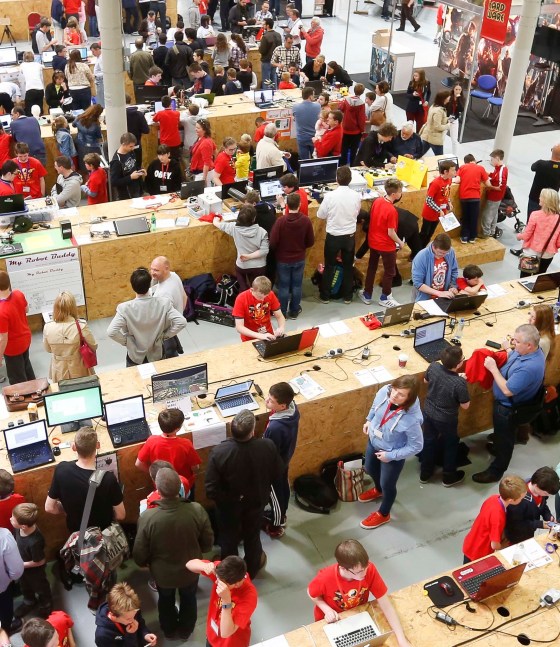
We are very grateful all of our members in CoderDojo Athenry for your involvement and enthusiasm during 2015. And of course we are hugely grateful to our mentors who are so generous with their time and expertise every week, and to the school for accommodating us.

We are looking forward to another year of fun coding and excitement learning about new technologies in 2016, and we hope you are looking forward to it too!

Beginners Scratch – How to make an animated Christmas Scene

Because our last lesson on animation was cancelled, I thought I’d post a lesson online that the kids could access over the Christmas holidays. This Scratch project(Julie’s Christmas Scene) is on the Scratch.MIT.edu website user:cdathenry1516, pw:cdathenry if you want to download it to your computer.

Screenshot (3) I searched the internet for Christmas Cartoon Images and saved a few to my computer:Screenshot (14)

Once I had all the images I wanted for Sprites, I opened SCRATCH and imported the Sprites From File but I noticed that each Sprite had a white background that blocked my nice backdrop. I decided to delete the background from each sprite.christmas scene delete image background
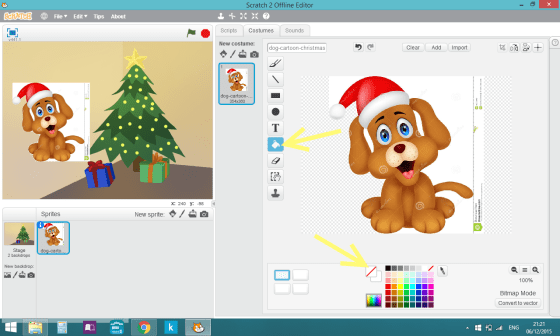
I did this for all my sprites. Next I decided to make the dog wag is tail by

  1. Duplicating the doggie’s costume,
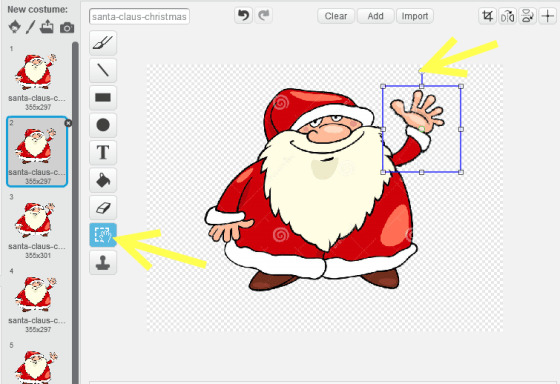
  2. using the select tool to select just his tail and then rotating the tail with the little button at the very top of the selection rectangle.christmas scene make tail wag edit costume

I did the same with Santa’s arm and his shoes. I just rotated them a bit in each costume, back and forth. christmas scene make santa dance edit costume christmas scene make santa wave edit costume

For the lights on one of the christmas trees, I just

  1. duplicated the tree costume 3 times,
  2. poured different colours into the round decorations in each costume.

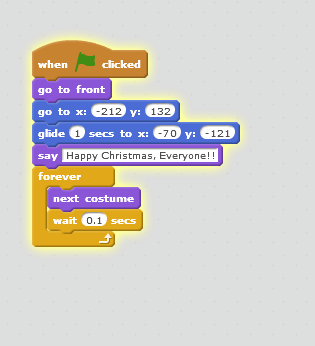
Lastly, I scripted each of the Sprites like this:christmas scene snow flake script Christmas scene santa script Christmas scene doggie script
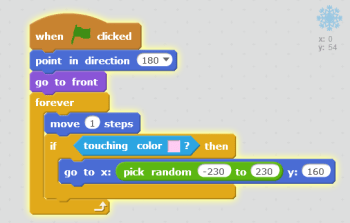
That last script is for the doggie! You can script your Sprites in any way you would like. Can you put in a snowman and make him dance about? or bounce around. Can you have presents dropping from the sky like my snowflakes??

Christmas Pizza Party next week!!! Don’t forget to wear a santa hat and decorations! Bring your favourite scratch project and we’ll show the rest of the Dojo!

Julie

ModderDojo Athenry Topic 6: JavaScript Operators and ScriptCraftJS Drone Functions

Operators:

Operators in any programming language are used when you want to calculate something new: they operate on values. variables, or expressions to produce a new value.

Since ScriptCraft is built on the JavaScript langauge, it uses standard JavaScript operators. As it happens, many other programming languages (including C, C++ and Java) use the same operators or very similar ones.

JavaScript Operators

Drone Functions:

As we have seen before, in ScriptCraft you use a drone to do your building for you. The drone has functions that are part of it.

Here are some of the main drone functions that are useful when building your mods:

ScriptCraft Drone Functions

You can find lots more about these and other functions in the ScriptCraft API Reference: https://github.com/walterhiggins/ScriptCraft/blob/master/docs/API-Reference.md

Example: Build a Pyramid

This example is based on a very nice program writing by Ruaidhri from Coderdojo Athenry last year, updated slightly because some ScriptCraft commands have changed in the meantime.


// Copyright Ruaidhri from ModderDojo Athenry,
// slightly updated by Michael and Alex.
// Builds a pyramid with entrance and lights inside.

exports.pyramid = function()
{
echo('making a pyramid');
var d = new Drone(self); // 'self' means start drone beside me
d.up(1);

d.chkpt('begin');

var size=31;

// Make the walls
while (size > 0)
{
d.box0(blocks.sandstone,size,1,size);
d.right(1);
d.fwd(1);
d.up(1);
size=size-2;
}

// Entrance
d.move('begin');
d.right(15);
d.box(blocks.air,1,2,3);

// Lights inside
d.move('begin');
d.right(4);
d.fwd(4);
d.up(3);
d.turn(2);
var t = 0;
while (t<4)
{
d.hangtorch();
d.left(11);
d.hangtorch();
d.left(11);
d.turn(3);
t = t + 1;
}
d.move('begin');
}

Scratch Beginners – Week 8- Stop Motion Videos


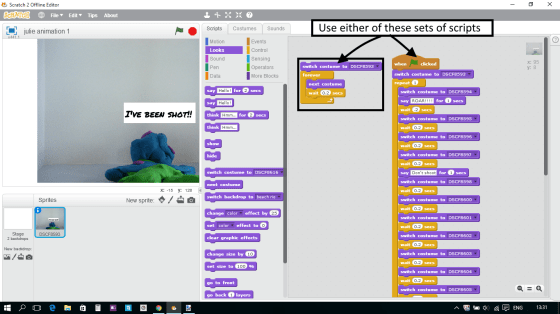
Last Saturday, we had a fantastic time creating very simple stop motion videos in scratch by taking pictures of small figurines in sequence and then uploading the pictures from cameras and phones to the computer. We then started Scratch and added the very first picture as a SPRITE from a file. All the subsequent pictures were then added as new costumes to this sprite!

We did have to do a very simple code for the sprite – when the GREEN FLAG is pressed the sprite FOREVER uses the NEXT COSTUME command and WAITS .1 seconds. The computer then moves from the first costume down to the last, very quickly, but not so quickly that we can’t see it happen! The result looks like we have taken a video. Check out the scratch.mit.edu website for the demo that I used – Julie Animation. Search the site for cdathenry1516 games.animation code 2

Next week, we will take a look at Paint.net,which is a drawing program. I will quickly go through the menus but the best way to learn a program like this is to use it and experiment with it. We will use it to try to delete the backdrop from some of our pictures that were taken last week to see if we can make it transparent. When we do, we will be able to see our own backdrops in behind our characters.

Please download the Paint.net program from www.getpaint.net/download.html. Please be careful of ADS. Only download from the recommended site. I will bring a copy on a belt.

PAINTNET


Next week, the Moms and Dads should bring along a camera or phone along with the lead to download the pictures to your laptop.

Julie


PiDojo- Raspberry Pi News

This week was a very exciting week for us Raspberry Pi fans with two major  announcements from the Raspberry Pi Foundation.

  • The Raspberry Pi Zero
  • GPIO Zero

Raspberry Pi Zero

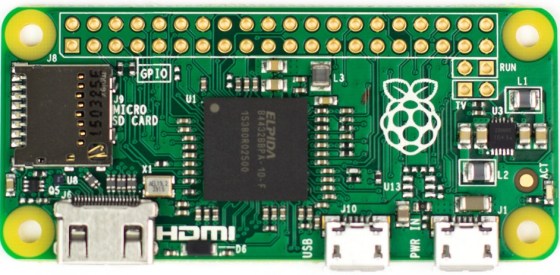
The Pi Zero is a fully fledged Raspberry Pi that measures 65mm x 30mm x 5mm and only costs $5. It has the same chip as the Model B that we use every Saturday but it’s clocked to 1GHz (40% faster than Raspberry Pi Model B) .

Zero_1_of_5_1024x1024

It will be really useful for what we’re trying to achieve at PiDojo due to it’s size and cost. We will be able to leave our projects assembled when we are finished building them due to the low cost of replacing the Raspberry Pi.

GPIO Zero

A new Python API for Physical Computing

The idea behind GPIO Zero is to make using the GPIO pins easier. It provides simple interfaces to everyday components like LEDs and buttons, to make playing around with common components much more accessible. It’s designed with education in mind, to help teachers and kids get going with physical computing without the friction of worrying about pull ups, edges and all the setup. But most people will find it very handy. So we should be able to code our projects easier and with less code.

For more information on the Pi Zero click here and for GPIO Zero click here.

Today

Some of the PiDojo Ninjas got their Measuring Devices working and we will continue debugging the rest at our next session. There will be no PiDojo next week so the next PiDojo session is on the 12/Dec/2015 and if the Components I have ordered arrive we will start building Robots. Here is our code from today.

Beginners Scratch – Week 7 – Breakout

***Next week we will be doing Animation! Please bring any miniature figures that you might want to use to create a short story through stop motion photography. We will also need some way to take photos and download the images to the computer – so parents need to remember a camera and download cables. I will bring a big load of modelling clay.***

Breakout is a variation of our previous game, Paddleball. We create a new scoring experience for our gamers by introducing blocks at the top of our screen that they get points for hitting.

CDA-S5-Challenge_04-Breakout-game view

Everyone already knew how to import or create the first two sprites – the paddle and the ball and most coders remembered from paddleball how to get the paddle to forever follow the mouse in only the x-direction. CDA-S5-Challenge_04-Breakout-paddle control

The code to move the ball was essentially the same as in the paddle ball game with a small change to broadcast the starting position to itself.CDA-S5-Challenge_04-Breakout-ball control 2

We then created two variables, one for the score which will go up when the ball hits a block sprite(can you copy this code from the Paddleball game code and use it in the ball sprite?) and one for lives which will go down every time the ball touches the end line we added under the paddle on the Backdrop. Can you figure out where to put the code to reduce lives by one when the ball touches a certain colour?CDA-S5-Challenge_04-Breakout-variables

Lastly, we created the block sprites and coded for them to fade away when they touched the ball. We use the EFFECT block of code in LOOKS.CDA-S5-Challenge_04-Breakout-brick script

The complete set of notes in .PDF format can be opened here:CDA-S5-Challenge_08_Breakout. You can play with my completed game on the http://scratch.mit.edu webpage. If you sign in as cdathenry1516 and use the password: cdathenry, you will be able to play all our games. If you have your own sign in name, just search for cdathenry1516 and you can see and play them all as well. Please put yours up there as well!CDA-S5-Challenge_04-Breakout-save to website

See you all next week!

Julie


Unity – Week 7

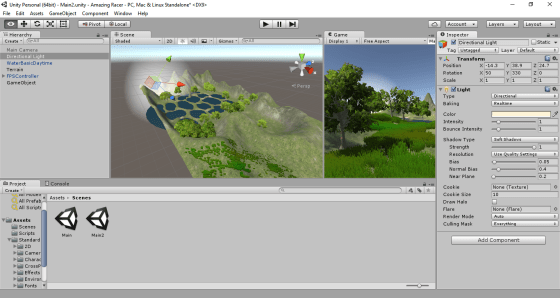
unityssample

This week we started with a very short demonstration of some additional C# concepts, building on what we’d done last week.

After that, we continued with Roll-A-Ball.

We quickly finished off our walls and moved on to the Pick Up objects.

Pick Up objects are small cubes that float over the paying surface and that rotate to catch the user’s attention.

We added one Pick Up object and made it rotate. After that, we made it a “prefab”. Setting a property on one prefab object will automatically replicate that setting to all other prefabs of the same type. We didn’t take advantage of that this week, but we will next week.

We duplicated our Pick Up object and arranged twelve of them around our playing surface.

Next Week

Next week we’ll hopefully have enough momentum to finish off Roll-A-Ball completely.

After that we will start on some terrain modelling basics.

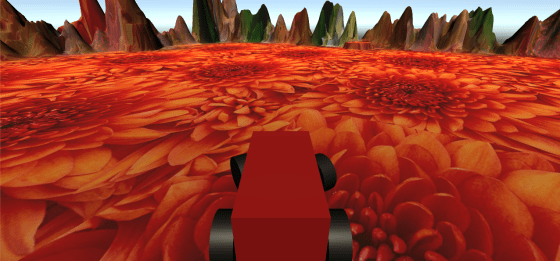
To be ready for terrain modelling basics, please be sure to have imported the standard assets package into a new empty project in Unity. To do this, follow these steps:

  1. Open Unity and create an empty 3D project, call it “Amazing Racer”
  2. Under the Windows menu in Unity, open the “Assets Store”
  3. In the “Assets Store” look for the “Unity Essentials” category
  4. Under “Unity Essentials”, find “Standard Assets” and import them

This process takes quite a bit of bandwidth and time, so you will need to have this done before coming to Dojo next week.

See you all then!

Advanced Scratch Platform Engine part 1

Hey folks,  today we started on a platform engine that can be used as the basis for many games.  Mostly today we were trying to get the physics of it fairly right.  We had to solve a lot of problems to make it work the way we wanted it!  This involved:

  • figuring out how to do realistic gravity!
  • letting us bump head off platforms
  • sorting out the “pillar” problem where we pop to the top of pillars
  • jumping
  • walking up slopes
  • using hitboxes to avoid snagging our whiskers on ledges

platform_week1

Hold onto the project as we will come back to it and add some enemies and maybe build it into a game!

The full instructions for the project are here:

You can download the code here!  (Note to download the code, click on “View RAW” and it will get downloaded to your computer).