Beginners Scratch – Guessing Game

This week we decided to give everyone a little breather after the marathon that was last week!! The Guessing Game covers a lot of the same ideas as the Maths Game and reinforces the use of decisions and variables.

For this game we need: 1 sprite (to tell the player what to do and if their guess is correct or not), 2 backdrops and 2 variables (THE NUMBER and GUESS). The SPRITE holds most of our scripting.

FIRST: Scripting in the SPRITE, pick a random number and store it in the variable: THE NUMBER. Tell the player (use SAY block) that you are thinking of a number between 1 and 30….

CDA-S5-Challenge_11-Guessing Game-set random number

SECOND: ASK (yes, use the ASK block!) what the player’s GUESS is and store their guess in the Variable GUESS. !!!!NOTE: when you use the ASK command, the user input (their guess) is always stored in the variable ANSWER, until you reassign it to your own variable GUESS with the SET command in DATA)!!!
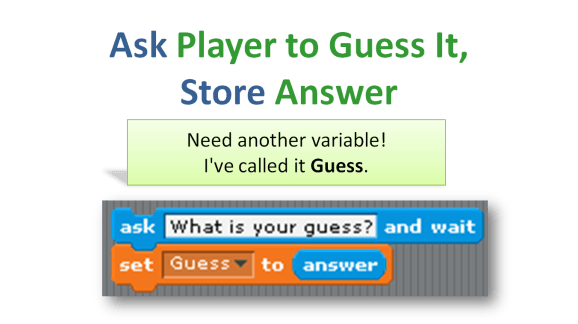
CDA-S5-Challenge_11-Guessing Game-ask for guess

THIRD: TEST whether the GUESS is TOO HIGH, TOO LOW or CORRECT using the IF decision block and OPERATORS: >(greater than), <(less than) or =(equal to).Also, TELL the player (use the SAY command) if they are TOO HIGH, TOO LOW or CORRECT.
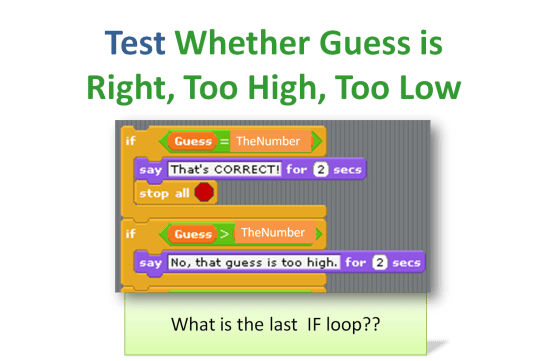
CDA-S5-Challenge_11-Guessing Game-test guess

FOURTH: LOOP IT!! Use a REPEAT 5 times to give your player 5 chances to get the guess right. Check your work!! Go through each of the possibilities one time to be sure you get the correct response. What if they get it WRONG 5 times?? Tell them what the number was!

CDA-S5-Challenge_11-final script with loop

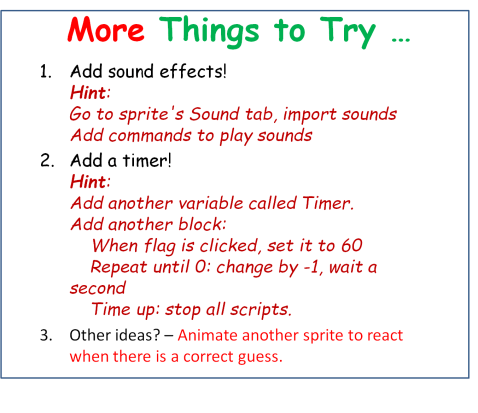
Use your own imagination to add new sprites that react to a broadcast you could send out after they guess the right answer or wrong answer. Get your backdrop to change after they guess correctly. (Hint: BROADCAST correct before STOP ALL and have the backdrop SWITCH costume when it RECEIVES the BROADCAST)CDA-S5-Challenge_11-Guessing Game-more to do
My copy of this game is up on http://scratch.mit.edu. Search for the cdathenry1516 coder name and check it out! Here is a copy of the notes: CDA-S5-Challenge_11-GuessNumbers.

We are taking a break for the next few weeks for mid-winter break! We will be back on February 27th! Happy Coding!

Julie
 

Unity – Creating Objects at Run-Time

This week, once we made the final finishing touches to Amazing Racer, we took at look at a small project which introduced a number of new concepts, which are very useful when building games:

  • Creating objects at run-time
  • Creating a coroutine
  • Using random values
  • Using array parameters to specify multiple values

To create object at run-time, we saw the Instantiate method. This method is provided with a reference to an existing game object or prefab and it will create a new copy of it in the scene. Optionally, a new position and a new rotation can be specified for the duplicated object. The Unity documentation has more information on Instantiate.

A coroutine is a special kind of method. It is a method that can do some work, relinquish control temporarily to the game engine for a period, and then continue from where it left off. It has the special return type of IEnumerator. By calling yield return it can relinquish control. By calling yield return new WaitForSeconds(n) it can relinquish control for a specific period of time. To start a coroutine, we use the StartCoroutine method. You can read the Unity documentation for more information on coroutines.

We saw how Random.Range(min, max) can be used to give a random value between a maximum and minimum. This randomness can add interest and naturalism to our scene. The Unity manual reference for the Random class is here. You will see that there are many other ways to get random values, apart from the Range method.

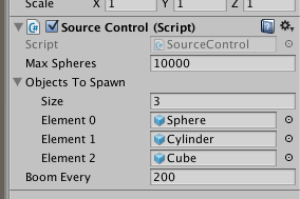
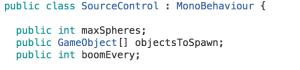
Finally, we saw how a parameter can be an array. We used an array to specify multiple game objects which could be created by our source object. In the source our property objectsToSpawn is an array, as indicated by the square brackets [].

SourceControlProperties

In the inspector panel, we can see Objects To Spawn which offers a size that can be set, in this case we’ve entered 3, and as many boxes as the array is large.

SourceControlInspectorPanel

The Coroutine Test project is available here.

Our completed Amazing Racer project is available here.

Finally, I was asked to provide the completed Roll-A-Ball project too. That’s here.

All these projects are compatible with Unity V5.3.2f1.

We look forward to seeing you in two weeks! Remember to work on your game ideas over the break!


PiDojo- Making Our Own Robot Functions

Last week we used GPIO Zero’s inbuilt functions to control our robots. These functions allowed us to move or turn our robot using time to control the amount of movement, this week we made our own functions which allow us to control our robot using distance and degrees. A version of the code we used is available here and check out my slides here Robot Functions.

ModderDojo – Updated Scriptcraft Server

5 Feb 2016: I have compiled the latest version of Spigot (Version 1.8.8, 22 Jan 2016), which is a high-performancse server based on CraftBukkit, and added in the latest version of Scriptcraft (Version 3.1.12, 30 Dec 2015).

You can download it here: https://www.dropbox.com/s/9eg5e5j8j1ubr6w/2016-02-Spigot.zip?dl=0

The version of CanaryMod+Scriptcraft that we were running for the past couple of months was very unreliable, so hopefully this will be better!

PiDojo- Controlling A Robot From The Keyboard Using Pygame

We had another enjoyable session this week, we especially enjoyed the drone demo by Chris Tierney.

We began our ownsession by looking at using input from our keyboard with Pygame to control our robot. We then returned to last week’s challenge, programming our robot to follow a defined path. We continued to have issues with the robots going off in arcs rather than straight line so we started to build corrections into the code. We will continue with this next week and we will learn to use functions to tell our robots what distance we want them to travel or the angle we want them to turn instead of using times to control them.

Here are my notes from today pygame robot and our code is available here

For more on Pygame there’s a very good tutorial here

Scratch Beginners – Challenge 10 – Maths Game

Wow! We had an exceptional day at Coder Dojo on Saturday! We did a huge amount of work developing a maths game in Beginner’s Scratch. My finished project is on the SCRATCH.MIT.EDU website under the user: CDATHENRY1516. Check it out and upload your final version!CDA-S5-Challenge_10-Maths game-how to

  1. the player picks a level of difficulty and the computer chooses 2 random numbers to add (subtract or multiply- whichever you choose!) together and show the numbers to the player. Fr this we needed 2 SPRITES and 4 VARIABLES called SCORE, LEVEL, NUMBER1 and NUMBER2 as well as 2 BACKDROPS. CDA-S5-Challenge_10-Maths game-ask questions1CDA-S5-Challenge_10-Maths game-ask questions
  2. The player then has to enter an answer to the equation and the computer tells them whether they are wrong or right. CDA-S5-Challenge_10-Maths game-decisions alternative end
  3. We repeated the ask/answer questions 5 or 10 times. Can you figure out where the REPEAT loop fits?
  4. We also had a second sprite who reacted positively to correct answers BROADCAST and negatively to wrong answers BROADCAST. You can use whatever sprites you like and change their look whatever way you like. One coder added a puppy as their second and had him bark whenever an answer was correct. CDA-S5-Challenge_10-Maths game-sprite 2
  5. After all the questions were asked we had the 1st Sprite SAY – Game Over! and BROADCAST Game over so that the backdrop changed and music played. There are two ways to change the backdrop- see below!CDA-S5-Challenge_10-Maths game-alt backdrop CDA-S5-Challenge_10-Maths game-backdropCan you improve our game??! Can you figure out how to subtract or multiply instead of add? Can you get the computer to add three numbers together or give the user 3 level options like: easy, medium or hard? The notes for the Maths Game are here: CDA-S5-Challenge_10-MathsGame-simple addition. Happy Coding! Julie

Unity – Updated Amazing Racer Project

Fireworks

We had an enjoyable session today and we were indebted to Chris for his drone demonstration.

In the Unity group, we looked at how the player could be automatically placed at the spawn point at the start of the game and returned there should they fall into the water at any point. We also saw how a sound effect can be added to help the user understand that they’ve been teleported when this occurs.

The whoosh sound effect that I created can be downloaded from here. For those who weren’t there today: I simply recorded myself making a whooshing noise with my mouth. I then used a freeware, cross-platform, program called Audacity to remove the silence at the start and end of what I’d recorded and to add a few random effects until the sound was less human-sounding and more game appropriate. Audacity can be found here, for anyone who wishes to play around with sound effects.

We added a finish point and surrounded it with a sphere collider; this is to detect when the user reaches the finish point beyond all the small lakes.

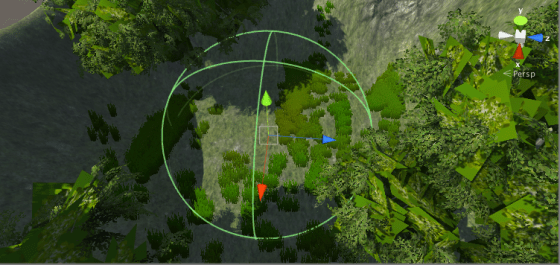
FinishSphereCollider

We also added some fireworks to draw the players eye to the finish zone, so that the user instinctively knows to head in that direction once the game starts.

Finally, we saw how to stop the user moving at the start of the game until a start button is pressed. We will expand on the techniques shown here to show the time taken to cross the map, to allow the user to see their best time and to restart the game. When that’s done, our game will be complete.

The project I uploaded late last week to Dropbox has been updated with all the changes from today. It includes the sound file I described earlier. It also has the latest version of the Standard Assets, which have recently been updated to Version 1.1. You can download the updated project from here. Please remember: install the latest version of Unity before opening this project!

One final note: the fireworks are currently disabled in the project. While they work perfectly, from a player perspective when the game is running, a bug in Unity Version 5.3.1f1 means that they generate a huge number of console errors. It’s fine to enable them when you want to run and hopefully we will be able to switch them on again permanently after the next program update without any console errors.

See you all next week!

Unity – Amazing Racer

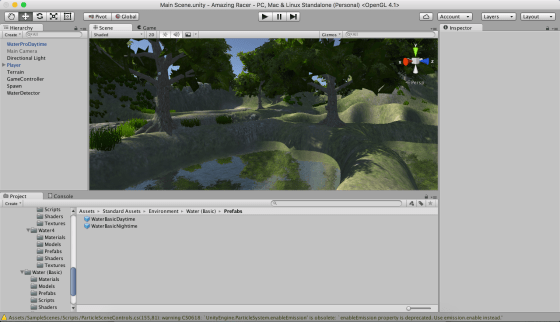
Screen Shot 2016-01-28 at 9.03.52 p.m..png

This week we worked on decorating our map with textures, trees and grass. We also worked on establishing a spawn point for our player and a trigger which would detect when our player had fallen in the water.

Some people have been having technical problems or have been lagging behind for one reason or another. We decided it would be a good idea if everyone had a copy of my project so that we could all move forward from the same point.

The first thing you will need to do is to:

Upgrade to Unity 5.3!

This is very important or you will have problems opening my project. When you start Unity it should prompt you if an upgrade is available. Failing that, you can use the “Check for Updates” option in the programs Help menu.

Once you have upgraded you can download my project from here:

Kieran’s Amazing Racer Project

Be warned, this file is quite large at almost 400MB. Please leave yourself enough time to download it, depending on your internet speed.

Extract the contents of this ZIP file into a directory on your machine. It won’t appear on the splash-screen list of recently opened projects when you open Unity – you’ll have to use the little Open button there to select the folder in question. Do also make sure you’re opened it at least once, as opening for the first time causes the assets to be reimported and this takes some time.

Please try to have Unity updated and the project copied to your machine before Saturday! Thanks and see you then.


Beginner’s Scratch Challenge 9 – Storytelling

We had a great day in Scratch Beginners on Saturday! We created a project in which the Sprites all communicated through the use of broadcasts. Each broadcast caused a reaction in the other parts of the program such as the other sprites and even the stage. To begin, we all added two sprites from the library and two backdrops from the backdrop library to the stage. My sprites came with several costumes already supplied, but you can use whatever costumes you like. CDA-S5-Challenge_09-Storytelling-how to

Next, each coder had to decide on a story, conversation or a joke to have one sprite tell the other. After that we placed each character apart on the screen by using the GO TO: command and then had then move together using the GLIDE command. Each part of the conversation is shown on screen with the SAY FOR 2 SECONDS command after which the same words are broadcast to the whole program using the BROADCAST command. The second sprite responds to the first Sprite’s broadcast by SAYing his part of the joke and then broadcasting the same words. This goes back and forth until the story is finished. Keep trying out your scripting by pressing the GREEN FLAG and seeing how it is working. CDA-S5-Challenge_09-Storytelling-1st sprites script

CDA-S5-Challenge_09-Storytelling-2nd sprite script

At the very end, I have the 2nd Sprite send out a final broadcast which causes the backdrop to change and music to play while both Sprites simultaneously do a dance! I just threw that in for fun and to show that BROADCASTS can cause any part of the program to switch on or off. Here is the slide show if it helps a bit more: CDA-S5-Challenge_09-Storytelling. Also, I put my program up on the SCRATCH.MIT.EDU website for you to play with. Search for projects made by cdathenry1516. This project is called –JulieKnockKnockJoke23-01.

Hope to see you all next week when we work on a guessing a number game which requires input from the user to guess the number the computer has picked!

Julie

PiDojo-Robots

This week the PiDojo group started to experiment with building our own robots.

To build a basic robot all you need is motors, a driver chip, some batteries and of course a Raspberry Pi.

IMPORTANT: Do not connect a motor, no matter how small directly to the Raspberry Pi, it will damage your Raspberry Pi. 

We use a L293B motor driver chip which is like is a little current amplifier that takes a low-current control signal and then turns it into a higher-current signal that can drive a motor.

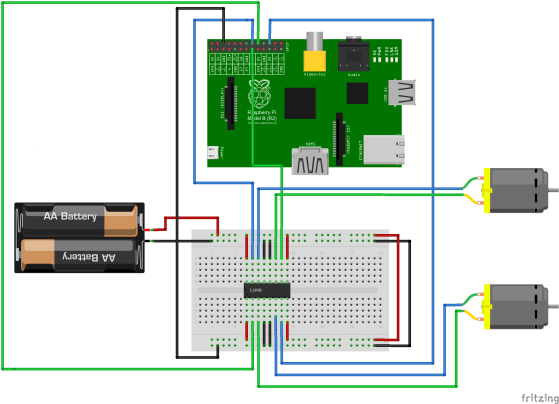
I would also recommend using separate batteries to power the Raspberry Pi and the Motors as the motors can sometimes draw a lot of power from the batteries for example when starting up and this could cause the Raspberry Pi to restart. We used a “Power Bank” from Penneys to power the the Raspberry Pi and four AA batteries to power the motors. Here is a drawing of our circuit.

robot_bb

We wired up our circuit and placed it into a container that had the motors attached to it.

IMG_20160116_094949

Once we had our robot assembled we loaded up this code and tested it out then we tried to program our robots to follow a preset path but the lack of a third wheel made this very difficult, something we will have to improve for next week.

This week was also our first time using Gpio Zero which is a new Python library for controlling the GPIO pins on the Raspberry Pi. It makes physical programming much more straight forward and really helped to speed up our work this session.