Javascript Intro

Today the Bodgers and Creators were on a hiatus so Mark took a few folks and covered some web development – with a particular focus on Javascript.

We reviewed:

  • How the internet works and how web pages get from the internet to your computer using DNS and HTTP.
  • Talked a bit about the two main kinds of code that our browsers understand:
    • HTML which is great for documents and static content
    • Javascript which is great for dynamic content like animations and games

We then spent the rest of the time playing with Javascript, using the p5.js framework to do some graphical stuff.  We learned about:

  • Functions which is where code is written
    • We wrote two functions: setup() and draw()
    • We called several functions which were written in the p5 framework such as ellipse(..), rect(…), random(..)
  • Variables which is where data is stored.  We learned that in javascript, unlike c# or java, all variables are declared with the “var” keyword.
  • Decision statement which is used to decide between options – in javascript the “if” statement is used for this purpose

We built quite a few cool things to draw interesting patterns and shapes and some of you came up with some mad patterns.  The one we ended up with is shown below.  Have fun playing with javascript and I’ll be really interested to see what you come up with!  Also try to think of ideas and if you come up with something interesting we can have some fun trying to build it!

http://codepen.io/markdav/pen/yVyozw

CoderDojo Athenry Resumes on 21 Jan 2017

happy-new-year-2017s

Happy New Year 2017 from the CoderDojo Athenry mentors!

CoderDojo Athenry resumes on 21 January 2017 (1 week later than usual). We have lots of great tech and coding projects activities planned for 2017.

New members are always welcome, so feel free to bring a friend along. And we have some laptops for loan, so you don’t need to one to join in.

As always, we will be based in Clarin College Athenry from 12:00 to 2pm on Saturdays. More information here: https://coderdojoathenry.org/about/

2016 Christmas Party and Show & Tell at CoderDojo Athenry

This slideshow requires JavaScript.

Here are photos from our Christmas party and Show & Tell day at CoderDojo Athenry on 10 December 2016.

It was really impressive to see the things that our young people had built and created. There was also a great Robot Duels session, organised by mentor Declan in the Bodgers group: Bodgers – Robot Duels At CoderDojo Athenry

We are very grateful to our supporters in the community around Athenry:

  • Clarin College and Principal Ciaran Folan, who are so generous with their space every week
  • Galway & Roscommon Education & Training Board, who provide us with an annual Youth Club Grant
  • Medtronic and Declan Fox, who have provided us with a grant linked to Declan’s volunteering
  • Hewlett Packard Enterprise and Mark Davis, who provide us with loaner laptops
  • Boston Scientific and Kevin Madden, who provided us with the loan of three 3D printers for the semester
  • Supermacs and Joyces, both of whom gave us generous deals on the food for the Christmas party

And of course we are eternally grateful to our wonderful mentors, and to the parents who come along with their children every week. Thank you!

We look forward to seeing you all in the New Year!

slide10

Bodgers –Getting Started with Your Own Raspberry Pi or Arduino

Hi Everybody

This Saturday the Bodgers group looked at some of the tools available to set up and use the Raspberry Pi or Arduino at home. We looked software for formatting SD Cards, some of the SD card images available for the Raspberry Pi, putting images on SD cards, configuring the Raspberry Pi and connecting to the Raspberry Pi.

We also did a quick overview of the Arduino IDE. This software allows us to write and upload software to the Arduino.

You can find the links to the software we used short tutorials on how to use them in my slides from Saturday here pi-and-arduino-tools.

We also took a look at the MagPi Magazine which is the official Raspberry Pi magazine. there are a load of interesting articles in the Christmas issue which is in the shops now or is available for download for free from https://www.raspberrypi.org/magpi-issues/MagPi52.pdf . There are a few nice articles on basic stuff like breadboards and GPIO Zero and there are also some articles on robot sensors which anybody who wants to continue from where we left off with robots will find very interesting.

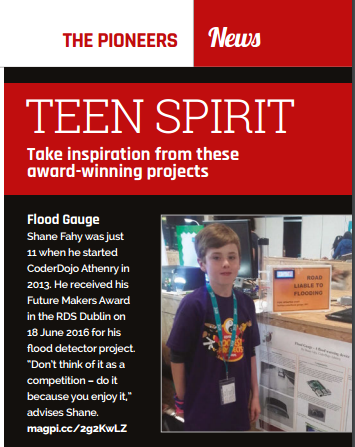
There is also news of a new programme from the Raspberry Pi Foundation which is aimed at kids that are around the same age as the Bodgers group. The Pioneers is a series of challenges that will roughly last the length of the school term and will be open-ended to allow you to come up with your own ideas. Unfortunately the competition is limited to the UK for now but it will be open to the rest of the world soon. Check out The MagPi for more information.

The MagPi needed to show some examples of what kids can make for the Pioneers article so obviously they looked to CoderDojo Athenry for inspiration :).    capture

CoderDojo Athenry at Minevention

Minevention2016.JPG

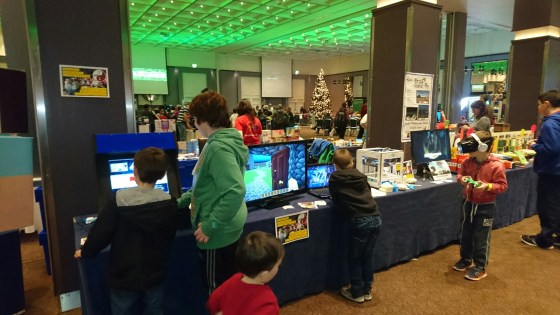
Well done to everybody at CoderDojo Athenry who participated in Minevention 2016 in the Radisson Hotel Galway on 26 and 27 November.

Our stand looked great, with the Pi-based games console, a TV showing the Athenry Castle Minecraft model, the Oculus Rift demoing a Unity game, one of the Bodger’s robots, members with their laptops demoing Scratch programs and Minecraft modding, and a 3D printer on the first day.

We were very proud of our ninjas who are fantastic ambassadors for CoderDojo! Thank you for all of your great work!

In addition, thanks very much to Lisa O’Brien and the Minevention team for allowing us to participate, and for inviting me to give a presentation about CoderDojo.

Special Event on 3 December: Dick Baldwin’s Little Sailboats

We will have what should be a very interesting set of speakers at CoderDojo Athenry on 3 December for the second half of the session (starting around 1pm).

Dick Baldwin, a sailor based in Maine, USA, sends 5 foot long unmanned, GPS monitored sailboats out into the sea. Recently, one of the little sail boats, Lancer, arrived in Ireland and was picked up by 8 year old primary schoolgirl Méabh in Leitir Móir, Connemara. Her school hopes to relaunch it next year, with the help of The Marine Institute.

We will have interactive presentations via Skype from Dick Baldwin and Ariadne Dimoulas of the Educational Passages project, and Méabh will come along in person to tell us about finding the boat. In addition, Dr Margaret Rae of the Marine Institute (who is a CoderDojo Athenry mom!) will be on hand to explain more about the project and maybe answer your questions about what the Marine Institute does and how important technology is for its research.

Below is a summary of the presentation. It should be really interesting! Thanks a million to Margaret and the Marine Institute for setting this up.

One never knows what’s going to happen when a small boat goes to sea. This presentation is about sending 5foot unmanned, GPS monitored sailboats out into the sea where every voyage is different and the learning opportunities are great. These little sailboats follow the winds and currents and will sail for months & months often crossing oceans and reporting its position and scientific data along the way. 

A group like yours could equip a boat with an array of scientific sensors to monitor atmospheric and ocean data. You could also include a solar panel and maybe a camera or possibly even add steering capabilities to your boat. Think of the data you could collect and what it would be like when your boat comes ashore in far- away lands. Will you be able to communicate with them and what would you ask them to do with our boat?  Let’s explore the possibilities.

Advancers P5 Week 3: Our first game

Click “Run Pen” followed by “Edit on Codepen” to view the game and play with the code.  At this stage, codepen has been working well for us so I think it’s a really good idea for you all to register for an account on codepen.  This will allow you to “copy” my sketches so you can save your versions of them online.  As we get more advanced (or if the network is down), we will start working locally with Atom again but this is good for us.

Today we started writing our first javascript game.  We thought for a bit about which game might be good to start and decided on a version of the hit game Flappy Bird.  We got quite far before people started to tire!

It will take another session to finish the game – we might do this next week, or take a break from javascript and come back to it in the new year.

Writing the Game

The first step was to plan how we would do the game.  Like all projects, we build it up in steps.  These steps would work to build a basic flappy bird:

Step 1: Draw the sky

Step 2: Draw the ground

Step 3: Draw the bird

Step 4: Make the bird fall

Step 5: Make the bird stop falling when it hits the ground

Step 6: Make the bird jump/flap when the mouse pressed / screen touched

Step 7: Add pipes as obstacles with a random gap

Step 8: Move the pipes towards the bird

Step 9: When the pipes go offscreen on the left, make them appear on the right again

Step 10: Check if the pipe is hitting the bird and restart of it does

Step 11: Add a distance label (how many pipes have we passed)

Step 12: Add sound, improve the graphics and keep a “high” score

We got as far as Step 6.  The next 6 steps would need another week to cover.  I’ve added comments to the code so you can see which parts of the code relate to which steps.  If you have your own codepen account, it might be a good idea to attempt to do the rest of the game – you might get stuck but that’s part of the fun!

New Concepts we covered today:

  • Variables.  Variables in javascript are just like variables in scratch.  The key things about variable are:
    • You create a new variable by writing the word “var” followed by the variable name.  E.g. we wrote the variables:
      • var birdHeight;
      • var gravity = 0.5;
      • Creating a variable by writing the word “var” is called “declaring” a variable.
    • You can change the value of a variable by using “=”
      • birdHeight = 10;
    • You can also use a variable name in assignment, so e.g. we could make the birdHeight 1 bigger by writing:
      • birdHeight = birdHeight + 1;
    • We learned that if you want to be able to see a variable everywhere, we need to declare it
  • Math operators:
    • We learned that some of these are written a bit differently in computer programs:
      • / is how we write “divided by” – e.g. width/2 is the same as writing “width divided by two”.  This is because on a keyboard for some reason there isn’t the ÷ symbol.
      • * is how we write “multiplied by” e.g. 2 * 2 is the same as writing “two multiplied by two”.  This is because x is very easy to confuse with lowercase x.  So if you had a variable called x things would get confusing!

Creators – Blender

blender-socket

This week we did some basic modelling in Blender. Blender is a very powerful 3D graphics package that is free and open-source. It is supported across all major desktop platforms.

Blender is so large and fully featured that it can be quite intimidating to learn. Knowledge of a few shortcut keys for common operations can really improve the experience of working with the program. We were indebted to Giuliano D’Angelo’s wonderful Blender shortcut infographic for providing us with some quick reference in this regard:

http://www.giudansky.com/design/51-blender-map

Moving About and Zooming

The first thing we covered in Blender was moving about. Practically speaking, Blender requires a three button mouse to operate. In Blender the middle mouse button (MMB) is used to control the view. Used on its own, it tilts the camera. When used with the SHIFT key, it pans the camera instead. CTRL and the MMB are use to zoom, but this is also more often achieved by scrolling the mouse wheel.

Object Mode and Edit Mode

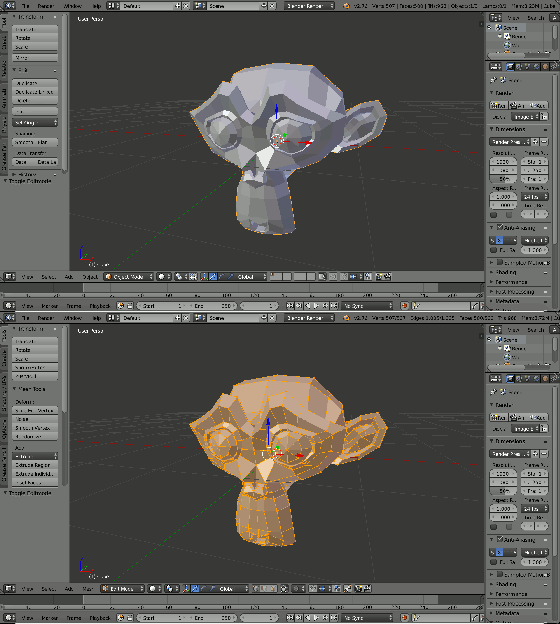
We used Blender in two modes: Object Mode and Edit Mode. The TAB key can be used to switch between these. In Object Mode we can create, select and reposition objects but we cannot do any detailed editing on them. In Edit Mode, we can do any detailed editing we require on the currently selected object. Note that selecting items in Blender is done with the right mouse button (RMB).

blendereditobjectanim

Continue reading

Advancers: P5 js continued – Robot Draw!!

Today we continued our look at P5 and javascript.  We mostly practiced what we learned last week.

This time we did our work online using the awesome website “codepen” rather than a local text editor.  This website is a place for web developers to play with web code and share it with others.  Using it allowed us to work without getting bogged down with install problems on people’s PCs.  It is great for smaller sketches, but if you want to develop something really big like a complex game it will be much easier to use a local text editor like we did last week.  If you get a chance and have an email address (or your parent has one), sign up for a codepen account.  This will allow you to create and share your own sketches – I’ll link any and all of them on the coderdojo athenry website!

Today we basically just fooled around with it and tried to draw our own picture just with code.  We mostly drew robots as they are fairly easy to draw with rectangles and ellipses!

What we covered:

  1. We watched the neat introduction video from the authors of p5: http://hello.p5js.org/ 
  2. We looked at the P5 reference page which has great instructions and examples for all P5 functions: https://p5js.org/reference/.  Every good library you ever use will have a similar reference page – this is a great example of one.
    1. Similar to how scratch has blocks in different categories (sound, movement, control, etc), p5 groups all its functions into different categories – color, maths, shape, sound, etc.
  3. The canvas, resizing and changing the color using the createCanvas function
  4. Using colours in P5 – We used the following functions to set colours:
    1. background: to set the background color
    2. fill: to set the fill color
    3. stroke: to set the line color
    4. In all cases, colors can be either:
      1. one number in which case it’s a shade of grey from 0 (black) to 255 (white) e.g. background (0) sets the background to black.
      2. three numbers separated by commas, in which case each colour is a shade of RED, GREEN and BLUE – e.g. background(255, 0,0) sets the background to red, background(255, 255, 0) mixes red and green to make yellow.  You can make every colour by mixing red, green and blue!
      3. four numbers separated by commas, in which case it is RED, GREEN, BLUE, TRANSPARENCY. e.g. fill(0,0,255, 100) will make any shape you draw see-through shade of blue.  This is like the ghost effect in scratch.
  5. Some drawing functions in P5:
    1. strokeWeight to set how thick the lines are – e.g. strokeWeight(10) gives thick lines
    2. point to draw a point e.g. point(100, 100) draws a point at 100, 100.
    3. line to draw a line e.g. line(0,0,200, 150) draws a line from 0, 0 to 200, 150.
    4. rect to draw a rectangle – e.g. rect(0,0, 100, 100) will draw a square 100 wide, 100 high at point 0,0.
    5. ellipse to draw an ellipse – e.g. ellipse(0,0, 100, 100) will draw an ellipse 100 wide, 100 high (i.e. a circle) at point 0,0.
    6. triangle to draw a triangle – e.g. triangle(0,0, 100, 100, 200, 200) will draw a triangle between (0,0), (100, 100) and (200, 200).
    7. One other function we used was random.  This can be used in a few ways, but the way we used was to give it one number, in which case it picked a random number between 0 and that number.  E.g. random(255) picks a random number from 0 to 255.  So fill(random(255)) will set the fill to a random shade of grey.

We played about with the all the above to draw a (pretty poor) robot with flashing eyes that fires lasers – the sketch we did is below.  Play around with this and build on it to do something cooler!!

Advancers – Text based coding with p5.js

This week we tried something different with some text based coding.  We learned that for text basoslcyofed coding, we need a good text editor.  The text editor we picked was called “Atom” as it’s a free, powerful text editor that works on Mac, Linux and Windows.

Unfortunately.. with some network and pc problems.. it took longer than I hoped to get things installed on people’s PCs, but even then we managed to make a great start on some code and actually built some quite cool stuff.

For anyone that missed last week.. it would be great if you could run through the steps below and we will be ready for the next stage!

Continue reading