Scratch Intermediate & Advanced Challenge 18: Start work on your own project!

CDA-S2-Challenge18-YourProject

This week, we started work on multi-week projects!

The goal will be to design and implement your own project, with the support of the mentors, to demonstrate the skills you have acquired over the past few months.

In a few weeks, everyone will get to demo their projects and work towards earning:

  • Yellow certificates: for ninjas who already have a yellow Scratch belt and demo a project using those skills
  • Blue certificates: for ninjas who already have a blue Scratch belt and demo a project using those skills
  • Yellow belts and white belts: only for ninjas who do not already have a belt.

As we discussed, there are also a couple of international CoderDojo contests coming up – discuss with your parents whether you would like to enter.

Here are my notes from the day (PDF): CDA-S2-Challenge18-YourProject.pdf

As usual, get in touch on Twitter or in the comments if you would like the PowerPoint version of the notes.

Scratch Intermediate & Advanced Challenge 17: Learn about Painting!

CDA-S2-Challenge17-LearnAboutPainting

This week, Martha led a great session in which she showed  the ninjas how to use a painting program. There are of course lots of reasons why this is useful for coding:

  • For animation, as we have been working on in recent weeks
  • For graphics for websites, including logo design as the HTML group are working on
  • For buttons, icons, and other graphics in other apps and programs

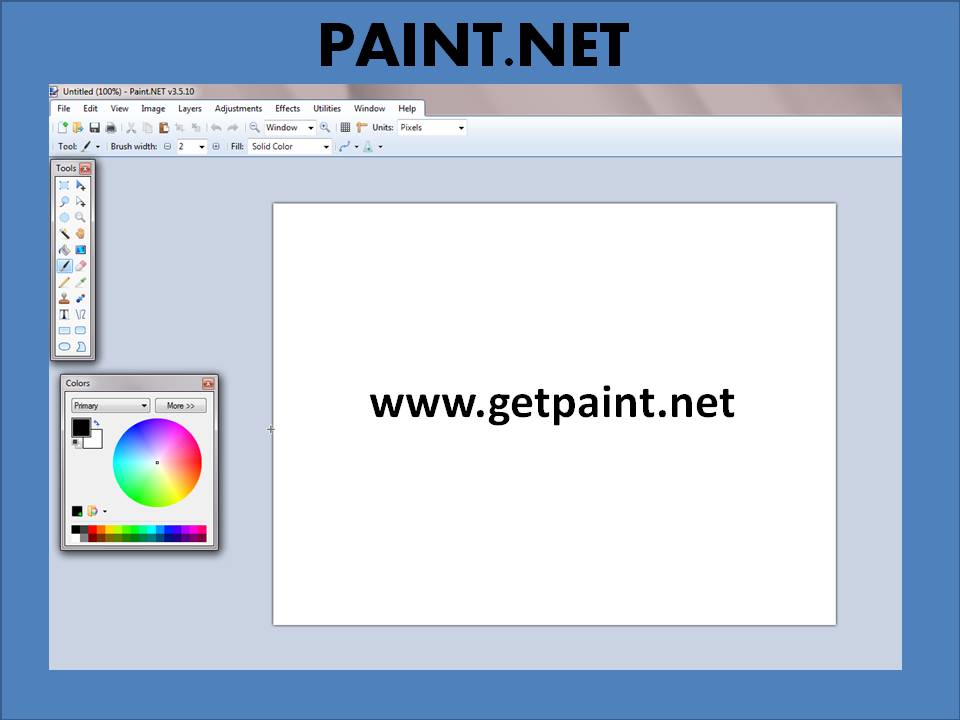
The specific program that Martha used is Paint.NET. This is free (though not open-source) and is pretty easy to use, while being quite a bit more advanced than either the Paint editor in Scratch or Microsoft Paint that is installed in Windows by default.

You can download Paint.NET here: http://www.getpaint.net/download.html

Paint.NET works on Windows only:  if you have a Linux or Mac laptop, many of the same functions are available in other painting packages, and the mentors will help you bridge the gap. One good alternative is Pinta Paint, which is multi-platform and its functionality is based on that of Paint.NET.

Here are the notes from the day (PDF format): CDA-S2-Challenge17-LearnAboutPainting.pdf

As usual, get in touch on Twitter or in the comments if you would like the PowerPoint version of the notes.

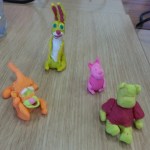
Also this week, our ninjas demonstrated models they had built in plasticine and graphics they had created – follow this link to see them!

Scratch Intermediate & Advanced Challenge 16: Model and Animate!

Challenge16-ModelAndAnimate

(This week, we again merged our Intermediate and Advanced Scratch groups, which means that our Challenge numbering system is now a bit messed up!)

We had lots of fun in CoderDojo Athenry with this challenge, which involved:

  • Making models with plasticine (a.k.a morla or playdough)
  • Converting the physical models into digital ones, by either drawing them in a painting program or photographing them & cleaning the photos up
  • Animating the images in Scratch

Here is a link to my fairly primitive animated Scratch model: our ninjas have made much more impressive models, which we will showcase in a post soon. http://scratch.mit.edu/projects/cdathenry/3270233

Here are my notes from the day (PDF format): CDA-S2-Challenge16-ModelAndAnimate.pdf

As usual, get in touch on Twitter or in the comments if you would like the PowerPoint version of the notes.

Next week, we will extend this topic by continuing to do modelling and have ninjas demonstrate what they have made.

Scratch Advanced – Challenge 17 – Time

Time

Questions.

How do we measure it?

Why are there 60 minutes in an Hour?   Why are there 24 Hours in a Day?

Why are there 365 Days in a Year?

Answers.

We have to go back in History to find out why we 60 in time quite a lot. It is thanks to the Babylonians that we have the modern day usage of 60 seconds in a minute and 60 minutes in an hour and even 360 degrees in a circle (60 x 6)

The reason that they used 60 is because it can be divided by a lot of different numbers, for example:

60 /  1 = 60

60 /  2 = 30

60 /  3 = 20

60 /  4 = 15

60 /  5 = 12

60 /  6 = 10

60 / 10 =  6

60 / 12 =  5

60 / 15 =  4

60 / 20 =  3

60 / 30 =  2

60 / 60 =  1

And for the 24 Hours in a Day, we have to thank the Egyptians who came up with that idea. They actually used 12 for Day time and 12 for Night time. But it wasn’t till a lot later that each of these 12 parts became the same length of time.

So what is a day? Well as most of you know it is the time it takes for the earth to turn round once on it’s axis.

This isn’t strictly true though  as it only takes the earth 23hr and 56 minutes to spin once, the extra four minutes are taken up by turning to face the sun properly again.

So you should strictly say that 24 hours is the time it takes the Earth to face the Sun again, when you measure from Noon on one day to Noon on the next day.

And finally 365 days in the year, again this is something that we all know, it’s the number of days that it takes for the Earth to travel once around the Sun.

We have an Experiment we can do here as well.

If the Sun is the size of a Football, how big is the Earth and how far away will it be to be in scale?

And just out of interest here are some other planets years:

Mercury 88 days

Venus 224 days

Mars 687 days

Jupiter 4331 days

Saturn 10832 days

Uranus 307999 days

Neptune 60190 days

and finally poor old Pluto 90520 days, which is roughly 248 Earth Years.

So what does all this have to do with Computers, well all Computers have a clock and calendar in them to tell the time, so we are going to build one in Scratch, this will hopefully demonstrate how something that we take for granted and don’t even think about very much can become quite complex when you try and convert it into a Computer program.

Some of the things that you will have to think about:

1. The days in each month are not the same.

2. The hour hand does two circuits of the clock, the minute and second only one before the next thing changes.

3. Leap years. This is a fun one.

4. Daylight Savings Time (DST) When does it happen and which way do the clocks go?

We will need a few Sprites:

1. Second Hand

2. Minute Hand

3. Hour Hand

4. Clock Face

5. Day of Month

6. Month

7. Year

Now for the coding. Although we think of time in 60 minutes and 12 hours, all the hands on the clock actually need to turn through 360 degrees, so it is easier to code with that in mind rather than 60 seconds for example.

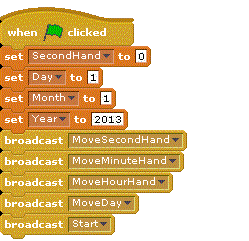
So, if you have your sprites setup, you will need some variables to store the position of each hand. Once you have those, you can put the code together, something  like this to initialise all your variables:

GreenFlag


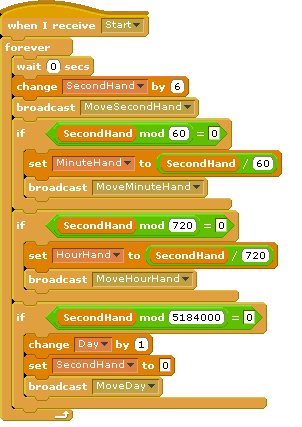
And then as you can see I am broadcasting Start which contains the main code like this:

Start


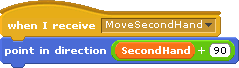
And for each of the hands,  something like this should be enough:


The +90 is because Scratch has 0 degrees pointing LEFT, not UP!

SecondHand


The full Scratch project has been uploaded to the Scratch WebSite as well, for those of you who want to cheat :).

Scratch Advanced – Week 16 – Stop Motion Animation

We are going to revisit one of the topics we did earlier in the year. Do you remember The Movies, where we had the spinning wheel looking like it was going backwards?

Well we are going to do something similar over the next couple of weeks, where we will investigate and use Stop Motion, this is the same movie making technique that the Wallace and Grommet Movies are made with.

So what are we going to learn, well, we are going ot use a lot of techniques we have used before, so it is more a case of what are we going to re-learn.

  • Broadcasts – to make our code smaller and neater
  • Variables to simplify the code, specifically local variables.
  • Speech Bubbles.
  • Program Flow, there are a lot of things that need to happen and we need them to happen in the right order.

We are going to animate The Three Little Pigs and the Big Bad Wolf.

As you know this is a little story and in stories, things happen one after the other, so that is what we need our code to do as well, there is not much point having everything running from a Green Flag, we need some way to control the flow of the Program.

First we are going to need some Sprites though.

  1. A Wolf
  2. Pig One
  3. Pig Two
  4. Pig Three
  5. Straw House
  6. Wood House
  7. Brick House

As you know my drawing skills are excellent, so I have come up with the following:

Sprites

Nice aren’t they. I’m sure you can do better.

When the Story starts there is only the Wolf, One Pig and the Straw house visible, so all the others need some code under a Green Flag to get them ready, backstage, ready for when it is their turn in the story.

The Wood House for example has just a HIDE under the Green Flag, you will need to determine what each Sprite will need under a Green Flag control. Basically anything to get it ready for the story.

On to the Stop Motion Animation.

Stop Motion is where something is moved a small bit and then a picture taken and then moved another small bit and another picture taken, until the figure has moved to where it needs to be.

We are going to do something similar, where we will set up the x and y position of the Sprite in local variables and then get another piece of code to do the actual moving, this helps to make the code a little easier to read as it splits it into smaller sections.

Here is the code for example that one of Pigs uses to move to the next House

Pig2

You can see how I have split it into smaller pieces and that I have used local Variables to set the x and y positions.

You will need to figure out where on the screen you want the Sprites to go and how fast you want them to go there, that will determine the numbers that you need to use when you are SETting the xPosition and yPosition variables.

As the Wolf is kind of the main Character in the Story, we control everything from his Sprite. We do one thing after another and if we need to wait for something else to happen we use a Broadcast and Wait, this will control how the code flows from the top to the Bottom.

Here is all the code for the Wolf Sprite

Wolf

Now, my code is very scrappy, there are a number of BUGs that need to be sorted out, for example when Pig One moves to the Wood House and the Wolf comes over, the Speech Bubble covers the Pig, this should be changed really.

At the end of the day, you can make your Story as simple or as complex as you like, one thing that I can tell you though, is that the more time you spend on the project the better it will end up.

You can also do real Stop Motion with a Camera and Lego, you can then import the different pictures into Scratch as either Stages or Sprites.

I did one as Stages which is up on the Scratch Web Site and here is one of the Stages from it.

LegoStopMotionSample

Scratch Advanced – Week 15 – Radio Waves

What are we going to learn this week:

  • A tiny little bit about Waves and how clever they are.
  • A pratical demonstration.
  • Thinking – Yes, it’s tough, you will have to do that part 🙂
  • Coding – Sine Waves

I will hopefully demonstrate how differnt types of waves behave.

I will admit, that I am not an expert here and will probably be unable to answer any of your questions, but you see that’s where you come in and start thinking about these things yourself.

A Pratical Demonstration.

What’s in the Box?

I will bring the Box and we can take a look inside, I might even have two boxes, you never know.

Thinking.

Hmmmmm….

Coding.

Remember the Gravity simulation we did, well we can do the same with Waves.

We will build a few Transmitters and a Receiver which can be “tuned” in to the different transmissions. In fact this would be an ideal Application to do using the Networking in Scratch. Does anyone remember that from last year?

Lets see how we get on, we might set this up with one person as the Transmitter and one person as the Receiver.

I have some of the coding done to Transmit a Wave, but will need help in building a transmitter and obviously something to broadcast as well 🙂

Ok, I know Iam supposed to put up the code before the day, but better late than never.

Here is the code for the Transmitter of the radio Waves. Careful with the SIN code has there are a few nested calculations there.

Transmitter


And here is the code for the Reciever.

Reciever

Scratch Advanced – Week 13 – Gravity and Speed

What are we going to do this week?

  • Gravity
  • Speed
  • Momentum

We are going to look at Gravity and how it works here on Earth. We will also be looking at how, when you travel fast enough, you can appear to defy Gravity, this is how Satellites stay in orbit around the Earth.

We will also take a look at momentum and how things behave once they are moving.

And in order to demonstrate the effects of Gravity,  we will build a Spaceship Game, were you have to launch yourself into Orbit.

Depending upon how we get on this may run over two weeks.

Now back to Gravity. If you  want to get all smart, there is a very clever equation that Sir Issac Newton came up with back in 1687. But we won’t go there for now.

Gravity is basically a force of attraction and the closer you get to something the stronger that force is, also the bigger somehting is the more gravitational force it will have.

It’s a very small force, it takes the whole of the planet Earth to hold us down.

So how are we going to show this in Scrartch, well we will start with a Rocket on the Earth, that we have to Launch upwards, Rockets produce Thrust, which pushes them up into the air. The Earth has Gravity which is trying to pull the rocket back down, but the further you travel away from the Earth the weaker the Gravity and so the Less Thrust you need.

I think I just spotted three Variables there…

1. Thrust

2. Gravity

3. Height

They might come in useful in our program.

We are going to try and build a Scratch Game that will launch a rocket into orbit. This mioght take us a couple of weeks, but should be good fun.

So lets try and write down the rules that we need the Game to obey:

1. Pushing the up arrow should fire the rocket and get us moving.

2. If we stop firing the rocket then gravity will start to pull us back down

3. The higher we go the less Gravity can pull us back down.

4. If we travel fast enough, it can make us appear to defy Gravity, that’s how satellites stay in orbit, and the Moon for that matter. But we will leave this out to start off with as it can start to get really complicated 🙂

To start us off I found a Lunar Lander Game that has some of the elements that we need, this will be a good starting point to  get us going.

To start off we only need a simple sprite, a ball with two legs, that should do for our rocket 🙂


Scratch Advanced – Week 12 – Welcome back

What are we going to do this week:

1. Re Cap on the exam.

2. A Magic Eight Ball, Question and Answer Game.

3. Flow Charts – how to explain code with pictures 🙂

1. Re Cap on the exam

I though we might have a quick review of a couple of the questions from the Exam. There was one question that nearly everyone missed and I think it might have been the way I wrote the question, so we’ll just go over it quickly.

Question 8:

If you want two pieces of code to run together (parrallel processing) circle all the ones that you could use:

a. Broadcast

b Broadcast and wait

c. Green Flag

The Broadcast and wait will NOT run things in parallel, it will Wait for the other code to finsh before continueing.

2. A Magic Eight Ball, Question and Answer Game.

I thought we would use some of the List skills that we used in the Christmas Game to build a Magic Eight Ball type Question and Answer game.

So here are the requirements:

1. A Genie should appear from a Lamp.

2. There should be a friendly Sprite Character who will ask if you if you have any questions.

3. There will be a place to type in your Question

4. Questions can only be ones that have a Yes or No Answer.

5. A nice background to match your friendly Sprite

6. A random answer should be selected from the following list:

It is certain
It is decidedly so
Without a doubt
Yes – definitely
You may rely on it
As I see it, yes
Most likely
Outlook good
Yes
Signs point to yes
Reply hazy, try again
Ask again later
Better not tell you now
Cannot predict now
Concentrate and ask again
Don’t count on it
My reply is no
My sources say no
Outlook not so good
Very doubtful

I decided to use a Genie in the Desert, emerging from a Lamp to answer my Questions.

Here are my Sprites:

Genie


Lamp


And here is my stage:

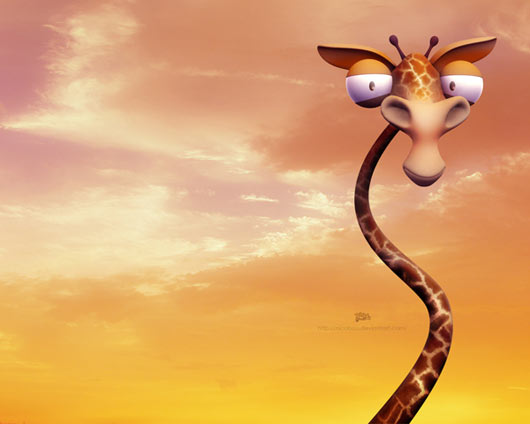
Giraffe


The Code is Quite simple, again I have used the Stage as the Starting point for all the Code as I think this makes quite good sense as there is only one Stage, but generally many Sprites.

First we have to populate our Answer List with the different possible answers.

Then we can let the Genie know it is time to do the talking…

Now, I added the Lamp as, we need code under the Lamp to get things started. I decided that you should have to rub the Lamp to make the Genie appear. Once the Genie was out of the Lamp, we will let you ask the Genie a Question.

The code, well you know how to populate lists, so I’m not going to go through that.

For the Lamp, we need to check to see if the Mouse is touching the lamp and the Mouse Button is down, if it is we will keep counting up till we reach 10 and then let the Genie take over. We can do that with a Broadcast. But don’t forget that we also want the Genie to appear out of the Lamp, so as we are counting to 10, we need to make the Genie grow.

This is what I came up with…
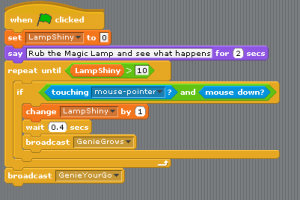
LampCode


For the Genie, there are a few pieces of code, one to set him up, one to make him appear and grow, and finally the one where he gets you to ask a Question.

GenieCode


And finally, I came up with a third, invisible Sprite, but it allows the Giraffe on the background to say a few things as well. I came up with another list of things that he could say and populated those at the begining as well.

GiraffeCode


And I have been really kind and uploaded the finished Scratch Project onto the Scratch WebSite.