Advancers – Recursion (Broccolli!)

Introduction

This week we created another drawing program using recursion, code that calls itself.

This drawing program will draw a Tree with 2 number of Branches, each Branch will split in 2 and be a little smaller than the previous Branches, The Branches will split X number of times. The finished picture will look something like this when X = 5:

Tree5


You can see that each branch splits into 2 new branches which are a little thinner and a little shorter than the previous branches, just like a real tree.


The Plan

Very simple plan for this one, we wanted to be able to control:

  1. the amount of branches
  2. how many degrees the split should be
  3. and what size the first branch would be

So we created a variable for each of these and left them on the Screen as a Slider. We set some minimum and Maximum values as well.

  1. Branches (1-10)
  2. Degrees (0-180)
  3. Size (30-100)

Sliders

The Code

As always we have some code that initialises everything when the Green Flag is clicked.
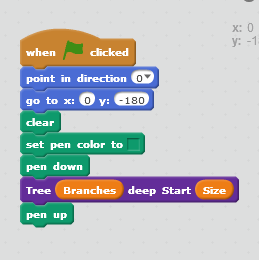
GreenFlag


We point upwards, we go to the middle of the bottom of the screen, clear everything, set the Pen colour and then call our code with the values from the Sliders.

Improvement : This should be “When Spacebar Pressed”, then we could just adjust the Sliders and then click the Spacebar to see the next tree.


The recursive code

This is the code that calls itself, because the Branching code is just the same thing repeated over and over again, but with slightly different values (the branches are getting smaller) it is ideal to use recursive code. You just need to remember that the code next to be able to finish.
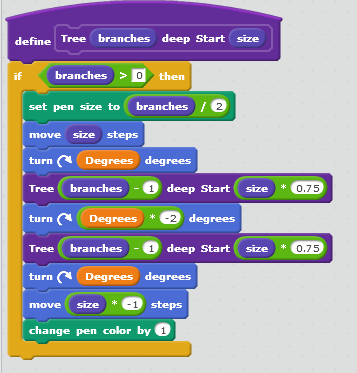
CustomBlock

The code has two values sent in the number of branches and the size of the branches.

First thing we do is check to see if the number of branches is > 0 otherwise we exit, this is our way to finish the code.

We move (draw the branch), turn and then call ourself with slightly different values.

Just for a bit of variety we change the Pen colour each time as well.


Note: The code for 2019 is slightly different, the middle “turn” code is slightly simpler, we turn anticlockwise and we multiply by 2 not -2, so like this:

Turn01
Both will work as they both do the same thing.

This results in some quite nice Trees 🙂
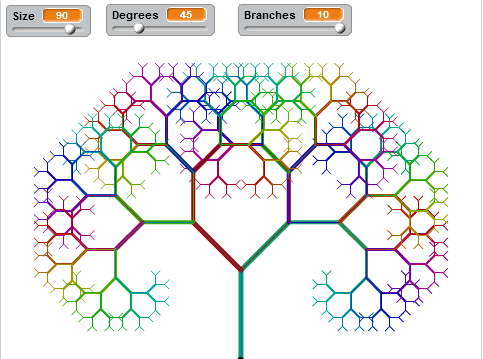
SampleTree

Notes

The project that we built is available on the Scratch Web Site:

User Name : cdadvancers1819
Password : advancers

Project : ClassVersionRecursion (2018) and Tree-ClassVersion (2019)

Remember, you can put your own projects up there as well if you want.

 

Creators – Painting

watercolors-854491_640

This week we looked at making a painting program.

We started with three built in P5.js variables:

  • mouseIsPressed – true whenever the mouse button is held down
  • mouseX – contains the X position of the mouse pointer
  • mouseY – contains the Y position of the mouse pointer

We put the call to background() in the setup() function because we didn’t want to clear the background every frame. After that, in the draw() function, we just needed to draw an circle at the mouse’s position every time the mouse button was pressed.

This gave us an very basic painting program in just a few lines of code!

Toolbar

We then looked at the idea of a toolbar to contain buttons for selecting colours and the size of the brush.

We first need to decide where it would be (the left side of the screen) and we created a variable toolbarSize to store the width of it.

In the draw() function we then added a check not to draw an circle if we were inside the toolbar area.

We then added a new function called mouseClicked(). This is a special function name (like setup() and draw()) that P5.js will call at the appropriate time. In this case its called when the mouse is clicked (button pressed down and the released).

Colour and Sizes

We created two arrays to store a list of colours and brush sizes at the top of our script:

let colours = ['black', 'white', 'red', 'blue', 'green'];
let sizes = [5, 10, 20, 40, 80, 160];

To draw the toolbar, we made a new function called drawToolbar() and put a call to it in our draw() function. In the new function, we looped over the colours array, drawing a new button, filled with the respective colour and then another loop over sizes drawing a square with a circle inside to represent the brush size. We needed to scale those circles to make them fit inside our buttons.

Detecting Selected Button

Since everything in our toolbar was toolbarSize high, to determine what had been clicked on, we just needed to divide mouseY by toolbarSize to get the index of the button that had been clicked on. We looked at that index, if it was less than the number of colours, we must have clicked on a colour. If greater, it had to be a size (or beyond the end).

Selected colours and selected sizes were stored in two variables called currentColour and currentSize respectively and used within the draw() function when creating our circles.

Featured Artwork

Mark suggested that people draw a portrait of me to test our new program and there were some brilliant renderedings. Three people were kind enough to share theirs with me so that I could put them here. I think they’re great!

Download

The files for this week can be found on our GitHub repository.

Explorers Week 9 – Maths Game

Hi everyone,

You all did great work on Saturday, there was some quite complex thinking to be done to figure it out but you did great!

CDA-S5-Challenge_10-Maths game-how to

  1. the player picks a level of difficulty and the computer chooses 2 random numbers to add (subtract or multiply- whichever you choose!) together and show the numbers to the player. Fr this we needed 2 SPRITES and 4 VARIABLES called SCORE, LEVEL, NUMBER1 and NUMBER2 as well as 2 BACKDROPS. CDA-S5-Challenge_10-Maths game-ask questions1CDA-S5-Challenge_10-Maths game-ask questions
  2. The player then has to enter an answer to the equation and the computer tells them whether they are wrong or right. CDA-S5-Challenge_10-Maths game-decisions alternative end
  3. We repeated the ask/answer questions 5 or 10 times. Can you figure out where the REPEAT loop fits?
  4. We also had a second sprite who reacted positively to correct answers BROADCAST and negatively to wrong answers BROADCAST. You can use whatever sprites you like and change their look whatever way you like. One coder added a puppy as their second and had him bark whenever an answer was correct. CDA-S5-Challenge_10-Maths game-sprite 2
  5. After all the questions were asked we had the 1st Sprite SAY – Game Over! and BROADCAST Game over so that the backdrop changed and music played. There are two ways to change the backdrop- see below!CDA-S5-Challenge_10-Maths game-alt backdrop CDA-S5-Challenge_10-Maths game-backdropCDA-S8-Week_9_18-MathsGame.pdfCan you improve our game??! Can you figure out how to subtract or multiply instead of add? Can you get the computer to add three numbers together or give the user 3 level options like: easy, medium or hard? The notes for the Maths Game are here:

See you Saturday


Martha

Julie, RuaidhrĂ­ and Eoin

Bodgers – Introducing Gpio Zero

Hi again everyone.

This week we started looking at physical computing and the Raspberry Pi. This involves attaching various components such as sensors, motors or controllers to the GPIO pins on our Pi. This week we connected a LED and two buttons, and we used the GPIO Zero module for Python to control them. I’ve made a video, it’s a little bit long, that covers everything from Saturday’s session.


At the end of the session the group started working on a traffic light idea and we will combine this with HC-SR04 ultrasonic distance sensor next week to create a measuring device.

I don’t have any slides this week as we worked directly from the GPIO Zero Documentation available at https://gpiozero.readthedocs.io. This is also available on Dropbox, along with this week’s code and a sheet that contains a drawing of our circuit and drawing of the GPIO pin layout, here: https://www.dropbox.com/sh/k26mbrfmdvq9tro/AAB5jfjkIlBqLhfnUAVVUvtJa?dl=0.

See you all next Saturday.

Declan, Dave and Alaidh.

Week 8 2018 Explorers – Paint Program

Hi everybody,

our drawing program. We made good use of costumes this week to make it look like we were dipping our paint brush in each of the different colours.

We also used a variable similarly to how we used in the Piano Game we made. We made it into a slider and then code select the Pen Size we wanted.

Here are the notes in PDF. CDA-S7-Week_08-Paint.PDF


Martha


Bodgers – Finishing Our Game

Hi again everyone.

This week we put the final touches to our game.

uwin

We added some code to increase the speed of the alien sprite as the score increased to make the game a little more difficult.

We then added some code to control what happens when the game is over.

You can find our code on Dropbox here: https://www.dropbox.com/sh/ccfaycpa1zluh8l/AAAA4dQH8EPNJicsQj7RwGgsa?dl=0

Next week we will do a quick recap of this game and then we will start looking at hardware on the Raspberry Pi.

See you all then.

Declan, Dave and Alaidh.

Bodgers – Making a better game

Hello again everyone.

We continued working with Pygame Zero this week, we began by getting everyone up to date with where we were with the game. I forgot to mention we were following the tutorial at https://pygame-zero.readthedocs.io/en/stable/introduction.html. We then changed the screen size and added a score to make our game more fun.

Capture6

Next week we will add some elements to make our game more difficult and even more fun.

I don’t have any slides this week but the code for both versions of the game are available here: https://www.dropbox.com/sh/ccfaycpa1zluh8l/AAAA4dQH8EPNJicsQj7RwGgsa?dl=0

See you all next week.

Declan, dave and Alaidh.


Week 7 2018 Explorers – How fast can you type?

Hi everyone,

Thank you all for coming on Saturday.  A lot of us had to fit into the Advancers Room but we managed. We should be back to our own room next. Thanks to Oliver and his crew for moving to another room for us.

This week we did a new game, How fast can you Type? This week we used Backgrounds as Sprites. Just to mix it up!

We used a variable as our Timer, as we did with our Maths Guessing Game!

Full notes from today are here in PDF CDA-S7-Week 7-How fast can you Type.pdf

And my own game from today is up on the scratch.mit.edu website.

See you all next week.

Martha

Julie and RuaidhrĂ­

Explorers Week 6 – Guessing Game!

Hello Everyone,

Great to see you all on Saturday and welcome to our new members.

We made a slight departure from the games we have done in previous weeks. This weeks game was a mathematical Guessing Game.

DUCK

We only had one sprite and one large block of code. We had to create variables and figure out all the possible situations that could occur when a guess was made.

guess

Here are the notes in PDF form from our Week 6 Session. CDA-S7-Week_06-GuessNumbers.pdf

I have also uploaded the game to the Scratch Website in our Explorers Account so you can see the full working game.