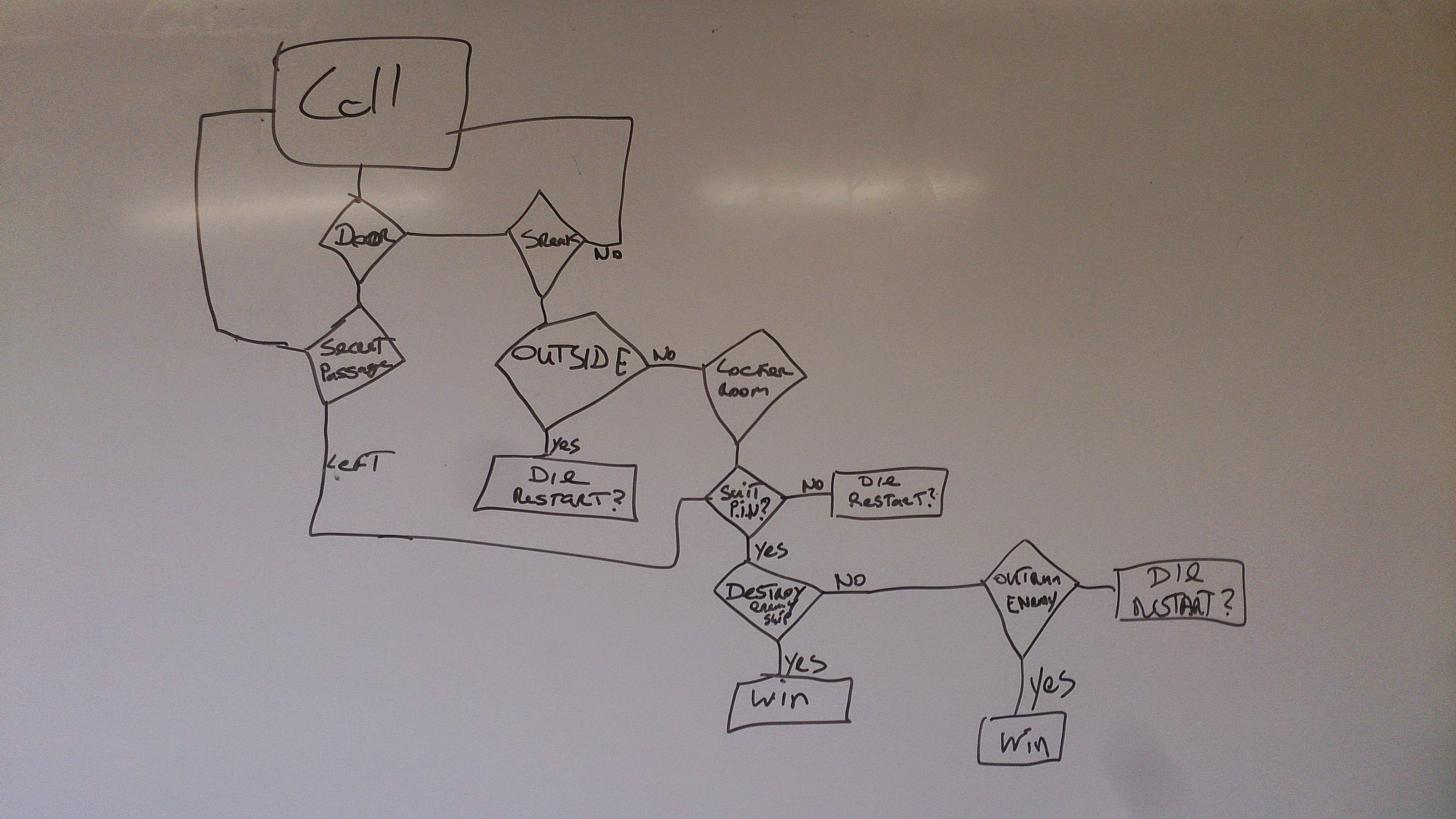
Today the Python Games group continued working on our adventure game. We looked at some tools which are useful for planning out our games, flowcharts, storyboards and pseudo code.
My slides from today are available here python session_3
Today the Python Games group continued working on our adventure game. We looked at some tools which are useful for planning out our games, flowcharts, storyboards and pseudo code.
My slides from today are available here python session_3
We made fantastic progress again in the Python Games stream.
We covered Escape Characters, Functions and Boolean Logic (with a quick look at logic gates). Then we looked at the Dragon’s Realm game code available here.
We had a brainstorming session with some great ideas from the ninjas for our own adventure game which we are going to start coding next week.
My slides from today are available here.python session_2
We covered a lot of ground today in the Python Games stream . We looked at variables including strings, math operators, inputs and outputs, while loops and if statements. The code from our number guessing game along with some of the code snippets from today are available here.
Ninjas can read the first few chapters of Invent Your Own Computer Games with Python as they deal with the same concepts.
Next week we will run through what we have covered so far, do more work on improving our number guessing game and if we have time, start working on a text based adventure game. Here are my slides fron today’s session python2014_session1.
This week we will build an app has three buttons to launch our favourite websites.
Begin by dragging and dropping a HorizontalArrangement control from the Palette onto the screen. Rename this control to hsaButtons
Drag three buttons from the Palette and drop them onto the HorizontalArrangement control. Rename the buttons to btnGoogle, btnYouTube, btnCoderDojo. When dropping the buttons onto the HorizontalArrangement, try to ensure the buttons are overlapping. This will make sure they appear side by side.
Drag and drop a WebViewer control from the Palette onto the screen. Rename this control to wbvBrowser.
A number of web sites exist that allow you to use free icons. Today we will use http://www.iconarchive.com .
In this website you can search for your favourite icon.
Please note: The new icon will only be visible when the app is installed on a mobile device.
App Inventor Week 4 – FavouriteBrowser
Recently, Eugene McDonough from the Hello World Foundation travelled to Nigeria to help start up a CoderDojo. To introduce groups to Scratch, he used none other than Martha Fahy’s Scratch Beginners notes from here in Athenry, beginning with the Jaws game that our Athenry ninjas will recognise very well!
You can read Eugene’s post here, and see if you can spot the Jaws game in pictures! http://coderdojo.com/news/2014/03/20/africoderdojo-nigeria-mentor-diary
And of course as described in the last CoderDojo Athenry post, our mentor Oliver Thompson from CoderDojo Athenry recently did a live link-up to mentors starting up a CoderDojo in Tanzania, to go through the notes with them and answer their questions: https://cdathenry.wordpress.com/2014/04/13/code-dojo-athenry-and-hello-world-foundation-helping-coderdojos-in-africa/
This week we will build an app that will count down the number of days, hours minutes and seconds to Christmas.
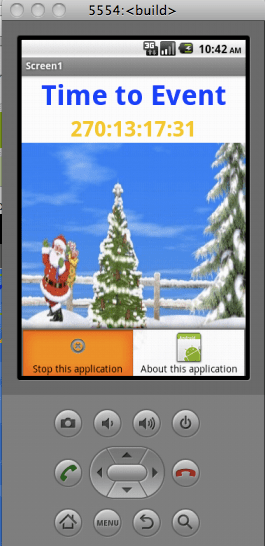
The app is modelled on the web site http://www.yourchristmascountdown.com/ .
To create this app you need to drag and drop a two label components on to the screen. The first label is called lblTitle; this component fills the width of the screen. This label will be the Title displayed. The second label lblTimer also fills the width of the screen and is the countdown text in the app.
You also need to drag and drop a Clock component onto the screen. This component is not visible and will appear under the screen, all the default settings for this component are ok
Click on the Blocks button to open the script editor. In the script editor a number of global variables must be created and initialized. The first variable is MillisecondsToChristmas, the initial value for this variable is zero. The other Global Variables are listed below and they are all set to zero.
When the app starts we use the Clock component to calculate the number of milliseconds to Christmas, this is stored in the Global variable MillisecondsToChristmas. Please note that the number of milliseconds calculated is not from the current time to Christmas but rather from Jan 01 1970. We will calculate the number of milliseconds for the current time later. Once we have this value we will subtract it from the number of milliseconds to Christmas.
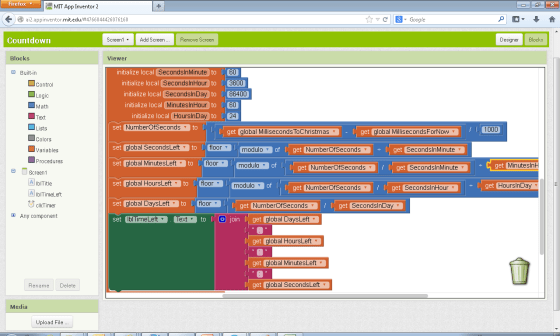
The Clock component has a “Timer” event that fires every second. In this event we will calculate the number of milliseconds for the current time. This is stored in the Global variable MillisecondsForNow. The number of milliseconds for the current time is subtracted from the number of milliseconds to Christmas to give the number of milliseconds between now and Christmas. This is converted to seconds and stored in a local variable NumberOfSeconds. A number of local variables are needed
In order to calculate the number of days, hours, minutes and seconds left to Christmas we use a couple of Math scripts
The script to calculate the Days, Hours, Minutes and Seconds is displayed below.
Sorry for not posting for a while but as the group have been working on their own games for the past few weeks we haven’t looked at any new concepts.
This weekend we discussed awarding Belts. There are three belts available white, yellow and blue.
White belts are for ninjas who have attended at least five sessions and know how to get started with Idle.
Yellow belts are for ninjas who can demonstrate a basic understanding of coding with Python.
Blue belts will be awarded to ninjas who are more skilled coders.
Anybody who has attended more than five python sessions is entitled to apply for a belt so don’t worry if you haven’t attended for a while you can still get a belt.
Here are my slides from this week Belts.
This week we will create a Kitty App
When you swipe your finger over the picure of the Kitty the phone will play a meow sound and vibrate.
We begin by
Today we are going to use App Inventor to create Android apps. App Inventor is created by MIT (Massachusetts Institute of Technology) who are the same people who created Scratch.
App Inventor is browser based and the projects are stored entirely in a cloud at MIT.
Currently the supported browsers are:
App Inventor works on the following Operating Systems
The following slides cover the steps to install Firefox and the App Inventor software.
Week 1 – How to install App Inventor
The following slides cover the steps to update the App Inventor software.
Week 1 – How to update App Inventor
Once the software has been installed we will create our 1st app using App Inventor.
Hi all, This weeks notes show you how to place a link to a YouTube video inside your webpage! Visitors to your website can see the video playing directly on your web page, the notes also have a look at what ‘HTTP’ is, it stands for Hypertext Transfer Protocol. Don’t let the name put you off though, it’s really just like a language that computer use to talk over the internet. Remember if you have any questions my email address is on the last slide of the notes and I am at Coderdojo Athenry on Saturdays! WebsiteDevelopment5