Bodgers – Making With Trinket.io

Hello again everyone.

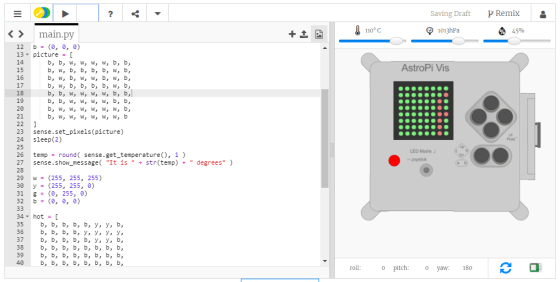
In the Bodgers group,  we’ve been working on code for the International Space Station. To do this we are using on online Sense Hat emulator, the Sense Hat is a special piece of hardware designed to be deployed with a Raspberry Pi on the ISS.

Capture15

The online emulator is available at https://trinket.io/sense-hat and there’s a good tutorial on the Raspberr Pi website here https://projects.raspberrypi.org/en/projects/astro-pi-mission-zero.

Here is our Trinket https://trinket.io/python/04b90b70cf.

You can play around with these and we will probably finish up with the Mission Zero Challenge for while after Saturday. My slides from last Saturday are here day 3.

See you all on Saturday.

Declan, Dave and Alaidh

Creators: Creative Coding with p5.js

What is P5?

This week we looked at p5.js – a library to make creative coding in javascript MUCH easier!  We first downloaded and copied p5.js onto our computers, and copied it into a new project folder.  We included p5.js in a html file, just like we included our own javascript file last week.

In fact, we looked at the file and realised that p5 is just another javascript file, just like the one we wrote – the code is long and looked a bit complicated, but it was basically the same kind of thing.


But really, what is P5?

p5 is a set of functions that make it easy to write programs for the most interesting parts of javascript!  Mainly, for drawing and animating things on a webpage, but also for sound, and other stuff.  If has lots of functions for:

Continue reading

Explorers – Week 4 – 2018, Improving Our Game!

Hi everyone,

Thank you do everyone you came along on such a lovely day on Saturday, hope you all got to go outside when you went home and enjoyed the weather.

This week, we improved on our game from last week.

Most games reward us for achievements (Gaining:Scores/Money/Health) and penalise us for making mistakes (Losing:Lives, Health, Money)

To this we had to create a Variable. Remember my box with the blocks. A variable holds information for you that you can use again. Remember to always give it a name that is meaningful….

Everything we have learned so far we will be using in ,most of our games we will make in future sessions. Don’t worry if you didn’t understand everything, we will be going over it again and again.

Have fun with the code you have done. Maybe try making another game!

Here are the notes from last week in PDF CDA-S7-Week_04-FirstGame-Part2.pdf

See you all next week

Martha & Julie, Ruaidhrí and Eoin

Hackers – Temperature Control, Part 1

IMG_20180929_131406

In Hackers, we started work on a short project for a temperature-controlled soldering station. As shown on the whiteboard above, the basic idea is:

  • A temperature sensor is connected to an Arduino (analog input)
  • A soldering iron, with its tip located near the sensor, is wired to the mains via a relay switch
  • The Arduino can control the relay switch to turn the soldering iron on/off
  • This is the basis for a simple bang-bang controller: we have a target temperature (e.g. 200 degrees) and a tolerance (e.g. ±10 degrees), then you turn it on if the temperature is below 190 degrees and turn it off if above 210 degrees.

We noted that since there will be space between the soldering iron tip and the temperature sensor, the temperature it will read will be lower than the tip temperature.

As the whiteboard shows, this project also involved discussion of: wiring for the thermocouple; how breadboards are wired; normally-open vs normally-closed relay switches.

One group used a LM35 temperature sensor – here are its specs, and the group found it interesting to see how detailed and useful these data sheets are: http://www.ti.com/product/LM35

The other group used a potentiometer to simulate temperature, so they could test it working over its full range, as shown here:

IMG_20180929_135713

Below is the code for reading and displaying the temperature. Next steps will be to integrate it with the relay.


// Michael Madden, CoderDojo Athenry
// Reading a temperature sensor.

// The temperature sensor is an LM35 - here are its specs: http://www.ti.com/product/LM35 
// THe temperature range is -55 to 150 degrees celcius.
// Its output voltage pin is connected to an analog input on the Arduino (A1),
// from which we read a value in the range 0-1023, so we convert them.

void setup() {
  // Just needed for print statements to work
  Serial.begin(9600);
}

void loop() {
  // Read the temperature sensor: get a value in range 0-1023
  int val = analogRead(A1);

  // From the analog input, we get a value in the range 0-1023
  // and we need to convert it to a temperature in the range -55 to 150 degrees.
  // The two lines below achieve this in differnet ways and give the same result.
  int temp1 = (val/1023.0)*205 - 55;
  int temp2 = map(val, 0, 1023, -55, 150);

  // Print out the raw value and converted temperature
  Serial.print("Sensor value = ");
  Serial.print(val);
  Serial.print("\tTemperature 1 = "); 
  Serial.print(temp1);
  Serial.print("\tTemperature 2 = ");
  Serial.println(temp2);

  // Wait 100 milliseconds before reading the sensor again
  delay(1000);
}