Creators – Week 12

This week we:

  1. Made our missiles destroy the enemies
  2. Added a score to the GameManager
  3. Set the enemies to automatically increase the game score when they die
  4. Added a new enemy type, with a different movement behaviour – pursuit of the player

Making Missiles Destroy the Enemy

To make our missiles destroy the enemy, we first created a new function in missile.gd called _on_body_entered():

func _on_body_entered(body : Node2D):
	body.queue_free()

This function we then connected to the body_entered signal by updating the _ready() function as follows:

# Called when the node enters the scene tree for the first time.
func _ready() -> void:
	body_entered.connect(_on_body_entered)

Now when a body is detected entering the Area2D that defines the missile, that body is removed from the game.

The last part of the process was to set the collision layer and layer mask correctly. Missiles are player projectiles and belong in layer 5 and only interact with enemies, which are layer 4. This is how the correctly set-up layer and layer mask look for the missile:

One quirk at the moment is that the missiles don’t get destroyed when they hit something. We may update this later.

Adding a Score to the GameManager

We first set a class name first in game_manager.gd by editing the first line to read:

class_name GameManager extends Node2D

This will be convenient to us later.

We then added a new exported variable, of type int, called score:

@export var score : int = 0

Finally we also added a function to increase the score by an amount:

func increase_score(amount : int) -> void:
	score = score + amount

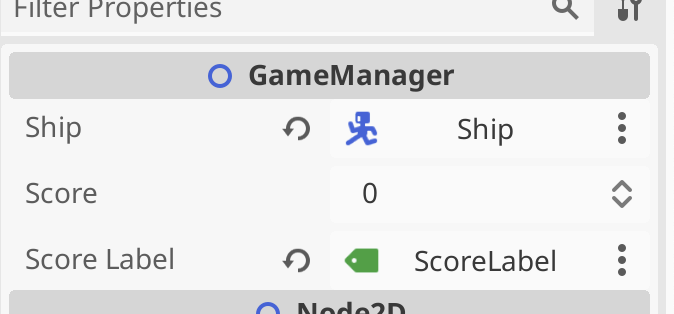
Now we have a score we can increase. To allow us to see the score, we added a Label called ScoreLabel to the main scene. We then added a variable in game_manager.gd to allow us to reference it from that code:

@export var score_label : Label

We then assigned this value in the inspector to hold a reference to ScoreLabel:
Finally, to update the label with the value of score, we added a _process() function to keep them in sync every frame:

func _process(delta: float) -> void:
	if (score_label):
		score_label.text = str(score)

Because it’s possible that score_label hasn’t been assigned, we check that it’s not null before we set it’s text property. Note the use of the str() function that takes a number and turns it into text.

Increase Score when Enemies Die

One of the signals all nodes have access to is one that is triggered just before the node is about to exit the tree. As an enemy, we can use this as a good time to inform the GameManager that we have died and that the score should be increased.

We first added a new exported score variable to ememy.gd:

@export var score : int = 100

We then also created a variable to store a reference to the GameManager:

@onready var game_manager: GameManager = %GameManager

Godot automatically writes this line of code for us if we drag and drop the GameManager from the tree into our code, holding down the CTRL (or CMD on Mac) key just before releasing the left mouse button. The @onready means that this variable assignment happens once this node is added to the tree. Is is a variable of type GameManager and it looks for a node in the tree with the unique name “GameManager”.

We then created a new function _on_tree_exiting():

func _on_tree_exiting() -> void:
	game_manager.increase_score(score)

And in _ready() we connected it to the tree_exiting signal:

# Called when the node enters the scene tree for the first time.
func _ready() -> void:
	vp_rect = get_viewport_rect() 
	set_wander_change_dir_time()
	tree_exiting.connect(_on_tree_exiting)

Now when ever an enemy is removed from the tree, regardless of why, the score in the game manager is increased accordingly.

Adding New Enemy Type

We wanted to introduce a new enemy behaviour: pursuing the player instead of just wandering aimlessly. We also decided to have a percentage that could be dialed up or down so that the enemy could spend part of the time pursuing and part of the time wandering. We added a new exported variable to control this:

@export var persuit_percent : float = 0

We also drag-and-dropped the GameManager into the code (holding down CTRL just before releasing the mouse button) to get this:

@onready var game_manager: GameManager = %GameManager

Then we wrote a new function pick_direction():

func pick_direction() -> void:
	if (randf() < persuit_percent && game_manager.ship != null):
		direction = game_manager.ship.position - position
		direction = direction.normalized()
	else:
		pick_random_direction()

This function checks a random number between 0 -> 1 against the pursuit percentage to see if it should be pursuing the player. It also checks the the reference to the player in the GameManager is set, as it needs this to know where the player is. If these checks both pass, it calculates the direction from the enemy to the player and normalises it (makes it length 1). Otherwise, it picks a random direction instead.

Finally we just replaced the call to pick_random_direction() in _process() to call pick_direction() instead:

# Called every frame. 'delta' is the elapsed time since the previous frame.
func _process(delta: float) -> void:
	wander_change_dir_time -= delta
	
	if (wander_change_dir_time < 0):
		pick_direction()
		set_wander_change_dir_time()

We then duplicated the existing enemy_0.tscn in the scenes folder as enemy_1.tscn. With a new sprite and updated settings to make it faster, change direction quickly and pursue the player all the time, we got a brand new enemy type.

Getting the Code

All our code for this year is available on our GitHub.

Creators – Week 11

This week we:

  1. Moved our enemy’s root node from Area2D to AnimatableBody2D
  2. Wrote a new enemy script, enemy.gd, for the enemy, based on mover.gd
  3. Improved the code in enemy.gd so that it now works as a physics object
  4. Created a set of collision layers for the game
  5. Wrote new code for the body-on-body contact
  6. Added sound for when we shoot

Moving Enemy from Area2D to AnimatableBody2D

It was necessary to move the enemy from an Area2D based node to a physics body of some sort. AnimatableBody2D is intended for physics bodies that are moved with animation or code.

To change the type of the Enemy node, we right-clicked on it and choose “Change Type”. We then searched for AnimatableBody2D.

Moving code from Mover.gd to Enemy.gd

We added new script directly to the Enemy’s root node, called Enemy.gd. We copied all the code from Mover.gd with the exception of the line “extends Area2D” at the very top and pasted it into Enemy,gd overwriting everything except the very first line, “extends AnimatableBody2D”.

We copied the variables from Mover in the inspector, and assigned the same values to the variables in Enemy.

Testing we found that this worked a bit, bit there was weird effects. It was moving the player too, for example. We recalled that Mover.gd was designed to move the parent of the node it was attached to. For Enemy, that is the scene root, and not what we want. We removed the variable storing the parent and all reference to it, setting our own position instead,

Additionally, we noted that the node called Mover, with a Mover.gd script attached, was still part of the Enemy node tree. It would also be moving our enemy, which we didn’t want. We deleted this node from the tree.

Now when we tested, we found that the the enemy was more-or-less behaving as before, excepting that it was wiggling about. Disabling “Sync to Physics” in the inspector resolved that.

Improving the Code so that Enemy Behaves as a Physics Object

Since AnimatableBody2D is a physics object, we could improve how we were moving it.

With physics objects, we don’t normally set the position explicitly, we set a suggested position, or a suggested velocity and let the physics engine then influence the actual outcome.

To move towards that change, we added a new function _physics_process() and moved the last line of _process() into it, changing position (explicit) to global_position (suggested). We also changed position to global_position in the bounds checking code. The last line in _physics_process() is a call to move_and_collide() which is passing control to the physics engine, once we’ve made our suggestion on position:

func _process(delta: float) -> void:
	wander_change_dir_time -= delta
	
	if (wander_change_dir_time < 0):
		pick_random_direction()
		set_wander_change_dir_time()
	
func _physics_process(delta: float) -> void:
	global_position += direction.normalized() * speed * delta
	move_and_collide(direction)

What we then noted, was that the AnimatableBody2D respects collisions with other physics bodies, so the bounds checking that we had previously in Mover.gd was no longer necessary to prevent the enemy moving out of bounds, so we removed exported variable bounds and the function check_pos_for_bounds().

Even though the Enemy was constrained to stay within the play area by the walls around the edge, there was no way yet for it to automatically reverse direction on hitting a wall (or other physics body). We added the following code to _process_physics() to achieve this:

func _physics_process(delta: float) -> void:
	global_position += direction.normalized() * speed * delta
	var collision = move_and_collide(direction)
	if (collision):
		var collision_pos = collision.get_position()
		
		if (direction.x < 0 && collision_pos.x < global_position.x):
			direction.x = 1
		if (direction.x > 0 && collision_pos.x > global_position.x):
			direction.x = -1
			
		if (direction.y < 0 && collision_pos.y < global_position.y):
			direction.y = 1
		if (direction.y > 0 && collision_pos.y > global_position.y):
			direction.y = -1

Creating Collision Layers

Objects that can collide with other objects have layers and layer masks:

  1. Layers: These are the layers that an object itself is in
  2. Mask: These are the layers that containing other objects that this object will collide with

Imagine these scenarios:

  1. Player is in layer 1. Wall is in layer 1. The player’s layer mask is set to 1. The player cannot pass through the wall.
  2. Player is in layer 1. Wall is in layer 2. The player’s layer mask is set to 1. The player pass through the wall.
  3. Player is in layer 1. Wall is in layer 2. The player’s layer mask is set to 2. The player cannot pass through the wall.

We established these layer:

  1. Player
  2. Boundaries
  3. Things that can destroy the player (obstacles, bombs, etc.)
  4. Enemies
  5. Player projectiles
  6. Pickups

We moved our player, enemy and boundary walls into their appropriate layers and set their layer masks. The player (ship) is in layer 1 and it’s mask is set to 2, 3, 4.

New Code for Body-on-Body Contact

In ship.gd we could now add code to detect body-on-body contact:

func _physics_process(delta: float) -> void:
	var mouse_pos : Vector2 = get_viewport().get_mouse_position()
	var ship_to_mouse : Vector2 = mouse_pos - position
	var distance : float = ship_to_mouse.length()

	if (distance > DEADZONE):
		velocity = ship_to_mouse * speed_by_distance
	else:
		velocity = Vector2.ZERO

	move_and_slide()
	
	for i in get_slide_collision_count():
		var collision = get_slide_collision(i)
		var collision_obj = collision.get_collider() as CollisionObject2D
		if (collision_obj && \
			collision_obj.get_collision_layer_value(2) == false):
			%GameManager.inform_body_entered(self)

After move_and_slide() above, we can check for collisions. We need to take any collisions that are not with objects in layer 2 (the boundary layer) and inform the name manager that we’ve hit something we shouldn’t.

Adding Sound when we Shoot

We went to freesound.org to look for suitable sound effects for our Ship when it shoots. Note that the site requires an account before it allows downloading.

We then added a new AudioStreamPlayer2D under Ship and called it ShootSound. Dragging it into the top of the Ship.gd script and pressing CTRL before releasing the mouse button provided this reference:

@onready var shoot_sound: AudioStreamPlayer2D = $ShootSound

In _process() after we’ve created the missile, we just have to insert this line to get the sound to play:

shoot_sound.play()

Getting the Code

All our code for this year is available on our GitHub.

Creators – Week 2

Hi folks, this week we started our first project. We have a truck that can drive down a road, avoiding obstacles, or maybe not!

We created a new project in Unity, using the default 3D Core template, and called it Prototype 1.

We then downloaded and imported the assetpack from here: [Creators Teams Channel]

The asset pack already included an existing scene, which had a simple environment already. We them dragged in a vehicle and obstacle from the imported assets. Imported assets aren’t just models; they can contain Unity obstacles, such as colliders, already.

To make the truck move, we made a new C# script called PlayerController. The new C# files Unity creates always look the same (apart from the name of the Class, which matches the new file name):

We added the following code to the Update() method to change the transform of the vehicle:

    // Update is called once per frame
    void Update()
    {
        //  Move our vehicle forward
        transform.Translate(0, 0, 1);
    }

The Unity scripting documentation can be found:

https://docs.unity3d.com/ScriptReference/index.html

and the specific page for the Transform component is:

https://docs.unity3d.com/ScriptReference/Transform.html.

This method on the Transform component that we’re calling, Translate() has several forms. The one we’re using here expects us to provide X, Y, Z values. What we’re saying we want to happen is “Change the transform by moving it 1m in Z every frame.

When we run, the car moves very fast off the end of the road. That’s because we’re running at many frames a second. It’s too fast. Next week, we’ll look at making this frame rate independent and controlling the speed.

Finally, I’ve created a GitHub repo for our projects this year. Up-to-date versions of our projects will always be available here after our sessions: https://github.com/coderdojoathenry/Creators-2022

Creators – Random Dungeon

This week we took a look at a technique for generating random dungeons. Although never mentioned on the day, this technique is often called “marching squares”. It looks at the four corners of a space at a time, some of which are open and some of which are closed, and picks a shape that blocks off the closed corners.

There are sixteen possible combinations of corners on and off. All of these can be covered with these five shapes (or a rotation of them) to represent the closed off areas:

marchs

Generating the Dungeon

We generated a 2D array (a list of lists) to store our dungeon layout. At each point we used a 2D Perlin noise value (using the noise() function) to calculate a value. The point was deemed to be either open or closed based on whether this value was higher or lower than a threshold value we specified. Varying this threshold value can make the dungeon more open, or more closed in.

Drawing the Dungeon

To draw these shapes we first defined each of them as a list of x, y points defining the shape.

We then used beginShape()vertex(), and endShape() functions to draw them at the correct size, location and orientation by scale(), transform() and rotate().

Once we were able to draw the shapes, we just needed to loop over our grid, inspecting each set of four adjacent corners in turn and drawing the appropriate shape.

Here’s a screenshot of one random dungeon. Dots (green for open, red for closed) are drawn to show the grid and the lines between the individual shapes are also shown for clarity:

d2

and here is is without these overlays:

d1

Download

The files for this week can be found on our GitHub repository.

Creators: Shootah Part 6 – Enemy Shooting Back

alien

This week we did our last iteration on Shootah and added a Bomb to be dropped by the enemy to try to hit the player.

Bomb Class

We copied the existing Bullet class and called it Bomb instead. The main changes we had to make were:

  1. Changing the speed to a negative number so that it moved down instead of moving up (as the Bullet does)
  2. Changed the check for the top of the screen to one for the bottom of the screen instead (to account for the fact it moves down)
  3. Changed the check in its hit() function so that the Bomb doesn’t interact with the Enemy when it’s dropped, but will be marked as inactive it if hits anything else.
  4. Changed the colour of the bomb to red

Manages Bombs

It happened that the code we had already written to manage bullets was already perfect for managing bombs as well.

We used Visual Studio Code’s built-in capability to automatically rename symbols to:

  1. Rename the bullets array to projectiles
  2. Rename the manageBullets() function to manageProjectiles()

This was enough to have bombs move, draw and be removed when it becomes inactive.

Dropping Bombs

We added a new function to Ememy called shoot(). In that function we generated a random number from one to two hundred. We then dropped a bomb every time that number was less than five (we tuned this small number to get a good rate of bomb drops). This meant that the enemy dropped a bomb at random intervals, to make it impossible for the player to anticipate.

Download

The files for this week can be found on our GitHub repository.

Bodgers – Pygame Zero

This week we took a break from hardware and we looked at Pygame Zero. Pygame Zero is for creating games quickly and with fewer lines of code than would be used with Pygame. It is intended for use in education, so we can learn basic programming without needing to understand the Pygame API or how to write an event loop.

Pygame Zero is designed for the Raspberry Pi but it can be installed on other systems, we used Windows without much hassle. It comes installed on the Raspberry Pi already if you have a recent version of Raspian. To install on windows open a command prompt and type:

pip install pgzero

You may need to install Pip if you didn’t install it when you installed Python. To do this go to Control Panel/Settings and then Add/Remove Programs, scroll down and click on Python then click on modify, tick the Pip check box and save your changes.

To run your code from Idle or any other IDE you need to add two lines to your code, at the beginning before any other code you need:

import pgzrun

and at the  end of your code put:

pgzrun.go()

We will be using Pygame Zero for graphical input/output in our projects but if you want to have a go at writing a game, CodeConjuring’s Froggit youtube tutorials are a good place to start.


See you all next week.

Declan, Dave and Alaidh.

Creators: Snake

This week we looked at creating a user-steerable snake in the style of the classic phone game.

8185657641_2761c2acd2_z

Image from James Hamilton-Martin, Flickr

Things we need

The snakes head moves and the rest of the snake’s body is made up of places the head’s already been, up to a certain point. For this we use a JavaScript array (we’ve also called it a list at times).

We don’t want the snake’s length to grow indefinitely, so we have a maximum length. Once the list of stored locations gets larger than this, we use the JavaScript splice() command to remove the first (oldest) element from the list.

Direction and turning

Screen Shot 2018-02-06 at 22.59.28

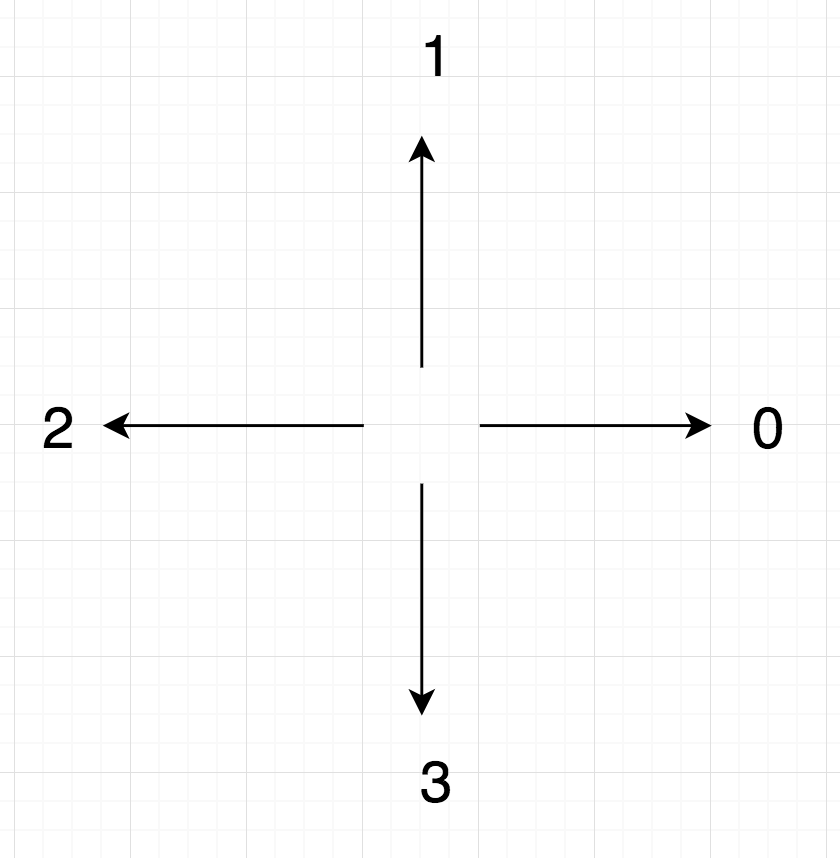
We assign numbers to represent directions on the screen. Zero is right, one is up, two is left and three is down. Note then that if the snake is heading right (in the screen sense) and turns left it goes to up (in the screen sense); direction goes from zero to one. Similarly, if going up (in the screen sense) and it turns left then it goes to left (in the screen sense).

Generally then we note that turning to the left makes the direction number get bigger while turning to the right makes it get smaller. This rule hold until we get to a number bigger than three or smaller than zero; these make no sense. If direction is at zero and the snake goes right, we set direction to three. Similarly, if direction is at three and we turn left, we set direction to zero.

Getting this week’s code

As always, all the code from our Creator group can be found on our GitHub repository.

Creators: Text Based Adventure

The last two weeks we were looking at something quite different: a text-based adventure system built in Unity. This was inspired by the Henry Stickmin games and also by the old 80s-style choose-your-own-adventure books.

158788261_51be05e517_z

Basic Program Design (Story Card)

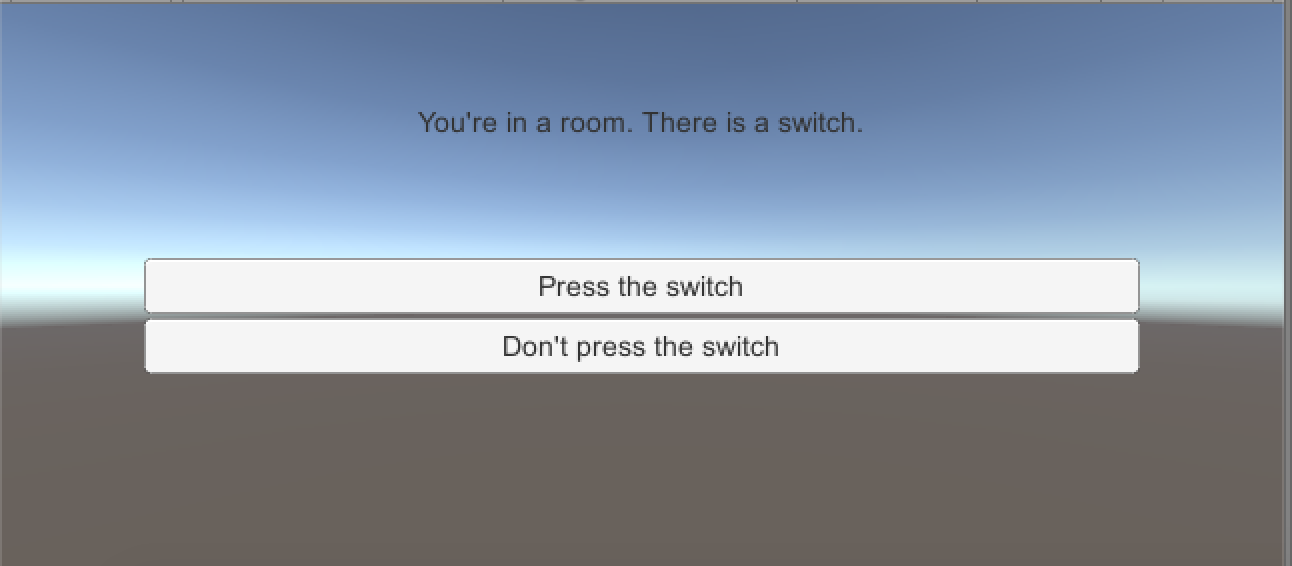
The user is presented with a “story card”. A card consists of some text describing their current situation and (normally) a number of options to choose from.

Screen Shot 2017-04-05 at 14.12.23.png

Depending on which option they pick, the story branches from there, card-by-card, until it reaches an end (a card with no options).

Setting up a card is straightforward:

Screen Shot 2017-04-05 at 14.15.27.png

You enter the card description (the text the user sees on screen), the text that the user will see on each option button (the program supports up to four at the moment) and the card (or branch, but we’ll get to that later) to jump to when that option is selected.

There’s also the mention of “States to Set True/False” and we’ll explain that next.

Story States & Story Branches

We could have programmed the system entirely using only cards, but there’s one situation where this becomes tedious. Imagine that you have a choice; hitting a button for example. The consequences of this choice won’t become apparent until later in the story. If we only had story cards, then we’d have to branch the story immediately at his point, replicating the same steps on both branches until the point at which the consequences of your action played out.

Fortunately, there is a better way.

First, to remember the value we introduce the idea of a “story state’. It’s just a container for a true or false value. Cards can set the value of specific states when they are activated as seen above.

Screen Shot 2017-04-05 at 14.14.09

So, that covers remembering values, how do we then make use of them? This requires a “story branch”. A branch references a state and two places for the story to go (either of these can be a card or another branch). The value of the state determines which is picked.

Screen Shot 2017-04-05 at 14.19.01


Game Manager

This class looks after the story. It is responsible for updating the UI to the details of the current card, for handling the use clicking on specific buttons and generally directing the flow of the story. It also needs a StoryCard to start off the story with.

Screen Shot 2017-04-05 at 14.21.33.png

Project


The project, including a very simple story using a number of cards and also a couple of states, can be found here. There are two scenes in the project, Adventure which contain a simple story and Basic which is a good starting place for your own story.

Bodgers – Reaction Game

reaction_bb.pngHi Everybody

This week we finished coding our Reaction Game. We then had Reaction Game tournament congratulations to Darragh our winner. I have a few slides from today which are available here reaction and you can also check out our code on Dropbox here.

For the next few weeks we will be building an Attendance/Clock In machine using our Laptops. You will need a version of Python 3, if you don’t have it installed you can download it from here.

See you all next week.

Creators – Random Pin Placement

This week we worked on random pin placement for our game. We updated the existing PinManager component to randomly (as opposed to regularly) place a number of pins into the scene.

Arrays

An array is a way for a variable to hold more than one value. It’s a a very useful concept in programming; complex programs would be practically impossible without them. In C# arrays are declared as follows:

     int[] nums = new int[4];
     bool[,] grid = new bool[rows, cols];

The first line creates a one-dimensional array called nums which has four entries: nums[0], nums[1], nums[2] and nums[3].

The second line creates a two-dimensional array called grid. Note the size in this case depends on the values of the variables rows and cols. The first entry is grid[0,0] and the last is grid[rows – 1, cols – 1]. The total number of locations in this array is rows * cols.

Continue reading