Web Development 1 – Getting started with HTML

Hi all, the Web Development stream starts this week. It will run alongside the other streams so you can still learn Scratch, Python or Minecraft Modding on Saturdays and spend a small amount of time learning HTML during the week. HTML is fun and the thing we need most is ideas about how webpages should look or ideas about what to put on them! We can then work together to translate these ideas in to webpages! If you are interested have a look at my presentation on getting started with HTML!

Here is this link to the presentation. 

ModderDojo Java Modding 6: Creating Our First Mod – Adding A Crafting Recipe

Previous post: ModderDojo Java Modding 5: Creating Our First Mod – The Basic Code

Note: the instructions at this link are good but things have changed a bit for Forge 1.7: http://www.minecraftforge.net/wiki/Crafting_and_Smelting

Different types of mods require different types of code. One of the easiest type of mod to add is a crafting recipe. We will write one to turn some dirt into diamonds.

craftdiamonds

The code for this goes into the init function:

recipecode

What this does:

  • Create a new ItemStack called dirtStack with a single dirt block
  • Create a new ItemStack called diamonds10 with 10 diamond blocks
  • Add a new recipe to the game that will produce this stack of 10 diamonds, when you lay out the dirt in the shape specified: x in the shape is where the dirt blocks have to go.

We can also have shapeless recipes (where it doesn’t matter where you put blocks), which are even simpler to write:

GameRegistry.addShapelessRecipe(
new ItemStack(Items.diamond, 6), new ItemStack(Blocks.dirt));

This second one creates a stack of 6 diamonds from a single block of dirt.

Previous post: ModderDojo Java Modding 5: Creating Our First Mod – The Basic Code
This concludes this series of posts on getting started with Java Modding, from ModderDojo Athenry.


Week 1, 2014 Scratch Beginners – Storytelling

Happy new year

We had a great turnout today for our first session of 2014. A very special welcome to our 14 new ninjas who joined us for their first coding session today. I hope you enjoyed your first visit to Coderdojo Athenry.

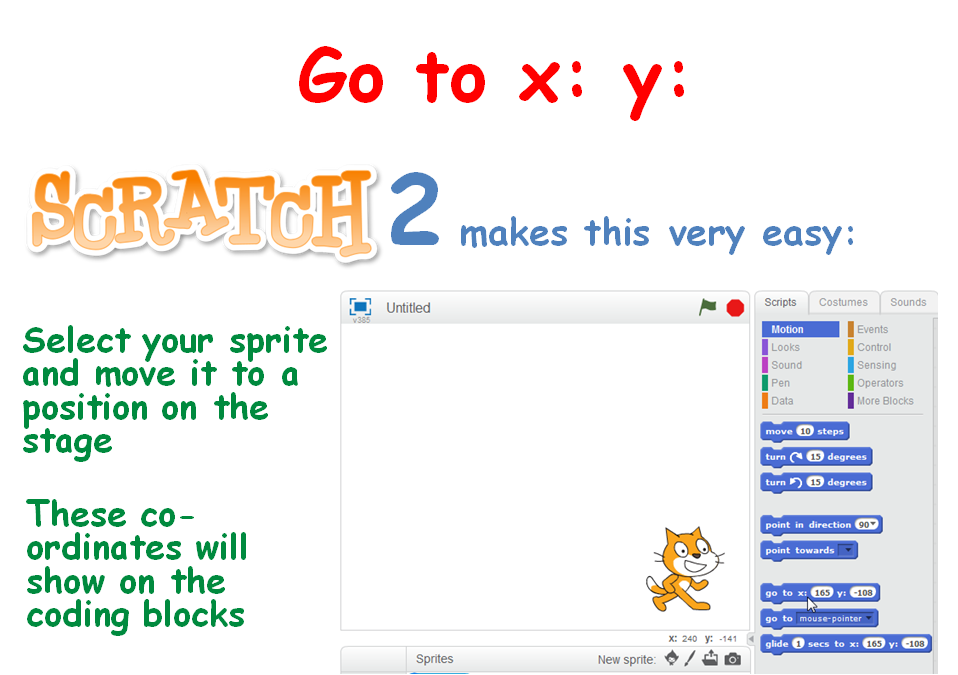
To ease everyone back in (including myself) we took a look at doing some storytelling. This involved again learning about the X, Y position of the stage, some movement of the sprites using the Glide command and of course testing our code to ensure that our timings were correct.

xy

We look forward to seeing you all next week, when we will be using scrolling backgrounds.

The PDF version of todays session are available to download here: CDA-S3-Challenge08-Storiestelling.pdf

Martha

ModderDojo Java Modding 5: Creating Our First Mod – The Basic Code

Previous post: ModderDojo Java Modding 4: Creating Our First Mod – Getting Started
Next post: ModderDojo Java Modding 6: Creating Our First Mod – Adding A Crafting Recipe

There is an example mod that does nothing in src/main/java, in the package com.example.examplemod. We will make a new one based on this.

Start by making a new package in the same folder, where we will put our own code. Click on src/main/java, then from the menu select File – New – Package, and pick a package name:
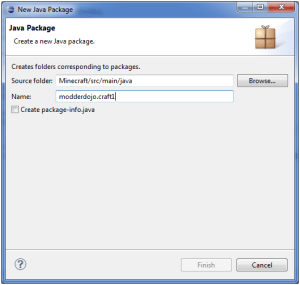
forgepackage

Now create a class in it: File – New – Class and give it a name. There is no need to select the “public static void main” option; we will be replacing all the code.
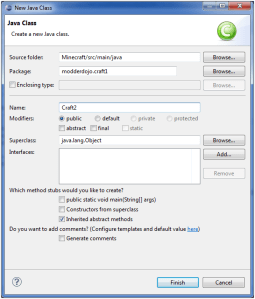
forgeclass

From in ExampleMod.java, copy all of the code, then delete all of the code in your own class and paste in the code from ExampleMod. Now make some changes:

  • On the top line, change the package statement: it has to correspond to the package you created your class in. Eclipse will flag the error with a red line and its quick fix will allow you to change the package.
  • On the line public class ExampleMod, change ExampleMod to the name of your class. In Java, the file name and class name have to be identical.
  • Check that the @Mod statement refers to your class, not ExampleMod. Note: statements beginning with @ in Java are called annotations.
  • In the body of your class, change the values of the variables MODID and VERSION.
  • If you like, change the System.out.println line to print a new message to the console window, e.g. “Craft1 mod initialised.” Lots of messages are displayed in the console window when Minecraft runs; you should see your message near the end.

Now run Minecraft and see if your mod exists. The name should be there and your hello message on the console, but it doesn’t do anything because we haven’t added code for anything useful.

Previous post: ModderDojo Java Modding 4: Creating Our First Mod – Getting Started
Next post: ModderDojo Java Modding 6: Creating Our First Mod – Adding A Crafting Recipe

ModderDojo Java Modding 4: Creating Our First Mod – Getting Started

Previous post: ModderDojo Java Modding 3: Getting Started With Eclipse
Next post: ModderDojo Java Modding 5: Creating Our First Mod – The Basic Code

Start up Eclipse and select the workspace that Forge created, in the Eclipse folder under Forge:

forgeworkspace

Note: if the workspace is empty, make sure that you ran the command gradlew eclipse and that you selected the correct folder.

Press the green Run icon: you should see messages in the Eclipse console window and Minecraft will launch and will initially have 4 mods.

Previous post: ModderDojo Java Modding 3: Getting Started With Eclipse
Next post: ModderDojo Java Modding 5: Creating Our First Mod – The Basic Code

ModderDojo Java Modding 3: Getting Started With Eclipse

Previous post: ModderDojo Java Modding 2: Setting Up Your Development Environment
Next post: ModderDojo Java Modding 4: Creating Our First Mod – Getting Started

While waiting for Forge to install, let’s try out Eclipse.

If this is your first time running it, you will be prompted to create a workspace: the default location is fine

The first time, a Welcome screen appears, which you can X to close.

Java code belongs in classes, classes are organised in projects, and projects are in a workspace. In Eclipse, you can only have one workspace open at a time, but it can have multiple projects in it and each one can have multiple classes.

Create a new Java project: File – New – Project… then expand Java and select Java Project

newproj

Enter a project name, e.g. Test:

newproj2

If you are asked to switch to the Java Perspective, say yes.

To create a first program class file, select File – New – Class

Give the class a name (no spaces allowed), and tick the box at “public static void main”, as this will create some initial code for you:

newclass

You now have a starting piece of code:

test1java

Under the “TODO” comment (which you can delete or replace with a comment of your own), write a line of code to put up a message box:
JOptionPane.showMessageDialog(null, “Hello world”);

A red line will appear at JOptionPane, as it is not recognised; hover over it and select the fix “import JOptionPane”, which will add an extra line at the  top.

Alternatively (or as well), you could print a line to the system output, which goes the console window – that’s the one at the bottom of the screen in Eclipse:
System.out.println(“Hi there”);

testjava2

Press the Save icon and then the green Run icon to run your first program:

hellodlg

Previous post: ModderDojo Java Modding 2: Setting Up Your Development Environment
Next post: ModderDojo Java Modding 4: Creating Our First Mod – Getting Started

ModderDojo Java Modding 2: Setting Up Your Development Environment

Previous post: ModderDojo Java Modding 1: Beginning Java Mods with Forge
Next post: ModderDojo Java Modding 3: Getting Started With Eclipse

My instructions are based on this post, but I had to update several aspects of them for Forge 1.7.2: http://www.minecraftforum.net/topic/1889606-162-minecraft-forge-modding-1-the-eclipse-workspace/

You need to download the following:

The steps to install the Forge Java modding environment are below.

To install Eclipse:

  • Eclipse does not have an installer: you just unzip and run it.
  • Create a folder C:\Eclipse, copy your Eclipse zip file into it, and extract it
  • In the sub-folder, find Eclipse.exe: make a link to it on your desktop
  • Start it up and make sure it works
  • We can write a first “Hello World” program: see below.

To install Forge: http://www.minecraftforge.net/wiki/Installation/Source

  • Extract the Forge .zip file to a new folder, for example C:\MinecraftForge
  • Open a cmd window

Use cd to change directory to the forge folder, e.g:
cd \MinecraftForge
Now run this command (followed by the second gradlew command, see below):
gradlew setupDecompWorkspace –refresh-dependencies

Let the installer download all necessary files. This takes 20-30 minutes. Watch out for errors!

  • It will download MCP (Minecraft Coders Pack) automatically, as well as libraries
  • It will then download assets. These are non-code elements of Minecraft, e.g. language files, music files, record audio, sounds and more. These are now stored in a folder called “assets” under the “.minecraft” folder.
  • Finally, it will begin decompiling the Minecraft source code. When finished, you will have a new folder inside your “forge” folder called “mcp”.
  • Finally, create an Eclipse workspace for Forge with this command:
    gradlew eclipse

Previous post: ModderDojo Java Modding 1: Beginning Java Mods with Forge
Next post: ModderDojo Java Modding 3: Getting Started With Eclipse

ModderDojo Java Modding 1: Beginning Java Mods with Forge

craftdiamonds

This is the first post in a series. The following posts will cover several steps:

Next Post: ModderDojo Java Modding 2: Setting Up Your Development Environment.

CoderDojo Athenry Resumes on Saturday 18 Jan

Happy New Year!

CoderDojo Athenry is starting back up for 2014 on Saturday 18 January 2014. As always, it is on from noon in Gairmscoil Mhuire VEC school in Athenry.

New members are welcome to join us: Martha and Julie in Scratch Beginners will have a special area for new members, and new people are welcome in the other streams also. The mentors and other ninjas can help you get up to speed. If you have not been with us before, here is some more information: https://cdathenry.wordpress.com/about/

You are also welcome to return if you were with us previously but could not attend for some weeks in the run up to Christmas, and the mentors and other ninjas will help you catch up and settle back in.

We will continue with the streams that we had before Christmas:

  1. Beginners/Intermediate Scratch
  2. Advanced Scratch (for ninjas who have been through the Beginner/Intermediate stream)
  3. Beginners Python
  4. Minecraft Modders (aimed at those who are older and/or have completed Scratch Advanced – Java modding this term)
  5. Website Development: this is running in parallel with the weekly sessions

We look forward to seeing you there for some more great sessions!

Michael and the CoderDojo Athenry mentors.