Hi folks,
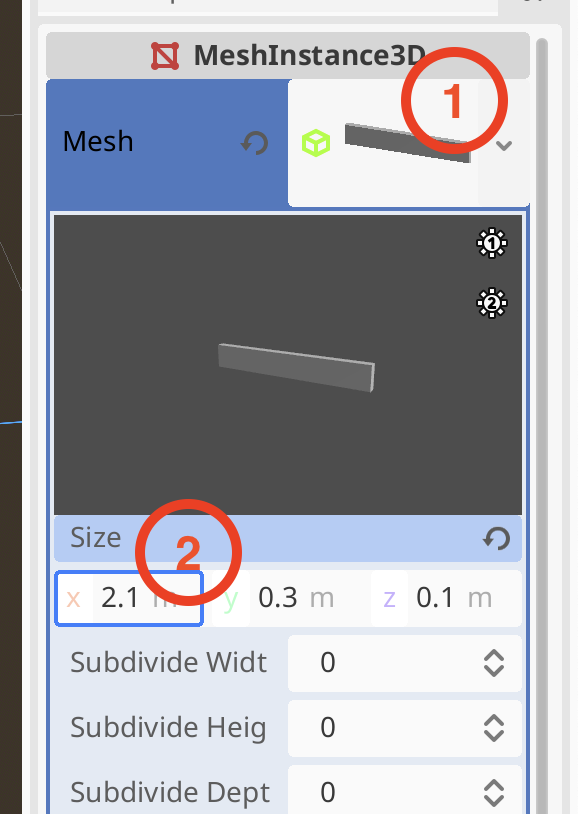
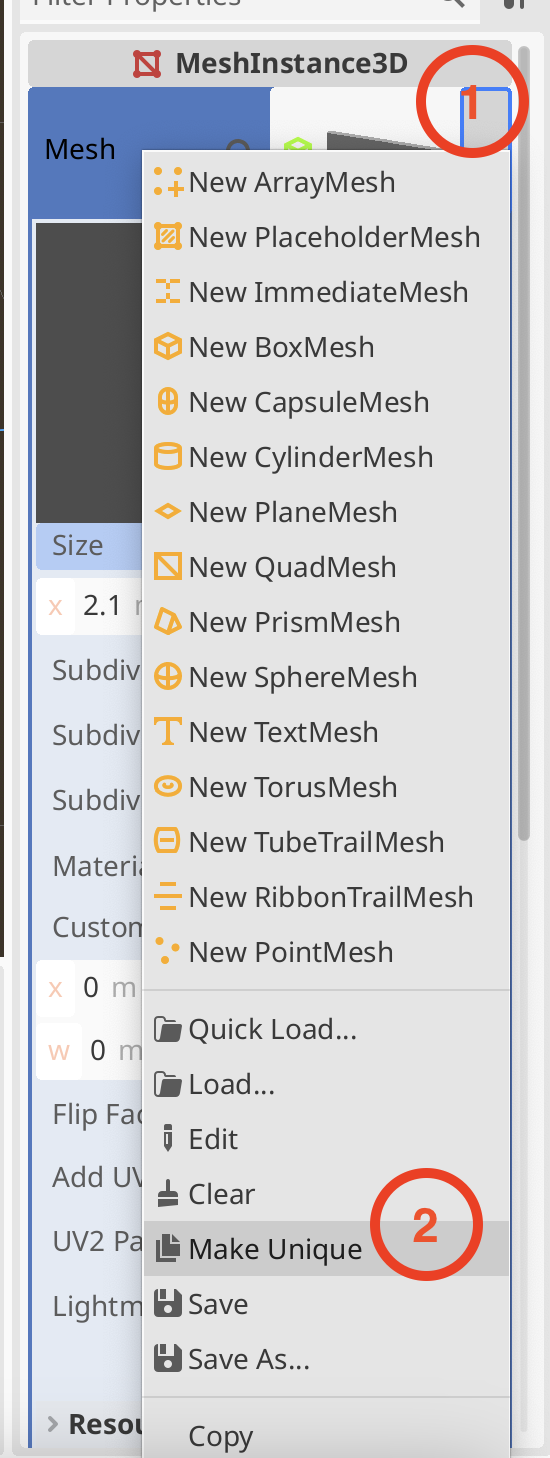
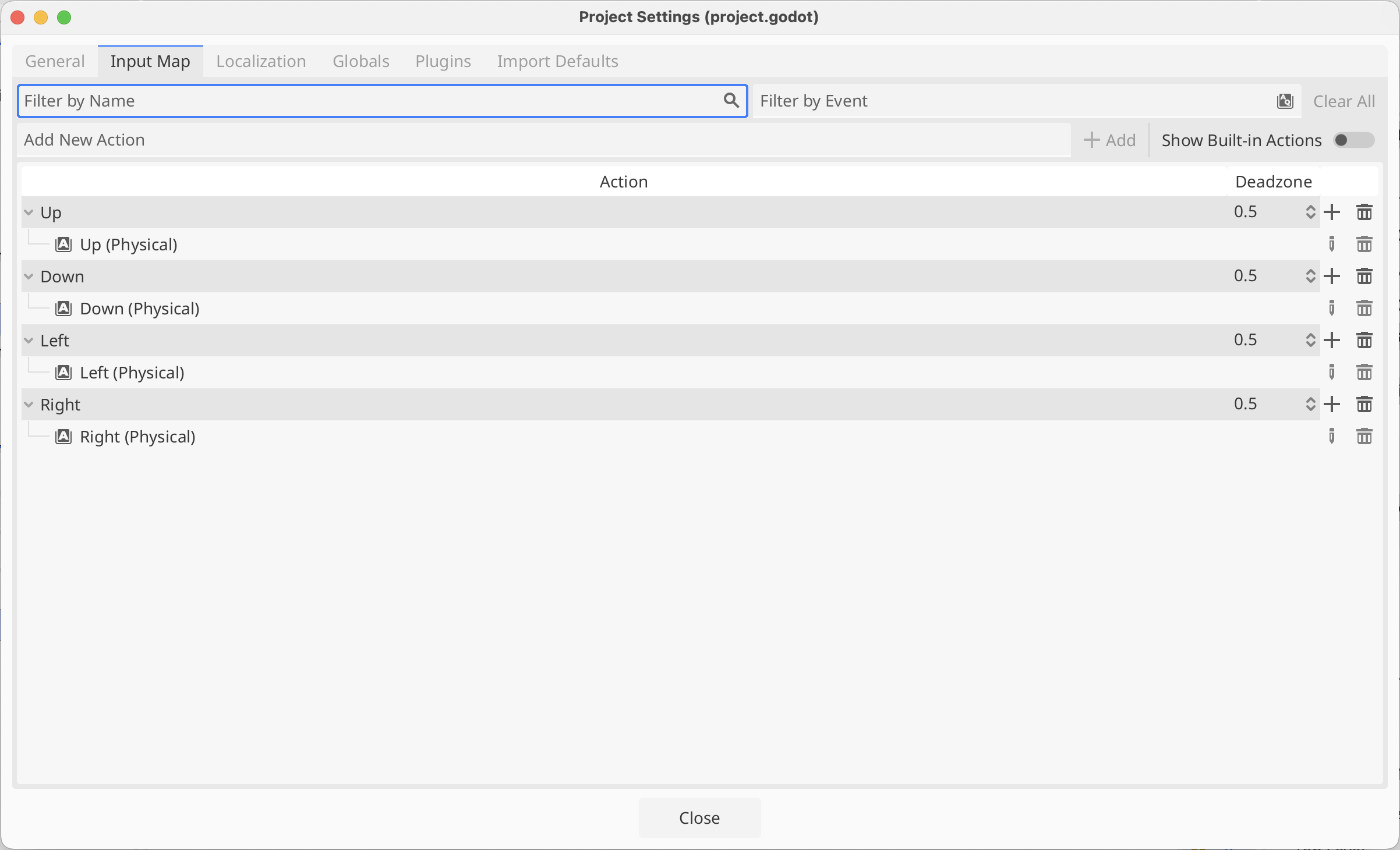
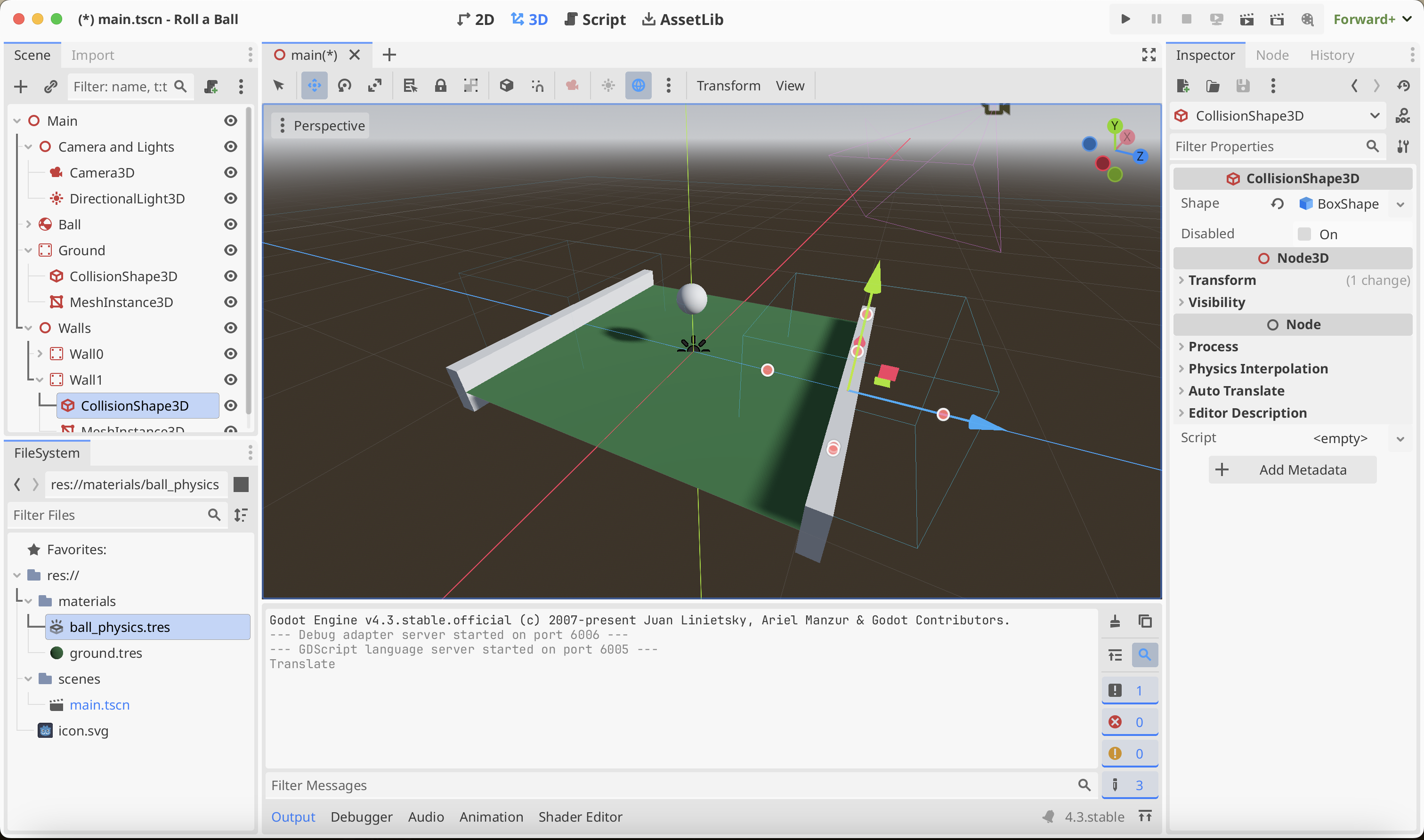
This week we’ll start off by working on learning Godot’s GDScript language using this online resource:
https://gdquest.github.io/learn-gdscript/

Hi folks,
This week we’ll start off by working on learning Godot’s GDScript language using this online resource:
https://gdquest.github.io/learn-gdscript/

Hi folks, the full 2024-2025 schedule is now available on our website.
If you haven’t been to CoderDojo Athenry before, you’d like to know more information on the sessions we’re offering this year, or you have some questions, please come along to our Information Session on Saturday next (28th Sept 2024).
If you’ve attended CoderDojo Athenry before and already know the group you’re interested in, we’d be delighted to see you on the following week at our first normal session (5th Oct 2024).

We are back!
There will be an information session on Saturday 28th September 2024 at 12pm in Clarin College, Athenry.
Anyone who has children attending CoderDojo for the first time, or just has questions they’d like answered is encouraged to come along.
The session is expected to last less than one hour.
A full schedule for the 2024-2025 season will be posted to our website within the next week or two.
Looking forward to seeing you all there!
Hi folks, here are some photos from our end-of-year party today and a photo of some ninjas, some mentors and some Tesco members of staff at Tesco Athenry marking the end of our Community Fund collection period. Thanks to Tesco Ireland and to everyone who dropped a blue token in the box for us!
Hope to see you all next year!


Hi folks, we finished as much of Speedy Spaceship as we could this week. I took it and added a few finishing touches:
My high score has been 71k. See if you can do better!
The code is available from our GitHub, as always. I’m sure the game could be made even more fun with some clever tweaking of speeds and rates. If you give it a go, be sure to let me know.
Thanks for a fun year and I hope we’ll see some of you next year.
This week we are going to try making a measuring device using our HC-SR04 sensors.

First we’ll wire our circuit up.

Next let’s test our circuit with the following code.
from machine import Pin
import utime
from time import sleep
trigger = Pin(17, Pin.OUT)
echo = Pin(16, Pin.IN, Pin.PULL_DOWN)
buzzer = Pin(15, Pin.OUT)
def ultra():
trigger.low()
utime.sleep_us(2)
trigger.high()
utime.sleep_us(5)
trigger.low()
while echo.value() == 0:
signaloff = utime.ticks_us()
while echo.value() == 1:
signalon = utime.ticks_us()
timepassed = signalon - signaloff
distance = (timepassed * 0.0343) / 2
print("The distance from object is ", distance, "cm")
return distance
def buzz():
buzzer.value(1)
sleep(0.5)
buzzer.value(0)
sleep(0.5)
while True:
dist = ultra()
if dist < 30:
buzz()
utime.sleep(1)
This week’s challenge is to rewrite the code so the the closer to something the sensor is the faster it will beep.
Once we have that done we will look at transferring the code onto the Pico itself and running it from a battery.
This week we:
A lot of progress! Let’s get into it.

We sourced three audio files:
There are lots of places to find royalty free music and sound online. Freesound.org is one. We placed them in an folder in the project called Audio.
For the game audio, we added an empty game object at the top of our scene called [Audio] and added an AudioSource component to it, setting the clip to our game theme and making sure that Play on Awake and Loop were both set to true.
To have the sound of a missile shooting we added an AudioSource to our Player object and set the clip to our shooting sound and set both Play on Awake and Loop to false. In our ShipController.cs we added a new private property:
private AudioSource _audioSource;
which we then assigned automatically in the Start() function:
void Start()
{
_minTimeBetweenShots = 1.0f / FireRate;
_audioSource = GetComponent<AudioSource>();
}
GetComponent<T>() looks for a component of the requested type (here AudioSource) on the current GameObject and returns it.
Finally, in Shoot(), we added the following:
if (_audioSource != null)
_audioSource.Play();
We wrote a script to destroy something if it hits something else. This is it:
using UnityEngine;
public class DestroyOnContact : MonoBehaviour
{
public GameObject DestroyPrefab;
private void OnTriggerEnter(Collider other)
{
if (DestroyPrefab != null)
{
Instantiate(DestroyPrefab, transform.position,
transform.rotation,
other.transform);
}
Destroy(gameObject);
}
}
The code simply calls Destroy(gameObject) when contact is detected. It also has an optional GameObject called DestroyPrefab. If this is supplied, it will be created at this items current position and rotation, but it will be parented to the thing that was hit, meaning if that thing is moving, then the DestroyPrefab will continue to move with it.
Another simple script that destroys the attached GameObject after a given number of seconds.
using UnityEngine;
public class DestroyAfterSeconds : MonoBehaviour
{
public float TimeToLive = 1.0f;
// Start is called before the first frame update
void Start()
{
Destroy(gameObject, TimeToLive);
}
}
The Destroy() function already has an optional delay argument, so this is very easy to write.
We created our Explosion prefab last week. It was just a quad with a script to keep it always pointing directly at the camera.
To that we added a DestroyAfterSeconds component with a Time To Live of one second and an AudioSource component where the clip was set to our explosion sound, Play on Awake was set to true and Loop was set to false.

The original missile was very small, so we scaled the model part to (3, 3, 3). We then added a BoxCollider, a kinematic RigidBody and a DestroyOnContact component. For the DestroyOnContact component, we set the Destroy Prefab property to our Explosion prefab.

We imported a image of stars into our Textures folder. In the Material folder we created a new Material called StarsSkybox. We changed the Shader to Skybox/Panoramic and assigned our stars image to the Spherical (HDR) slot. We also changed Image Type to 180 degrees.

To assign this skybox to our scene, we used the Window|Rendering|Lighting menu to open the Lighting dialog and set the skybox material at the top of the Environment tab.

We changed the colours of our Environment_main and Environment_details0 materials to #BF4C00 and #EC9100 respectively. We then applied these materials to all our Obstacle prefabs as well.
Finally we increased the intensity of our Directional Light object from 1 to 1.5.
We want our ship to go into a special invulnerable mode after hitting an obstacle. Specifically we want it to:
To achieve this we had to first duplicate the Ship_body and Ship_details materials as Ship_body_transp and Ship_details_transp respectively. On both of these new materials we set the Rendering Mode to Transparent and edited the Albedo to change the Alpha (transparency) value from 255 (solid) to 127 (half transparent).
We then created a duplicate of the Ship model under the Player game object and called it Ship Transparent, we changed it’s materials to the transparent ones and set it inactive by default.
In ShipController.cs we added several new public and private properties:
public GameObject StandardShip;
public GameObject InvulnerableShip;
private bool _shootingDisabled = false;
private Collider _collider;
We added code in Start() to set _collider:
_collider = GetComponent<Collider>();
In Update() we added code to check if we’re allowed to shoot:
// Shooting
if (_shootingDisabled == false &&
_controls.Ship.Shoot.WasPerformedThisFrame())
{
Shoot();
}
Finally we added three more related functions:
private void SetMode(bool isInvulnerable)
{
// Set the ship models on/off
StandardShip.SetActive(!isInvulnerable);
InvulnerableShip.SetActive(isInvulnerable);
// Set shooting on/off
_shootingDisabled = isInvulnerable;
// Set contact on/off
_collider.enabled = !isInvulnerable;
}
public void SetModeNormal()
{
SetMode(false);
}
public void SetModeInvulnerable()
{
SetMode(true);
Invoke("SetModeNormal", 2.0f);
}
The function SetMode() does all the work of switching modes from normal to invulnerable. The two functions SetModeNormal() and SetModeInvulnerable() just call it except that SetModeInvulnerable() also puts in delayed call to SetModeNormal() after two seconds. This means after we go invulnerable, we’ll automatically be vulnerable again after two seconds.
Finally, we just needed to call this in OnTriggerEnter():
private void OnTriggerEnter(Collider other)
{
SetModeInvulnerable();
}
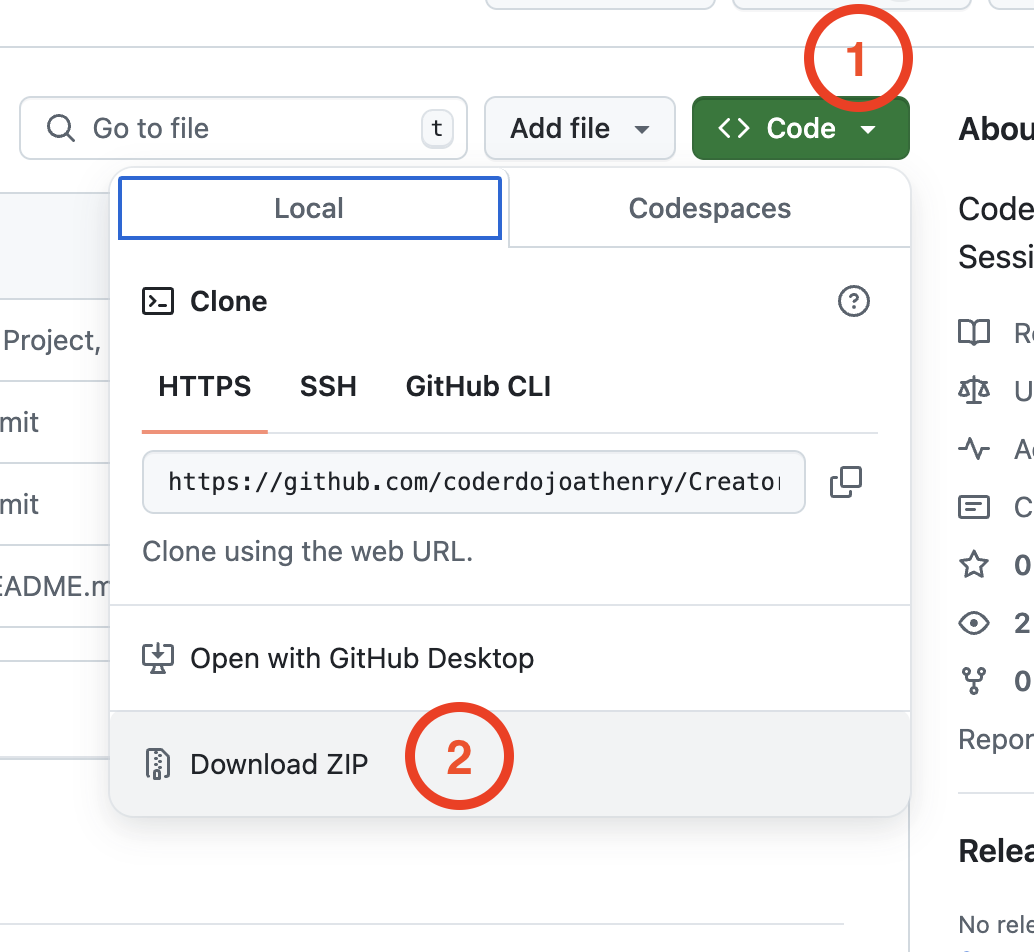
All the code we’re made this year is on our GitHub. It can be found here. If you don’t have the latest version of our code before any session, use the green Code button on that page to get the “Download ZIP” option which will give you a full copy of all code we’ll be writing this year.
This week we did the first week of the Magnify Project, there will definitely be Part 2 and maybe Part 3.
The Magnify project is designed to allow you to create your own detailed Map of something, by magnifying part of the screen to view more information and then Magnify part of that screen to dig even deeper in to your Map.
For example, you might start with an image of the Solar System, showing all the Planets, then you can click on a Planet to see more details. If you clicked on the Earth for example you would be able to see all the countries, and maybe click on a Country to see even more information.
For Part 1 all we did was build a framework with 2 coloured squares that you could click on to Zoom in/Zoom out of.
The code in both squares is identical apart from the Values given to 5 (or 6!) Variables that were defined for that Sprite only.
The Variables are:
MyName – Who am I
MyParent – Who is my Parent
MyLevel – What level do I belong to
MyX – Where am I on the screen
MyY – Where am I on the screen
MyText – What should I say when the Mouse is on me.
Once all these variables are set correctly for each Sprite everything will simply work. For example these are the values that we used for the 2 example Sprites:
| Sprite | MyName | MyParent | MyLevel | MyX | MyY | MyText |
| Sprite1 | Sprite1 | 1 | 100 | 100 | Click Me | |
| Sprite2 | Sprite2 | Sprite1 | 2 | 0 | 0 | Click Me Too. |
You can see that the second Sprite has Sprite1 as the Parent and is a level 2 which is one below Sprite1, these variables basically tell each Sprite whether it should be on show and what size it should be.
To see how it works have a look at the example project on the Scratch Web Site:
https://scratch.mit.edu/projects/1004906611
If you have any questions either here, or make a comment on the project on the Scratch Web Site.
Once the Framework is in place, it is quite easy to add extra levels or sprites at the same level, basically copy either the Parent sprite or another Sprite at the same level you want. Update the Costume with your new image, then simply change the Variables so it has the correct Parent and Level information and it should all work.
Have a think about what you want to Magnify and see if you can gather some images to use. The more images you have the better the project will end up.
This week we looked at adding obstacles to our game and detecting collisions.

The obstacles were created in Blender and provided as an FBX file. To process them we:
Generally speaking, Unity tracks collisions between objects as long as:
Unity draws a distinction between RigidBody components depending on the setting of “Is Kinematic”. If “Is Kinematic” is false, Unity takes responsibility for moving the object according to physics rules. If “Is Kinematic” is true, we’re responsible for moving the object, but Unity will still track if for collisions, etc. The latter is appropriate for our game.
When Unity detects collision it looks for functions OnTriggerEnter() or OnCollisionEnter() to call, depending on whether the RigidBody is kinematic or not. Ours isn’t so we’ll be implementing OnTriggerEnter() when it’s time to do so.
We added two new public properties to EnvController.cs, one to determine how likely that a piece of environment contains an obstacle and another to hold the prefabs for the obstacles:
public float ChanceOfObstacle = 0.2f;
public GameObject[] ObstaclePrefabs;
We then added a new function GenerateObstacles() to EnvController.cs:
private void CreateObstacle(Vector3 position, Transform transform)
{
// Pick a random prefab
int numPrefabs = ObstaclePrefabs.Length;
GameObject prefab = ObstaclePrefabs[Random.Range(0, numPrefabs)];
// Create an instance of it
Quaternion rotation = Quaternion.Euler(0, -90, 0);
GameObject go = Instantiate(prefab, position,
rotation, transform);
}
and called it from just before the last line of CreatePrefab():
// Create obstacle?
if (Random.value <= ChanceOfObstacle)
{
// Create an obstacle as a child of this piece of env
CreateObstacle(position, go.transform);
}
We don’t want obstacles at the start because they can lie on top of our ship. Adding a second argument to CreatePrefabs() allows us to control this:
private GameObject CreatePrefab(Vector3 position, bool createObstacles = true)
{
Because this argument has a default value (= true) and is at the end of the argument list, this makes it optional. If we don’t use it, it’s assumed that we want obstacles.
We can check this value were we create obstacles:
// Create obstacle?
if (createObstacles && Random.value <= ChanceOfObstacle)
{
// Create an obstacle as a child of this piece of env
CreateObstacle(position, go.transform);
}
The double-ampersand (&&) means “and”. Both things have to be true or no obstacles are created.
Finally we modify Preload() so that obstacles are not created when it’s generating the first few environment pieces:
private void Preload()
{
for (int i = 0; i < Count; i++)
{
Vector3 pos = Vector3.right * i * Spacing;
_lastGo = CreatePrefab(pos, false);
}
}
To set up the player for collisions, we need to:

With our simple OnTrigger() we can see when collisions are being detected:
private void OnTriggerEnter(Collider other)
{
Debug.Log("I hit something");
}
All the code we’re made this year is on our GitHub. It can be found here. If you don’t have the latest version of our code before any session, use the green Code button on that page to get the “Download ZIP” option which will give you a full copy of all code we’ll be writing this year.
Please note that there was no Week 14 session as it had to be cancelled owing to bad weather.
When we finished our last session, our EnvController was creating random pieces of environment continuously and scrolling them under the ship. It looked good, but there were gaps between the environment pieces, getting larger the higher we set the environment speed.
Why was this gap happening? Well it’s easy to understand if you look at it this way: if something is moving and you shout stop at a random time, what are the chances that it’s moved some exact distance? Almost no chance of that at all. This is what the current code is doing and why, the faster it’s moving, the larger the gaps get.
The first thing we can do to make this easier is to check more often if the blocks have moved far enough to create a new one. By changing Update() to FixedUpdate() this helps because while Update() is called every frame, FixedUpdate() is called much more often and on a regular timer, independent of frame rate. It’s normally used for physics calculations.
The second thing we can do is to not create our new block at _spawnPoint but to work out the proper position to create it so it’s exactly 100m from the previous one. This is what that code looks like:
void FixedUpdate()
{
if (_lastGo == null)
return;
float distToLast = Vector3.Magnitude(_lastGo.transform.position -
_spawnPoint);
if (distToLast >= Spacing)
{
Vector3 spawnAt = _lastGo.transform.position + Vector3.right * Spacing;
_lastGo = CreatePrefab(spawnAt);
}
}
I thought we’d done this ages ago, but we never implemented bounds checking for our ShipController. It’s only supposed to be able to move within a fixed area. To achieve this we added a new property to ShipController of type Vector2d called Bounds. We are going to use the x part of this property to store how far we want to allow the ship to move forward and backwards and we’re going to use the y part to store how much we want to allow the ship to move side-to-side. In testing we found good values for this were (20, 40). Here’s the change to the ShipController.Update() function:
Vector3 newPos = transform.position +
new Vector3(moveInput.y * MoveSpeed * Time.deltaTime,
0,
-moveInput.x * MoveSpeed * Time.deltaTime);
if (newPos.x > Bounds.x)
newPos = new Vector3(Bounds.x, newPos.y, newPos.z);
if (newPos.x < -Bounds.x)
newPos = new Vector3(-Bounds.x, newPos.y, newPos.z);
if (newPos.z > Bounds.y)
newPos = new Vector3(newPos.x, newPos.y, Bounds.y);
if (newPos.z < -Bounds.y)
newPos = new Vector3(newPos.x, newPos.y, -Bounds.y);
transform.position = newPos;

We made a simple missile in Blender and exported it as an FBX file and imported it into Unity. We then created and empty GameObject, placed the missile model under it in the hierarchy and created a prefab from them.
Once in the prefab folder, we edited the prefab and added a ConstantMovement behaviour and a DestroyOnDistance behaviour. This makes the missile fly and eventually destroy itself.

First we had to edit our ShipControlls.inputaction in our Inputs folder by double clicking on it. We then added a new action of type Button called Shoot with a single Binding to the Spacebar on the keyboard.


We used the Save Asset button on the dialog above to save the input actions.
In our code then in ShipController we added the following at the bottom of update:
// Shooting
if (_controls.Ship.Shoot.WasPerformedThisFrame())
{
Debug.Log("Shoot was pressed on frame " + Time.frameCount.ToString());
}
This allowed us to see that the shoot command was being picked up with a message getting written to the console every time the spacebar was pressed.
We added two new properties to ShipController:
public GameObject MissilePrefab;
public Transform MissileSpawnPoint;
The first is to store our Missile prefab and the second is to store a location under the ship where the missile can be launched from. To create this we added an empty called MissileSpawnPoint under Player in the scene and, in a side view, moved it down below the ship and towards the front of the ship.

We could then assign this and the missile prefab to the appropriate properties of ShipContoller attached to the Player object.
In PlayerController we swapped the call in Update() to Debug.Log() for a call to a new private function Shoot() which we also created, to look like this:
private void Shoot()
{
// Create a missile at the missile spawn point
Instantiate(MissilePrefab,
MissileSpawnPoint.position,
MissileSpawnPoint.rotation);
}
Every time now that the spacebar is pressed, a missile is created below the spaceship and flies forward for approx. 8 seconds before destroying itself.
It’s unrealistic to be able to shoot missiles as quickly as we can hit the spacebar, so some idea of fire rate is useful. It’s easy to convert a rate into an interval, all you have to do is divide one by the rate to get the interval. For example, if the rate is 2 per second then the minimum interval between shots is 1/2 = 0.5 seconds. Similarly, if the rate is 10 per second then the minimum interval between shots would be 1/10 = 0.1 seconds.
We add a new property to ShipController called FireRate.
public float FireRate = 1.0f;
We also add a couple of private properties:
private float _minTimeBetweenShots;
private float _lastShotTime = -10.0f;
The first of these is the minimum interval between shots. We calculate if from the rate, as described above. Since we just need to do this once, we pop the code in Start():
void Start()
{
_minTimeBetweenShots = 1.0f / FireRate;
}
The second private property stores the last time we fired a missile. We set it to a arbitrary large negative value so that at the start of the game it’s the same as if it’s been ages since we fired a missile, even though we’ve never actually fire one yet.
We can now check the time since we last fired a missile against the minimum time between shots in the Shoot() function:
private void Shoot()
{
if (Time.time - _lastShotTime < _minTimeBetweenShots)
return;
// Create a missile at the missile spawn point
Instantiate(MissilePrefab,
MissileSpawnPoint.position,
MissileSpawnPoint.rotation);
_lastShotTime = Time.time;
}
All the code we’re made this year is on our GitHub. It can be found here. If you don’t have the latest version of our code before any session, use the green Code button on that page to get the “Download ZIP” option which will give you a full copy of all code we’ll be writing this year.