Some of the Code for this weeks session. We will have to alter it slightly for Tablet Users.
Creators – Week 4
This week we took a pre-made scene with some problems and set out to fix them.

The first two issues were that the plane was flying backwards and at great speed. The initial challenge was to identify what was making the plane move. Looking at the plane, called Player in the scene, in the inspector, we could see it has a script component called Player Controller X added to it.

Double-clicking on the name of the script file (PlayerControllerX.cs) in the inspector allows us to open it. The code for moving the plane is in the Update() method:
        // get the user's vertical input
        verticalInput = Input.GetAxis("Vertical");

        // move the plane forward at a constant rate
        transform.Translate(Vector3.back * speed);

        // tilt the plane up/down based on up/down arrow keys
        transform.Rotate(Vector3.right * rotationSpeed * Time.deltaTime);
We need to concentrate on the line that starts transform.Translate(…). The comment above it says “move the plane forward”, but the line itself is specifying Vector3.back as the direction of movement. Changing this to Vector3.forward makes it move in the right direction. The plane is still much too fast though. This line is asking the plane to move the distance specified by the speed parameter (by default 15m) every frame. What we need to do is to multiply here by Time.deltaTime, the amount of time since the last frame, to convert this movement into 15m per second, not per frame. Here’s the corrected line:
        // move the plane forward at a constant rate
        transform.Translate(Vector3.forward * Time.deltaTime * speed);
The next problem is that the plane turns on its own. In fact, although we’re gathering the value of the “Vertical” input axis in the code, pressing the arrow keys does nothing. We can identify the line of code that’s making the plane turn:
        // tilt the plane up/down based on up/down arrow keys
        transform.Rotate(Vector3.right * rotationSpeed * Time.deltaTime);
This is asking the plane to rotate around Vector3.right (horizontally through the plane) by the number of degrees specified by the property rotationSpeed (with a default value of 100) every second. The multiplication of Time.deltaTIme is what makes it “every second” and not “every frame”, as before. So the plane is turning 100degrees every second, making it do a full loop approximately every three and a half second.
Nowhere here are the user inputs taken into account. How can we use them? Remember that the “Vertical” input axis in Unity works like this:
| Input Option 1 | Input Option 2 | Axis Value |
| W | Up-arrow | +1 |
| <No key pressed> | <No key pressed> | 0 |
| S | Down-arrow | -1 |
We’re gathering this axis value into a property called verticalInput already, we just need to use it. When multiplied in, it works like a switch. If its off (having the value zero) then no rotation happens. If it’s one or minus one, rotation happens in either a positive or negative direction:
        // tilt the plane up/down based on up/down arrow keys
        transform.Rotate(Vector3.right * rotationSpeed * Time.deltaTime * verticalInput);
Now the plane flys correctly and responds to user input, but the it flies directly into the camera and then can’t be seen any more. First we need to grab the camera and move it to the side of the plane, rotating it around to point at the plane. This is better, but it still doesn’t move. The plane quickly flys beyond the area the camera can see. If we look at the camera in the inspector, we can see that it already has a script called Follow Player X on it:
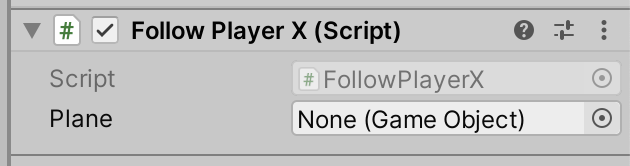
It has a property called Plane, but nothing’s assigned there. We can set this by dragging and dropping the plane from the hierarchy, or by clicking the small circle icon on the right above and picking the “Player” object from the pop-up list. Running and testing this shows that the camera now follows the plane, but it’s right on top of the plane. It needs to be some distance away. Examining the FollowPlayerX.cs script we see at the top there’s a private property called offset:
private Vector3 offset;
that is used in the Update() method already:
transform.position = plane.transform.position + offset;
We just have to give it a value. The easiest way is to change private to public and then specify a value for the offset in the inspector.
The final challenge is to turn the plane’s propellor. Looking in the inspector, we can see this is its own object, a child of the “Player” object:

To make it spin, we can make a simple new script called SpinPropellor.cs and attach it to the propeller. This code works well:
using System.Collections;
using System.Collections.Generic;
using UnityEngine;

public class SpinPropellor : MonoBehaviour
{
    public float spinSpeed;

    // Start is called before the first frame update
    void Start()
    {

    }

    // Update is called once per frame
    void Update()
    {
        transform.Rotate(Vector3.forward * Time.deltaTime * spinSpeed);
    }
}
This is very similar to what we’ve done before, but the axis of rotation is the Vector3.forward here to make the propellor spin in the expected way. I found a value of 1000 or more was good for spinSpeed.
Note that although we’re moving the propellor ourselves, or at least rotating it, that doesn’t interfere with the fact that it’s moving with the plane, because it’s a child object.
Code for this Week
Updated code is on our GitHub repo: https://github.com/coderdojoathenry/Creators-2022 The problems with projects not loading correctly when downloaded has been corrected.
Week 4 Explorers
Creators – Week 3
This week we continued our project from last week, looked at three main topics:
- Frame rate independence
- Creating our own properties on our components
- The Input Manager and getting and using user input
Frame Rate Independence
We covered how to make our actions independent of frame-rate. The code:
transform.Translate(Vector3.forward, 20.0f);
moves the object 20m in every frame. As we know, frame-rate isn’t generally consistent between machines. On my powerful laptop, I was getting up to 1400 frames per second at fastest. Most ninjas were getting a few hundred frames per second on theirs.
On the other hand, the code here:
transform.Translate(Vector3.forward, Time.deltaTime * 20.0f);
moves the object at a consistent 20m per second on everyone’s machine. The magic is that Time.deltaTime variable. It is the time, in seconds, since the last frame was drawn. The faster the frame-rate, the smaller this number gets and the result is a consistent 20m per second movement.
Creating Properties on our Components
We can add properties, variables where we can hold and values that we can then use, to our classes by typing a single line into our class definition:
class MyBehaviour : MonoBehaviour
{
  // The new property
  public float myProperty = 1.0f;

  void Start()
  {
  }
  void Update()
  {
  }
}
Looking at the bits of the line in turn:
- public – The access modifier. Can be private, internal (which we won’t use) or public. If it’s public we can see it in the inspector, and from other classes. If private we can only see and use it within the class itself.
- float – The type of value we are storing. A float is a number with a decimal point. An int (short for integer) is a number without one. We might use an int for counting things, but we use floats for real world measures like speeds and positions, etc.
- myProperty – the name of the variable
- = 1.0f – Assigning a default value to this property. This portion is optional. the ‘f’ after the number is just a hint to the computer that this is a float value.
- ; – The standard semicolon to end the line of code.
The Input Manager and Using User Input
Unity’s Input Manager contains the definition of input “Axes”. These can contain many ways of doing the same thing.

The default definition of the “Horizontal” axis means it can be triggered by the keys A and D, or the Left and Right arrow keys or by the joysticks or d-pad on a game controller.
This means input is “abstracted”; we can write our script to respond to input, without worrying how that input is generated.
To get the value of input on an access we need to use code like this:
forwardInput = Input.GetAxis("Vertical");
Here we’re getting the value of the axis called “Vertical” and storing it in a variables called forwardInput.
The value of the vertical axis goes between -1 and 1. Minus one means fully down, zero means no input and one means fully up. Because of this range, we can use this value like a switch, multiply it with other numbers. When there’s no input, it’s zero which will zero out the expression it’s part of.
Here’s the fully updated code for our PlayerController.cs:
using System.Collections;
using System.Collections.Generic;
using UnityEngine;

public class PlayerController : MonoBehaviour
{
    public float speed = 20.0f;
    public float turnSpeed = 50.0f;
    private float horizontalInput;
    private float forwardInput;

    // Start is called before the first frame update
    void Start()
    {

    }

    // Update is called once per frame
    void Update()
    {
        // Get the player input
        horizontalInput = Input.GetAxis("Horizontal");
        forwardInput = Input.GetAxis("Vertical");

        //  Move our vehicle forward
        transform.Translate(Vector3.forward * Time.deltaTime *
                            speed * forwardInput);

        // Rotate our vehicle
        transform.Rotate(Vector3.up, turnSpeed * Time.deltaTime *
                         horizontalInput);
    }
}
Code for this Week
Updated code is on our GitHub repo: https://github.com/coderdojoathenry/Creators-2022
Explorers Week 3
Code for todays session
Creators – Week 2
Hi folks, this week we started our first project. We have a truck that can drive down a road, avoiding obstacles, or maybe not!
We created a new project in Unity, using the default 3D Core template, and called it Prototype 1.
We then downloaded and imported the assetpack from here: [Creators Teams Channel]
The asset pack already included an existing scene, which had a simple environment already. We them dragged in a vehicle and obstacle from the imported assets. Imported assets aren’t just models; they can contain Unity obstacles, such as colliders, already.

To make the truck move, we made a new C# script called PlayerController. The new C# files Unity creates always look the same (apart from the name of the Class, which matches the new file name):

We added the following code to the Update() method to change the transform of the vehicle:
    // Update is called once per frame
    void Update()
    {
        //  Move our vehicle forward
        transform.Translate(0, 0, 1);
    }
The Unity scripting documentation can be found:
https://docs.unity3d.com/ScriptReference/index.html
and the specific page for the Transform component is:
https://docs.unity3d.com/ScriptReference/Transform.html.
This method on the Transform component that we’re calling, Translate() has several forms. The one we’re using here expects us to provide X, Y, Z values. What we’re saying we want to happen is “Change the transform by moving it 1m in Z every frame.
When we run, the car moves very fast off the end of the road. That’s because we’re running at many frames a second. It’s too fast. Next week, we’ll look at making this frame rate independent and controlling the speed.
Finally, I’ve created a GitHub repo for our projects this year. Up-to-date versions of our projects will always be available here after our sessions: https://github.com/coderdojoathenry/Creators-2022
Creator – Errors Opening a Brand New Project
Hi Folks, there were some people who had a problem even opening a brand new project in Unity today.
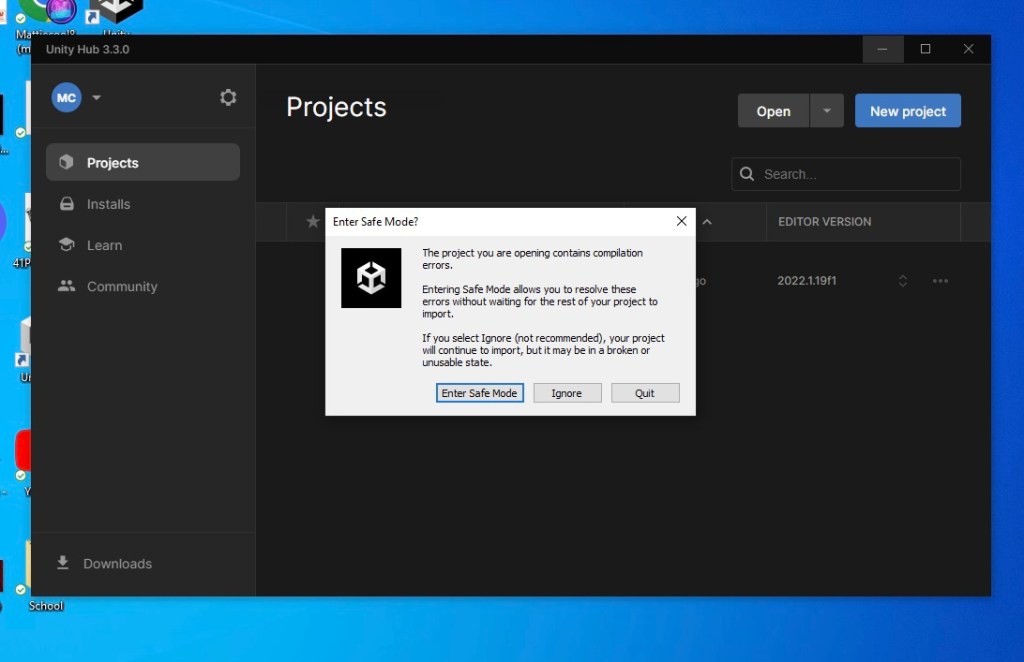
Here are instructions for clearing the package cache. Once done, Unity should re-download what it needs automatically.
Instructions on clearing package cache [Reddit]
Hopefully this corrects the issue.
Bodgers – Getting started with Python
Hi Everyone
It was great to get back again with a full year to look forward to and it was also great to see so many people interested in getting involved with CoderDojo Athenry.
In the Bodgers group we got off to a great start, we installed the Mu Python editor, and we wrote our first few programs.

The Mu editor can be downloaded from here: https://codewith.mu/.
You can find our code from last Saturday on the last couple of slides from this week’s notes here: Bodgers Day 1
We also decided we’re going to do a few small projects between now and Halloween and then start on a bigger project after that.
Next week we are going to make a Space Invaders style game, you can find some images for it here: https://www.dropbox.com/home/Bodgers/Space%20invader/Images.
Looking forward to seeing you all next week.
Declan
Creators 2022/2023 – Resources
Here are links to a few resources we’re going to need this year:
You are going to need an email address so you can register for Unity and Microsoft.
Unity:
https://unity3d.com/get-unity/download
Install Unity Hub. Create a Personal account. Install the latest standard version of Unity version 2021.3. Include Visual Studio.
Click on the link. Log-in to your Microsoft account, or create one if necessary.
CoderDojo Athenry Returns on 01 October 2022!

CoderDojo Athenry is returning with our weekly sessions in Clarin College starting Saturday 01 October 2022.
Our sessions will take place between 2:00pm and 4:00pm.
We will run five groups this year Explorers, Advancers, Bodgers, Creators and Hackers.
There is more information about the groups, our location and everything else on our About page.
New members are always welcome. If you are aged between 7 and 17, just come along on the first day and fill out a registration form. Young people aged 12 and under have to be accompanied by a parent/guardian for the whole session.
And don’t forget, CoderDojo Athenry is run by volunteers and is completely free for participants — no membership fees, no weekly contributions.
You should bring a laptop if you have one, but we have some loaner laptops if you don’t.


