Creators – Week 6

This week we added some pickups to our game, some signals (Godot’s term for messages or events) to indicate their creation or collection, and a game manager to keep track of everything.

Pickups

To create our pickups we created a new scene with an Area3D as the root node. An Area3D, in conjunction with a CollisionShape3D, allows us to define an area where bodies entering and exiting this area can be detected.

We paired this Area3D with a cylinder CollisionShape3D and a cylinder MeshInstance3D, both about the same height as our player ball.

We created a new StandardMaterial3D resource for our pickup and used the checker texture again, this time scaled to appear multiple times on the object, to give it some visual interest.

Signals

Signals are Godot’s way for nodes to tell other nodes when something’s happened. There are many built-in signals in the existing nodes and you can easily define others yourself.

To demonstrate, we created a new script attached to the root node of the pickup scene, and with this same node selected, we then went to the tab underneath the Inspector tab, a tab called Node.
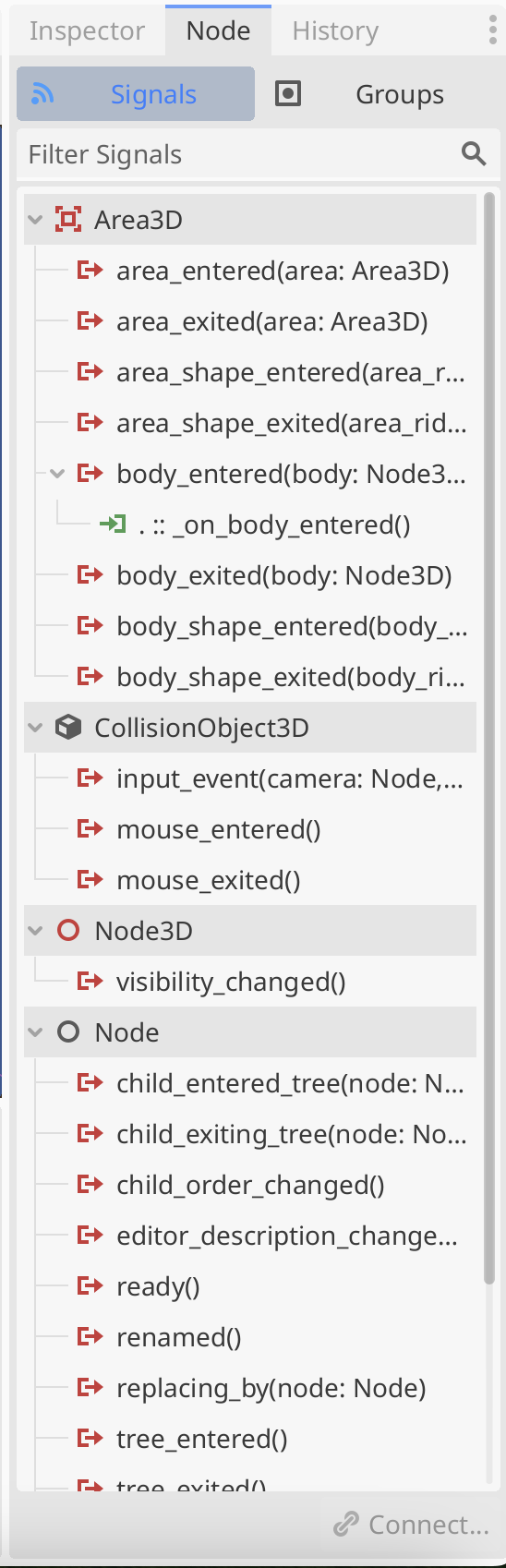
This shows the list of signals on this node available to connect to. We right clicked on body_entered() and connected it to the pickup script, creating a new function called _on_body_entered() in that script.

We just set the following code there to show that we’d detected something entering the area (as defined by the collider):

func _on_body_entered(body: Node3D) -> void:
	print(body.name + " entered the area")

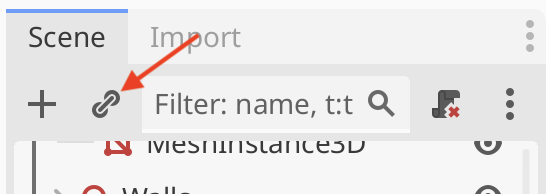
We created an instance of the pickup in our Main scene by using the “Instantiate Child Scene” button at the top of the scene view, and selecting the pickup scene:
We moved this pickup off centre and tested our code by playing it and rolling the player into the pickup. The message “Player entered the area” was printed to the Output window.

We updated this code by adding queue_free() at the end of the function:

func _on_body_entered(body: Node3D) -> void:
	print(body.name + " entered the area")
	queue_free()

This function means “please queue this node (and all it’s child nodes) for deletion at the end of this frame”. When we test again, we see that rolling the player into the pickup now makes the pickup disappear.

A Handy Way To Handle Events

In Godot connecting a node to another’s signal normally means that the first node has to have a reference to the second.

There’s a nice pattern that simplifies things. We make a central place that holds the signals, nodes that want to “emit” (or cause the signal to fire) and nodes that want to know when the signal was emitted just need to know about this central place, they don’t need to know about each other.

Godot has a system whereby a script can be set to autoload when the game starts, it doesn’t have to be connected to a node in a scene. Even more convenient, it will declare a global (visible everywhere) variable for this class instance that everyone can easily access.

This might sound complex, but it’s super easy in practice. We created a new script called events.gd. The contents were as follows:

extends Node

signal pickup_created
signal pickup_collected

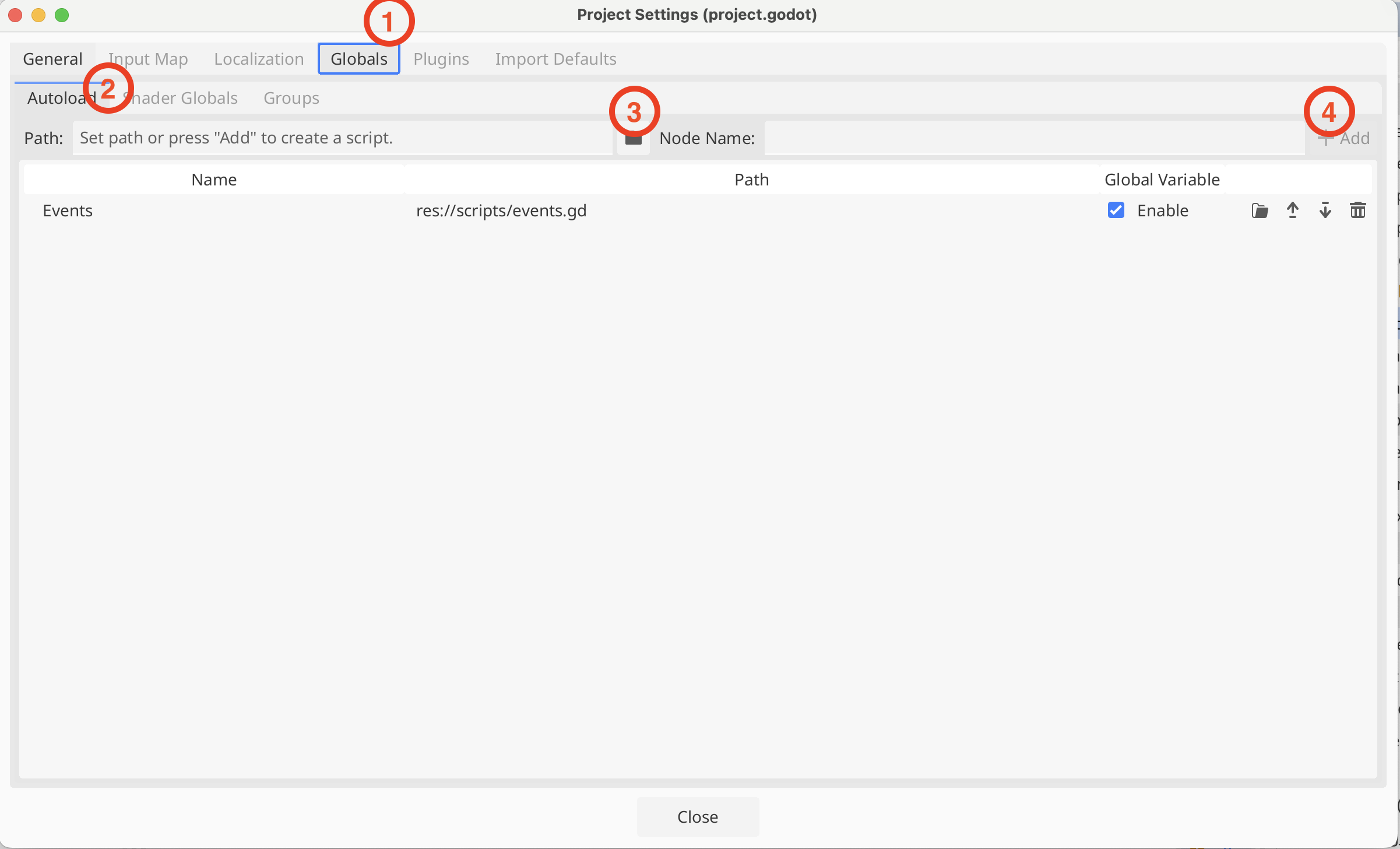
We then went to Project Settings | Globals and under Autoload, selected the events.gd script and pressed “+ Add”
Firing the Events from Pickup

In pickup.gd we added two lines to our _ready() and _on_body_entered() functions to cause the appropriate signals to be emitted when the pickup was created and collected respectively:

func _ready() -> void:
	Events.pickup_created.emit()

func _on_body_entered(body: Node3D) -> void:
	print(body.name + " entered the area")
	queue_free()
	Events.pickup_collected.emit()

See that we’re using the global variable “Events” here to access the signals.

We tested that we could read these signals by putting code into Player, but as this was just for quick testing, we won’t replicate it here.

Game Manager

We created a new Node3D in the Main scene, called it Game Manager, and created a new script attached to it.

In this script we added two variables to the top of the class:

extends Node3D

@export var pickup_count : int = 0
@export var game_time : float = 0

One is an integer variable to keep track of the number of pickups. The second is a float variable that tracks how long the game has been running for. Both have “@export” at the start, this means that they both appear as variables in the Inspector, which is handy.

For the pickup count, we first added two new functions, to respond to the creation and collection signals respectively:

func _on_pickup_created() -> void:
	pickup_count += 1
	
func _on_pickup_collected() -> void:
	pickup_count -= 1

All these to is increase or decrease the pickup_count variable. We need then to connect them to the signals, so that they get called if the signal is emitted. We do that in _ready():

func _ready() -> void:
	Events.pickup_created.connect(_on_pickup_created)
	Events.pickup_collected.connect(_on_pickup_collected)

For game_time, all we have to do is keep adding the delta values available in _process(), which represent the time in seconds since the last frame was drawn, together:

func _process(delta: float) -> void:
	game_time += delta

To see these running we ran our game and in the Scene view, switched to the “Remote” tree. The remote tree is the tree of the game that’s running. Looking at the Game Manager node in the inspector, we could verify the variables were working as expected.

Getting the Code

All our code for this year is be available on our GitHub.

Creators – Week 6

This week we looked to get started with Unity. To install Unity:

  1. Go to https://unity.com/download
  2. Download and install Unity Hub
  3. Create an account with Unity, if you don’t have one already
  4. Log into Unity Hub with your Unity account
  5. In the Installs section of Unity Hub, install the latest version of Unity 2021.3. At the time of writing, this is 2021.3.35f1
  6. Make sure you pick the option to install Visual Studio Community Edition (Windows) or Visual Studio for Mac (macOS) when installing Unity

We just barely started on our first script before the end of the session. We’ll expand on that next week.

Creators – Week 6

This week we started a new project, a top-down game where we’ll be feeding food to hungry animals who are rushing at us.

We had another asset bundle to download to get the assets we will be using for this project. It’s available on our Teams site.

Upon importing the asset bundle, we start with a basic scene which has three planes, two black ones flanking one with a grass texture. The asset bundle contains a total of four suitable textures for the ground and we had a look at those, and saw how to use them.

The asset pack also contains prefabs, these are pre-made combinations of Unity objects, ready to use. We had a look at some these prefabs by clicking once on them and viewing the preview at the bottom of the inspector. We also saw how double-clicking on them opens the prefab in the game view for editing and how using the back arrow at the upper-left returns us to the scene.

We brought in three animals, a human and a slice of pizza (scaled up by 3 or 4 to make it visible), laid out roughly as shown below:

Making the Player Move

We made a Scripts folder and added a new C# script called PlayerController.cs. At the top, we added two properties:

    public float horizontalInput;
    public float speed = 10.0f;

And Update() we changed to the following:

    void Update()
    {
        horizontalInput = Input.GetAxis("Horizontal");
        transform.Translate(Vector3.right * horizontalInput * Time.deltaTime * speed);
    }

Now, when testing, we see the player can go side-to-side, but it can also go completely off screen! How do we limit this? We do that by adding an if statement; this allows us to check if something is true, and then do something only when it is true.

First we added a new property to the top of the class:

    public float xRange = 10.0f;

This represents the range (between -10 and +10) that we want to confine the player’s position to.

In Update(), after the transform.Translate(), we add the following code:

       if (transform.position.x < -xRange)
        {
            transform.position = new Vector3(-xRange,  transform.position.y,  transform.position.z);
        }

What does this say? If the x part of the players position gets smaller than -xRange (-10) (meaning it goes too far to the left), then we change the player’s position so that the x part is exactly -xRange (-10).

When we test now, we’ll find that we can move as far right as we want, but when we move left, once the player’s x position gets to -10, we can’t move any further.

It’s easy now to add in the same check for the right-hand-side. We can copy-paste the last block of code and make a few small changes to the copy:

        if (transform.position.x > xRange)
        {
            transform.position = new Vector3(xRange, transform.position.y, transform.position.z);
        }

So, the less-than (<) changes to greater-than (>) and -xRange (-10) changes to xRange (+10) in two places.

Now the player is constricted in two directions.

Making a Moving Pizza Prefab

To make the pizza move we make a new C# script called MoveForward.cs and attach it to our pizza slice. In this script we have one property:

    public float speed = 40.0f;

And a single line in Update():

        transform.Translate(Vector3.forward * Time.deltaTime * speed); 

We make a new folder called Prefabs and then just drag our pizza slice from the Heirarchy into it. We now have a prefab of the moving pizza slice. We can delete the instance of the pizza slice in the scene; we’ll be spawning them automatically later.

And Finally…

We looked into spawning the prefab on a regular interval from the player’s position. That’s not part of the final game, but it was just to illustrate making an instance of a prefab from code.

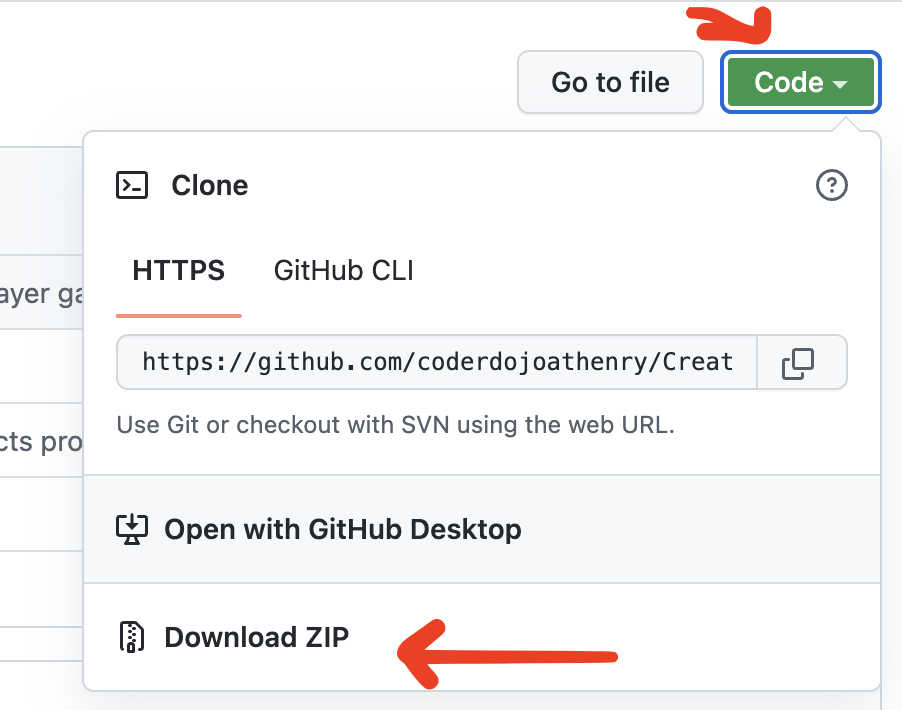
The code for this week’s project is on our GitHub, as always. There is also small additional project there called “ScriptableObjects for a Recipe System” which is demonstrating a way to define ingredients and recipes and was in response one if our ninja’s queries. To download our stuff from GitHub, you can just click on the green button and choose “Download ZIP”

Note that this ZIP file will contain all our projects for the year!

Explorers Week 5&6 – Pacman

For the last two weeks (with a break for a Red Weather Warning!) we worked on a Pacman type game. We tried to put in all the code we have learned over this year and all the games were brilliant and all so different.


We designed our own sprites rather than take them from the library.


Here are the notes in PDF CDA-S9-Week_05_Pacman.pdf

Here is a link to the game if you want to check it out. https://scratch.mit.edu/projects/375094277

See you two weeks time, keep yourselves safe and healthy.

Martha

Julie, Ruaidhrí, Iseult and Eoin

Explorers Week 6 – Guessing Game!

Hello Everyone,

Great to see you all on Saturday and welcome to our new members.

We made a slight departure from the games we have done in previous weeks. This weeks game was a mathematical Guessing Game.

DUCK

We only had one sprite and one large block of code. We had to create variables and figure out all the possible situations that could occur when a guess was made.

guess

Here are the notes in PDF form from our Week 6 Session. CDA-S7-Week_06-GuessNumbers.pdf

I have also uploaded the game to the Scratch Website in our Explorers Account so you can see the full working game.

Explorers – Week 6 – Halloween Scene

Hi everyone,

Hope you enjoyed this weeks session and remember we are off for the mid-term and so our next session is on the 11th of November.

To get ready for the spooky season we created a Halloween Scene, lots of scary sounds and switching of costumes to create the effect of movement.

I chose a Witch with a wolf howl but I saw lots of great ideas as I was going around the room. Some had Ghouls, others Vampires, its was all pretty scary.

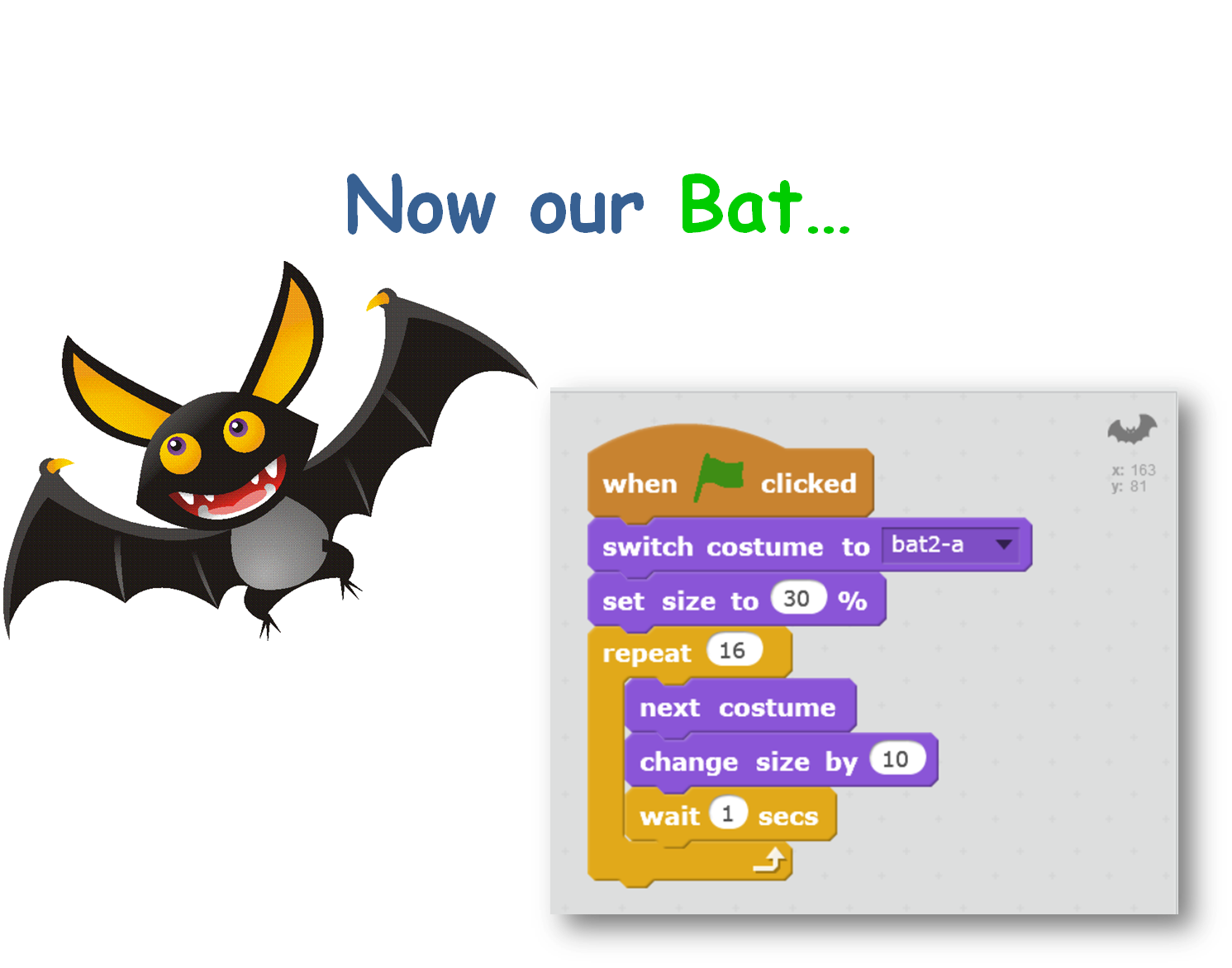
We also learnt a nice trick for giving the allusion of movement. We had a bat change both its size and Costume and it worked very well to give the effect of the bat flying towards us with the moon behind it.

Here are the notes in PDF from this weeks sessions CDA-S6-Week_06-Halloween

Also if you want the completed Scratch Code you can download it by going on to the Scratch.mit.edu website login to the CoderDojo Account (details are in the notes) and search for CDA_Martha_Week06.

Hope you have a great Halloween, be safe when you are out Trick or Treating but have lots of Fun!!


Explorers – Guessing Game

Hi everyone,

Good to see you back after the Halloween break.

Last Saturday we did a slightly different game to usual., There was no movement, no sensing when something happened. It was a Maths Game, a guessing game where the computer picks a random number and we had to guess the number.

GuessNumbers

We had to first make sure that a random number was picked using an Operator. Previously we have used a Variable to store a Score or Lives, but this time it was storing the random number and our guesses. Leaving them on screen as we were testing allowed us to understand more about the variable and what it does…it also made the testing a little easier.

Depending how any guesses we were given we repeated our code that number of times. As well as having to make decisions, i.e If_then, we also had to do a comparison before making the decision, to determine whether the guess was correct, too low or too high.

5guesess

Some of you tried to add a timer and below is the code you will need if you didn’t get it to work. Take a look and add it to your own game/games.

timer


Here is a link to last weeks notes. cda-s6-week_06-guessnumbers.pdf


See you next week!

Martha


Beginners scratch week 6 – Pen Commands

Since we had a terrific guest speaker today, there wasn’t enough time to rework our paddle ball game to the famous breakout game, so I picked out the quick (but really neat) drawing game! The .pdf of the slides can be found here:CDA-S5-Challenge_08-Pen Command-CDA-S5-Pen Commands CDA-S5-Pen Commands-code

In order to make it easier to change the values that control the angles of the drawing and the length of the sides, we created variables that we could change via sliders on the STAGE (right click on the variable on the stage after you create it and a menu pops up giving you some options, including a slider option). CDA-S5-Pen Commands-slider variablesReplace the handwritten numbers in the TURN and the MOVE motion commands with the variables for speed and degrees. When you touch the green flag and start the movement of your sprite, you can slide the sliders to get the perfect (or craziest) drawing! Duplicate your sprite and get several sprites drawing at once.

One extra bit that we didn’t get to is to use buttons to start and stop our drawing. Create two new button sprites and script them to send a broadcast when clicked. CDA-S5-Pen Commands-buttons

Just edit the script in the drawing sprite by putting the WHEN I RECEIVE event command at the top of the drawing script and select the START broadcast. Add another bit to the drawing sprite to STOP ALL when it receives the STOP broadcast from the Stop button.


Next week we will do the breakout game and we will plan the animation project for the following week.

Don’t forget to upload your projects to the website: scratch.mit.edu! Put it on your own login and share it or put it on ours: cdathenry1516.

All the best,

Julie