ModderDojo Java Modding 12: Creating our First Block

2014-03-29_09.42.51

Getting Started

IMPORTANT: For this block mod code to work, you need at least release 1024 of Forge 1.7.2. It will not work with releases 999 that we downloaded before. (Explanation: Forge works by decompiling the Minecraft code, which gives fields and methods automatic names like func_149739_a(). The Forge people have to translate these into meaningful names, like getUnlocalizedName(). They had not done this for the Material fields in earlier releases.)

You can download the source here: http://files.minecraftforge.net/maven/net/minecraftforge/forge/1.7.2-10.12.0.1024/forge-1.7.2-10.12.0.1024-src.zip

You will need to unzip it and run the two gradlew commands – see Post 2.

Thanks to Eli and Ailish who between them were the first to get this working.

Files Needed

Very similarly to creating an Item mod (see Post 8) you need at least 4 things to create a new Block mod:

  1. A new block class that extends the standard Block class
  2. A mod class where you add it to the game registry (you can just add some lines to one you have already)
  3. A language file where you specify its name
  4. A texture file to control its appearance

I am keeping this code in the same package I already used for our item mod, modderdojo.firstitem.

NeededForBlockMod

The Block Class

Create a Java file in this package called MyFirstBlock with this code:

// Michael Madden March 2014.
// Ref: http://www.minecraftforge.net/wiki/Basic_Items
// Thanks to Ailish and Eli in CoderDojo Athenry who figured this out originally. 

package modderdojo.firstitem;

import net.minecraft.block.Block;
import net.minecraft.block.material.Material;
import net.minecraft.creativetab.CreativeTabs;

public class MyFirstBlock extends Block
{
 public MyFirstBlock()
 {
 // This is the constructor for our new item. Set basic properties in it.
 super(Material.iron); // Copy the properties of iron

 setCreativeTab(CreativeTabs.tabBlock);
 setBlockName("MichaelFirstBlock"); // This is the internal name, not display name
 }
}


Adding It to the Registry

Add this code to the preInit method in your main mod class (in my case called MyFirstMod):

 // Register my block and set its texture
 MyFirstBlock b = new MyFirstBlock();
 b.setBlockTextureName("modderdojo:mmblock"); // requires .png file with this name
 GameRegistry.registerBlock(b, "MichaelFirstBlock");

Appearance

For this step, you need to create a texture that will be used on all sides of the block.

Using a graphics package such as Paint.NET, create an image of size 32 x 32 (other sizes that are powers of 2 are also OK). Save it in PNG format.

In the src/main/resources folder, create a new package called assets.modderdojo.textures.blocks (just like the one you did for your first item, but with blocks instead of items in its name). Put the PNG file in it. In my case, the file is called mmblock.png.

In your main mod class preInit method, add/update this line:

b.setBlockTextureName("modderdojo:mmblock");

The name you set is based on where you put it “assets.modderdojo.textures.blocks” followed by a colon “:” followed by the name of the PNG file put without “.png”: mmblock.png.

Name

If you run your code now (and it’s a good idea to keep running after every step, to test what you have done), you will see that your block has the name tile.MichaelFirstBlock.name. To give it a better name, add a line to the language file, en_US.lang:

tile.MichaelFirstBlock.name=Michael's First Block Display Name


ModderDojo Java Modding 11: Packaging our First Mod

DarthWithMod

This post is based on these instructions:
http://www.wuppy29.com/minecraft/modding-tutorials/wuppys-minecraft-forge-modding-tutorials-for-1-7-releasing-your-mod-standard-setup/
The main steps are:

  1. Edit build.gradle and change the group and archiveBaseName entries
  2. Run gradlew build
  3. In the folder build – lib, you will find your Jar file: you can post this on a website for other people to use.

To install Forge if you don’t already have it installed:

  1. Download it here: http://www.minecraftforge.net/forum/index.php?action=files
  2. Look for 1.7.2-Recommended and then click on Installer-Win
  3. Select “Client install”
    1. You will end up with a new Minecraft profile called Forge
    2. Select this to run Minecraft with Forge

To install your new mod (or any Forge mod):

  1. Open Windows Explorer and enter %appdata% as the location
  2. Open the .minecraft folder and then the lib folder
  3. Copy your new mod Jar file into lib

Next time you run Minecraft with the Forge profile, you will see your mod.


Previous post: ModderDojo Java Modding 10: A Recipe for Our New Item.

ModderDojo Java Modding 10: A Recipe for Our New Item

To have something useful we can do with our item, let’s add a recipe to turn two of our coins into a diamond. (You could probably do something better, like shapeless recipes to turn 10 coins into a diamond or a diamond into 10 coins.)

Here is the full class including the parts we added earlier:


package modderdojo.firstitem;

import net.minecraft.init.Blocks;
import net.minecraft.init.Items;
import net.minecraft.item.Item;
import net.minecraft.item.ItemStack;
import cpw.mods.fml.common.Mod;
import cpw.mods.fml.common.Mod.EventHandler;
import cpw.mods.fml.common.event.FMLPreInitializationEvent;
import cpw.mods.fml.common.registry.GameRegistry;

@Mod(modid = "firstitem", name = "First Item Mod from ModderDojo by Michael", version = "1.0")
public class MyFirstMod
{
   @EventHandler
   public void preInit(FMLPreInitializationEvent event)
   {
      MyFirstItem first = new MyFirstItem();
      first.setTextureName("modderdojo:md2");
      GameRegistry.registerItem(first, "MichaelFirstItem"); // This name doesn't have to be same as unlocalised name, but no harm in them being the same

      // Recipe to turn 2 of our items into diamond
      ItemStack myStack = new ItemStack(first);
      ItemStack diamond = new ItemStack(Items.diamond);
      GameRegistry.addRecipe(diamond,
         "x ",
         " x",
         'x', first);
   }
}

Note that for built-in items like a diamond, you can write Items.diamond to get a diamond object to use in your  recipe code. Since our item is not built-in, we have to create an item object. We already have one called first in the preInit code, so we use that in our addRecipe code.

ModderDojo Java Modding 9: Giving our Item a Display Name and Texture

First, let’s add a language resource so that we can give it a name that looks reasonable.

To do this, in the folder src/main/resources add a new package. I called it assets.modderdojo.lang: you can change “modderdojo” but the other parts have to stay the same.

In the package, add a new file called “en_US.lang” which indicates that it is for Minecraft when the language is set to English – US. The file has one line which tells us what English name to use for the item with the unlocalised name MichaelFirstItem:


item.MichaelFirstItem.name=Michael's ModderDojo Coin


Now let’s add a texture.

Using a painting package (for example Microsoft Paint or Paint.NET), create 16×16 pattern. Give it a transparent background. Then save it in PNG format.

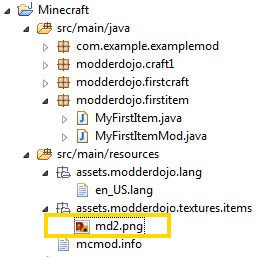
In the src/main/resources folder, create a new package called assets.modderdojo.textures.items (you can change modderdojo to something else, but the rest has to stay the same). Put the PNG file in it. In my case, the file is called md2.png:
addpng


In your mod class preInit method, add one more line:


first.setTextureName("modderdojo:md2");

The name you set is based on where you put it “assets.modderdojo.textures.items” followed by a colon “:” followed by the name of the PNG file put without “.png”: md2.png.

Now when you run the code, your mod should have its correct name and appearance.

ModderDojo Java Modding 8: A Simple Item Mod

2014-02-15_08.36.11

Note: my main sources of information for this post were the following, though I had to update them quite a bit:

You need at least three things to create a new Item:

  1. A new item class that extends the standard Item class
  2. A mod class where you add it to the game registry
  3. A language file where you specify its name.

modfiles

Later we will add a texture. Until then, its appearance will be a pink and black chequer pattern.

In the src/main/minecraft folder, create a new package. I called it modderdojo.firstitem.

In this package, create a new class. I called it MyFirstItem. Replace the automatically generated code with the code below:

package modderdojo.firstitem;
import net.minecraft.creativetab.CreativeTabs;
import net.minecraft.item.Item;
public class MyFirstItem extends Item
{
   public MyFirstItem()
   {
      // This is the constructor for our new item. Set basic properties in it.
      setMaxStackSize(64);
      setCreativeTab(CreativeTabs.tabTransport);
      setUnlocalizedName("MichaelFirstItem");
   }
}

The code above does the following:

  • It defines a new Java class  for your new type of item: extends Item means that it is based on the standard Item type, and you will then modify it. Note that you could extend another kind of item, such as Diamond.
  • In its constructor (a special method with the same name as the class, which is called whenever you create an item, it sets basic properties: the max stack size, which tab it will be on, and an unlocalized name (a name that will be used internally in Minecraft).
  • Note: normally the unlocalised name does not have any spaces.

Now create a second class that initialises the mod that will include this item:

package modderdojo.firstitem;

import net.minecraft.init.Blocks;
import net.minecraft.init.Items;
import net.minecraft.item.Item;
import net.minecraft.item.ItemStack;
import cpw.mods.fml.common.Mod;
import cpw.mods.fml.common.Mod.EventHandler;
import cpw.mods.fml.common.event.FMLPreInitializationEvent;
import cpw.mods.fml.common.registry.GameRegistry;

@Mod(modid = "firstitem", name = "First Item Mod from ModderDojo by Michael", version = "1.0")
public class MyFirstMod
{
   @EventHandler
   public void preInit(FMLPreInitializationEvent event)
   {
      MyFirstItem first = new MyFirstItem();
      GameRegistry.registerItem(first, "MichaelFirstItem"); // This name doesn't have to be same as unlocalised name, but no harm in them being the same
   }
}

The code above creates a basic mod, like we did earlier. The main difference is in the preInit method, where we create an object of our MyFirstItem class. We call the object first. We use this object to add the item to the game registry, again giving it a name that will be used internally.

You can run your code now, and the mod should appear, displaying its unlocalised name and with the default texture. Next we will see how to change them.

ModderDojo Java Modding 7: Adding Smelting

This is even easier than a recipe. The code can be added to init or preInit. (Note: In Forge 1.7, they recommend using putting recipes in preInit rather than init.)

You specify an input, an output and experience. The input and output are both an ItemStack with either a single item or you can specify how many items, as in recipes. Experience is a number between 0 and 1. In Java, we use a float (short floating-point number) to represent most decimal numbers, so 0.1f means a float with value 0.1.

(Thanks to Luke for this code.)

smelt

ModderDojo Java Modding 6: Creating Our First Mod – Adding A Crafting Recipe

Previous post: ModderDojo Java Modding 5: Creating Our First Mod – The Basic Code

Note: the instructions at this link are good but things have changed a bit for Forge 1.7: http://www.minecraftforge.net/wiki/Crafting_and_Smelting

Different types of mods require different types of code. One of the easiest type of mod to add is a crafting recipe. We will write one to turn some dirt into diamonds.

craftdiamonds

The code for this goes into the init function:

recipecode

What this does:

  • Create a new ItemStack called dirtStack with a single dirt block
  • Create a new ItemStack called diamonds10 with 10 diamond blocks
  • Add a new recipe to the game that will produce this stack of 10 diamonds, when you lay out the dirt in the shape specified: x in the shape is where the dirt blocks have to go.

We can also have shapeless recipes (where it doesn’t matter where you put blocks), which are even simpler to write:

GameRegistry.addShapelessRecipe(
new ItemStack(Items.diamond, 6), new ItemStack(Blocks.dirt));

This second one creates a stack of 6 diamonds from a single block of dirt.

Previous post: ModderDojo Java Modding 5: Creating Our First Mod – The Basic Code
This concludes this series of posts on getting started with Java Modding, from ModderDojo Athenry.


ModderDojo Java Modding 5: Creating Our First Mod – The Basic Code

Previous post: ModderDojo Java Modding 4: Creating Our First Mod – Getting Started
Next post: ModderDojo Java Modding 6: Creating Our First Mod – Adding A Crafting Recipe

There is an example mod that does nothing in src/main/java, in the package com.example.examplemod. We will make a new one based on this.

Start by making a new package in the same folder, where we will put our own code. Click on src/main/java, then from the menu select File – New – Package, and pick a package name:

forgepackage

Now create a class in it: File – New – Class and give it a name. There is no need to select the “public static void main” option; we will be replacing all the code.

forgeclass

From in ExampleMod.java, copy all of the code, then delete all of the code in your own class and paste in the code from ExampleMod. Now make some changes:

  • On the top line, change the package statement: it has to correspond to the package you created your class in. Eclipse will flag the error with a red line and its quick fix will allow you to change the package.
  • On the line public class ExampleMod, change ExampleMod to the name of your class. In Java, the file name and class name have to be identical.
  • Check that the @Mod statement refers to your class, not ExampleMod. Note: statements beginning with @ in Java are called annotations.
  • In the body of your class, change the values of the variables MODID and VERSION.
  • If you like, change the System.out.println line to print a new message to the console window, e.g. “Craft1 mod initialised.” Lots of messages are displayed in the console window when Minecraft runs; you should see your message near the end.

Now run Minecraft and see if your mod exists. The name should be there and your hello message on the console, but it doesn’t do anything because we haven’t added code for anything useful.

Previous post: ModderDojo Java Modding 4: Creating Our First Mod – Getting Started
Next post: ModderDojo Java Modding 6: Creating Our First Mod – Adding A Crafting Recipe

ModderDojo Java Modding 4: Creating Our First Mod – Getting Started

Previous post: ModderDojo Java Modding 3: Getting Started With Eclipse
Next post: ModderDojo Java Modding 5: Creating Our First Mod – The Basic Code

Start up Eclipse and select the workspace that Forge created, in the Eclipse folder under Forge:

forgeworkspace

Note: if the workspace is empty, make sure that you ran the command gradlew eclipse and that you selected the correct folder.

Press the green Run icon: you should see messages in the Eclipse console window and Minecraft will launch and will initially have 4 mods.

Previous post: ModderDojo Java Modding 3: Getting Started With Eclipse
Next post: ModderDojo Java Modding 5: Creating Our First Mod – The Basic Code

ModderDojo Java Modding 3: Getting Started With Eclipse

Previous post: ModderDojo Java Modding 2: Setting Up Your Development Environment
Next post: ModderDojo Java Modding 4: Creating Our First Mod – Getting Started

While waiting for Forge to install, let’s try out Eclipse.

If this is your first time running it, you will be prompted to create a workspace: the default location is fine

The first time, a Welcome screen appears, which you can X to close.

Java code belongs in classes, classes are organised in projects, and projects are in a workspace. In Eclipse, you can only have one workspace open at a time, but it can have multiple projects in it and each one can have multiple classes.

Create a new Java project: File – New – Project… then expand Java and select Java Project

newproj

Enter a project name, e.g. Test:

newproj2

If you are asked to switch to the Java Perspective, say yes.

To create a first program class file, select File – New – Class

Give the class a name (no spaces allowed), and tick the box at “public static void main”, as this will create some initial code for you:

newclass

You now have a starting piece of code:

test1java

Under the “TODO” comment (which you can delete or replace with a comment of your own), write a line of code to put up a message box:
JOptionPane.showMessageDialog(null, “Hello world”);

A red line will appear at JOptionPane, as it is not recognised; hover over it and select the fix “import JOptionPane”, which will add an extra line at the  top.

Alternatively (or as well), you could print a line to the system output, which goes the console window – that’s the one at the bottom of the screen in Eclipse:
System.out.println(“Hi there”);

testjava2

Press the Save icon and then the green Run icon to run your first program:

hellodlg

Previous post: ModderDojo Java Modding 2: Setting Up Your Development Environment
Next post: ModderDojo Java Modding 4: Creating Our First Mod – Getting Started