This week we added some pickups to our game, some signals (Godot’s term for messages or events) to indicate their creation or collection, and a game manager to keep track of everything.

Pickups
To create our pickups we created a new scene with an Area3D as the root node. An Area3D, in conjunction with a CollisionShape3D, allows us to define an area where bodies entering and exiting this area can be detected.
We paired this Area3D with a cylinder CollisionShape3D and a cylinder MeshInstance3D, both about the same height as our player ball.
We created a new StandardMaterial3D resource for our pickup and used the checker texture again, this time scaled to appear multiple times on the object, to give it some visual interest.
Signals
Signals are Godot’s way for nodes to tell other nodes when something’s happened. There are many built-in signals in the existing nodes and you can easily define others yourself.
To demonstrate, we created a new script attached to the root node of the pickup scene, and with this same node selected, we then went to the tab underneath the Inspector tab, a tab called Node.
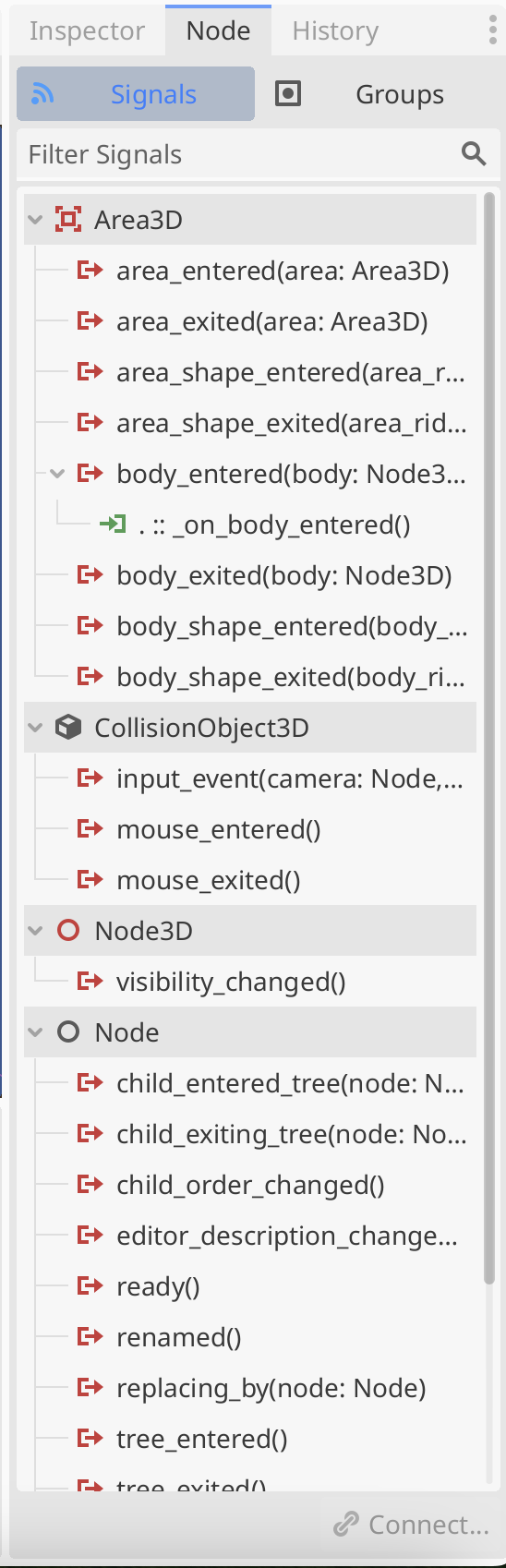
This shows the list of signals on this node available to connect to. We right clicked on body_entered() and connected it to the pickup script, creating a new function called _on_body_entered() in that script.
We just set the following code there to show that we’d detected something entering the area (as defined by the collider):
func _on_body_entered(body: Node3D) -> void:
	print(body.name + " entered the area")
We created an instance of the pickup in our Main scene by using the “Instantiate Child Scene” button at the top of the scene view, and selecting the pickup scene:
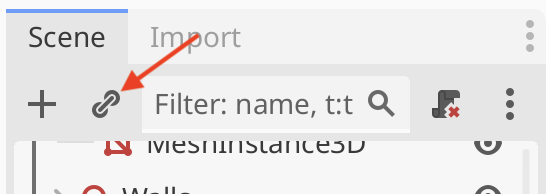
We moved this pickup off centre and tested our code by playing it and rolling the player into the pickup. The message “Player entered the area” was printed to the Output window.
We updated this code by adding queue_free() at the end of the function:
func _on_body_entered(body: Node3D) -> void:
	print(body.name + " entered the area")
	queue_free()
This function means “please queue this node (and all it’s child nodes) for deletion at the end of this frame”. When we test again, we see that rolling the player into the pickup now makes the pickup disappear.
A Handy Way To Handle Events
In Godot connecting a node to another’s signal normally means that the first node has to have a reference to the second.
There’s a nice pattern that simplifies things. We make a central place that holds the signals, nodes that want to “emit” (or cause the signal to fire) and nodes that want to know when the signal was emitted just need to know about this central place, they don’t need to know about each other.
Godot has a system whereby a script can be set to autoload when the game starts, it doesn’t have to be connected to a node in a scene. Even more convenient, it will declare a global (visible everywhere) variable for this class instance that everyone can easily access.
This might sound complex, but it’s super easy in practice. We created a new script called events.gd. The contents were as follows:
extends Node

signal pickup_created
signal pickup_collected
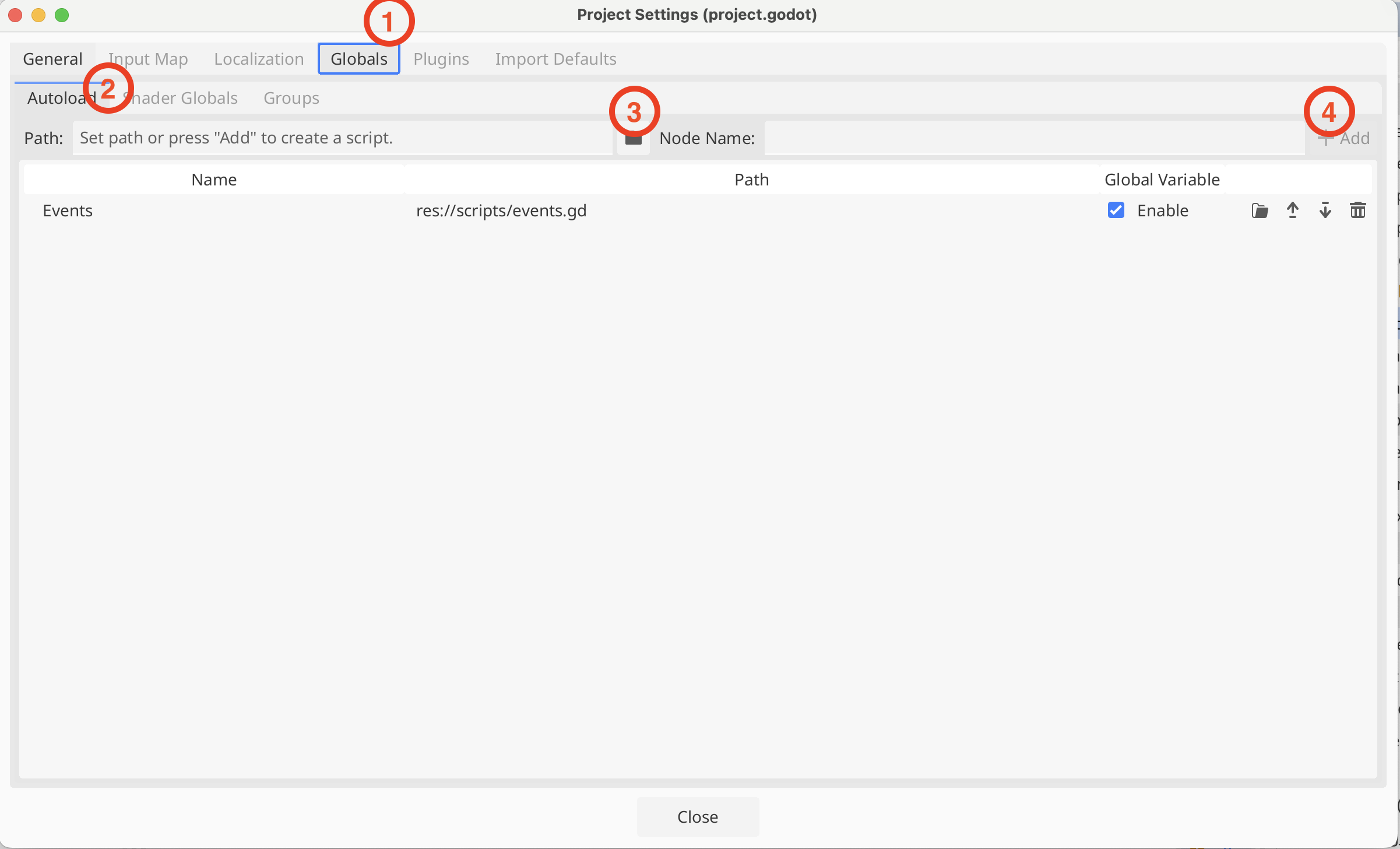
We then went to Project Settings | Globals and under Autoload, selected the events.gd script and pressed “+ Add”
Firing the Events from Pickup
In pickup.gd we added two lines to our _ready() and _on_body_entered() functions to cause the appropriate signals to be emitted when the pickup was created and collected respectively:
func _ready() -> void:
	Events.pickup_created.emit()

func _on_body_entered(body: Node3D) -> void:
	print(body.name + " entered the area")
	queue_free()
	Events.pickup_collected.emit()
See that we’re using the global variable “Events” here to access the signals.
We tested that we could read these signals by putting code into Player, but as this was just for quick testing, we won’t replicate it here.
Game Manager
We created a new Node3D in the Main scene, called it Game Manager, and created a new script attached to it.
In this script we added two variables to the top of the class:
extends Node3D

@export var pickup_count : int = 0
@export var game_time : float = 0
One is an integer variable to keep track of the number of pickups. The second is a float variable that tracks how long the game has been running for. Both have “@export” at the start, this means that they both appear as variables in the Inspector, which is handy.
For the pickup count, we first added two new functions, to respond to the creation and collection signals respectively:
func _on_pickup_created() -> void:
	pickup_count += 1

func _on_pickup_collected() -> void:
	pickup_count -= 1
All these to is increase or decrease the pickup_count variable. We need then to connect them to the signals, so that they get called if the signal is emitted. We do that in _ready():
func _ready() -> void:
	Events.pickup_created.connect(_on_pickup_created)
	Events.pickup_collected.connect(_on_pickup_collected)
For game_time, all we have to do is keep adding the delta values available in _process(), which represent the time in seconds since the last frame was drawn, together:
func _process(delta: float) -> void:
	game_time += delta
To see these running we ran our game and in the Scene view, switched to the “Remote” tree. The remote tree is the tree of the game that’s running. Looking at the Game Manager node in the inspector, we could verify the variables were working as expected.
Getting the Code
All our code for this year is be available on our GitHub.
 CoderDojo Athenry