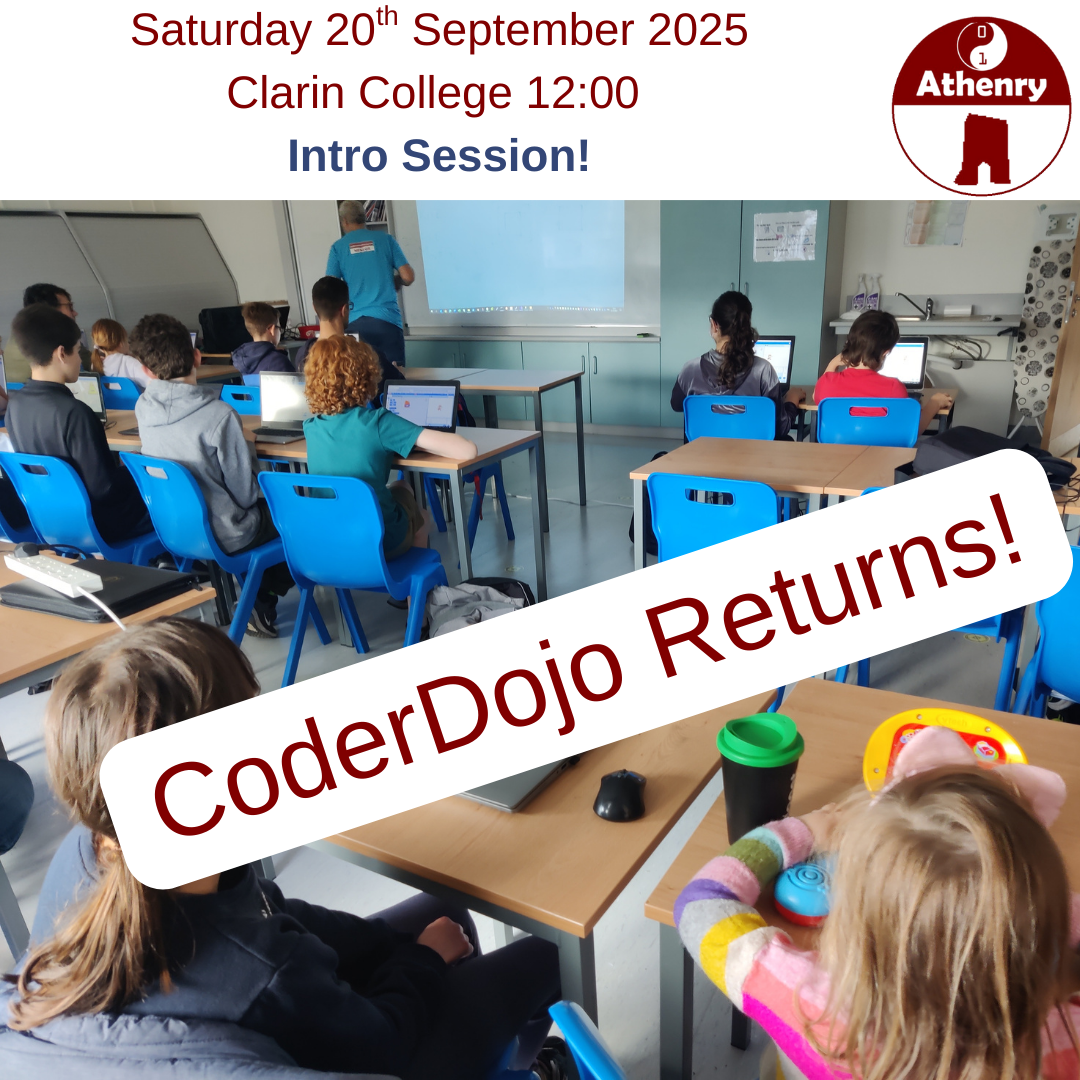
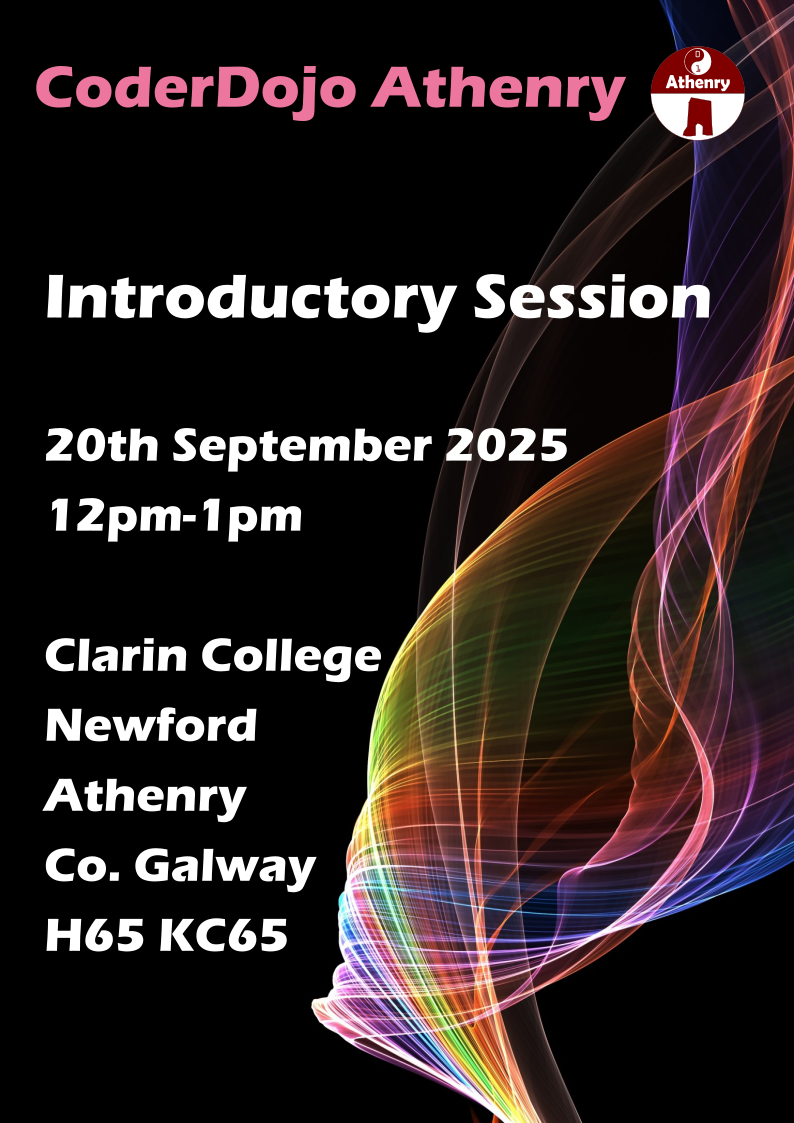
We’re kicking off the 2025-2026 year with an introductory session on Saturday 20th Sept 2025 at 12pm in Clarin College, Athenry.
Come along if this is your first time attending CoderDojo Athenry, if you’re wondering which group to join, or you just have some questions. Those who have been at CoderDojo Athenry before need not attend.
We will resume with our first normal session from 12pm-2pm on Saturday 27th 2025, again at Clarin College. Our full schedule can be found here.
Moved our enemy’s root node from Area2D to AnimatableBody2D
Wrote a new enemy script, enemy.gd, for the enemy, based on mover.gd
Improved the code in enemy.gd so that it now works as a physics object
Created a set of collision layers for the game
Wrote new code for the body-on-body contact
Added sound for when we shoot
Moving Enemy from Area2D to AnimatableBody2D
It was necessary to move the enemy from an Area2D based node to a physics body of some sort. AnimatableBody2D is intended for physics bodies that are moved with animation or code.
To change the type of the Enemy node, we right-clicked on it and choose “Change Type”. We then searched for AnimatableBody2D.
Moving code from Mover.gd to Enemy.gd
We added new script directly to the Enemy’s root node, called Enemy.gd. We copied all the code from Mover.gd with the exception of the line “extends Area2D” at the very top and pasted it into Enemy,gd overwriting everything except the very first line, “extends AnimatableBody2D”.
We copied the variables from Mover in the inspector, and assigned the same values to the variables in Enemy.
Testing we found that this worked a bit, bit there was weird effects. It was moving the player too, for example. We recalled that Mover.gd was designed to move the parent of the node it was attached to. For Enemy, that is the scene root, and not what we want. We removed the variable storing the parent and all reference to it, setting our own position instead,
Additionally, we noted that the node called Mover, with a Mover.gd script attached, was still part of the Enemy node tree. It would also be moving our enemy, which we didn’t want. We deleted this node from the tree.
Now when we tested, we found that the the enemy was more-or-less behaving as before, excepting that it was wiggling about. Disabling “Sync to Physics” in the inspector resolved that.
Improving the Code so that Enemy Behaves as a Physics Object
Since AnimatableBody2D is a physics object, we could improve how we were moving it.
With physics objects, we don’t normally set the position explicitly, we set a suggested position, or a suggested velocity and let the physics engine then influence the actual outcome.
To move towards that change, we added a new function _physics_process() and moved the last line of _process() into it, changing position (explicit) to global_position (suggested). We also changed position to global_position in the bounds checking code. The last line in _physics_process() is a call to move_and_collide() which is passing control to the physics engine, once we’ve made our suggestion on position:
What we then noted, was that the AnimatableBody2D respects collisions with other physics bodies, so the bounds checking that we had previously in Mover.gd was no longer necessary to prevent the enemy moving out of bounds, so we removed exported variable bounds and the function check_pos_for_bounds().
Even though the Enemy was constrained to stay within the play area by the walls around the edge, there was no way yet for it to automatically reverse direction on hitting a wall (or other physics body). We added the following code to _process_physics() to achieve this:
func _physics_process(delta: float) -> void:
	global_position += direction.normalized() * speed * delta
	var collision = move_and_collide(direction)
	if (collision):
		var collision_pos = collision.get_position()

		if (direction.x < 0 && collision_pos.x < global_position.x):
			direction.x = 1
		if (direction.x > 0 && collision_pos.x > global_position.x):
			direction.x = -1

		if (direction.y < 0 && collision_pos.y < global_position.y):
			direction.y = 1
		if (direction.y > 0 && collision_pos.y > global_position.y):
			direction.y = -1
Creating Collision Layers
Objects that can collide with other objects have layers and layer masks:
Layers: These are the layers that an object itself is in
Mask: These are the layers that containing other objects that this object will collide with
Imagine these scenarios:
Player is in layer 1. Wall is in layer 1. The player’s layer mask is set to 1. The player cannot pass through the wall.
Player is in layer 1. Wall is in layer 2. The player’s layer mask is set to 1. The player pass through the wall.
Player is in layer 1. Wall is in layer 2. The player’s layer mask is set to 2. The player cannot pass through the wall.
We established these layer:
Player
Boundaries
Things that can destroy the player (obstacles, bombs, etc.)
Enemies
Player projectiles
Pickups
We moved our player, enemy and boundary walls into their appropriate layers and set their layer masks. The player (ship) is in layer 1 and it’s mask is set to 2, 3, 4.
New Code for Body-on-Body Contact
In ship.gd we could now add code to detect body-on-body contact:
func _physics_process(delta: float) -> void:
	var mouse_pos : Vector2 = get_viewport().get_mouse_position()
	var ship_to_mouse : Vector2 = mouse_pos - position
	var distance : float = ship_to_mouse.length()

	if (distance > DEADZONE):
		velocity = ship_to_mouse * speed_by_distance
	else:
		velocity = Vector2.ZERO

	move_and_slide()

	for i in get_slide_collision_count():
		var collision = get_slide_collision(i)
		var collision_obj = collision.get_collider() as CollisionObject2D
		if (collision_obj && \
			collision_obj.get_collision_layer_value(2) == false):
			%GameManager.inform_body_entered(self)
After move_and_slide() above, we can check for collisions. We need to take any collisions that are not with objects in layer 2 (the boundary layer) and inform the name manager that we’ve hit something we shouldn’t.
Adding Sound when we Shoot
We went to freesound.org to look for suitable sound effects for our Ship when it shoots. Note that the site requires an account before it allows downloading.
We then added a new AudioStreamPlayer2D under Ship and called it ShootSound. Dragging it into the top of the Ship.gd script and pressing CTRL before releasing the mouse button provided this reference:
@onready var shoot_sound: AudioStreamPlayer2D = $ShootSound
In _process() after we’ve created the missile, we just have to insert this line to get the sound to play:
shoot_sound.play()
Getting the Code
All our code for this year is available on our GitHub.
This week we started our first Godot game. We downloaded the engine from the Godot website: https://www.godotengine.org
To install Godot on Windows, you just need to download the ZIP file and extract the two files inside to a folder on your computer. Double-click on the larger of the two to open Godot. Once run, you can pin the program icon to the taskbar to easily run it again.
Godot opens with the Project List. Here we see projects we’ve already created and can create new ones. We made a new project called “Roll a Ball”.
We found some machines had trouble with opening the project if the rendering mode was set to “Forward+”. For those people we found switching it to “Compatibility” fixed that issue. It seems that the underlying issue here is support for the Vulkan graphics API in the “Forward+” rendered. Switching back to “Compatability” uses the OpenGL API instead, which is more widely supported. Vulkan is intended as the successor to OpenGL.
Godot Scenes, Nodes and Resources
Scenes
The key building blocks of Godot are Nodes. Scenes are nothing more than a collection of nodes.
Each scene has a single node at the very top of the list. It can have nodes below it that are known as its children. Each of those child nodes can themselves have children. We call this structure a “tree” because of how it branches from a “root” – notwithstanding that the tree is upside down with the root at the top!
Nodes
There are lots of different types of Nodes and they all have specialised jobs to do. Most nodes “extend” other simpler node types, meaning that they do everything that the simpler node does, plus a bit more. For examples, the XRCamera3D, which is a camera used for VR and AR development looks like this:
Node -> Node3D -> Camera3D -> XRCamera3D
So an XRCamera3D is a specialised version of a Camera3D, which is a specialised version of a Node3D which is a specialised version of a Node.
Later, when we’re writing our own scripts, we’ll also effectively be extending existing nodes and adding our functionality on top of their existing functionality.
Resources
Resources are not nodes, but they are used by nodes. They provide extra information that Nodes need. Examples are meshes (3D shapes) and materials (which define the finish of 3D shapes).
Resources can often be created directly attached to the Node that needs them, but they can also be created as a file within the project. Having them as a file is good when you want to share the resource with several nodes and quickly find it later to edit it.
Godot Editor Layout
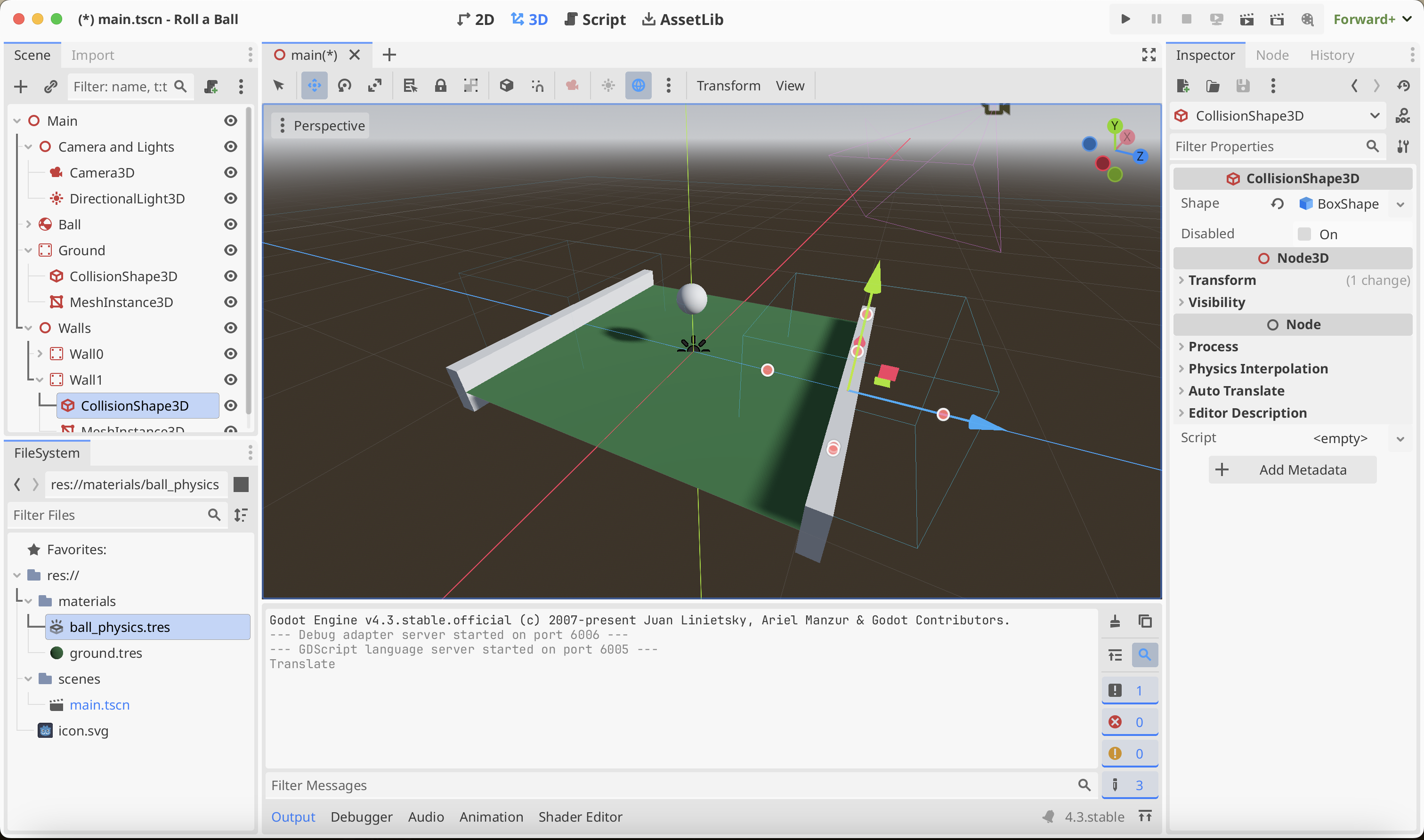
Unlike some other game engines, Godot has a fairly fixed layout. With reference to the image above, we will take a look at the most important parts.
The upper left is the Scene view, this is where we see the tree of nodes in the current scene.
Below the Scene view is the File System view. This shows the files in the current project. We can easily create folders here, rename and reorganise things. We can also create resources.
In the upper centre of the program is the main editor area. Using the buttons above it, it can be switched between 2D, 3D Script and Asset Lib views.
On the right hand side is the Inspector. This shows all the properties of the currently selected node or resource and allows us to edit them.
Building our Scene
We created a scene with a plane and a ball, both as physics objects. We dropped the ball and watched it bounce on the plane.
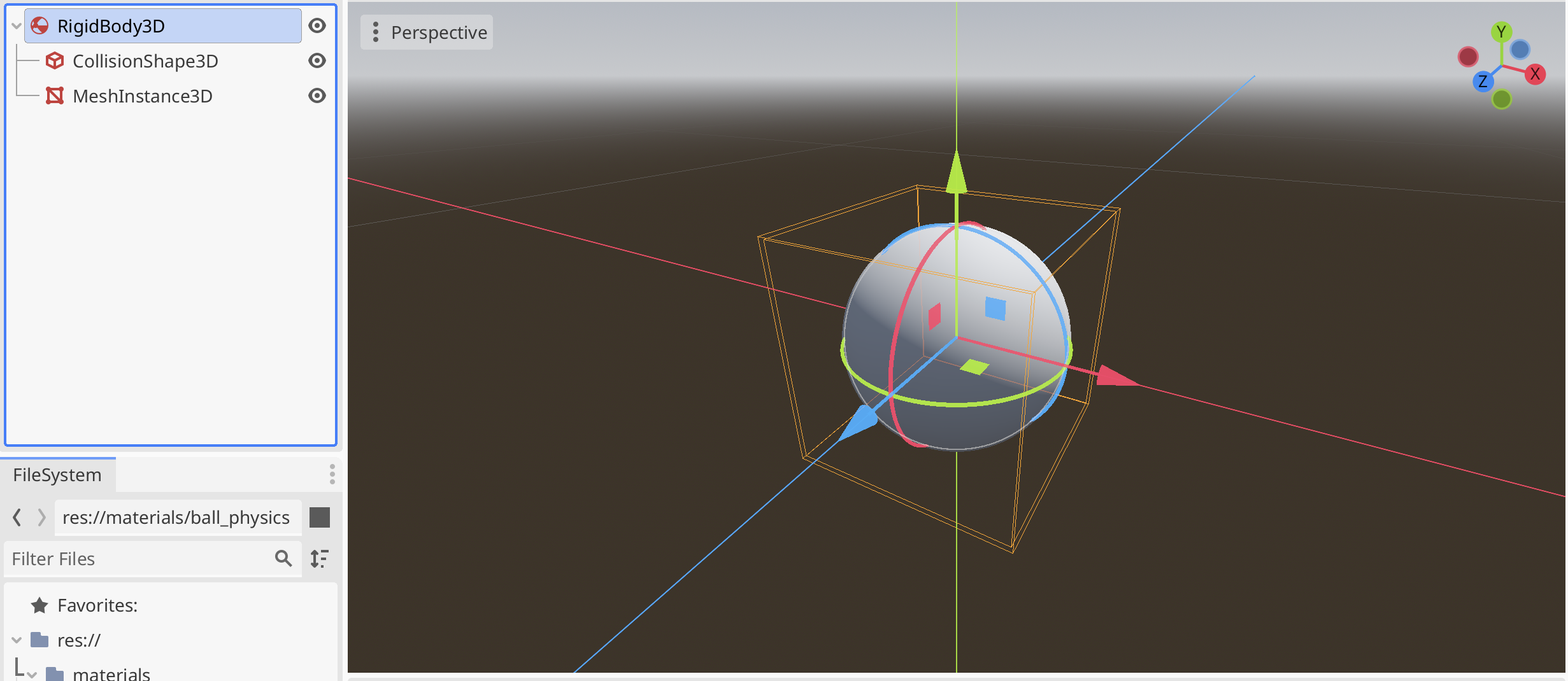
Both objects were build similarly, but the root node in each was slightly different. Let’s look at the ball first:
A RigidBody3D is a node that the physics engine will take care of moving. On it’s own, however, it can’t do anything. It needs to know what shape it’s simulating. As humans we also need to be able to see it. We accomplish this with two child nodes, The CollisionShape3D (containing a SphereShape2D resource) defines the shape, from a collision viewpoint, so the RigidBody3D can now do it’s work. So we can see something, a MeshInstance3D (containing a SphereMesh) is added to give us something we can see.
If might seem odd that we have to specify one shape for collision and one for visual purposes, but actually that really makes sense. Calculating physics and collisions is expensive (in terms of computer time). It’s really normal to use as simple a collision shape as we can. If this mesh was actually an irregular boulder, rather than a perfect sphere, we might still be able to get away with a simple collision shape, if it was close enough.
The ground was built like this:
Very similar, but instead of RigidBody3D, we have StaticBody3D. StaticBody3D is also managed by the physics engine, but it never moves. Like RigidBody3D it needs a collision shape, and again we need something we can see. For that we have a CollisionShape3D node (with a WorldBoundaryShape3D resource) and a MeshInstance3D (with a PlaneMesh resource). WorldBoundaryShape3D is interesting because it’s infinite in size. Even though our visible plane is only 2x2m, the ball will never fall off the side. This will not matter because we’ll be adding walls around our ground.
Running our Scene
Before we can meaning fully run our scene, we have to add a light and camera to it. We added two nodes, one a Camera3D and the other a DirectionalLight3D and positioned them appropriately. To run the scene, you just need to press the play button on the upper right-side and the game opens in a new window.
Getting the Code
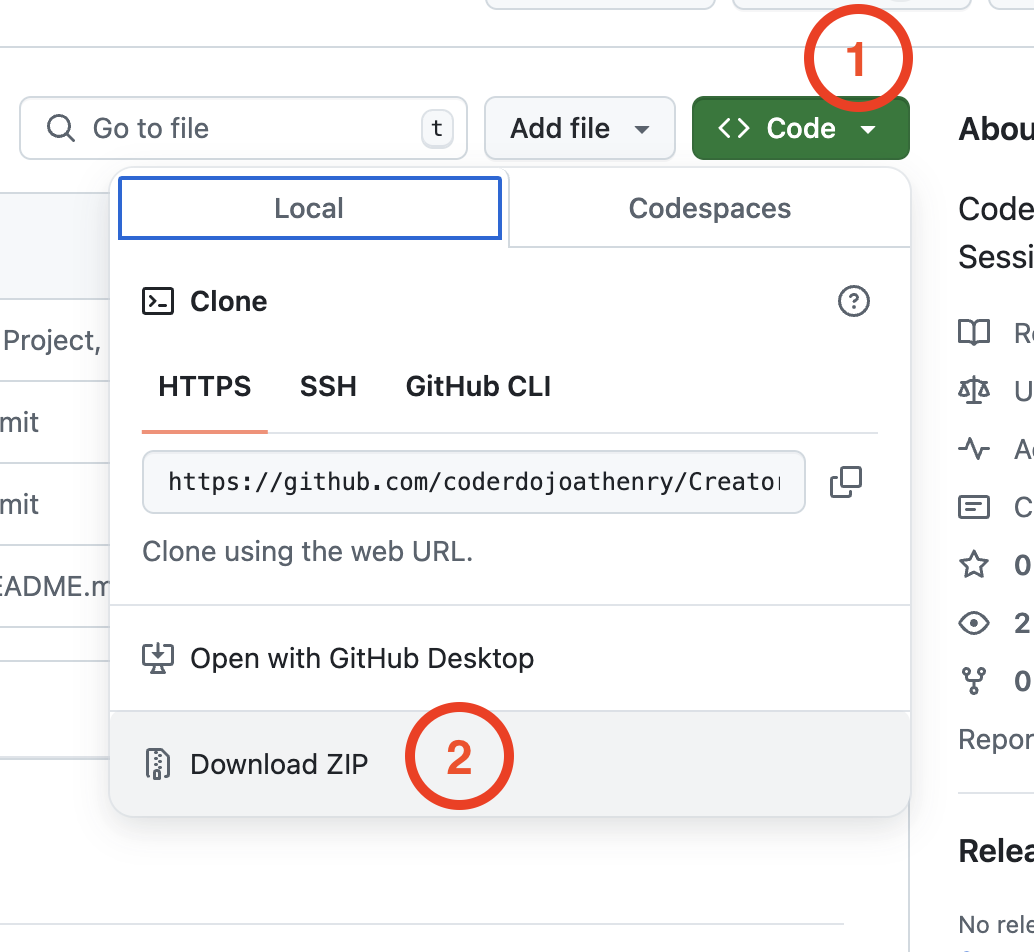
All our code for this year will be available on our GitHub. This will contain all code we write this year. At any point, use the green button on that page to download a ZIP file containing all the up-to-date code:
In Godot, just use the “Import” button from the Project List to load a project that’s not already listed.
Hi folks, the full 2024-2025 schedule is now available on our website.
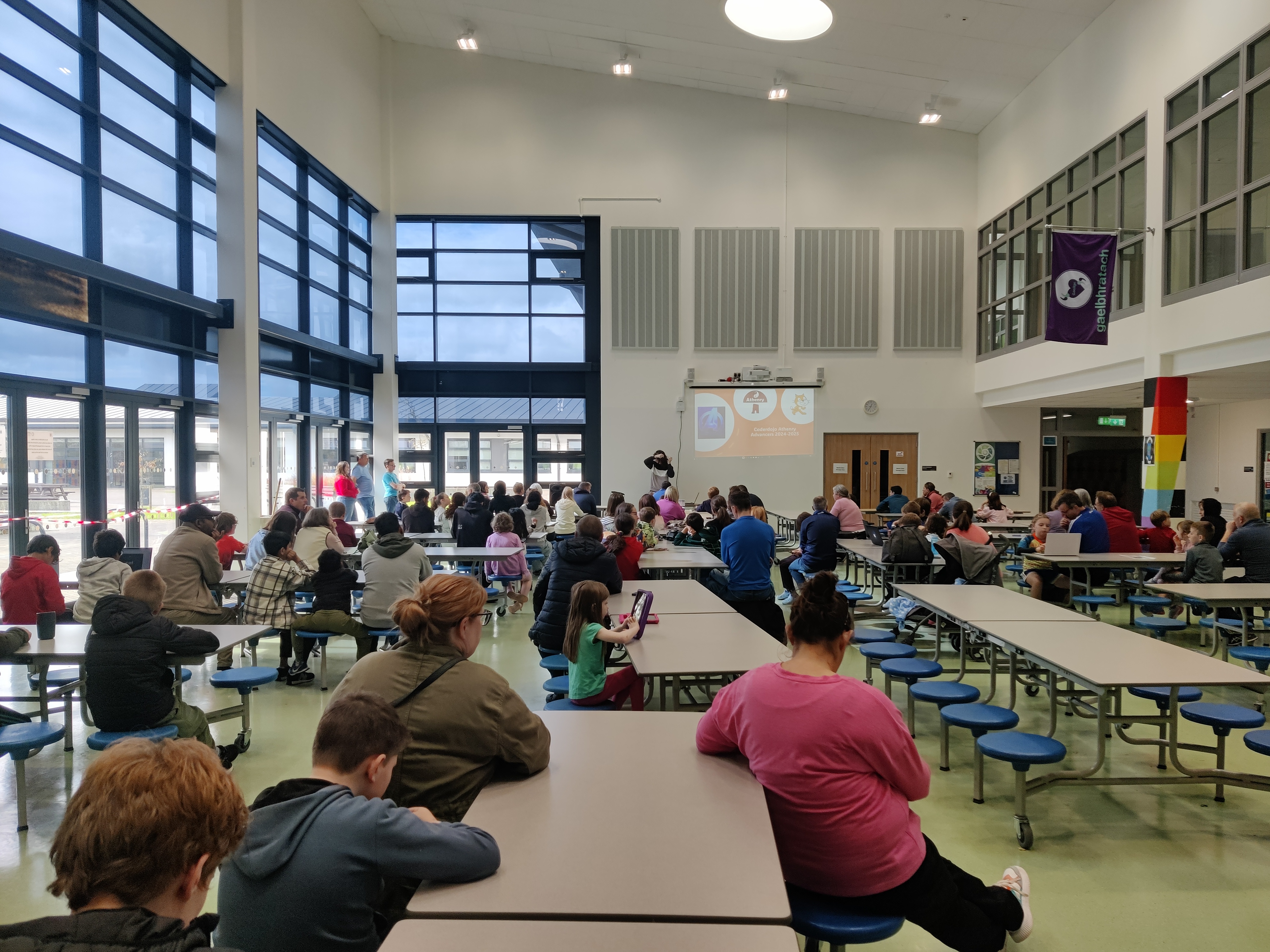
If you haven’t been to CoderDojo Athenry before, you’d like to know more information on the sessions we’re offering this year, or you have some questions, please come along to our Information Session on Saturday next (28th Sept 2024).
If you’ve attended CoderDojo Athenry before and already know the group you’re interested in, we’d be delighted to see you on the following week at our first normal session (5th Oct 2024).



 CoderDojo Athenry