This week we:
- Added a basic GameManager class
- Made a ShipKiller class that interfaces with GameManager
- Added an enemy that wanders around the screen
ShipKiller and GameManager
Godot nodes can emit a bunch of signals that indicate when things happen. For something like Area2D we’re usually most interested in signals like body_entered, which emits when something crossed into that area.
We can connect to these signals from our code. This works well when we have a small number of things to connect, but it’s not so useful when we have a lot of things to connect or for allowing us to connect to things dynamically created at run-time.
For our ShipKiller, we wanted a script that we could attach to any Area2D node and not require any further set-up for it to work. This will allow us to really easily use it for static obstacles, enemies and even enemy projectiles.
To make this work so simply, we made the GameManager class and attached it to a node of the same name. We gave this node a unique name. This means two things:
- There can only ever be one node in the tree called GameManager
- We can always just address the GameManager object in code as %GameManager and we don’t need to know the relative path. This makes it easy to use from anywhere.
Here’s out basic game_manager.gd script:
extends Node2D

@export var ship : Node2D

func inform_body_entered(body) -> void:
	if (body == ship):
		ship.queue_free()
and here’s our ship_killer.gd script:
extends Area2D

func _on_body_entered(body: Node2D) -> void:
	%GameManager.inform_body_entered(body)
Here is the sequence of actions:
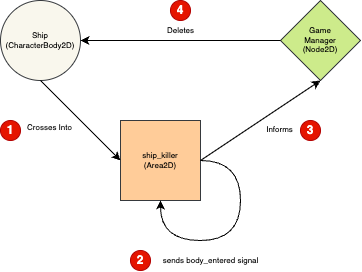
- The Ship (a CharacterBody2D) crosses into the area of the ShipKiller (an Area2D)
- This causes the Area2D to emit the body_entered signal which ship_killer.gd is connected to with it’s function _on_body_entered()
- ShipKiller tells the GameManager that something has just crossed its area
- GameManager checks to make sure it was the Ship, and if it was, deletes it
Enemy and Wandering Behaviour
We designed a multi-frame animated sprite at https://www.piskelapp.com/ and imported it into Godot as a spritesheet.
We created an Area2D node and called it Enemy0. Under that we placed a CollisionShape2D node, with a 32×32 RectangleShape2D defining it’s shape. We also placed an AnimatedSprite2D and used our enemy sprite sheet to define the animation.
We also added a Node2D under Ememy0, called it Mover and added a new script to it. This script is intended to be attached to the child of an existing node and so we’ll always be moving the parent, not the node the script is attached to. Again, this is to help us reuse this general purpose script.
Here is the version of mover.gd that we wrote:
extends Node2D

@export var direction : Vector2
@export var speed : float
@export var wander_time_min : float
@export var wander_time_max : float

var parent : Node2D
var vp_rect : Rect2
var wander_change_dir_time : float

# Called when the node enters the scene tree for the first time.
func _ready() -> void:
	parent = get_parent() as Node2D
	vp_rect = get_viewport_rect()
	set_wander_change_dir_time()

func set_wander_change_dir_time() -> void:
	wander_change_dir_time = randf_range(wander_time_min, wander_time_max)

# Called every frame. 'delta' is the elapsed time since the previous frame.
func _process(delta: float) -> void:
	if (parent == null):
		return

	wander_change_dir_time -= delta

	if (wander_change_dir_time < 0):
		pick_random_direction()
		set_wander_change_dir_time()

	correct_dir_for_bounds()
	parent.position += direction.normalized() * speed * delta

func correct_dir_for_bounds() -> void:
	if (direction.x < 0 && parent.position.x < 0):
		direction.x = 1
	if (direction.x > 0 && parent.position.x > vp_rect.size.x):
		direction.x = -1
	if (direction.y < 0 && parent.position.y < 0):
		direction.y = 1
	if (direction.y > 0 && parent.position.y > vp_rect.size.y):
		direction.y = -1

func pick_random_direction() -> void:
	direction = Vector2.ZERO
	while (direction == Vector2.ZERO):
		direction.x = randi_range(-1, 1)
		direction.y = randi_range(-1, 1)
The exported variables in the script define a direction of travel, a speed and a minimum and maximum time before the item changes direction.
Private variables are used to store the parent node and the viewport rectangle (the bounds of the screen) and the time until we are going to change direction next.
In the _ready() function we set the parent and viewport rect variables and we call a function set_wander_change_dir_time() which randomly picks a time until the next direction change between the minimum and maximum values we’ve supplied.
In _process() we first make sure that the parent variable has been set; if it hasn’t we leave immediately. We then take delta (the time since the last frame) away from the time until the next direction change. This has the effect of counting it town to zero.
Once the time until the next direction change has dropped to zero or below, we call pick_random_direction() to pick a new direction and we also call set_wander_change_dir_time() to set the time to the next direction change.
The function pick_random_direction() is pretty simple, but it is setup to keep picking random directions until the direction isn’t (0, 0), which would cause the item to stop dead. The function will return one of eight directions: up, up right, right, down right, down, down left, left or up left.
Finally the code compares the direction we’re travelling in and how close we are to the edge of the screen in that direction and reverse the direction we’re travelling if we’re going to cross the edge and go off the screen.
Once all that’s done, we actually move the parent’s position.
Getting the Code
All our code for this year is available on our GitHub.
 CoderDojo Athenry