We started a new game this week, inspired by the classic Crystal Quest written first for the Macintosh in 1987. Below is a screenshot of a later colourised version:
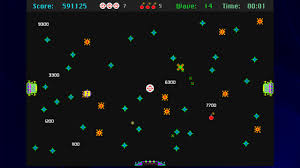
In Crystal Quest, the mouse controls the velocity of a little round ship, you must avoid obstacles and enemies, while collecting all crystals in a level, before making your way safely to the exit to complete a level. As the levels increase, the action gets increasingly intense.
We started a new project called Crystal Quest and chose a new 2D Scene as out starting point. We looked at the layout of the 2D scene and examined the default resolution in the Project Settings.
We renamed the Node2D at the top of our new scene “Main” and saved it to a project folder called “scenes”.
Adding our Ship
We added a CharacterBody2D to the scene and renamed it to “Ship”. It required a CollisionShape2D, we provided one with a CircleShape of 16px radius. This defines the shape of our object, for collision purposes.
We still had nothing we could see. While 3D games require 3D models, 2D games require 2D sprites (images). While Godot has a bunch of simple 3D shapes built-in, there’s nothing equivalent for 2D sprites.
We took a look at a free, online, pixel editing tool called Piskel:
There we were able to generate a 32x32px sprite to represent the ship.

The ship sprite below can be downloaded, if desired:

We exported the file from Piskel as a PNG and saved it to a “textures” folder in Godot. Now that we have this image resource, we were able to add a Sprite2D under Ship. The ship was then visible.
The ship was still at the top of the screen, so we relocated it to the centre. We then added a script to Ship, saving it in a “scripts” folder.
The default script file for a CharacterBody2D is to provide platform character-like movement (left, right and jump, with gravity). We explored this, adding a StaticBody2D and CollisionShape2D the bottom of the screen to catch the Ship before it fell past the bottom of the screen. Once we understood what the old code was doing, we removed all the code from the _process_physics() function except the last line; move_and_slide().
Moving Something Controlled by Physics
When we move something in Godot controlled by physics, we effectively state what we’d like to happen by adding forces to the body, or setting its velocity, but once we call move_and_slide() Godot will take everything that’s happening from a physics viewpoint and take that into account, alongside what we asked for. For example, if we propel our body into a wall, it can’t move through the wall, regardless of how we set the velocity to be into the wall.
Following the Mouse
In the Ship’s script, in the _process_physics() function, we added a couple, of lines. The first finds the location of the mouse pointer and the second sets the ships location to the mouse’s location:
func _physics_process(delta: float) -> void:
	var mouse_pos : Vector2 = get_viewport().get_mouse_position()
	position = mouse_pos
	move_and_slide()
While this seems initially to work, it also allows us to pass beyond the StaticBody2D representing the bottom wall of our game area. Setting the position isn’t what we really want to do. Instead, we set the velocity of the ship to point towards the mouse. This looks like the following:
@export var speed_by_distance : float = 1.0

func _physics_process(delta: float) -> void:
	var mouse_pos : Vector2 = get_viewport().get_mouse_position()
	var ship_to_mouse : Vector2 = mouse_pos - position

	velocity = ship_to_mouse * speed_by_distance
	move_and_slide()
Note also that we’ve added an export variable to control the ratio of speed to distance. This gives the effect that we want, the ship always moves towards the mouse pointer, the speed of movement is proportional to how far away the mouse is.
Sometimes, depending on the mouse or trackpad used, the ship might oscillate wildly once it’s at the mouse pointer’s location (if the mouse pointer is changing very slightly all the time). We can prevent this with a deadzone, as follows:
@export var speed_by_distance : float = 10.0

const DEADZONE : float = 10.0

func _physics_process(delta: float) -> void:
	var mouse_pos : Vector2 = get_viewport().get_mouse_position()
	var ship_to_mouse : Vector2 = mouse_pos - position
	var distance : float = ship_to_mouse.length()

	if (distance > DEADZONE):
		velocity = ship_to_mouse * speed_by_distance
	else:
		velocity = Vector2.ZERO

	move_and_slide()
Now the ship won’t move unless the mouse pointer is more than 10px from the ship’s centre. Note too, that we’ve upped the ship’s speed_by_distance to 10.0.
Hiding the Mouse Pointer
The Operating System mouse pointer is distracting in our game. To hide it, we created a new Node2D as a child of Main and called it “MouseHider”. We added a new script as follows:
extends Node2D

# Called every frame. 'delta' is the elapsed time since the previous frame.
func _process(delta: float) -> void:
	var vp_rect : Rect2 = get_viewport().get_visible_rect()
	var mouse_pos : Vector2 = get_viewport().get_mouse_position()

	if (vp_rect.has_point(mouse_pos)):
		Input.set_mouse_mode(Input.MOUSE_MODE_HIDDEN)
	else:
		Input.set_mouse_mode(Input.MOUSE_MODE_VISIBLE)
This hides the mouse pointer if it’s inside the viewport (screen) and enables it again outside of that.
Getting the Code
All our code for this year is available on our GitHub.
 CoderDojo Athenry