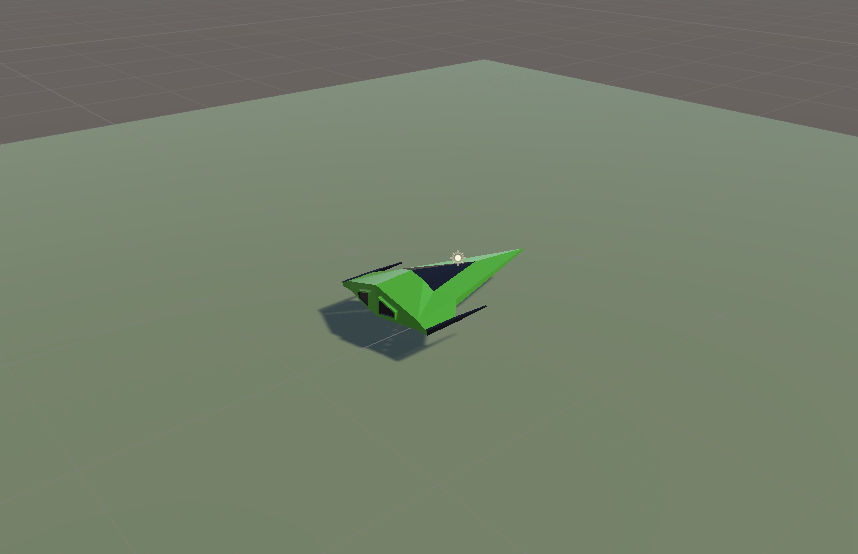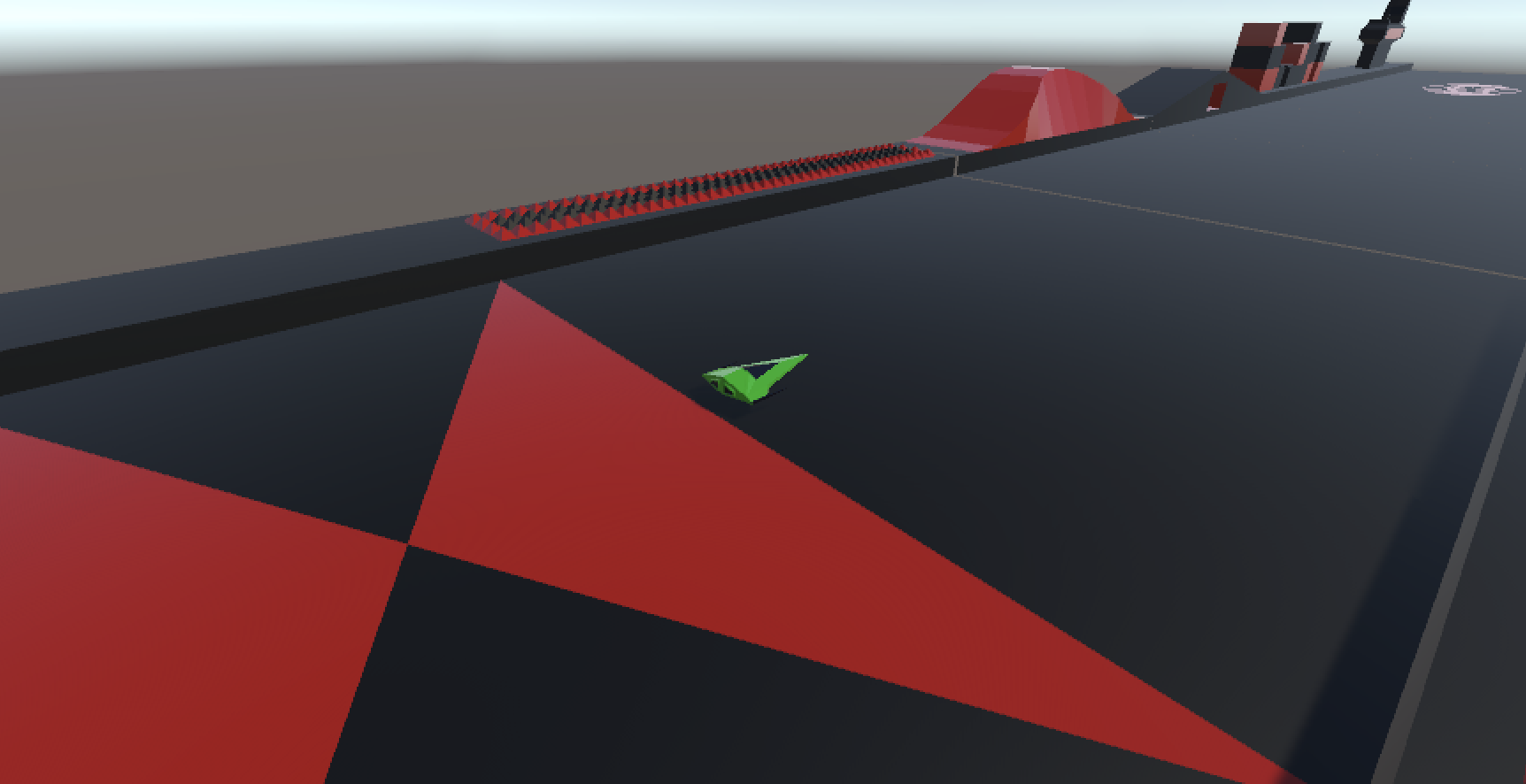
Creators – Week 13

This week we continued writing the code to control our environment.

Creating a Random Piece of Environment

We started by adding a new function CreatePrefab() to EnvController.cs. It uses Random.Range() to pick a random prefab from EnvPrefabs and then uses Instantiate() to create a copy of that prefab in the scene. Here’s the first version we wrote:

  private GameObject CreatePrefab(Vector3 position)
  {
    // Pick a random prefab
    int numPrefabs = EnvPrefabs.Length;
    GameObject prefab = EnvPrefabs[Random.Range(0, numPrefabs)];

    // Create an instance of it
    GameObject go = Instantiate(prefab, position,
                                Quaternion.identity, transform);

    // Add DestroyAfterDistance to it
    DestroyAfterDistance dad = go.AddComponent<DestroyAfterDistance>();
    dad.Distance = 700.0f;

    // Add ConstantMovement to it
    ConstantMovement cm = go.AddComponent<ConstantMovement>();
    cm.Direction = Vector3.left;
    cm.Speed = 100.0f;

    // Return it
    return go;
  }

Note that CreatePrefab() takes a position to create the new instance at as an argument. It also returns the GameObject we created, which will prove useful later.

To make the code actually run, we added this to the Start() function:

CreatePrefab(Vector3.zero)

Vector3.zero represents (0, 0, 0).

We quickly found that this created our random piece of environment, but it wasn’t rotated the way we wanted. We updated CreatePrefab() as follows to correct that:

    // Create an instance of it
    Quaternion rotation = Quaternion.Euler(0, -90, 0);
    GameObject go = Instantiate(prefab, position,
                                rotation, transform);

We create a new variable rotation which represents a rotation of -90 degrees around Y (the vertical) and then use it in the call to Instantiate() instead of Quaternion.identity.

Initial Environment Setup

When the game starts, we want to have the ground under and ahead of the spaceship filled in. To do this, we first create some new class properties:

  public GameObject[] EnvPrefabs;
  public float Spacing = 100.0f;
  public float Speed = 50.0f;
  public int Count = 6;

  private Vector3 _spawnPoint;
  private GameObject _lastGo;

There are three new public properties. Spacing represents the size of each environment piece. Speed is the speed we’d like everything to move at. Count is how many environment pieces to have visible at a time.

There are also two private properties. _spawnPoint represents the place we’d like new pieces of environment to appear. _lastGo stores the last piece of environment we created.

In Start() we initialise _spawnPoint() like this:

    // Calculate the spawn point based on spacing and count
    _spawnPoint = Vector3.right * Count * Spacing;

We’ll use all these properties eventually. For now, we just write a new function Preload() and call it from Start() instead of CreatePrefab().

  private void Preload()
  {
    for (int i = 0; i < Count; i++)
    {
      Vector3 pos = Vector3.right * i * Spacing;
      _lastGo = CreatePrefab(pos);
    }
  }

This function just loops for Count times, working out a new location to place the environment piece and calling CreatePrefab(). It stores each prefab as we create it in _lastGo. When we run, we see the environment under the ship, but once it passes it’s gone and no more is created.

Having EnvController Control the Speed of the Environment Pieces

Instead of having each environment piece we create have it’s speed set and constant, we decided to link it to the EnvController. To to that we create a new class called MoveWithEnvironment.cs. It looks like this:

using UnityEngine;

public class MoveWithEnvironment : MonoBehaviour
{
  public EnvController EnvController;

  // Update is called once per frame
  void Update()
  {
    if (EnvController == null)
      return;

    transform.position = transform.position +
      (Vector3.left * EnvController.Speed * Time.deltaTime);
  }
}

It’s very similar to ConstantMovement but it always moves towards Vector3.left and it takes speed from the EnvController. This allows us to vary the speed in the EnvController and have all environmental pieces immediately react to that. We need to add this, instead of ConstantMovement, to our newly created piece of environment in EnvController.CreatePrefab():

    :   :    :
    // Add DestroyAfterDistance to it
    DestroyAfterDistance dad = go.AddComponent<DestroyAfterDistance>();
    dad.Distance = 700.0f;

    // Add MoveWithEnvironment to it
    MoveWithEnvironment mwe = go.AddComponent<MoveWithEnvironment>();
    mwe.EnvController = this;

    // Return it
    return go;
}

All the code relating to ConstantMovement is replaced with code relating to MoveWithEnvironment instead. We assign the special variable this to set the EnvController property in MoveWithEnvironment.

Creating More Environment as We Need It

To create environment as we need it, we added code to Update() as follows:

  void Update()
  {
    if (_lastGo == null)
      return;

    float distToLast = Vector3.Magnitude(_lastGo.transform.position -
                                         _spawnPoint);
    if (distToLast >= Spacing)
    {
      _lastGo = CreatePrefab(_spawnPoint);
    }
  }

The code first checks to make sure that _lastGo has been set. If it has, it worked out how far the last piece of environment has moved from the _spawnPoint. If it’s equal to, or greater than, the spacing then we make a new piece of environment.

Now, as pieces of the environment move towards Vector3.left new ones are created as needed in front of our spaceship.

This code almost works great, but there’s one thing – there’s clearly gaps between the pieces of environment some times. This is because it’s not likely that on a specific frame the environment piece will have moved exactly Spacing meters. It will usually have moved a little more, hence the gaps.

Next session, we’ll correct for this.

Getting the Code

All the code we’re made this year is on our GitHub. It can be found here. If you don’t have the latest version of our code before any session, use the green Code button on that page to get the “Download ZIP” option which will give you a full copy of all code we’ll be writing this year.

Bodgers – Servos

This week we will connect a SG90 mini servo to our Pico.

Wire the breadboard as shown below:

First test that the buttons are working correctly with the following code.

from machine import Pin
from time import sleep

button_1 = Pin(18, Pin.IN, Pin.PULL_UP)
button_2 = Pin(19, Pin.IN, Pin.PULL_UP)

while True:
    if button_1.value() == 0:
        print("Button 1 is Pressed")
    if button_2.value() == 0:
        print("Button 2 is Pressed")
    sleep(0.1)

Next here is the code for the Servo.

from machine import Pin, PWM
from time import sleep

servo_pin = PWM(Pin(0))
servo_pin.freq(50)

def servo(degrees):
    if degrees > 180:
        degrees = 180
    if degrees < 0:
        degrees = 0
       
    max_duty = 8050
    min_duty = 1650
       
    new_duty = (min_duty + (max_duty - min_duty) * (degrees/180))
    servo_pin.duty_u16(int(new_duty))

servo(0)
sleep(0.5)
servo(90)
sleep(0.3)
servo(180)
sleep(0.3)

This weeks challenge is to combine both pieces of code above so that when button 1 is pressed the servo arm will move one way and when button 2 is pressed it will move in the opposite direction.

Creators – Week 12

This week we took our Blender creations back into Unity. We started with the same file, ShipsAndEnv3.5,blend, which can be found here on our Teams site (for site members only).

Export from Blender

Blender offers extensive export options and we quickly ran through the list. The one we’re going to use is FBX. It’s a widely used format, well supported in lots of 3D software, with good material and animation support.

To export the file, we made sure all object were unhidden, and chose File|Export|FBX. We left all the options as-is except the “Apply Transforms” option, which we selected. This option has a warning next to it, as it doesn’t work with animations, but that doesn’t apply to us here.

The resulting FBX file was saved to the same folder as our BLEND file.

Import into Unity

To import the FBX file into Unity, we created a new folder called “Model” and dragged the FBX file from Windows Explorer/macOS Finder into it.

We decided to extract the materials from the file. This will allow us to change them in Unity. To do that we selected the FBX in the Model folder in Unity and in the Inspector window, went to the Material tab and chose “Extract Materials”. All the materials in the FBX were then extracted as Unity materials in the same folder as the FBX file.

Prefabs

We then wanted to break apart the combined FBX file into it’s separate parts. To do that we first created a blank scene and dropped the model from the “Model” folder into the Hierarchy window. We checked the Inspector window to make sure it was positioned at (0, 0, 0) and adjusted it if needs be.

Note that Unity showed the model coloured blue in the Hierarchy. This means it was treating it as a “Prefab”. A prefab in Unity is just a collection of GameObjects and components that are treated as a template. It’s easy to create copies of them at run-time.

We want prefabs of all the things in the FBX file, not the FBX model itself. To separate out the bits from the FBX model, we right-clicked on it in the hierarchy and chose Prefab|Break Apart Completely. Not much obviously changed except everything in the hierarchy turned black, indicating it was no longer a prefab, just normal objects.

We then created a new folder called “Prefabs” and dragged everything inside the FBX model (but not the FBX model itself) into it. That’s all you have to do to make something you already have in a Unity scene into a prefab, drag it into the Project window. Now we can create copies of all these objects at run-time very easily.

Adding our Ship to the Scene

To add our ship to the scene, we dragged the Ship prefab from the Prefabs folder and dropped it onto the Player gameobject in the Hierarchy. The Ship model was then a child of the Player object. We needed to rotate the Ship by -90 around the Y axis to make it point in the correct direction. We also set the scale of teh Plater object to (1, 1, 1) and removed the Mesh Filter, Mesh Renderer and Box Collider components from Player, as these were no longer needed.

Our game looks better already with a ship model rather than a flying mattress!

Some Test Code

We tested two simple components on a test cube added to the scene. One which created constant movement in a particular direction and the other which deletes the attached gameobject once we’ve traveled a set distance from where we started.

The first of these, ConstantMovement.cs looks like this:

using UnityEngine;

public class ConstantMovement : MonoBehaviour
{
  public Vector3 Direction = Vector3.forward;
  public float Speed = 10.0f;

  // Update is called once per frame
  void Update()
  {
    Vector3 offset = Direction.normalized * Speed * Time.deltaTime;
    transform.position = transform.position + offset;
  }
}

Two public variables define the direction and speed respectively. In Update() we calculate how to move this frame by multiplying the normalised version of the Direction (normalised meaning the length is set to 1) by the speed and Time.deltaTime (the time since the last frame). We then set a new value for the position by adding this offset to the previous position.

The second DestroyAfterDistance.cs looks like this:

using UnityEngine;

public class DestroyAfterDistance : MonoBehaviour
{
  public float Distance = 10.0f;

  private Vector3 _initPos;

  // Start is called before the first frame update
  void Start()
  {
    _initPos = transform.position;      
  }

  // Update is called once per frame
  void Update()
  {
    Vector3 offset = _initPos - transform.position;
    float offsetDist = offset.magnitude;

    if (offsetDist >= Distance)
    {
      Destroy(gameObject);
    }
  }
}

It just has once public variable, the distance the GameObject is allowed to travel. It also has one private variable, set in Start(), which stores the initial position.

In Update() we check how far we’ve travelled by getting the vector difference between the start position and our current position and then getting it’s magnitude (aka length). This tells us how far we have moved. if this distance is greater than the the specified Distance, we call Destroy(gameObject) thereby destroying the GameObject this component is attached to.

Getting the Code

All the code we’re made this year is on our GitHub. It can be found here. If you don’t have the latest version of our code before any session, use the green Code button on that page to get the “Download ZIP” option which will give you a full copy of all code we’ll be writing this year.

Bodgers – Buttons

This week we are looking at using buttons on our Raspberry Pi Picos.

Connect the LEDs and Buttons to the Pico as shown below:

Next use the code below to test the LEDs

from machine import Pin
from time import sleep

red_led = Pin(15, Pin.OUT)
green_led = Pin(14, Pin.OUT)

def blink():
    red_led.value(1)
    sleep(0.5)
    red_led.value(0)
    green_led.value(1)
    sleep(0.5)
    green_led.value(0)

while True:
    blink()

Next we’ll test the buttons using the following code:

from machine import Pin
from time import sleep

button_1 = Pin(18, Pin.IN, Pin.PULL_UP)
button_2 = Pin(19, Pin.IN, Pin.PULL_UP)

while True:
    if button_1.value() == 0:
        print("Button 1 is Pressed")
    if button_2.value() == 0:
        print("Button 2 is Pressed")
    sleep(0.1)

This week’s challenge is create a program called buttons_leds.py that turns on the red LED and turns off the green LED when button 1 is pressed and when button 2 is pressed will turn the green one on and the red one off.